> ## Documentation Index
> Fetch the complete documentation index at: https://help.latchel.com/llms.txt
> Use this file to discover all available pages before exploring further.
# A Service Provider's Guide in Updating a Work Order
> This training guide walks service providers through how to manage maintenance work orders in Latchel, from receiving a job offer to completing the work and submitting an invoice. It highlights what to expect at each stage of the process and how to take action within the platform.
### **Latchel Intro Video for Service Providers**
### **Work Order Details**
From the Service Provider dashboard, click on the **Work Order Number** from the **Other Work Order Status**.
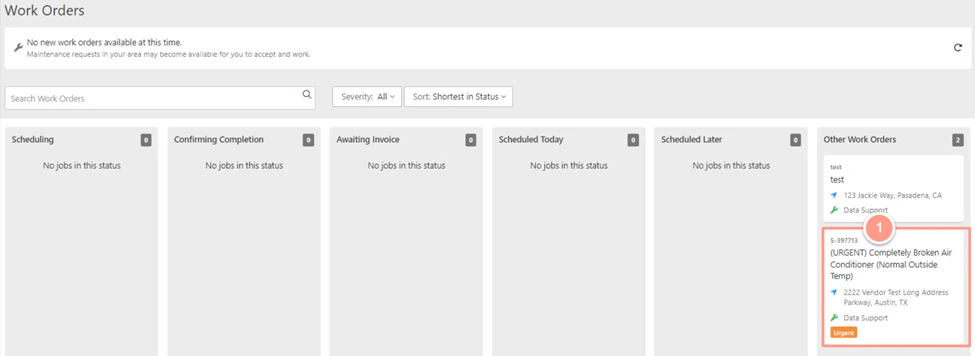 The next page will show work order details such as Order number, work order description, etc. Take a closer look of the Work Order Details page and each of its section below.
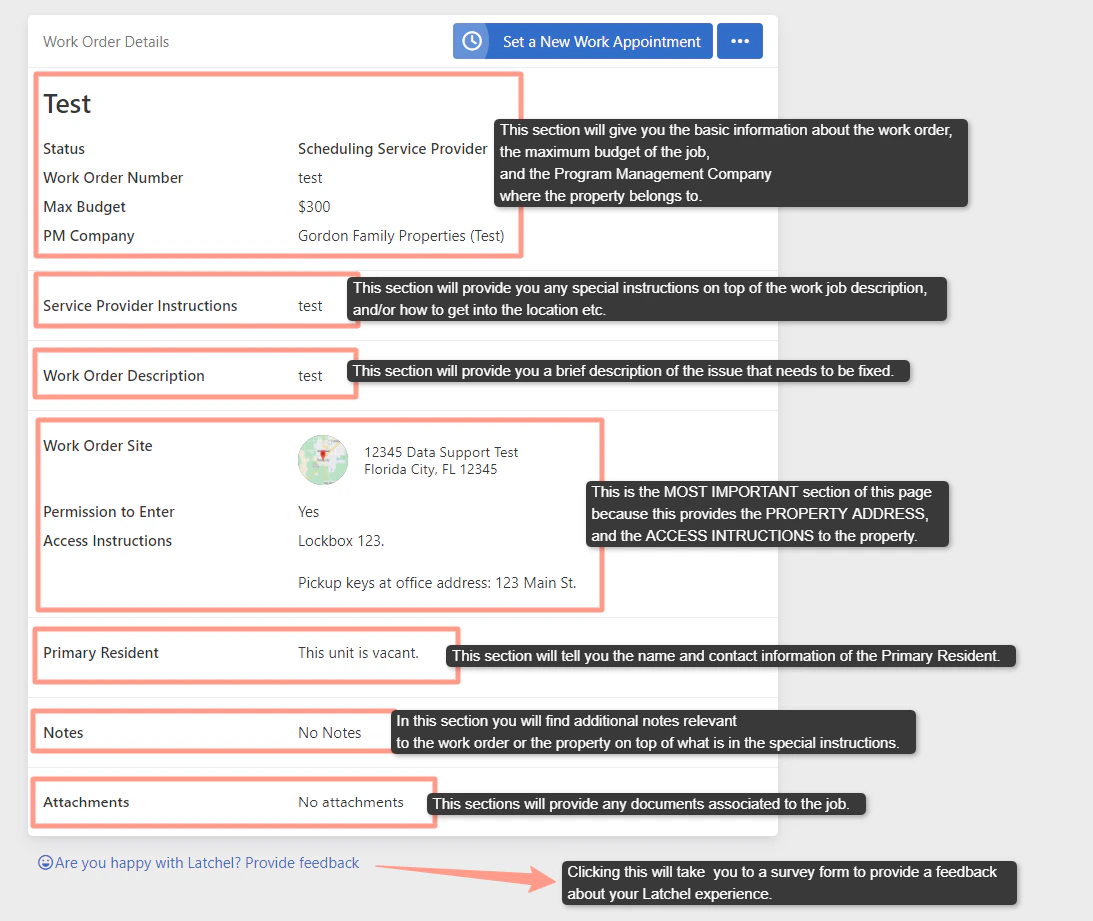 You will **NOT** be able to see the complete details of the work order, more importantly the property address, unless you **Accept & Schedule the job**.
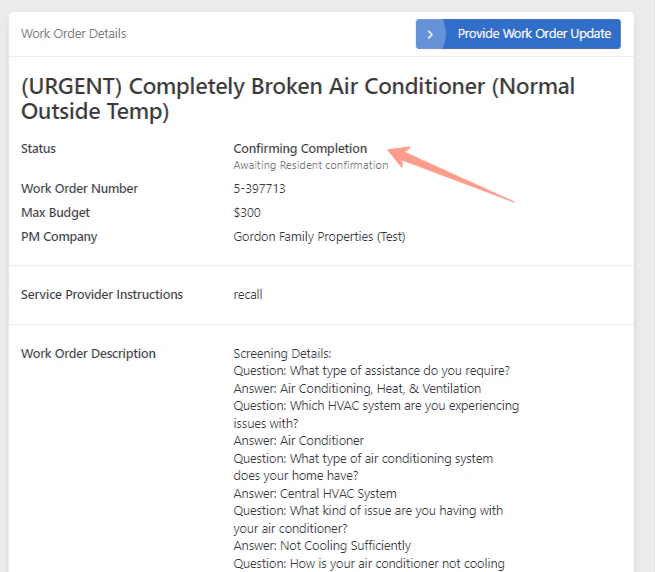
Then if you want to update the work order, click on **Provide Work Order Update** at the top right corner of the page.
You will **NOT** be able to see the complete details of the work order, more importantly the property address, unless you **Accept & Schedule the job**.
Then if you want to update the work order, click on **Provide Work Order Update** at the top right corner of the page.
 The page will be routed to options available to update the job which varies from different categories. Let's talk about them one by one.
 ### **Set a New Work Appointment**
As a service provider, you may set a new schedule based on the resident's availability. You may check this help guide for the step-by-step flow:
Guide on accepting and scheduling work orders through your dashboard.
### **Add Estimate**
If the job requires an additional budget to resolve the issue, you may send an estimate for Property Managers/Owners' approval. Check the guide below to know how!
How to submit qoutes or bids when requested by the property manager.
### **Mark Job as Complete**
Once the job is complete and to initiate an invoice for payment, click on **Mark Job as Complete**. By clicking it, you will have the following options:
* **Yes, it's done.** - if there is no additional work to do, and that job has been completed.
* **There's more to Do** - choose this option if the job is not yet finished and you need to make a follow-up visit to complete the job.
For this example, let's click **Yes, it's done**.
### **Set a New Work Appointment**
As a service provider, you may set a new schedule based on the resident's availability. You may check this help guide for the step-by-step flow:
Guide on accepting and scheduling work orders through your dashboard.
### **Add Estimate**
If the job requires an additional budget to resolve the issue, you may send an estimate for Property Managers/Owners' approval. Check the guide below to know how!
How to submit qoutes or bids when requested by the property manager.
### **Mark Job as Complete**
Once the job is complete and to initiate an invoice for payment, click on **Mark Job as Complete**. By clicking it, you will have the following options:
* **Yes, it's done.** - if there is no additional work to do, and that job has been completed.
* **There's more to Do** - choose this option if the job is not yet finished and you need to make a follow-up visit to complete the job.
For this example, let's click **Yes, it's done**.
 The next question will ask you if you have encountered damage that was caused by the Resident.
**Please make sure to appropriately answer if the damage was caused by the resident or not.** Answering this question will allow the Property Manager or the Owner to properly bill the resident if necessary.
### **Follow-Up Work Required**
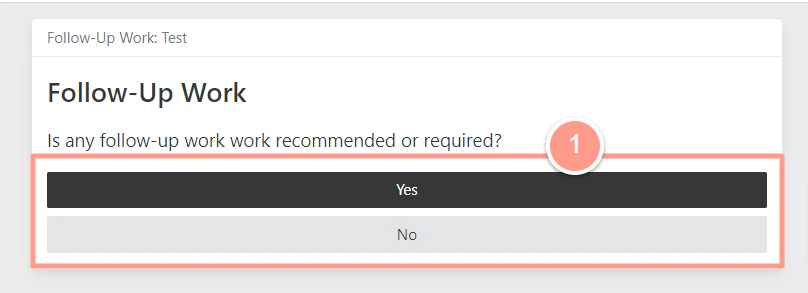
Next, click **Yes** or **No**, if a follow-up work is recommended or not. If you click No, the work order will proceed to **Confirming Completion** status.
The next question will ask you if you have encountered damage that was caused by the Resident.
**Please make sure to appropriately answer if the damage was caused by the resident or not.** Answering this question will allow the Property Manager or the Owner to properly bill the resident if necessary.
### **Follow-Up Work Required**
Next, click **Yes** or **No**, if a follow-up work is recommended or not. If you click No, the work order will proceed to **Confirming Completion** status.
 On the other hand, choosing **Yes** will take you to the next page asking if you the following:
* Can you do the follow-up work?
* The project budget
* When can you do the job?
Click **Yes** if you believe a follow-up is required, and **No** if otherwise.
On the other hand, choosing **Yes** will take you to the next page asking if you the following:
* Can you do the follow-up work?
* The project budget
* When can you do the job?
Click **Yes** if you believe a follow-up is required, and **No** if otherwise.
 Clicking Yes will take you to the next page asking you **if you can do the follow-up work**, the option to **add the Project Budget**, and **when you can do the next work**.
If you selected **Preferred Date**, you will be presented with a calendar to choose the date you can do the follow-up work.
Clicking Yes will take you to the next page asking you **if you can do the follow-up work**, the option to **add the Project Budget**, and **when you can do the next work**.
If you selected **Preferred Date**, you will be presented with a calendar to choose the date you can do the follow-up work.
 Provide a detailed explanation for the recommended or required work to do in the follow-up. Click **Submit** once done.
 ### **Update Job Progress**
You may report if you did some work or not at all yet by choosing this option. This option will ask you specific questions on why the work has not been completed.
### **Update Job Progress**
You may report if you did some work or not at all yet by choosing this option. This option will ask you specific questions on why the work has not been completed.
 ### **Budget or Estimate Was Denied**
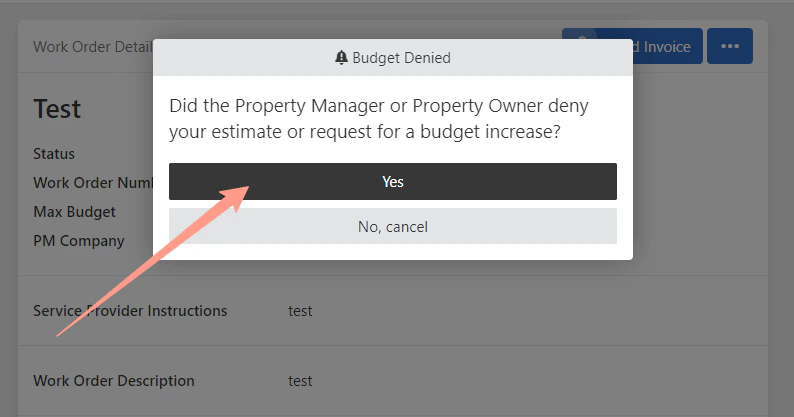
When the property manager/owner denies the budget, you may update the job with this, click **Yes** on **Did the Property Manager or Property Owner deny your estimate or request for a budget increase?** and the order will get canceled.
### **Budget or Estimate Was Denied**
When the property manager/owner denies the budget, you may update the job with this, click **Yes** on **Did the Property Manager or Property Owner deny your estimate or request for a budget increase?** and the order will get canceled.
 ### **Add Invoice**
You can add an invoice for the Property manager or owner reference, and you to get paid accordingly. Check the help guide below to know how!
Learn how to upload an invoice file if you're not using Latchel's invoice tool.
### **Add Image and Files**
You can add supporting files like the before-and-after image of the issue for property manager/owner reference. Check the article below for more details on adding image and files!
Upload photos or documents to provide context or proof of completed work.
### **Remove Me From This Work Order**
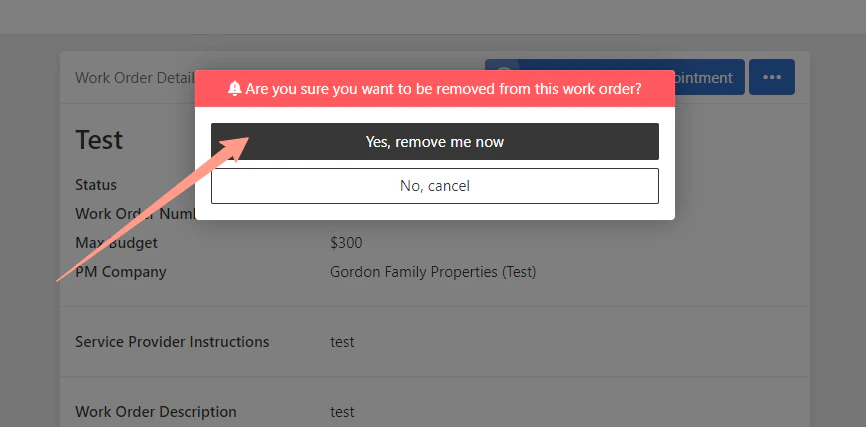
If you cannot work on the job, click this option and select **Yes, remove me now**. Then you will be removed as the assigned service provider in the work order.
### **Add Invoice**
You can add an invoice for the Property manager or owner reference, and you to get paid accordingly. Check the help guide below to know how!
Learn how to upload an invoice file if you're not using Latchel's invoice tool.
### **Add Image and Files**
You can add supporting files like the before-and-after image of the issue for property manager/owner reference. Check the article below for more details on adding image and files!
Upload photos or documents to provide context or proof of completed work.
### **Remove Me From This Work Order**
If you cannot work on the job, click this option and select **Yes, remove me now**. Then you will be removed as the assigned service provider in the work order.
 ### **Add Note**
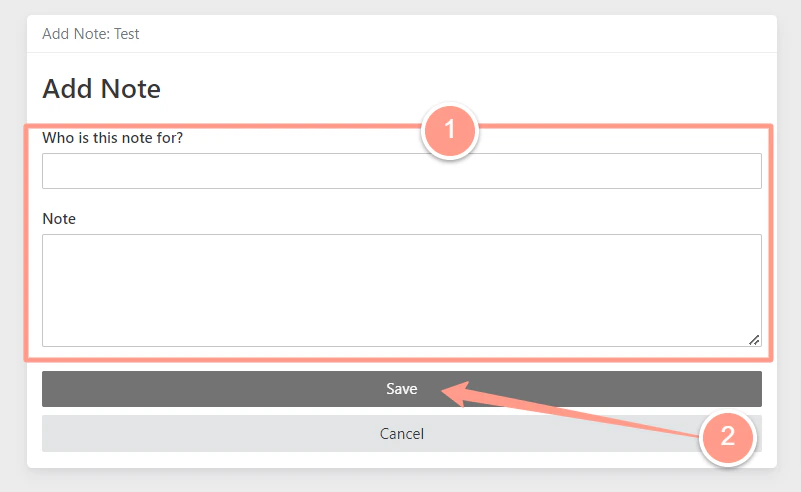
If you need to notify either yourself (service provider) or the property manager/owner, and provide work update status, click the **Add Note** option. Then **Save**.
### **Add Note**
If you need to notify either yourself (service provider) or the property manager/owner, and provide work update status, click the **Add Note** option. Then **Save**.
 ### **I Need Help**
If you need more help on the job, you can choose this option. Furthermore, it's the option to let Latchel Admin or the Property Manager if the job is time-sensitive or needs urgent attention. For this help guide click on **Not Time Sensitive**. The next page will allow you to place a comment, then click on **Send**. The Property Manager or Latchel admin will be notified to look into the help needed.
### **I Need Help**
If you need more help on the job, you can choose this option. Furthermore, it's the option to let Latchel Admin or the Property Manager if the job is time-sensitive or needs urgent attention. For this help guide click on **Not Time Sensitive**. The next page will allow you to place a comment, then click on **Send**. The Property Manager or Latchel admin will be notified to look into the help needed.
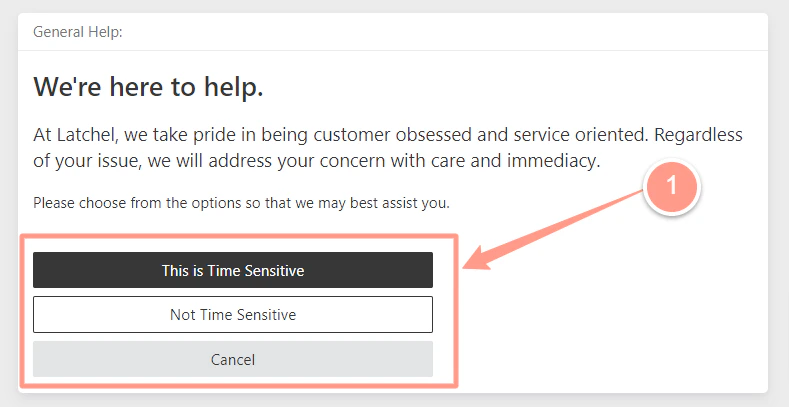
 If the help is time sensitive, you will be asked to call the **Latchel Team Number** which will be presented on the next screen after clicking **This is Time Sensitive.**
### **Generate PDF**
This action will download the job copy as a PDF for Service Provider reference.
If the help is time sensitive, you will be asked to call the **Latchel Team Number** which will be presented on the next screen after clicking **This is Time Sensitive.**
### **Generate PDF**
This action will download the job copy as a PDF for Service Provider reference.