> ## Documentation Index
> Fetch the complete documentation index at: https://help.latchel.com/llms.txt
> Use this file to discover all available pages before exploring further.
# Accessing Your Latchel Portal (Service Providers)
> Exciting news for Service Providers! With the Latchel portal, you can easily access and view all jobs, providing updates to keep things moving smoothly.
### **Quick Video Tutorial: Start Here!**
Whenever a work order becomes available depending on your skill set, **a notification will be sent** out through:
* **Automated emails from** [scheduler@latchel.com](mailto:scheduler@latchel.com)
* **Via SMS received from Latchel**
### **Accessing Your Latchel Dashboard Link Via Email**
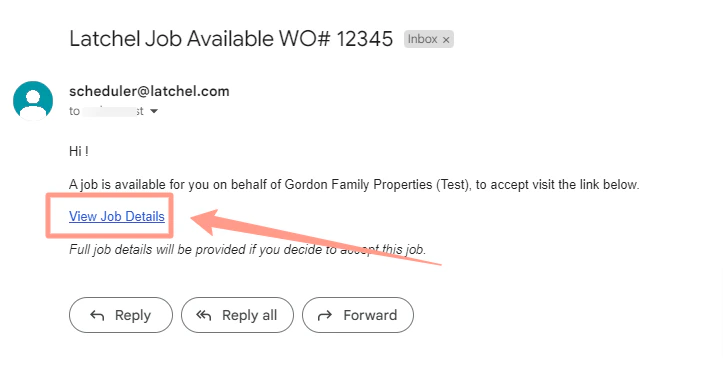
A work order in Finding Service Provider will send automated invites to service providers on queue. The email will show from which Property Management company the work order is from and by clicking on **View Job Details**, it will route you to your **Latchel Dashboard** for you to update the work order.
### **Accessing Your Latchel Dashboard Via SMS**
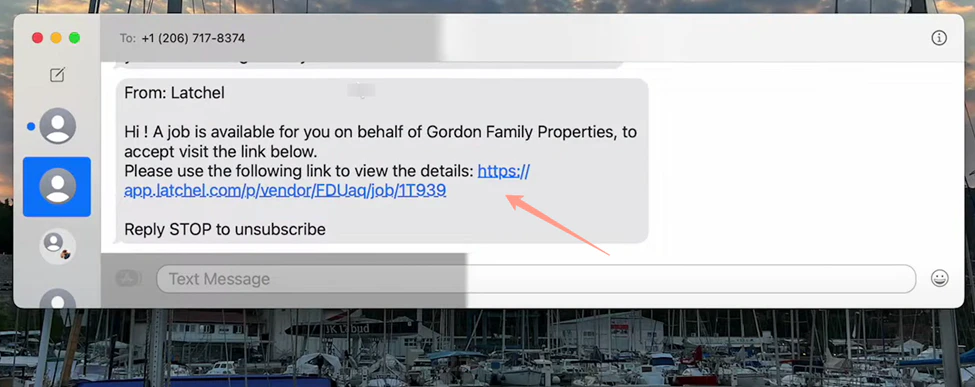
Depending on the setup of the account, you may also receive an **SMS**. You can view and accept the job by clicking on the **link**. The SMS message is similar to what you received in the email.
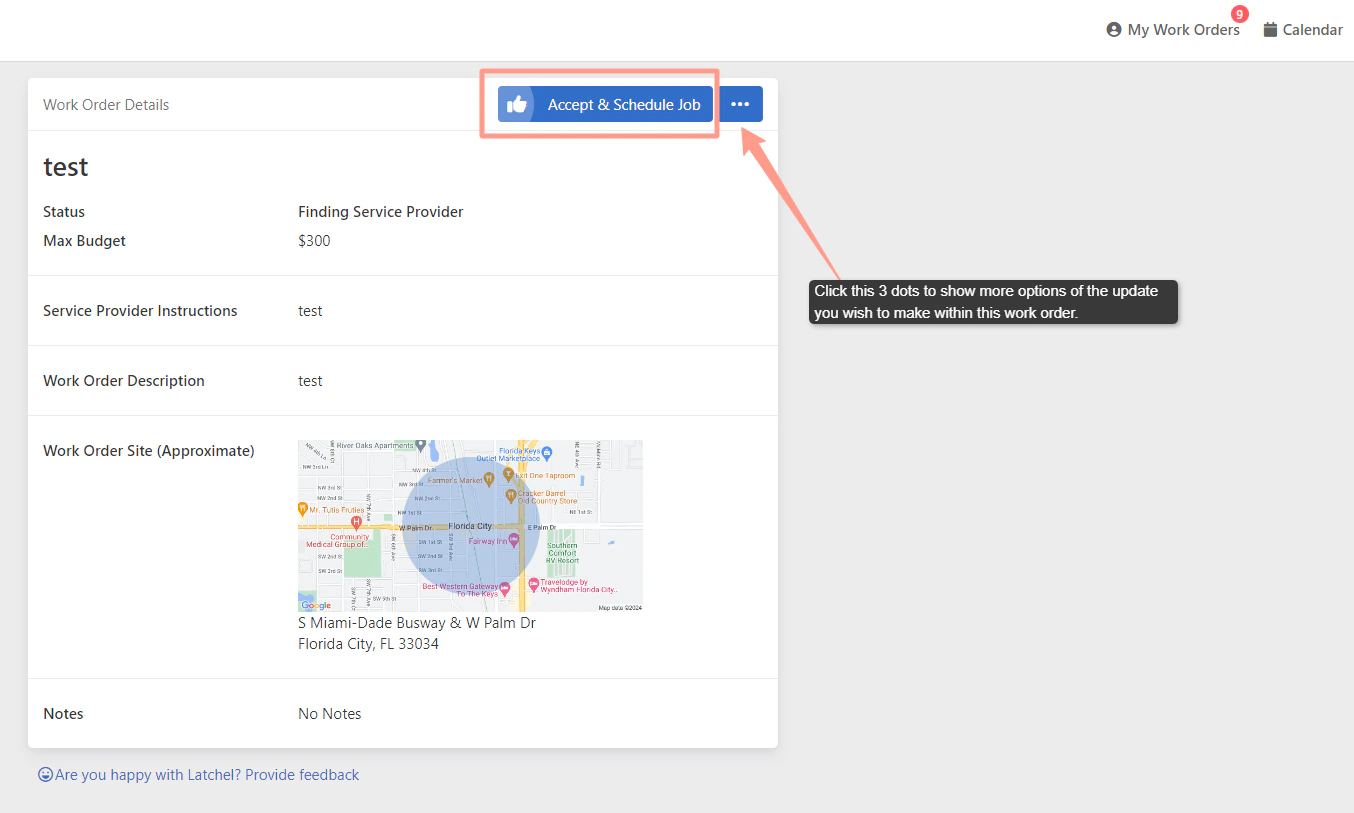
Clicking the work order details link within either the email or SMS you received will take you to the **Work Order details page**. From here, you can make the necessary updates you need in the work order.
Looking for more details about work orders? Please check:
An overview of the information you can view and manage within a work order.
You will **NOT** be able to see the complete details of the work order, more importantly the property address, unless you Accept & Schedule the job.
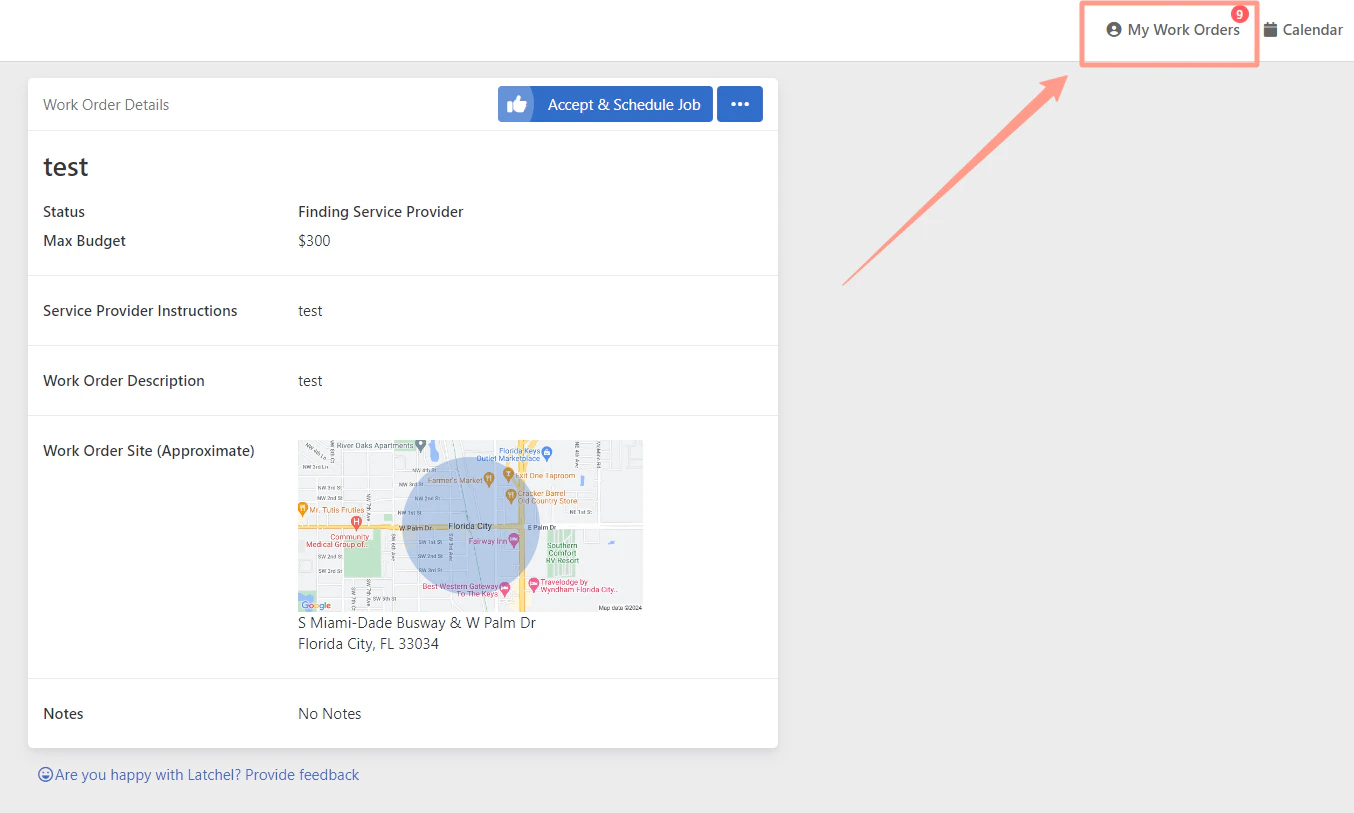
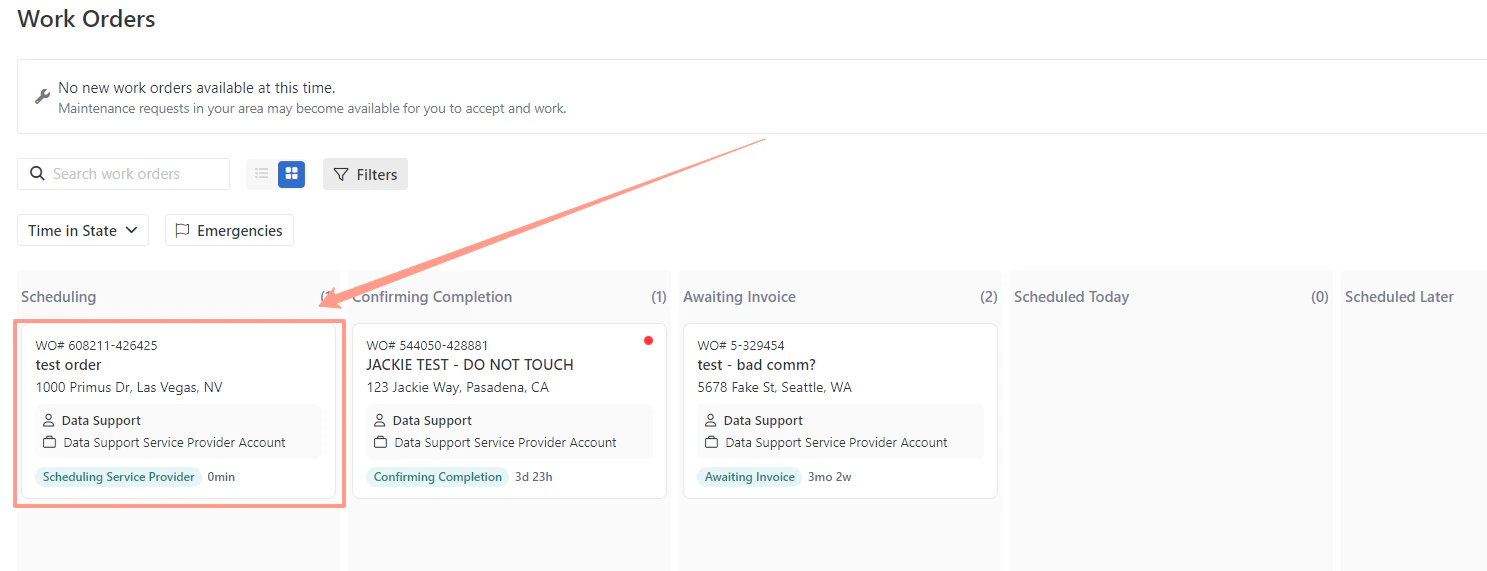
In the same page, you will find the **My Maintenance** option located at the upper right hand corner of the page. By clicking this, it will take you to your Latchel dashboard.
The dashboard will show recent work orders assigned to you categorized per status. The Latchel dashboard link is unique to every Service Provider. It can be saved as a favorite in the browser or mobile phone device for easy access
**Want to get full details on what's in Latchel Dashboard? Check the guide below!**
Get familiar with the main features and tools on your dashboard.
 ### **Accessing Your Latchel Dashboard Via SMS**
Depending on the setup of the account, you may also receive an **SMS**. You can view and accept the job by clicking on the **link**. The SMS message is similar to what you received in the email.
### **Accessing Your Latchel Dashboard Via SMS**
Depending on the setup of the account, you may also receive an **SMS**. You can view and accept the job by clicking on the **link**. The SMS message is similar to what you received in the email.
 Clicking the work order details link within either the email or SMS you received will take you to the **Work Order details page**. From here, you can make the necessary updates you need in the work order.
Looking for more details about work orders? Please check:
Clicking the work order details link within either the email or SMS you received will take you to the **Work Order details page**. From here, you can make the necessary updates you need in the work order.
Looking for more details about work orders? Please check: