> ## Documentation Index
> Fetch the complete documentation index at: https://help.latchel.com/llms.txt
> Use this file to discover all available pages before exploring further.
# An Overview of the Service Provider Dashboard
> Take a quick tour of your Service Provider Dashboard to see where you can view work orders, track job statuses, manage your schedule, and access important account info.
### **Sign In to Latchel**
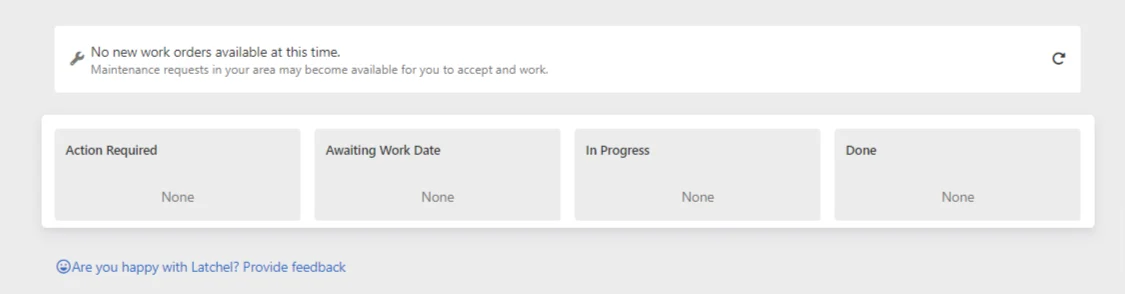
As a Service Provider, when you access your dashboard, you'll be taken to the public dashboard where you can see four columns showing the **Action Required**, **Awaiting Work Date**, **In Progress**, and **Done** status.
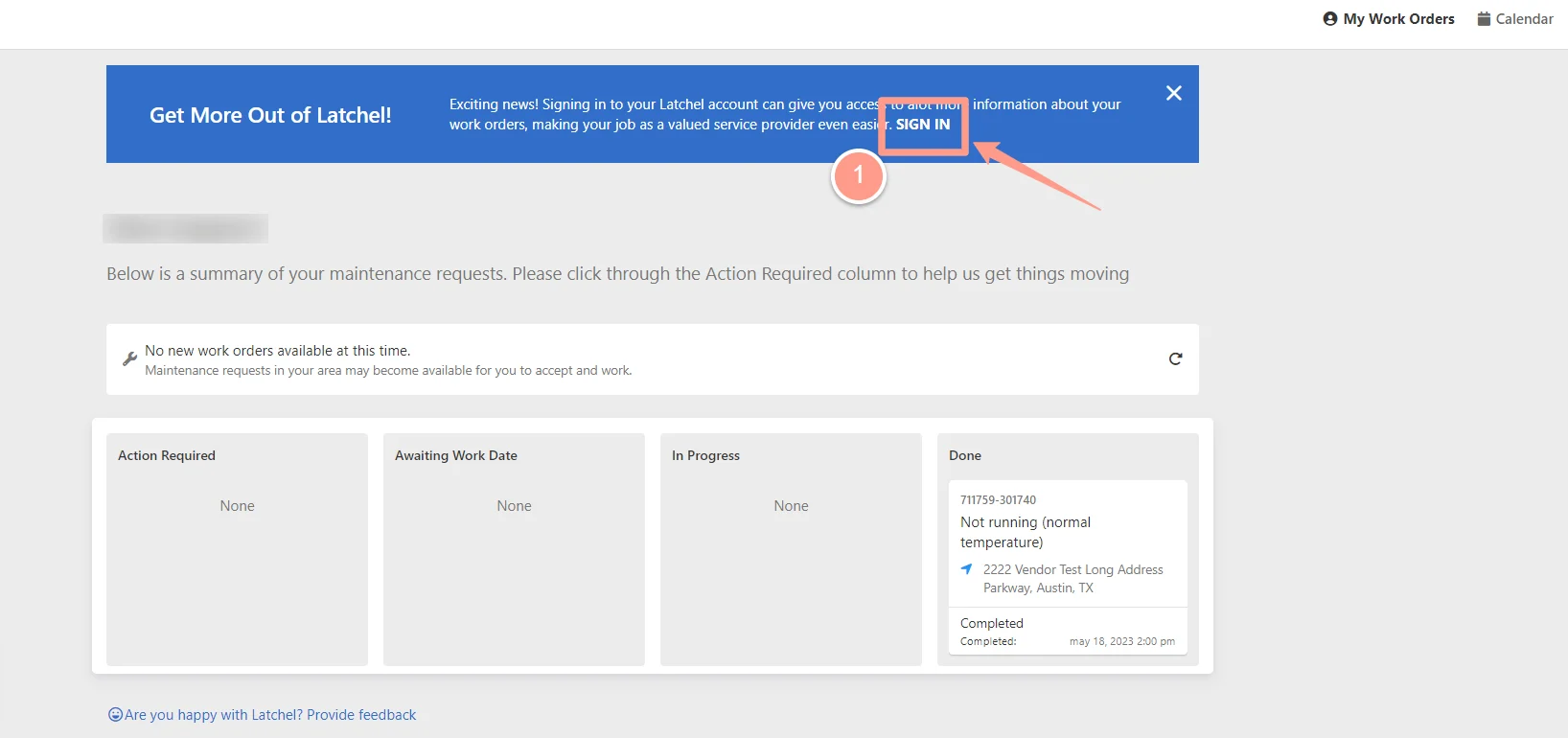
 However, Latchel wants to ensure you have an even better experience. To view your full dashboard, click **SIGN IN**, which you will find in the blue bar at the top center of the dashboard.
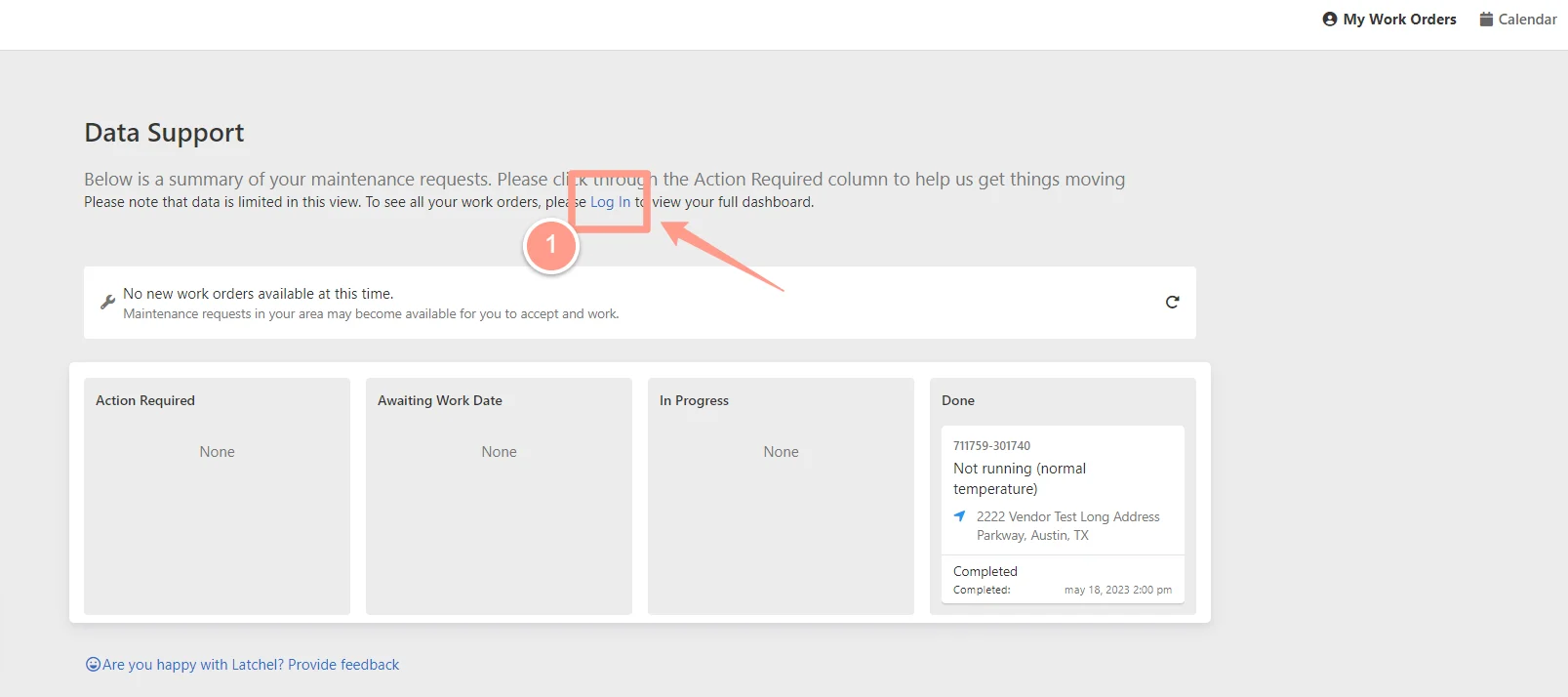
 And even if the blue ban was closed for any reason, you can still see a note on the top where you can click **Log In**.
 **First time logging in? Check the guide below for more details on how you can access your Latchel dashboard!**
Learn how to log into your Latchel portal and access your account.
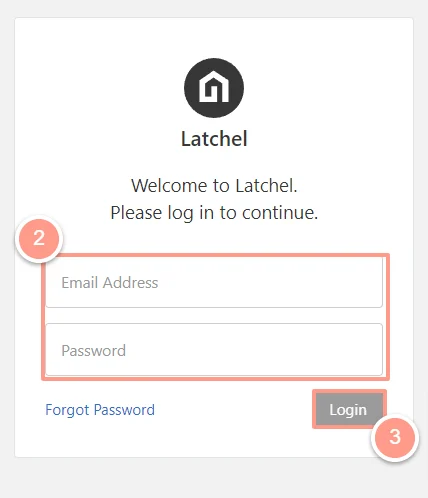
Once you click the **Log In** option, enter your **username** (your email address associated with your service provider user) and **password**, then click **Submit**.
**First time logging in? Check the guide below for more details on how you can access your Latchel dashboard!**
Learn how to log into your Latchel portal and access your account.
Once you click the **Log In** option, enter your **username** (your email address associated with your service provider user) and **password**, then click **Submit**.
 Once inside, you’ll have access to many more columns and detailed information about your work orders, including those waiting for approval. All of your work orders will be categorized based on the following provided columns: **Scheduling**, **Confirming Completion**, **Awaiting Invoice**, **Scheduled Today**, **Scheduled Later**, **Other Work Orders**, **Completed**, and **Cancelled**.
In addition, you'll also have access to your **Invoices**, **Account Settings**, and the option which will take you to the **Latchel Help Center**. Let's delve to each of these features!
Once inside, you’ll have access to many more columns and detailed information about your work orders, including those waiting for approval. All of your work orders will be categorized based on the following provided columns: **Scheduling**, **Confirming Completion**, **Awaiting Invoice**, **Scheduled Today**, **Scheduled Later**, **Other Work Orders**, **Completed**, and **Cancelled**.
In addition, you'll also have access to your **Invoices**, **Account Settings**, and the option which will take you to the **Latchel Help Center**. Let's delve to each of these features!
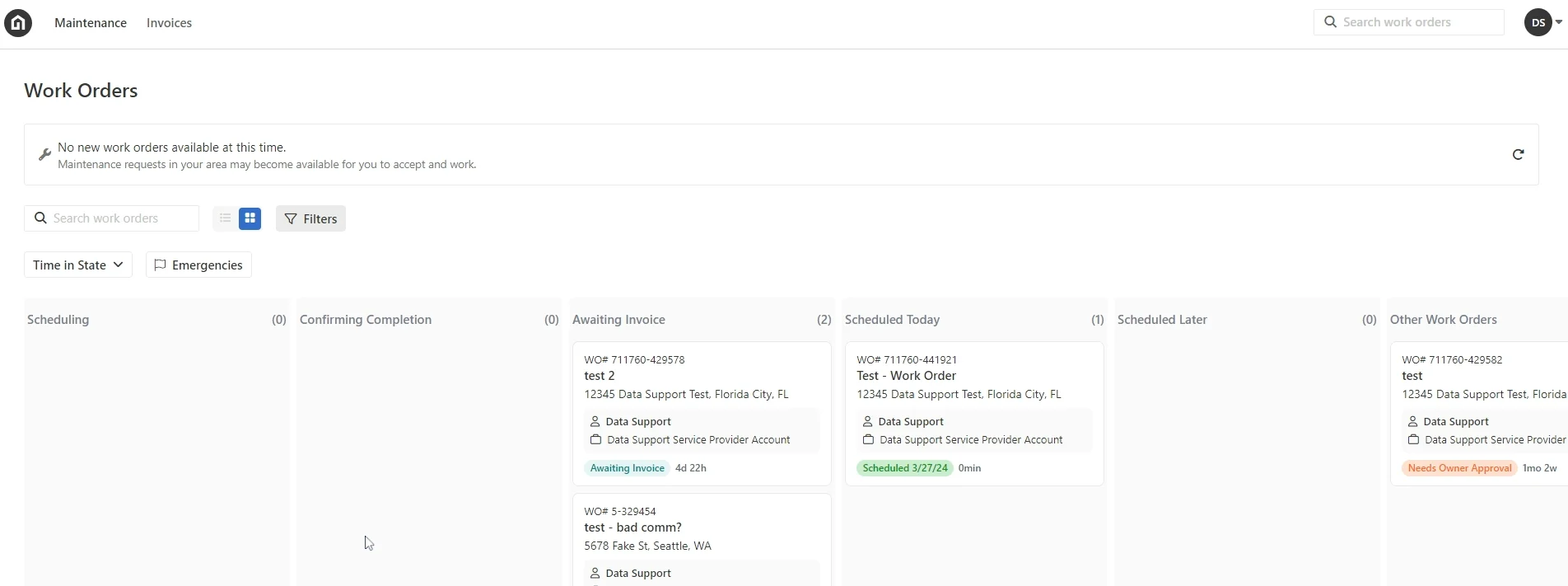 #### **The Maintenance Dashboard**
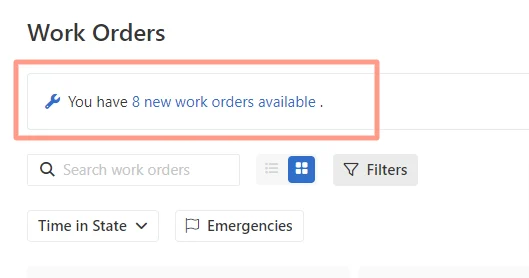
As soon as you log in, you will be taken to your **Maintenance Dashboard**. As mentioned, you will have access to **multiple columns** corresponding to the status of your work orders. Also, notice **the number of work orders assigned to you**, which you will see at the top of the page.
#### **The Maintenance Dashboard**
As soon as you log in, you will be taken to your **Maintenance Dashboard**. As mentioned, you will have access to **multiple columns** corresponding to the status of your work orders. Also, notice **the number of work orders assigned to you**, which you will see at the top of the page.
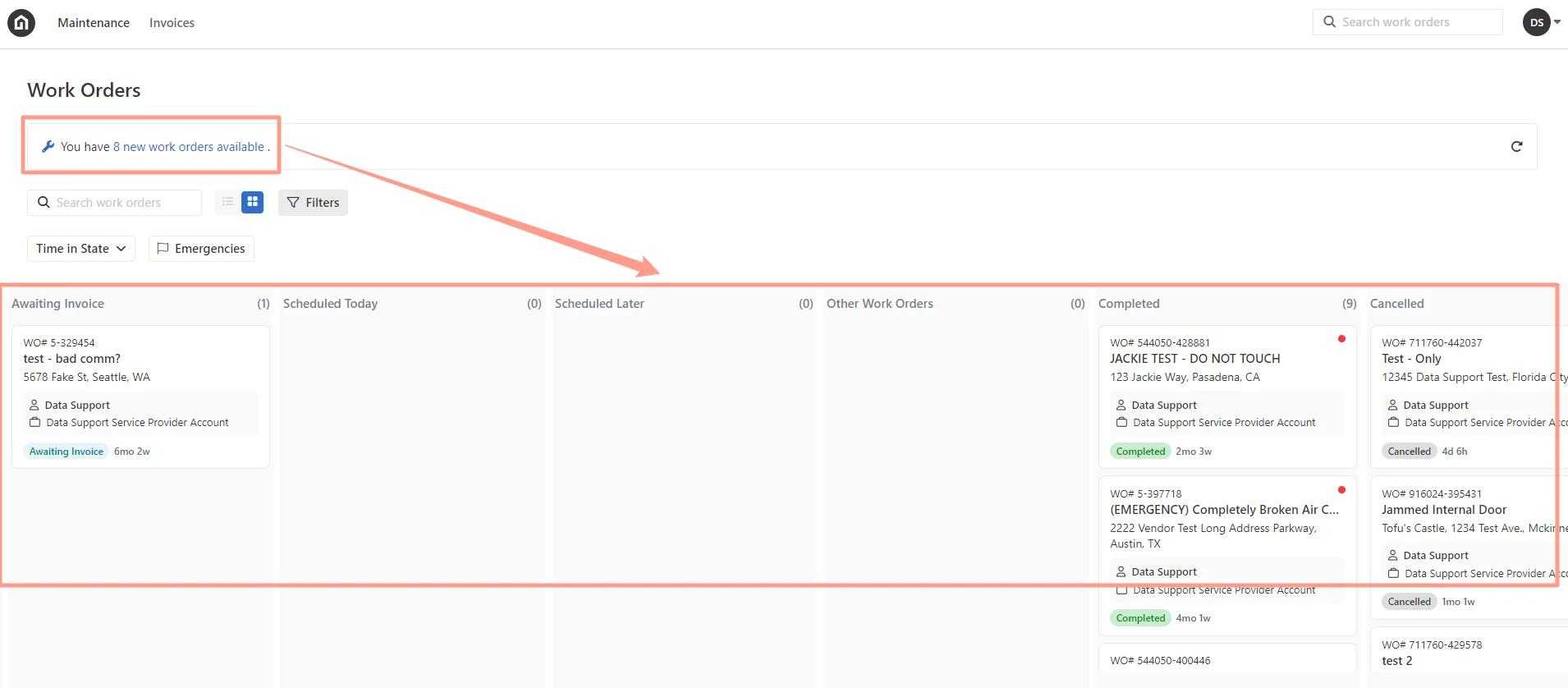 From this page, you will have access to all of your work orders -- from open work orders that needs your immediate attention to the previously completed and canceled work orders.
**For work orders that require updates**, please refer to the help guide below for detailed instructions on the available options.
An overview of the information you can view and manage within a work order.
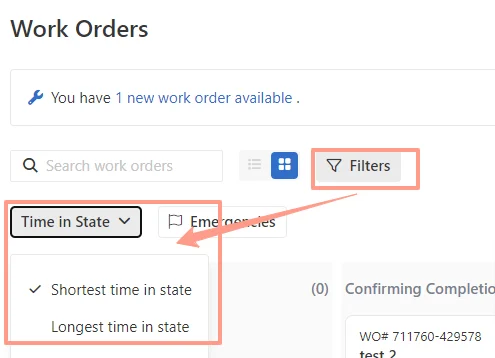
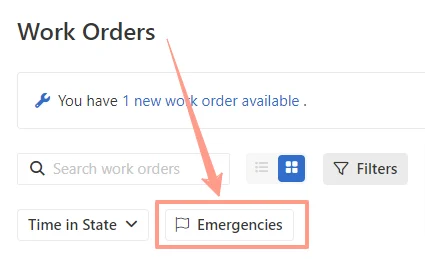
On the same page, you will also have the option to filter the view for easy sorting of work orders. You can sort them by:
* **Shortest to Longest status and vice versa**
From this page, you will have access to all of your work orders -- from open work orders that needs your immediate attention to the previously completed and canceled work orders.
**For work orders that require updates**, please refer to the help guide below for detailed instructions on the available options.
An overview of the information you can view and manage within a work order.
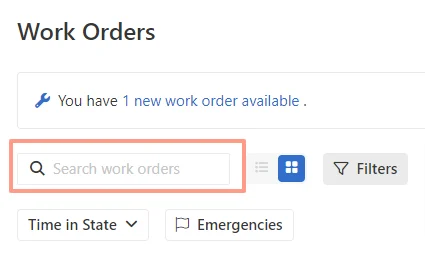
On the same page, you will also have the option to filter the view for easy sorting of work orders. You can sort them by:
* **Shortest to Longest status and vice versa**
 * **Severities: If you want to view only the Emergency work orders**
 * **Manual search work order**
 #### **The Invoice Page**
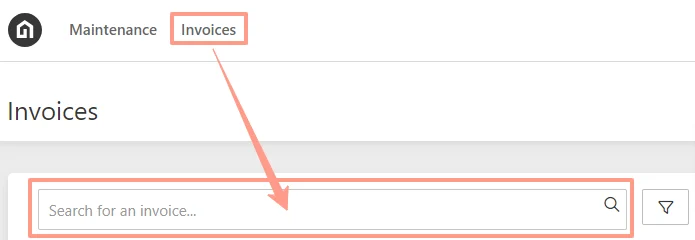
And don't forget about the unique feature of the Service Provider dashboard – a separate view for your invoices that includes **the total dollar amount**, **property manager**, and **payment status**.
* **Search Manual Invoice**
#### **The Invoice Page**
And don't forget about the unique feature of the Service Provider dashboard – a separate view for your invoices that includes **the total dollar amount**, **property manager**, and **payment status**.
* **Search Manual Invoice**
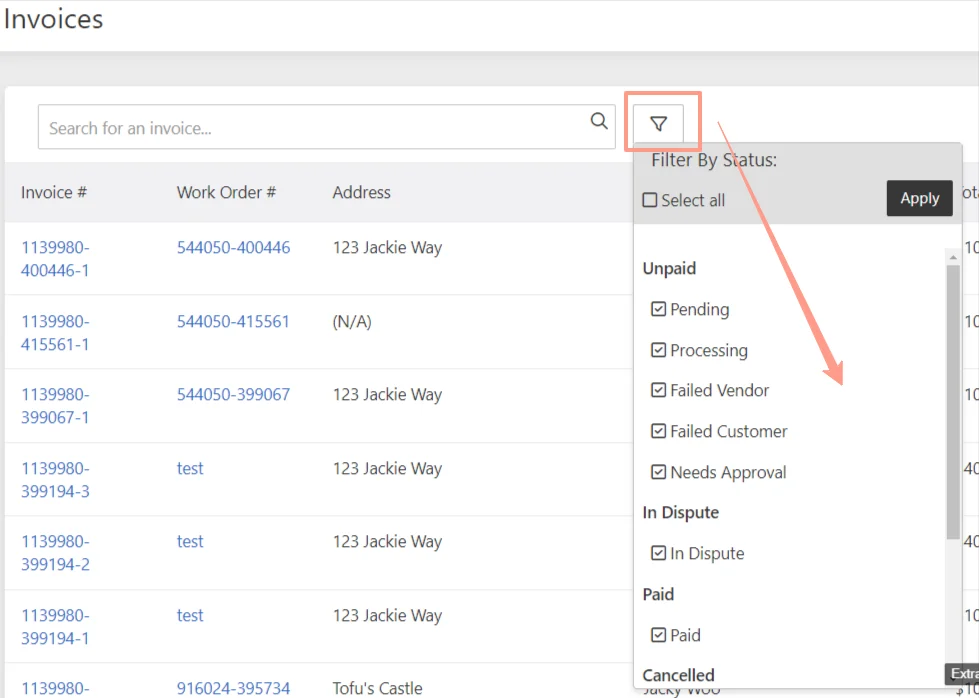
 * **Filter Invoice Statuses**
 * **Extract Invoices to either a PDF or Excel File**
 #### **The Account Settings**
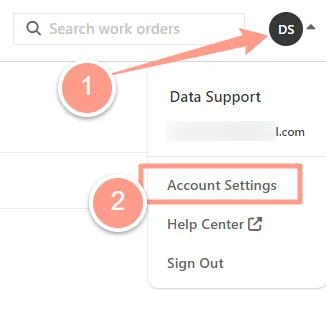
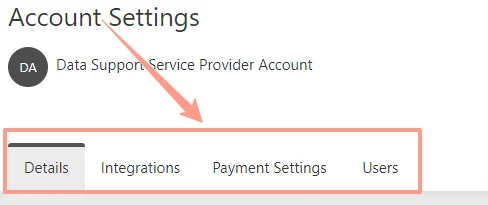
If you need to modify your account settings, just go to the top corner of your dashboard and click on **Account Settings.**
#### **The Account Settings**
If you need to modify your account settings, just go to the top corner of your dashboard and click on **Account Settings.**
 **To know more about the settings you can manage within your Account Settings page, visit:**
Guides on managing your company info, adding users, setting up payments, and syncing your calendar.
#### **The Latchel Help Center**
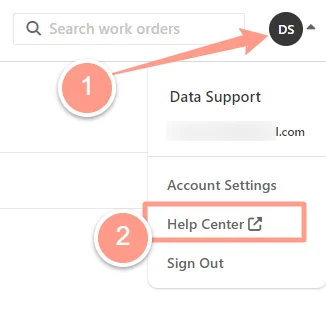
Lastly, by clicking your **profile icon** at the upper right corner, you will have the option to go to our **Help Center** page.
Accessing the **Help Center** enables you to quickly resolve issues independently, enhances efficiency, and promotes self-service, while keeping you informed about Latchel's features and updates that can improve your service delivery and work order management.
**To know more about the settings you can manage within your Account Settings page, visit:**
Guides on managing your company info, adding users, setting up payments, and syncing your calendar.
#### **The Latchel Help Center**
Lastly, by clicking your **profile icon** at the upper right corner, you will have the option to go to our **Help Center** page.
Accessing the **Help Center** enables you to quickly resolve issues independently, enhances efficiency, and promotes self-service, while keeping you informed about Latchel's features and updates that can improve your service delivery and work order management.
 We hope you enjoy using your dashboard and let us know if you have any questions or need further assistance!