> ## Documentation Index
> Fetch the complete documentation index at: https://help.latchel.com/llms.txt
> Use this file to discover all available pages before exploring further.
# Rescheduling Work Orders in Latchel (Service Provider)
> Need to make a change to a scheduled job? This guide shows service providers how to reschedule work orders in just a few clicks through the Latchel dashboard.
### **Quick Video Tutorial: Start here!**
### **Steps to Reschedule Work Orders**
From your dashboard select a work order that needs to be scheduled.
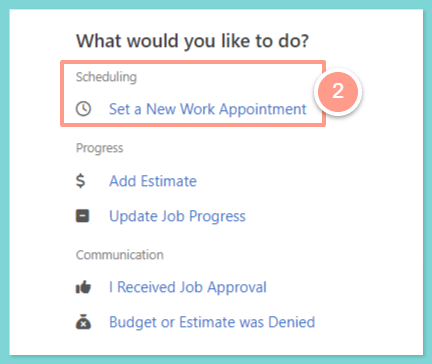
Then click **Set a New Work Appointment**.
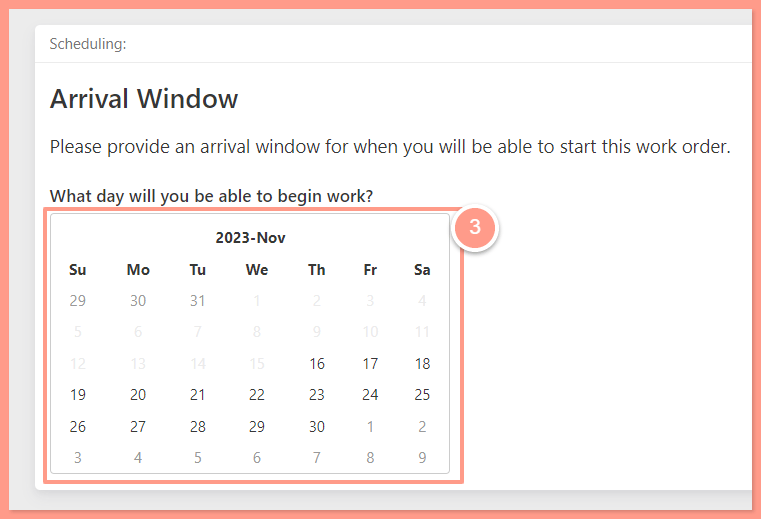
Now from the calendar provide an arrival window (date and time) for when you will be able to start the work order.
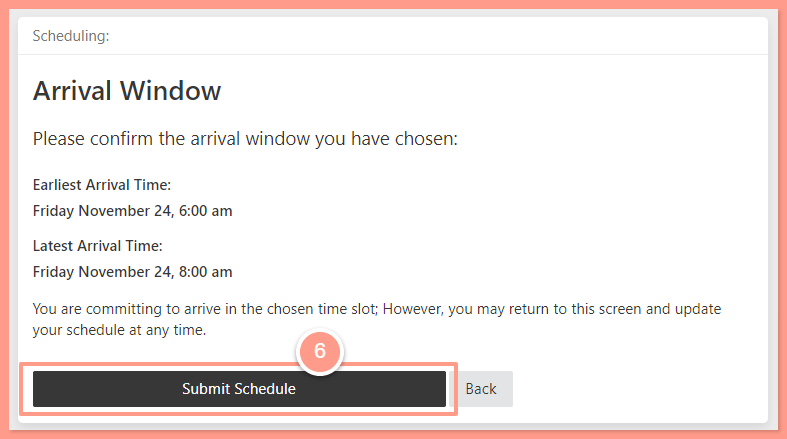
After selecting your desired schedule, review the details and click **Submit Schedule** once confirmed.
On a more interesting note, another scenario when service providers might need to reschedule arises when the resident is unavailable. Here are the steps to follow in such a case:
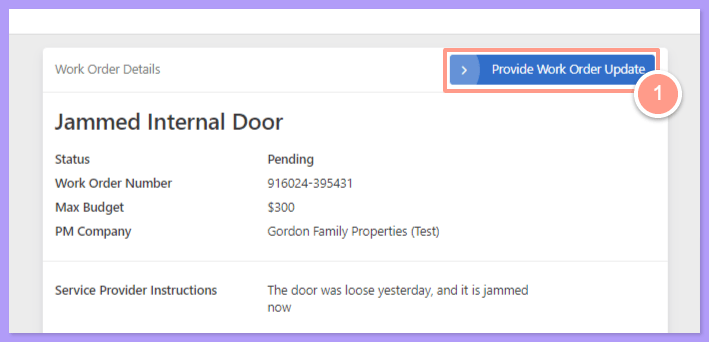
From the work order status, click on **Provide Work Order Update.**
From the next window, click on **Set a New Work Appointment.**
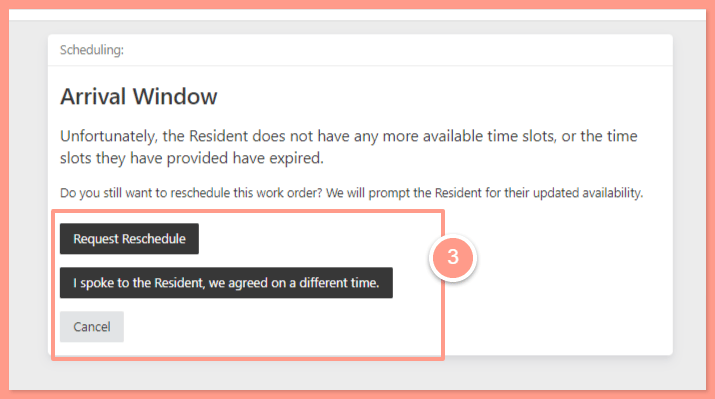
There are three potential scenarios from this point:
* **Request Reschedule:** The system will advance to request schedule availability.
* **I spoke to the Resident, we agreed on a different time:** Use this option only when the service provider has been in touch with the resident and has noted their availability. Selecting this option will proceed to the Arrival Window to schedule an appointment.
* **Cancel:** Choose this to negate the previous action and no changes will be made.
For this help guide, click on **Request Reschedule.**
A prompt will appear indicating that the system has started to collect the resident's availability. Once the resident provides new availability, a notification will be dispatched to the service provider.
And that's how easy you can reschedule your work order in Latchel!
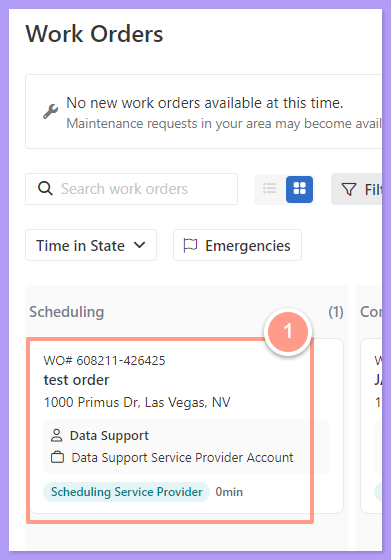 Then click **Set a New Work Appointment**.
 Now from the calendar provide an arrival window (date and time) for when you will be able to start the work order.
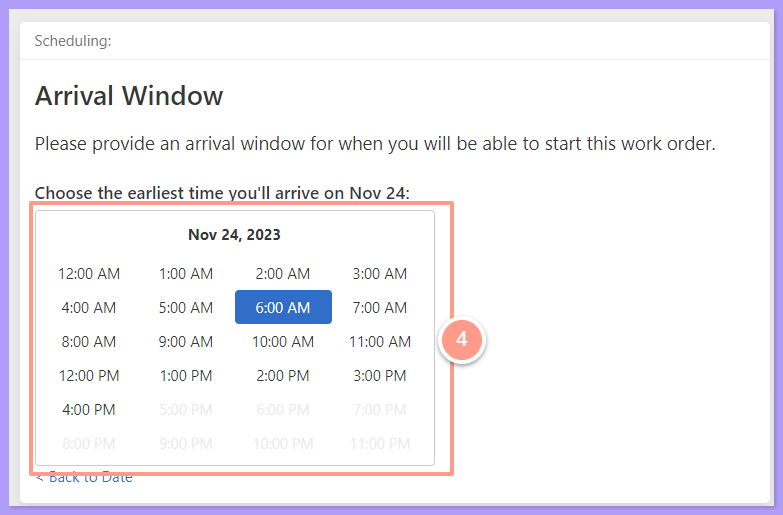
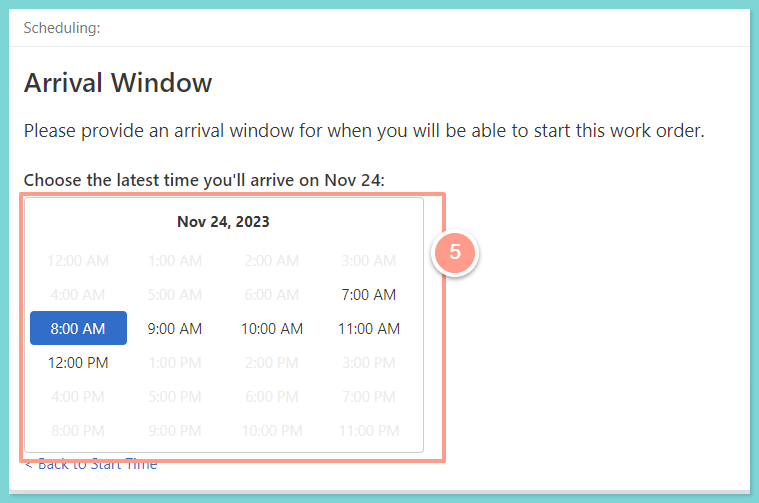 After selecting your desired schedule, review the details and click **Submit Schedule** once confirmed.
 On a more interesting note, another scenario when service providers might need to reschedule arises when the resident is unavailable. Here are the steps to follow in such a case:
From the work order status, click on **Provide Work Order Update.**
On a more interesting note, another scenario when service providers might need to reschedule arises when the resident is unavailable. Here are the steps to follow in such a case:
From the work order status, click on **Provide Work Order Update.**
 From the next window, click on **Set a New Work Appointment.**
 There are three potential scenarios from this point:
* **Request Reschedule:** The system will advance to request schedule availability.
* **I spoke to the Resident, we agreed on a different time:** Use this option only when the service provider has been in touch with the resident and has noted their availability. Selecting this option will proceed to the Arrival Window to schedule an appointment.
* **Cancel:** Choose this to negate the previous action and no changes will be made.
For this help guide, click on **Request Reschedule.**
There are three potential scenarios from this point:
* **Request Reschedule:** The system will advance to request schedule availability.
* **I spoke to the Resident, we agreed on a different time:** Use this option only when the service provider has been in touch with the resident and has noted their availability. Selecting this option will proceed to the Arrival Window to schedule an appointment.
* **Cancel:** Choose this to negate the previous action and no changes will be made.
For this help guide, click on **Request Reschedule.**
 A prompt will appear indicating that the system has started to collect the resident's availability. Once the resident provides new availability, a notification will be dispatched to the service provider.
 And that's how easy you can reschedule your work order in Latchel!