> ## Documentation Index
> Fetch the complete documentation index at: https://help.latchel.com/llms.txt
> Use this file to discover all available pages before exploring further.
# Viewing Work Order Calendar (Service Providers)
> Stay organized and on schedule—this guide shows service providers how to access and use the calendar view to see all upcoming work orders at a glance.
### **Checking your Calendar**
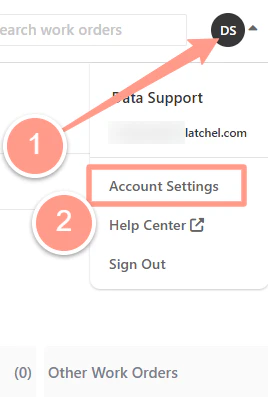
Sign in to your Latchel service provider email address. From the Service Provider page, click the **initials icon** located at the top right corner, then select **Account Settings** on the dropdown.
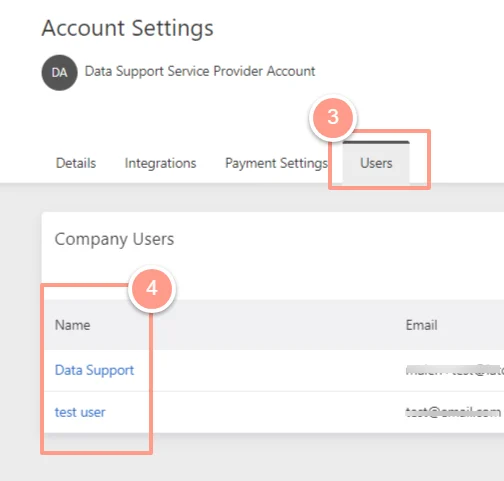
 In the Account Settings page click the **Users** tab. Select which **Service Provider User** you want to view the work order calendar.
 On User's page click the **Calendar** tab, this will display the work order schedule of the specific user.
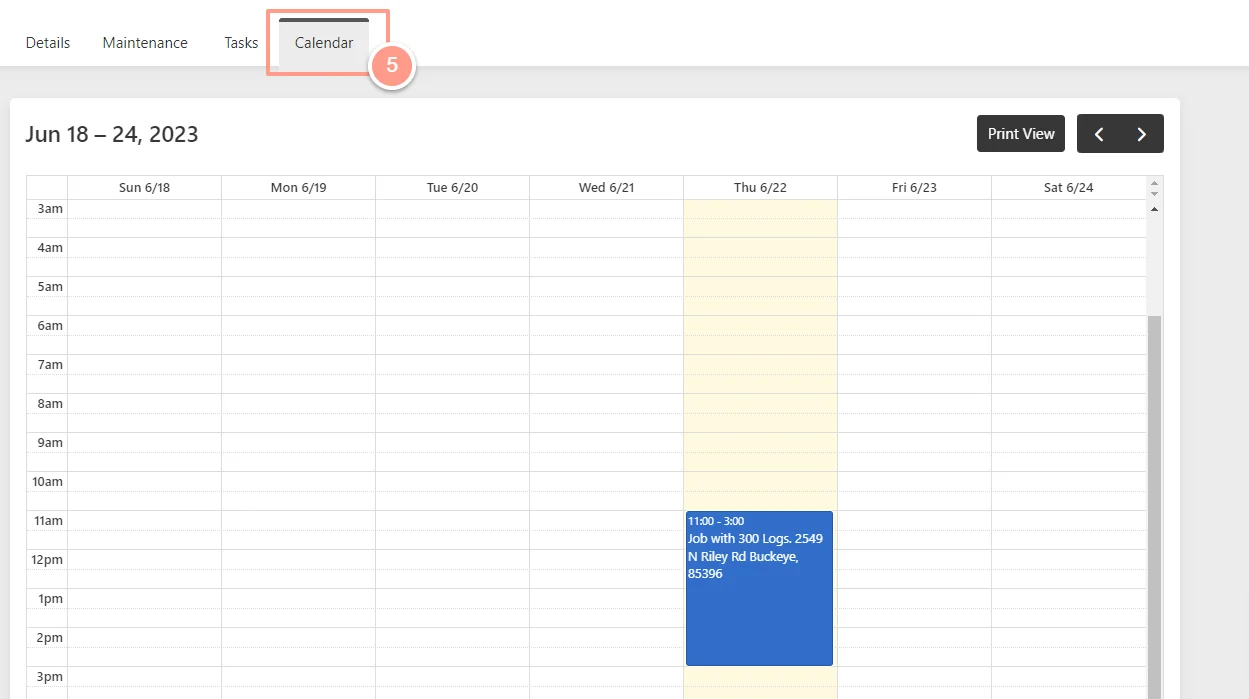 Each work order in the calendar can be clicked and expanded to show the details of the work order and could also direct you to the work order page view.
#### **How to Print the Calendar View**
On the calendar page, click **Print View** which will give you a larger view of the calendar.
Each work order in the calendar can be clicked and expanded to show the details of the work order and could also direct you to the work order page view.
#### **How to Print the Calendar View**
On the calendar page, click **Print View** which will give you a larger view of the calendar.
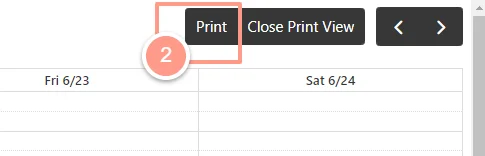
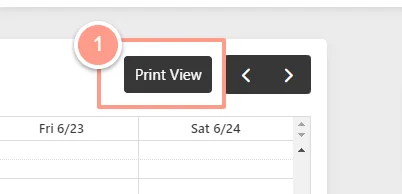 Located on the top right corner, click the **Print** icon which enables you to print all of the scheduled work orders for the week.
 The calendar will always be in the time zone of the person who is viewing the calendar.