> ## Documentation Index
> Fetch the complete documentation index at: https://help.latchel.com/llms.txt
> Use this file to discover all available pages before exploring further.
# Adding Bank Account Information (Service Provider)
> If you need to add or update your bank account information, follow this help guide!
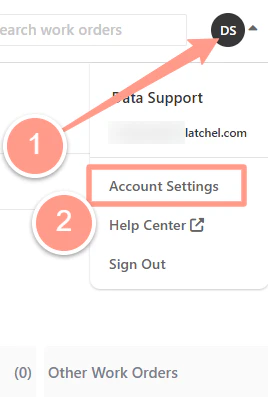
From your dashboard, click the **Dropdown** beside the initial of your account. Then select **Account Settings**.
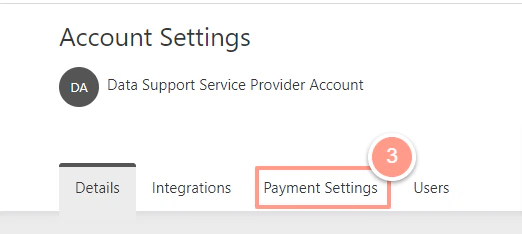
 Now, on the Account Settings page click the **Payment Settings** tab.
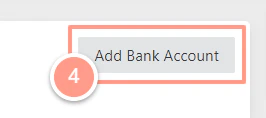
 From here, click the **Add Bank Account** icon on the right side of the page.
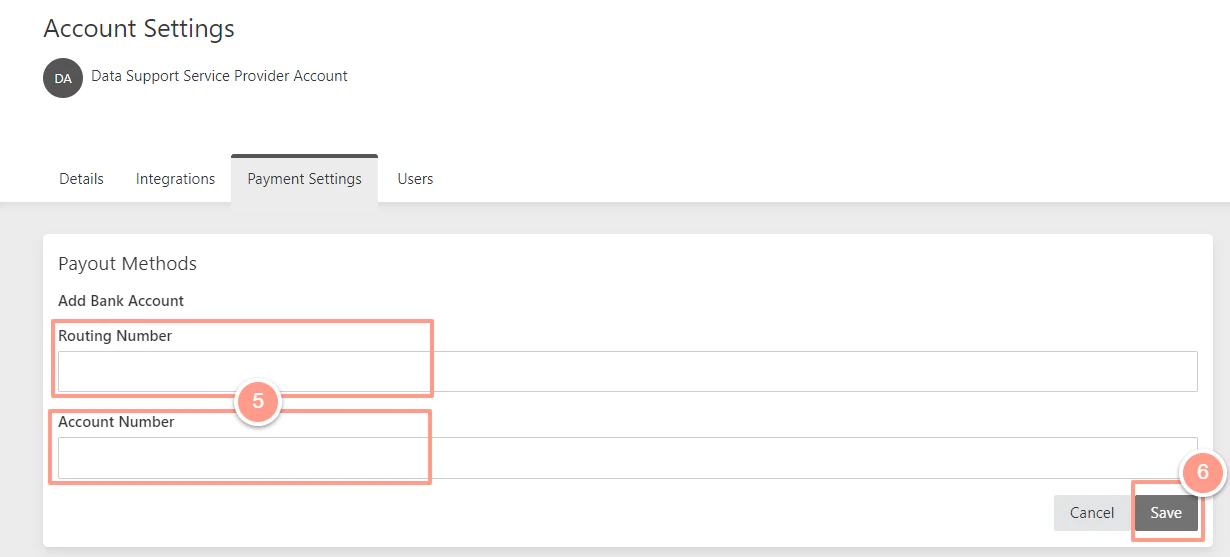
 Then fill in the details needed, and hit **Save**.
 And that's it! You have successfully added your bank information!