> ## Documentation Index
> Fetch the complete documentation index at: https://help.latchel.com/llms.txt
> Use this file to discover all available pages before exploring further.
# Taking Action on Open Work Orders (Service Providers)
> This is a step-by-step guide for service providers when action is required from their open work orders.
### **Quick Video Tutorial: Start here!**
### **Steps in Taking Action on a Work Order**
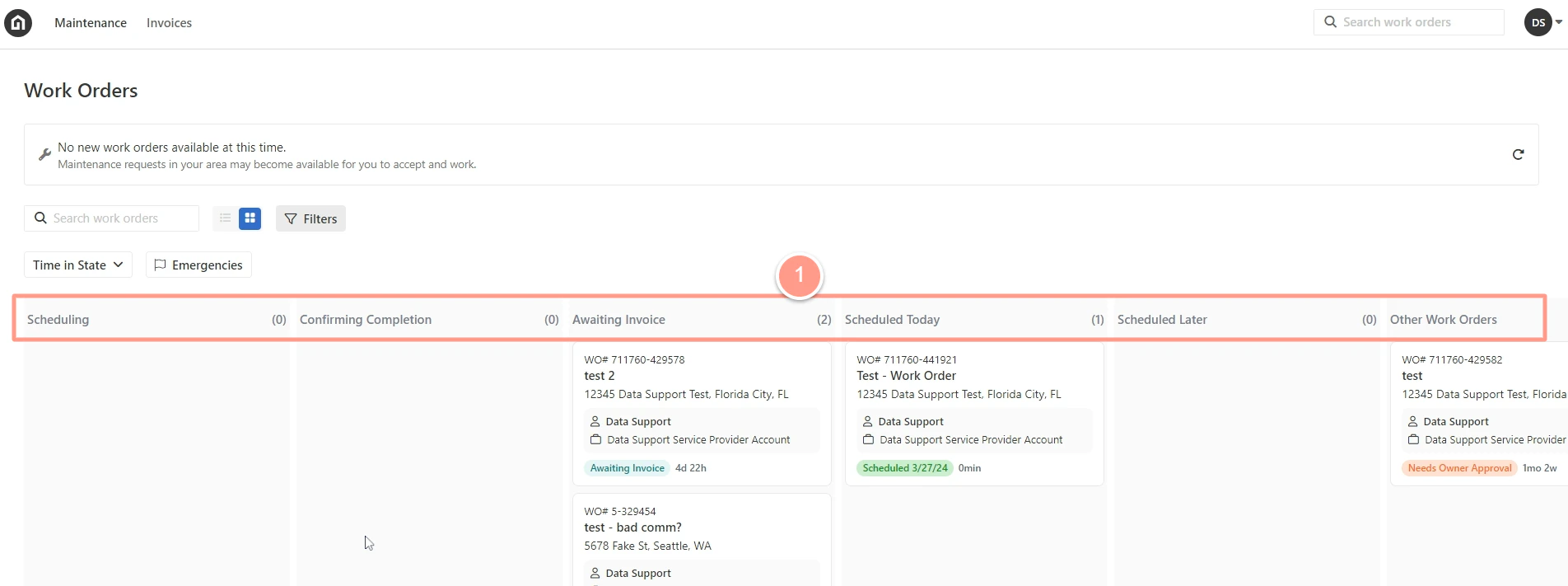
From the Service Provider dashboard, statuses that require action are visible. Any status except Canceled or Completed is required to undergo the steps to complete the work order flow. Let's check on each status.
* **Scheduling:** Work Orders that need to schedule an appointment. You may check this help guide for the step-by-step flow: How to Accept and Schedule Work Orders (Service Providers).
Guide on accepting and scheduling work orders through your dashboard.
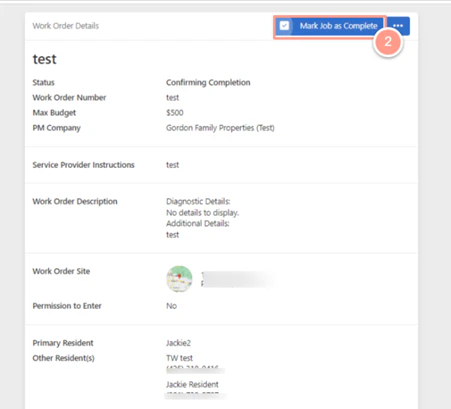
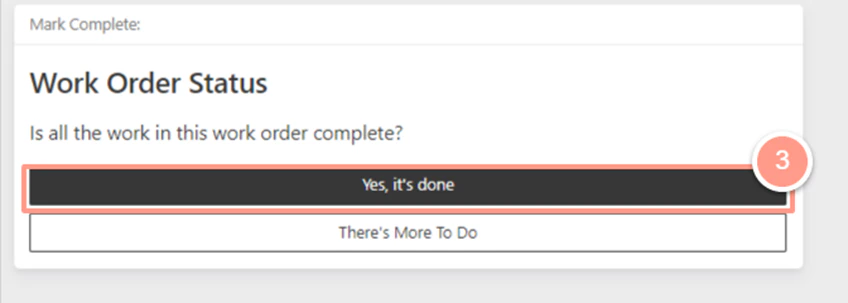
* **Confirming Completion:** To mark the job as complete, click on **Confirming Completion**. Then on the next page click on **Mark Job as Complete.** A pop-up box will appear asking if **There's More To Do** or **Yes, it's done**. Click on **Yes it's done.** The order will be marked as complete and will be moved to completed work orders from the dashboard landing page.
* **Awaiting Invoice:** These are work orders that require an invoice for the service provider to get paid. **Check this help guide to know how to upload an invoice:**
Learn how to upload an invoice file if you're not using Latchel's invoice tool.
* **Scheduled Today:** These are work orders that are scheduled today. Service Providers can view work order information including time of appointment, property, and resident information once they click on **Scheduled Today**. **You may check this related help guide related for scheduling:**
Assign work orders to another team member within your account.
* **Other Work Orders:** These are work orders where the Service Provider can provide further updates on the job. Click on **Provider Work Order Update.** A new pop-up box will appear that will allow the Service Provider to choose an update on the work order. **Check the guide below to know more!**
An overview of the information you can view and manage within a work order.
 * **Scheduling:** Work Orders that need to schedule an appointment. You may check this help guide for the step-by-step flow: How to Accept and Schedule Work Orders (Service Providers).
 * **Awaiting Invoice:** These are work orders that require an invoice for the service provider to get paid. **Check this help guide to know how to upload an invoice:**