> ## Documentation Index
> Fetch the complete documentation index at: https://help.latchel.com/llms.txt
> Use this file to discover all available pages before exploring further.
# How to Reject a Work Order (Service Provider)
> This help guide explains the process of responding to new work orders once received. When a work order becomes available, you'll receive an SMS message and email notification with a link to the work order details. From there, you can choose **to accept** or **decline** the work order.
First, **login to your Latchel dashboard** by following the steps in:
Learn how to log into your Latchel portal and access your account.
If you want to reject a work order, go to your dashboard you will see a **number of new work orders available**.
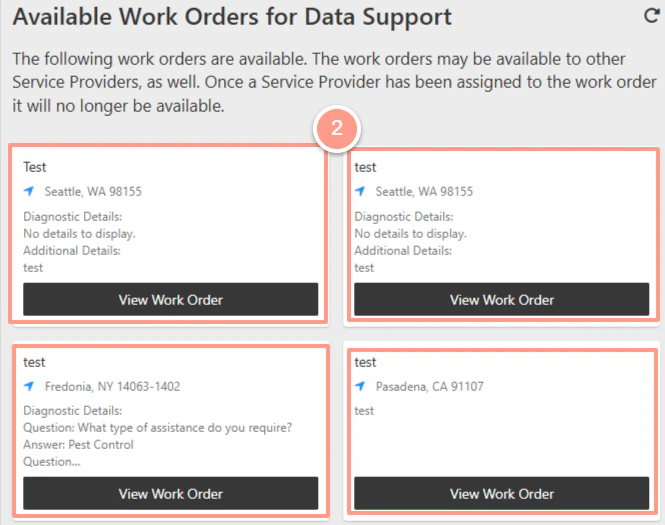
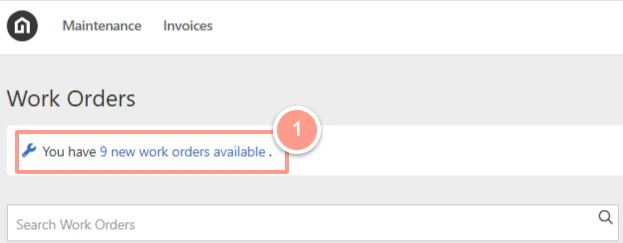 **Select** the work order you want to reject.
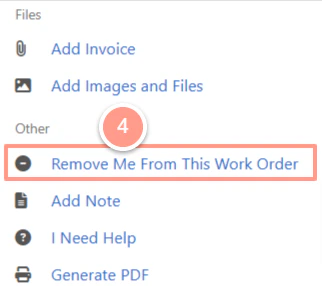
 Click the **ellipsis** at the top right of the work order page.
 From the list of option on the page, click the **Remove Me From This Work Order**.
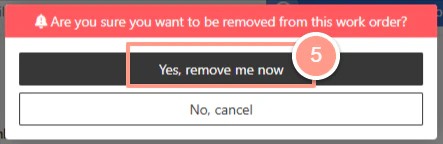
 Then select **Yes, remove me now**.
 And that's how you can reject a work order!
**Do you need to accept and schedule work orders? Follow:**
Guide on accepting and scheduling work orders through your dashboard.
And that's how you can reject a work order!
**Do you need to accept and schedule work orders? Follow:**
Guide on accepting and scheduling work orders through your dashboard.