> ## Documentation Index
> Fetch the complete documentation index at: https://help.latchel.com/llms.txt
> Use this file to discover all available pages before exploring further.
# A Property Owner's Guide in Managing Work Orders
> As an owner, staying informed about maintenance and managing property approvals brings an added layer of excitement to your responsibilities!
**Owners are notified when:**
* When a work order is created.
* Require pre-approval for new work orders.
* Require approval for budget increases.
### **When a Work Order Created**
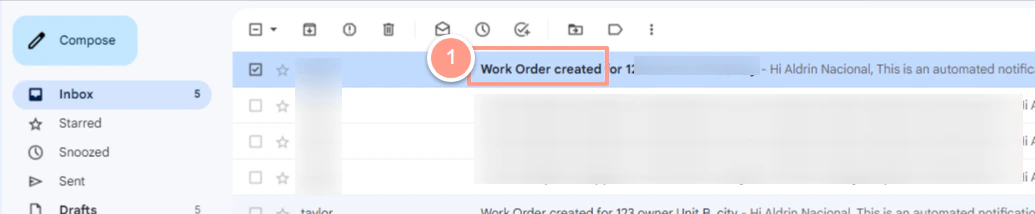
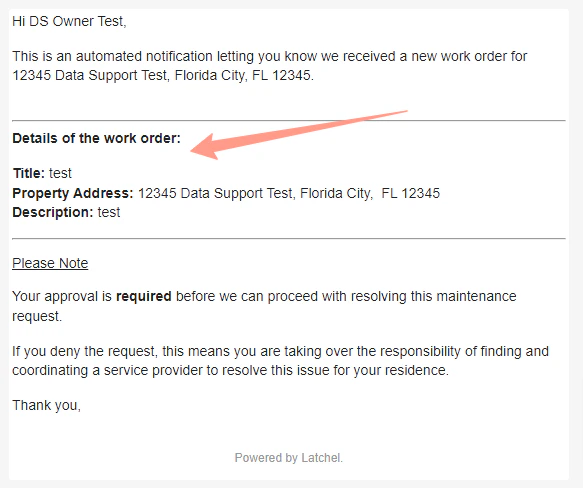
If this setting is turned on, you will receive an email notification every time a work order is created.
To view the details, click on the email you received with the subject **Work Order Created**. Please note that you do not need to take any action in this email; it is solely sent to inform you about the details of the work order created for your property.
 ### **Approving a Work Order**
If this setting is turned on, new work orders for your properties will require approval before proceeding with the maintenance.
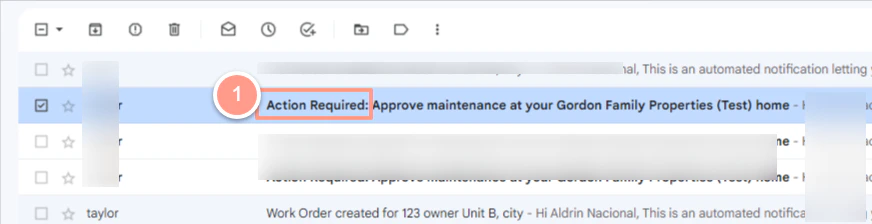
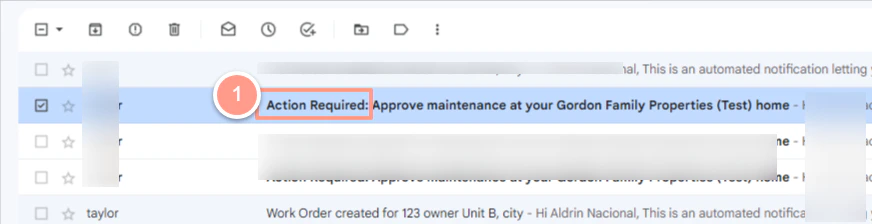
To view the details, click on the email you received with the subject **Action Required**.
### **Approving a Work Order**
If this setting is turned on, new work orders for your properties will require approval before proceeding with the maintenance.
To view the details, click on the email you received with the subject **Action Required**.
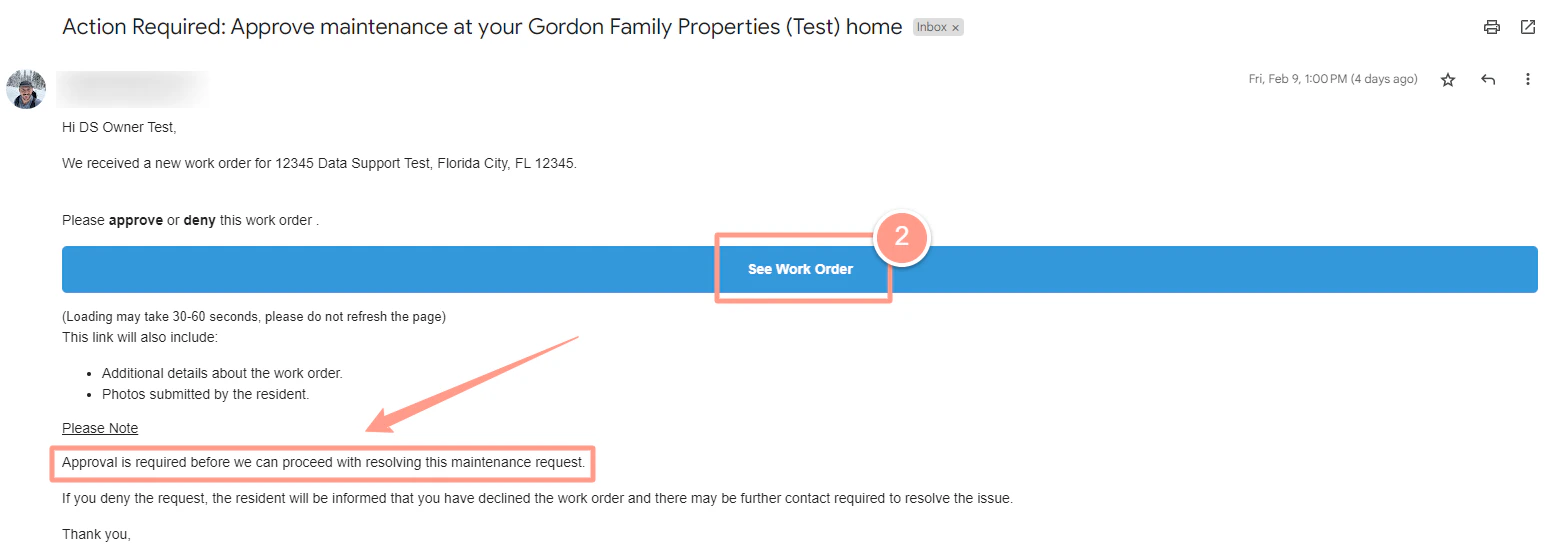
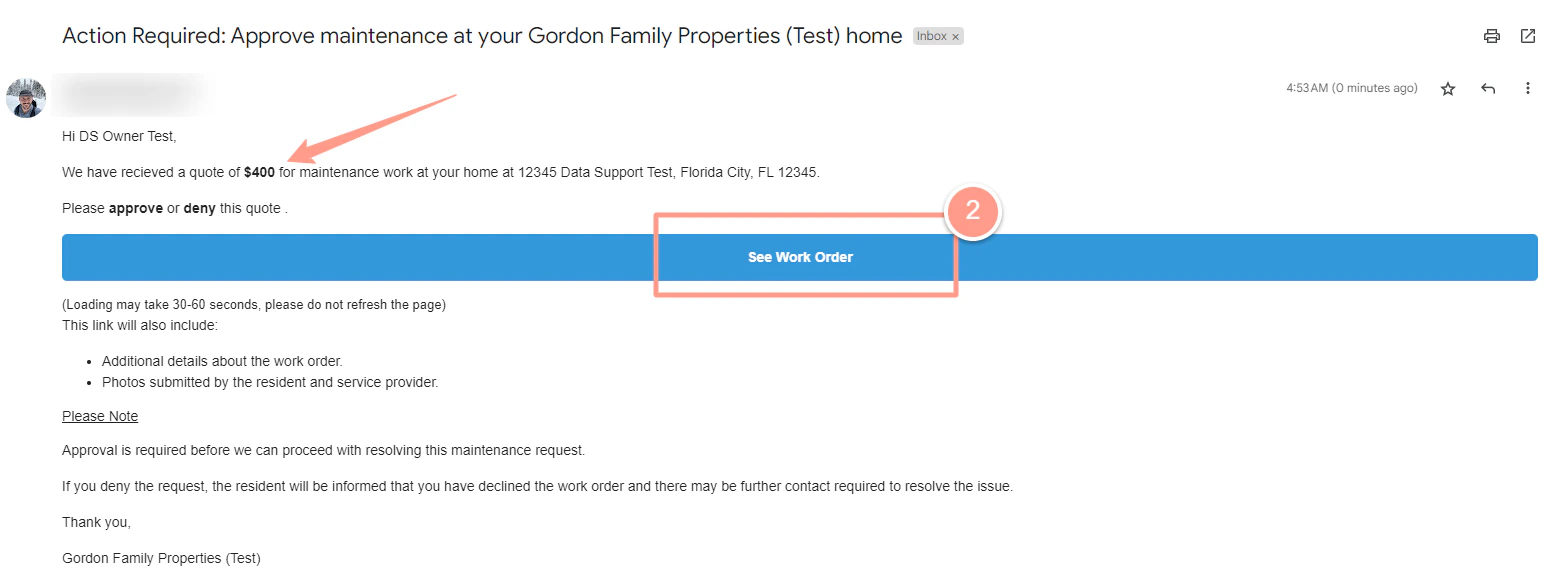
 Then select **See Work Order** highlighted in blue located in the center of the email.
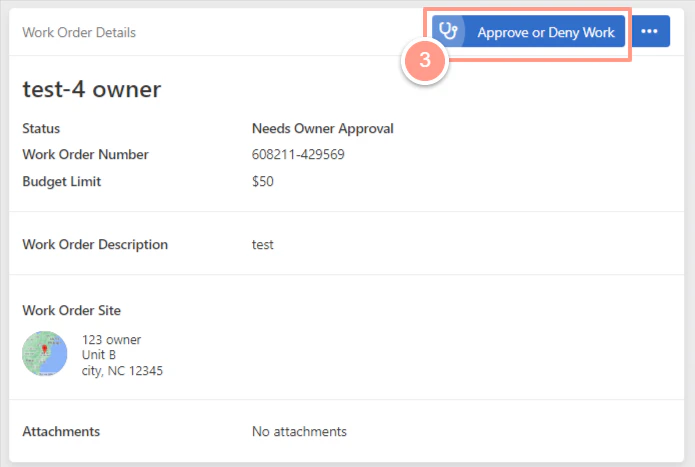
 You will be directed to a new window where you can Approve or Deny the work order. To take action, click the **Approve or Deny Work** button located in the upper right corner.
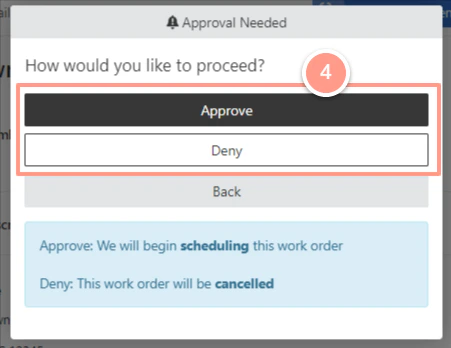
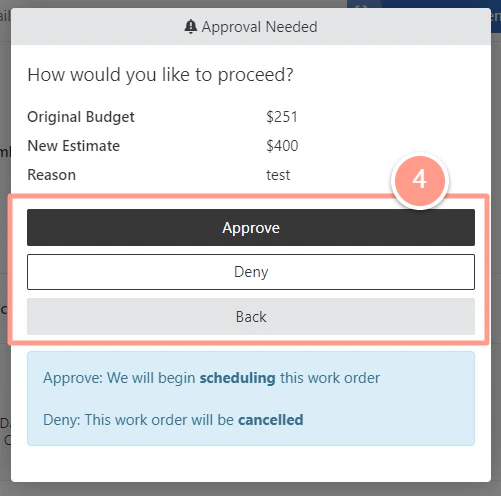
 Then hit **Approve** and the work order will proceed to scheduling, or **Deny** then the work order will be canceled.
 ### **Approving a Budget Increase**
If this is turned on, you will be notified when a new budget is requested that is over the set limit in the property.
Click the email that you have received with the subject Action Required to view the details.
### **Approving a Budget Increase**
If this is turned on, you will be notified when a new budget is requested that is over the set limit in the property.
Click the email that you have received with the subject Action Required to view the details.
 In the email, the requested budget is indicated. Select **See Work Order** highlighted in blue located in the center of the email to take action.
 You will be directed to a new window. Review the **Budget Limit** and click the **Approve or Deny Work** button located at the upper right corner to take action.
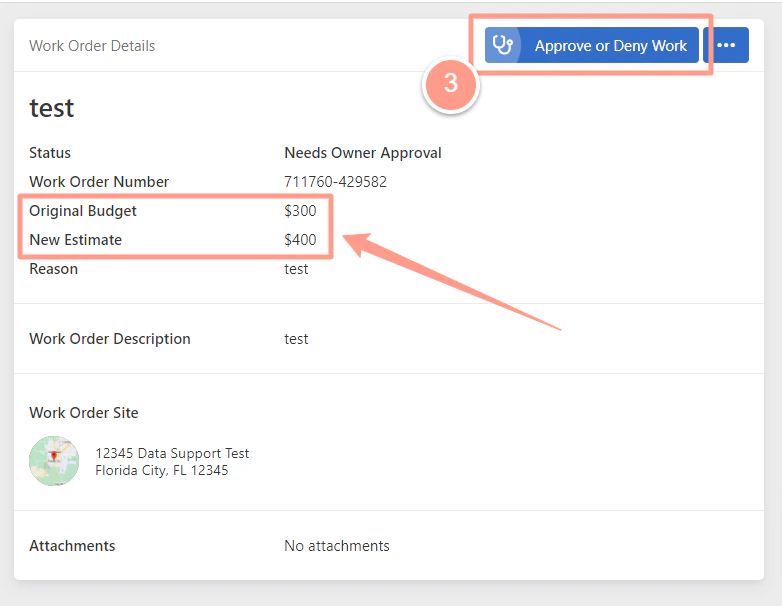 Then, click **Approve** to continue with the new budget requested, or **Deny** then the work order will be canceled.
 And that's how easy to manage the work orders on your owned property!