> ## Documentation Index
> Fetch the complete documentation index at: https://help.latchel.com/llms.txt
> Use this file to discover all available pages before exploring further.
# Configuring Portal Settings
### **Where to Access Portal Settings**
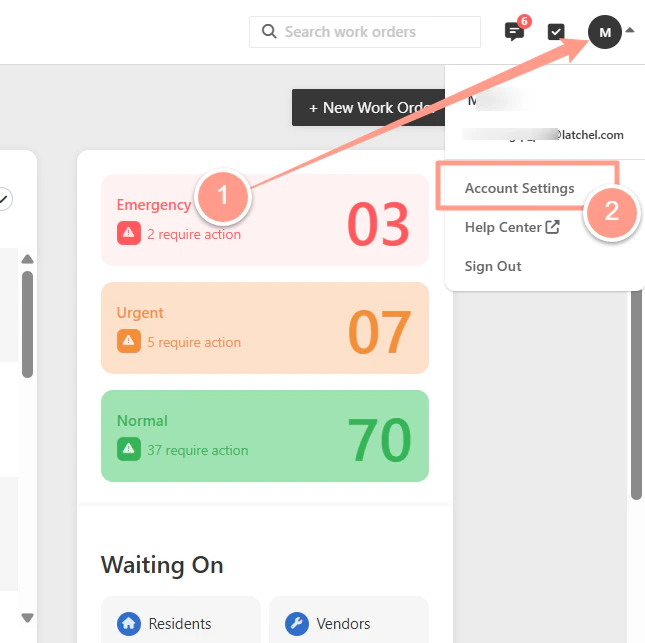
Click on the **Account Icon** on the top right corner of your Dashboard and select **Account Settings**.
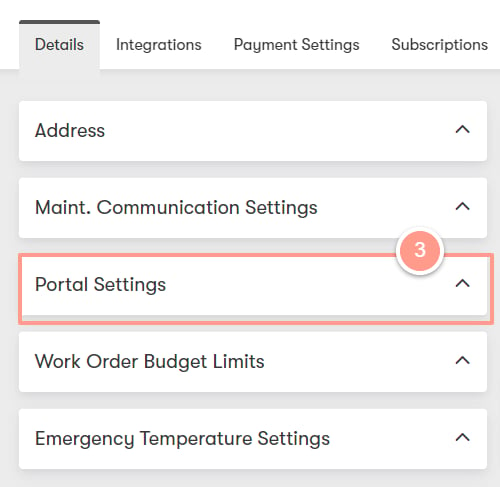
 Once you're on the Account Settings page, look for the **Portal Settings** dropdown menu.
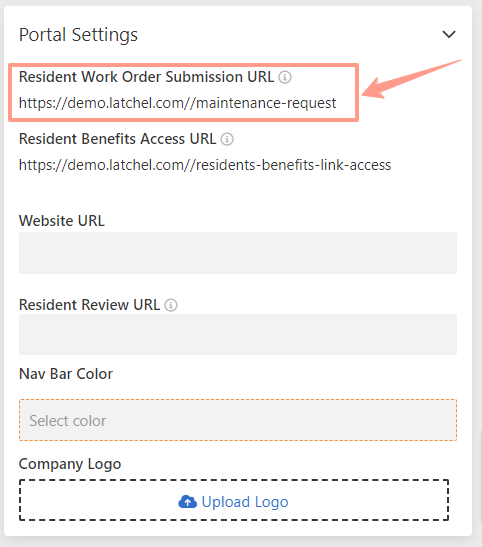
 Under the Portal Settings section, you will find other options to configure your settings.
### **Residents Work Order Submission URL**
Residents can use this link to submit online maintenance requests.
Under the Portal Settings section, you will find other options to configure your settings.
### **Residents Work Order Submission URL**
Residents can use this link to submit online maintenance requests.
 ### **Resident Benefits Access URL**
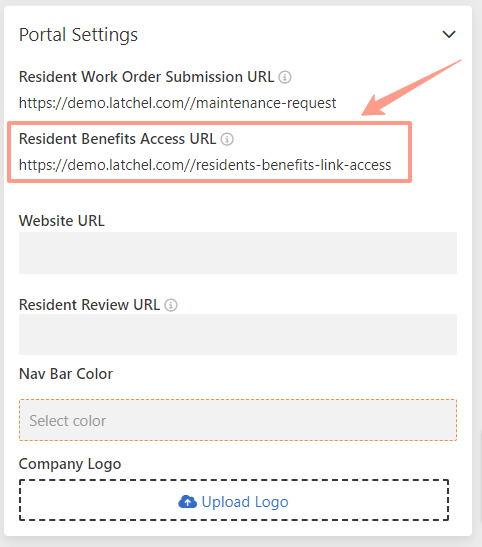
Residents can use this link to access their Resident Benefits.
### **Resident Benefits Access URL**
Residents can use this link to access their Resident Benefits.
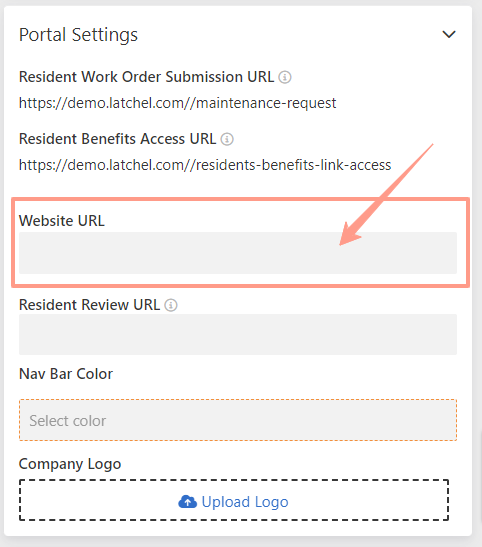
 ### **Website URL**
You may also add your company's website URL.
### **Website URL**
You may also add your company's website URL.
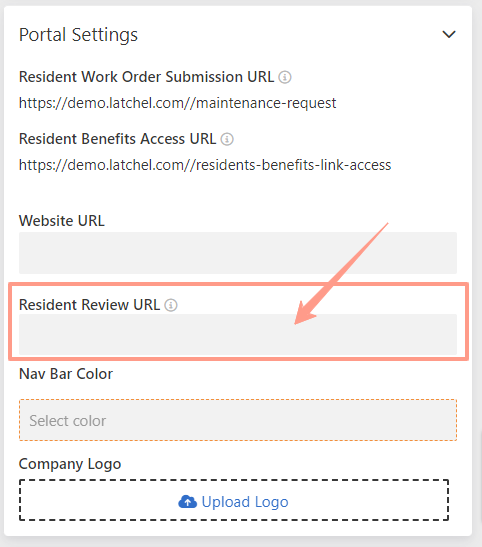
 ### **Resident Review URL**
Add your social media URL to your Latchel account page. If your resident leaves a 4 or 5-star review, Latchel sends a prompt asking them to share their positive experience publicly on your social media page. This is where you can customize it.
To know more about this feature, please visit [Customize Resident Review URL](https://help.latchel.com/s/topic/0TO5e000000h9wqGAA/Customize-Resident-Review-URL).
### **Resident Review URL**
Add your social media URL to your Latchel account page. If your resident leaves a 4 or 5-star review, Latchel sends a prompt asking them to share their positive experience publicly on your social media page. This is where you can customize it.
To know more about this feature, please visit [Customize Resident Review URL](https://help.latchel.com/s/topic/0TO5e000000h9wqGAA/Customize-Resident-Review-URL).
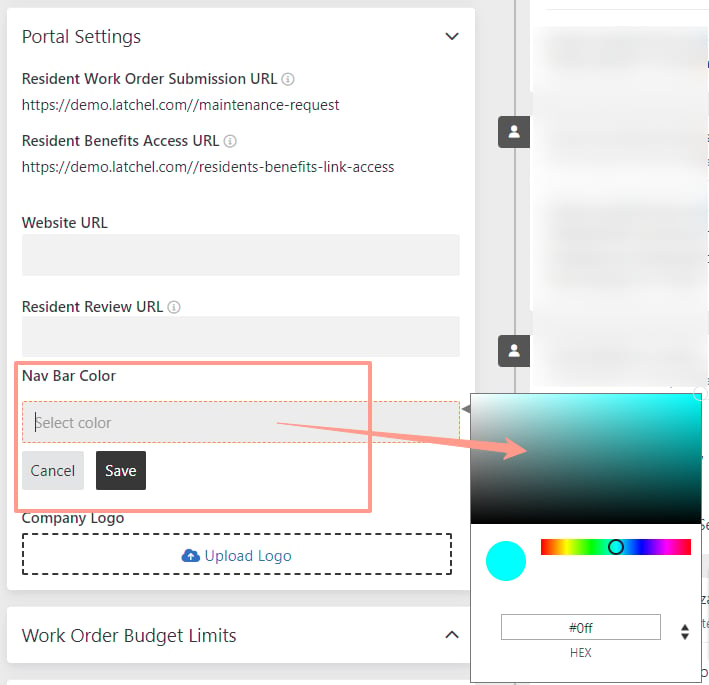
 ### **Nav Bar Color** (Navigation Bar Color)
Personalize your resident experience by incorporating your company-specific color scheme.
### **Nav Bar Color** (Navigation Bar Color)
Personalize your resident experience by incorporating your company-specific color scheme.
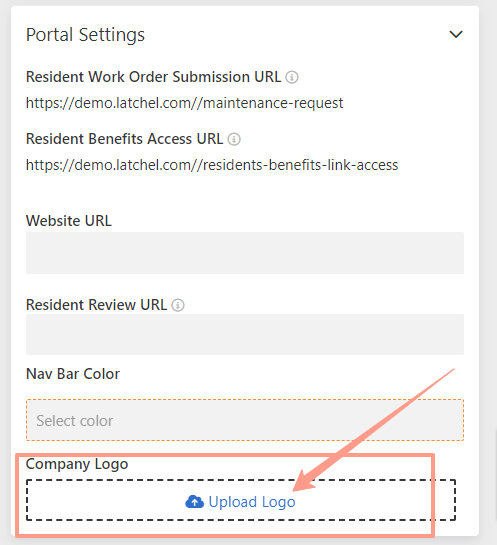
 ### **Company Logo**
Upload your company logo to highlight your brand and create a more cohesive user experience.
### **Company Logo**
Upload your company logo to highlight your brand and create a more cohesive user experience.
 For any Portal settings you've changed, don't forget to save your changes! And that's how you can customize your Portal settings.
You may check the other helpful related guides below to get to know more about Latchel!
For any Portal settings you've changed, don't forget to save your changes! And that's how you can customize your Portal settings.
You may check the other helpful related guides below to get to know more about Latchel!