> ## Documentation Index
> Fetch the complete documentation index at: https://help.latchel.com/llms.txt
> Use this file to discover all available pages before exploring further.
# Dashboard Overview
> Latchel’s upgraded dashboard brings a more intuitive and efficient experience, making it easier to manage work orders, track requests, and access key account settings—all in one place. With a modern interface and improved navigation, Dashboard 2.0 helps property managers and service providers streamline their workflow and get things done faster. Check out the new features and enhancements designed to simplify your day-to-day operations!
### **Action Required Section**
These are work orders that the Latchel system detects as being “in trouble” and needing the attention of you or someone at your company. Specifically, work orders will show up in this section IF
* The work order has an open ‘task.’
* The task is assigned to you or someone at your company
* The work order is “open” (i.e. not Cancelled or Completed)
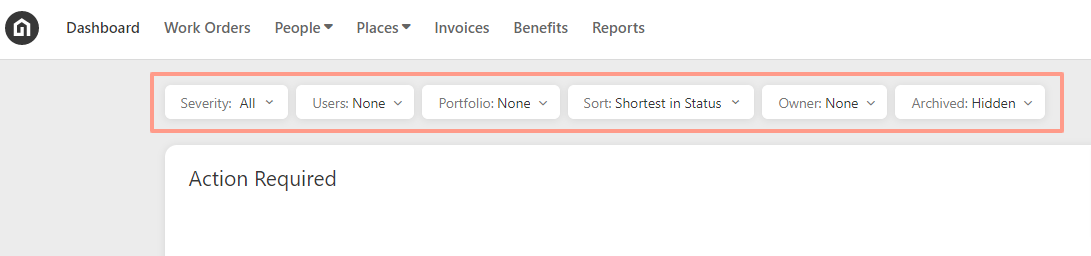
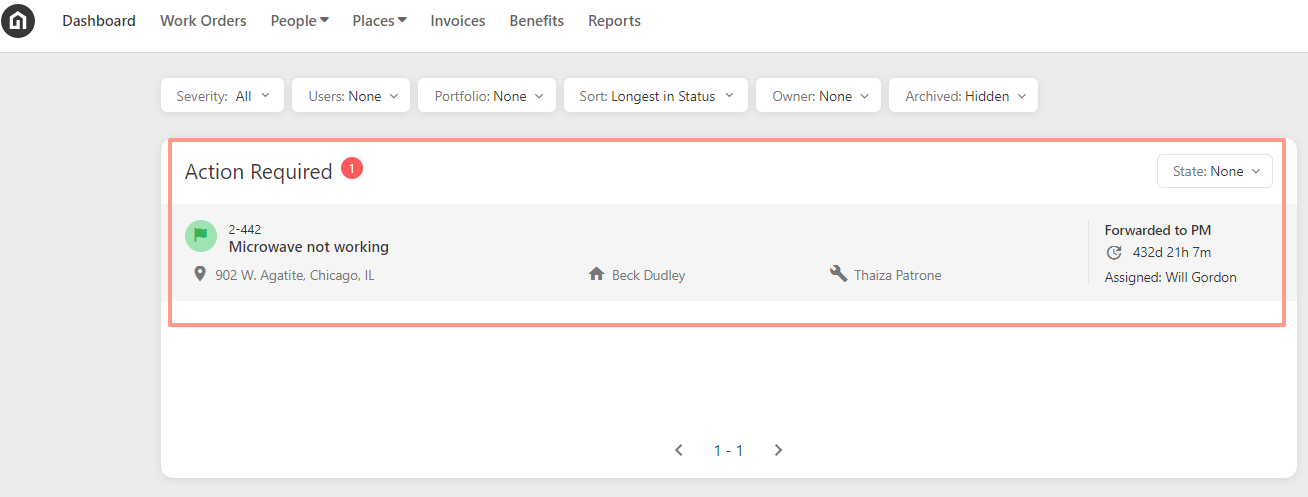 From the Main Dashboard, you can sort the work orders depending on the time duration status (**Shortest/Longest**). You could also filter it by **Portfolio**, **Owner**, **Users**, and **Severity**.
 **For more insights of this amazing dashboard feature, visit:**
Get a quick view at all tasks assigned to you and your team from one central page.
### **Work Order Severity**
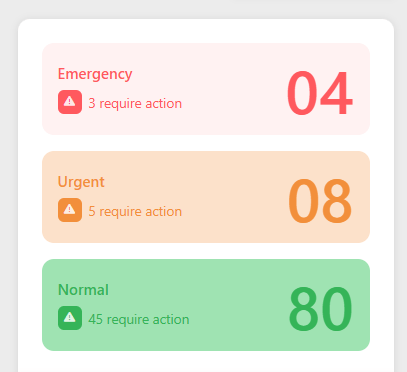
For filtering the **Severity** you could also select the **Tiles** on the right side of the page to view the **Emergency**, **Urgent**, and **Normal** work orders.
By clicking a tile—such as Emergency tile—the list of work orders in the Action Required section will update accordingly.
**For more insights of this amazing dashboard feature, visit:**
Get a quick view at all tasks assigned to you and your team from one central page.
### **Work Order Severity**
For filtering the **Severity** you could also select the **Tiles** on the right side of the page to view the **Emergency**, **Urgent**, and **Normal** work orders.
By clicking a tile—such as Emergency tile—the list of work orders in the Action Required section will update accordingly.
 ### **Resident Reviews**
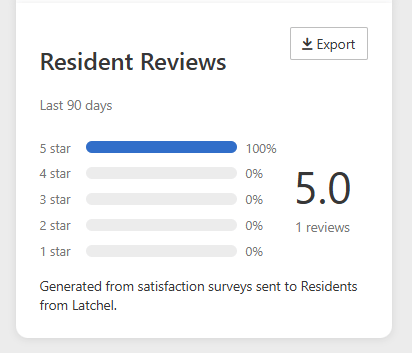
Located on the right side of the dashboard, these reviews are from the past 90 days and can be exported to have more information from the resident's comments.
### **Resident Reviews**
Located on the right side of the dashboard, these reviews are from the past 90 days and can be exported to have more information from the resident's comments.
 ### **Latchel Insight Section**(right side of the dashboard)
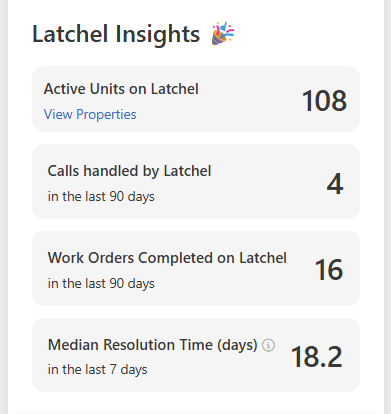
From this section, you can view the number of **Handled Calls**, **Completed Work Orders**, and **Median Resolution Time**. A new addition is the **Active Units on Latchel** metric, which shows how many active units you currently have.
### **Latchel Insight Section**(right side of the dashboard)
From this section, you can view the number of **Handled Calls**, **Completed Work Orders**, and **Median Resolution Time**. A new addition is the **Active Units on Latchel** metric, which shows how many active units you currently have.
 ### **Waiting On Section** (right side of the dashboard)
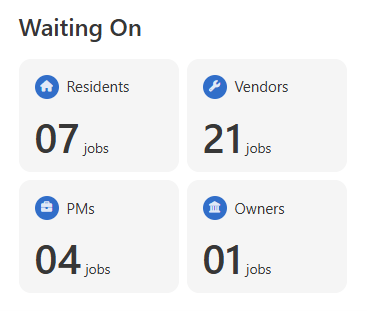
This section shows the number of people such as how many **Residents**, **Vendors**, **PMs**, or **Owners** the work orders are waiting for before it can proceed.
By clicking a tile—such as the Residents tile—the list of work orders in the Action Required section will update accordingly.
### **Waiting On Section** (right side of the dashboard)
This section shows the number of people such as how many **Residents**, **Vendors**, **PMs**, or **Owners** the work orders are waiting for before it can proceed.
By clicking a tile—such as the Residents tile—the list of work orders in the Action Required section will update accordingly.
 ### **Status Board**
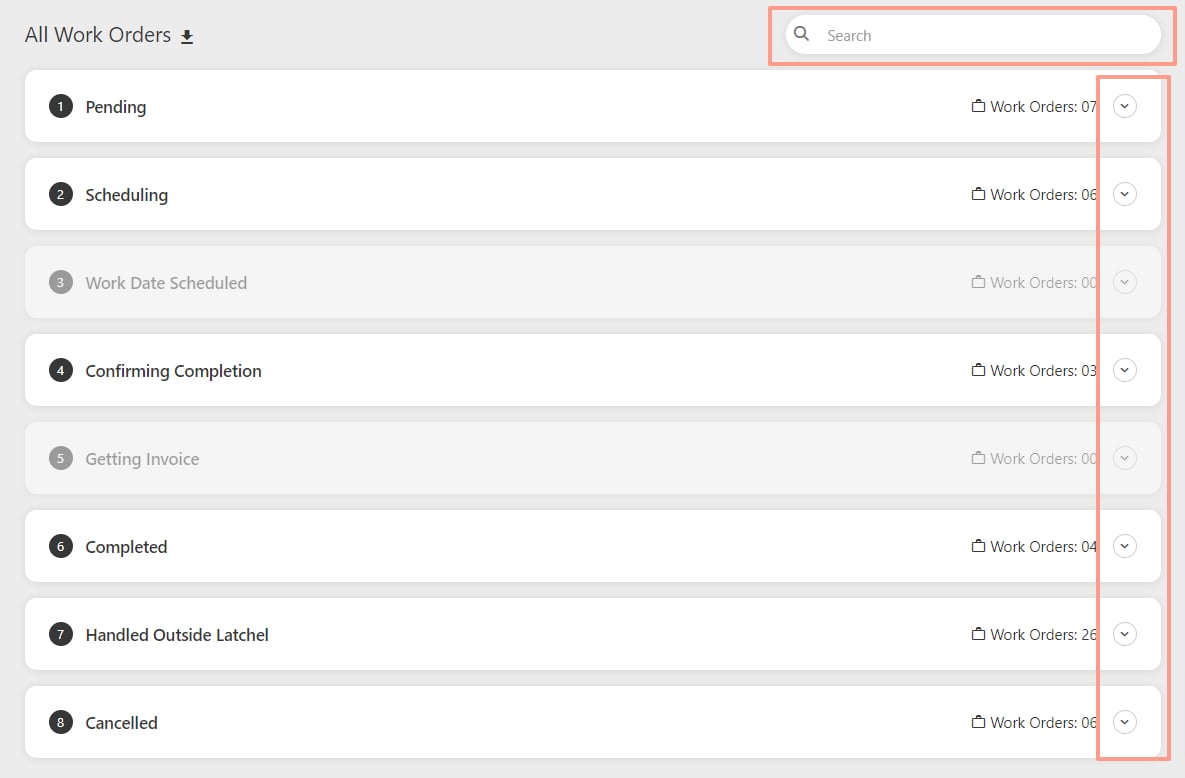
In the **Status Board**, you can view the work orders according to their statuses.
The status will expand the list of work orders by clicking the **dropdown** on the right side of the board. Also, a specific work order can be found using the **search bar** on the top right of the board.
### **Status Board**
In the **Status Board**, you can view the work orders according to their statuses.
The status will expand the list of work orders by clicking the **dropdown** on the right side of the board. Also, a specific work order can be found using the **search bar** on the top right of the board.
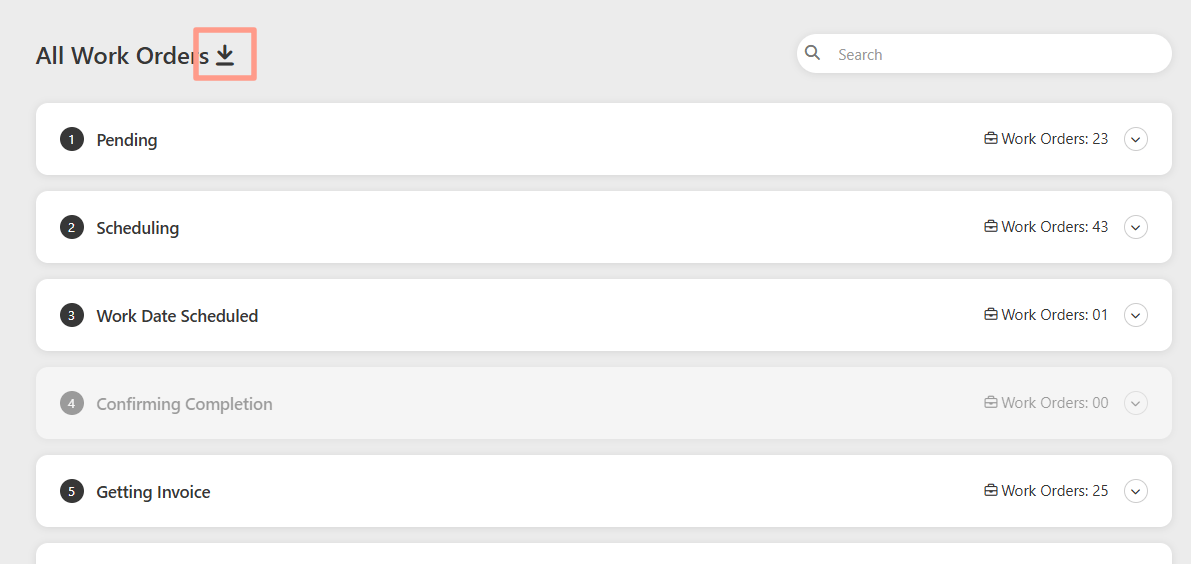
 Another useful feature of this status board is the option to download all work orders. Simply click the **downward arrow** next to it, and you’ll be prompted to **save** the file to your computer.
 ### **Additional Dashboard Help Resources**
Get a quick look at all tasks assigned to you and your team from one central page.
Find support articles and resources right from your Latchel dashboard.
Learn what’s inside the Tools tab and how to make the most of its features.
Use the search bar to instantly locate specific work orders by keyword, number, or address.
Tailor your dashboard’s work order view to see the details that matter most.
Open a resident’s public dashboard to monitor updates and communication on active work orders.
### **Additional Dashboard Help Resources**
Get a quick look at all tasks assigned to you and your team from one central page.
Find support articles and resources right from your Latchel dashboard.
Learn what’s inside the Tools tab and how to make the most of its features.
Use the search bar to instantly locate specific work orders by keyword, number, or address.
Tailor your dashboard’s work order view to see the details that matter most.
Open a resident’s public dashboard to monitor updates and communication on active work orders.