> ## Documentation Index
> Fetch the complete documentation index at: https://help.latchel.com/llms.txt
> Use this file to discover all available pages before exploring further.
# How Emergency Temperature Works with Intake Settings
> With Intake Settings, property managers can define when a temperature-related issue, such as an air conditioning or heating problem, qualifies as an emergency. Instead of relying on a fixed definition, you can set your own plain-language rules that take outside or inside temperature into account.
**Why Temperature Rules Matter**
* **Avoid unnecessary emergency dispatches** for minor comfort issues.
* **Ensure resident safety** when extreme temperatures pose health risks (e.g., infants, elderly, or medical conditions).
* **Save costs** by only classifying true emergencies that require immediate attention.
### **How to Set the Temperature Rule**
If you’d like HVAC work order severity to vary depending on outside or inside temperature, you can set that directly within your Intake Settings rules.
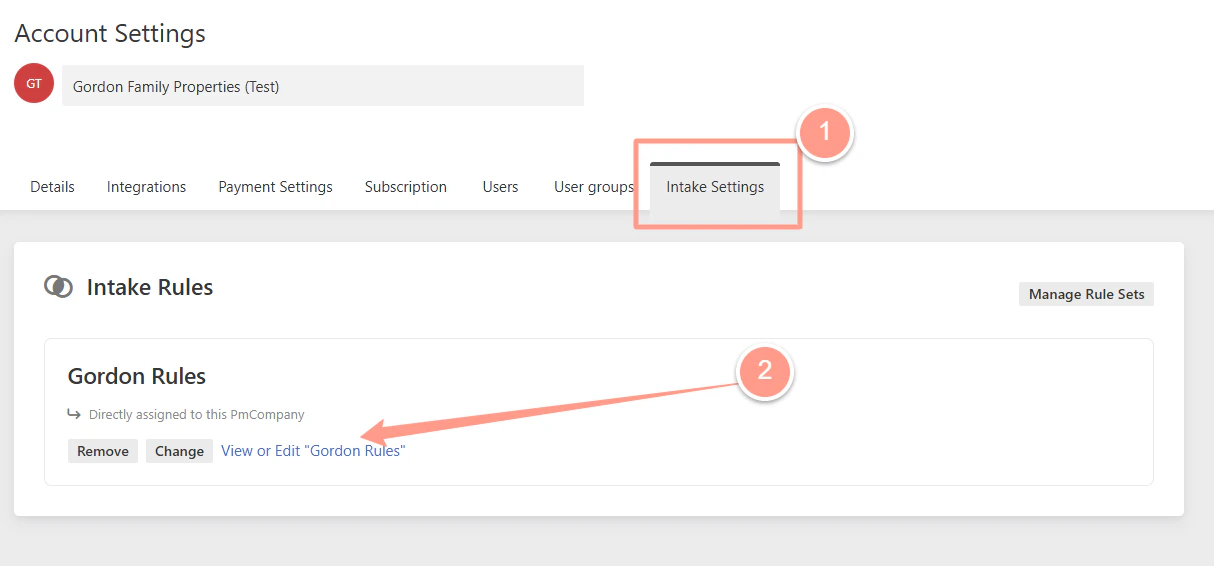
Go to the **Intake Settings**, then **edit or change** your current set rule.
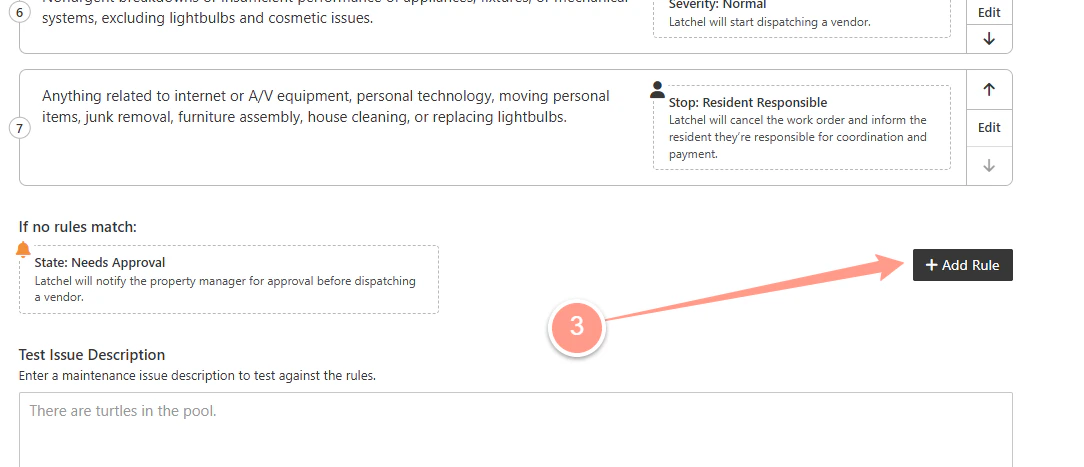
 From your list of existing rules, you can edit any temperature rule, or add a new one if none exist.
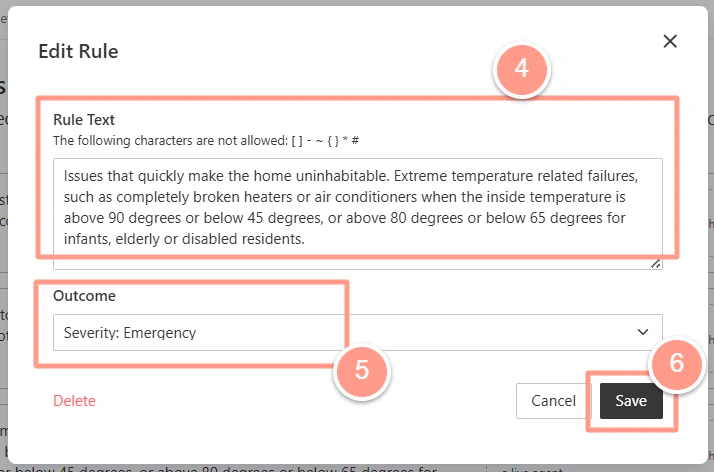
 In the **Edit Rule** box, write a rule that specifies when a heating or cooling issue should be considered an emergency. Set the **outcome to Severity: Emergency**, then click **Save** to finish. Refer to the example rule text below for guidance.
 Once done, you can also set the order for the new temperature rule.
### **Resident Experience**
* When submitting a request, residents are prompted to enter the current temperature.
* If their answer meets the emergency condition you defined, the work order is automatically classified as **Emergency**.
### **Work Order Processing**
* Intake Settings compares the resident’s response with your rule.
* If conditions match, the work order is flagged as emergency and processed immediately.
* If conditions don’t match, it continues through the rest of your rules until a match is found.
**Want to take your Intake Settings knowledge even further? Check out the help article below!**
Edit default rules for how issues are categorized and who's responsible.
Once done, you can also set the order for the new temperature rule.
### **Resident Experience**
* When submitting a request, residents are prompted to enter the current temperature.
* If their answer meets the emergency condition you defined, the work order is automatically classified as **Emergency**.
### **Work Order Processing**
* Intake Settings compares the resident’s response with your rule.
* If conditions match, the work order is flagged as emergency and processed immediately.
* If conditions don’t match, it continues through the rest of your rules until a match is found.
**Want to take your Intake Settings knowledge even further? Check out the help article below!**
Edit default rules for how issues are categorized and who's responsible.