> ## Documentation Index
> Fetch the complete documentation index at: https://help.latchel.com/llms.txt
> Use this file to discover all available pages before exploring further.
# How to Add and Remove Company User
> This help guide will walk you through the simple steps on how you can add and remove/disable company users in your Latchel Account Settings. Let's get started!
### **Add New Company User**
After you logged in to Latchel, click the **arrow down** beside your user icon at the top right corner of your dashboard. Then, click **Account Settings.**
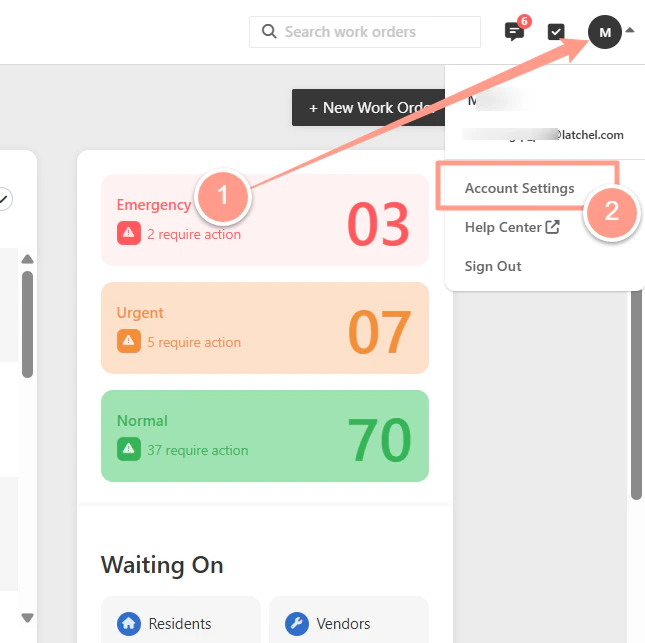 From the **Account Settings** page, go to the **Users tab.** Then, click the **+New User** button at the top right.
 From the small window that shows on the page, **enter the new company user's information**. Click **Save** once done.
 The name of the new user is required, while the phone number and email address are optional. However, providing the new user's contact information is highly recommended for seamless communication.
### **Remove Existing Company User**
From you **Account Settings**, go to **Users** tab.
The name of the new user is required, while the phone number and email address are optional. However, providing the new user's contact information is highly recommended for seamless communication.
### **Remove Existing Company User**
From you **Account Settings**, go to **Users** tab.
 In the list of the Company Users, **look for the name you need to remove/disable**. Then, click the **3 dots** across the name of the user to be removed/disabled.
 Next, choose **Disable User**.
 Finally, click **Submit** to confirm the action you've taken. You'll notice a note **User Account Disabled** under the user's name upon submission.
 If you need to update any of your existing company user's contact information, follow steps in [**How to Update a Company User's Contact Information**](/s/topic/0TO5e000000h9wqGAA/How-to-Update-a-Company-User-s-Contact-Information)**.**
And that's how you can add and remove/disable a company user!
If you need to update any of your existing company user's contact information, follow steps in [**How to Update a Company User's Contact Information**](/s/topic/0TO5e000000h9wqGAA/How-to-Update-a-Company-User-s-Contact-Information)**.**
And that's how you can add and remove/disable a company user!