> ## Documentation Index
> Fetch the complete documentation index at: https://help.latchel.com/llms.txt
> Use this file to discover all available pages before exploring further.
# How to Add a Service Provider to a Portfolio
> When you want to assign a service provider to a portfolio that is not currently in the same territory or zip code as the portfolio, you can follow the steps to assign a service provider.
From your dashboard, click **Places** and then **Portfolio**.
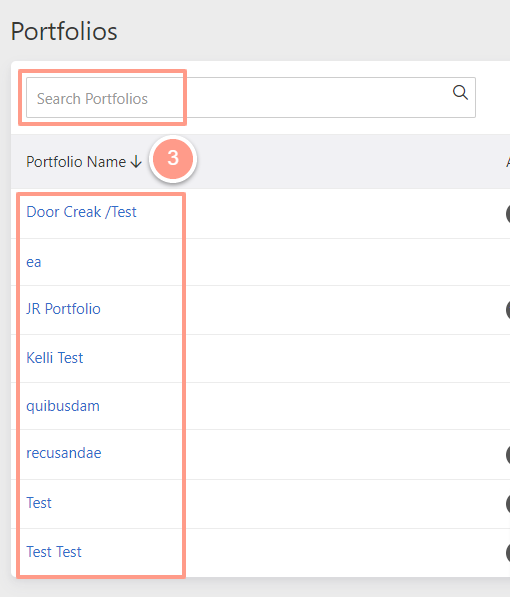
 From the Portfolio page, you can **click** on the Portfolio you'd like to configure or **search** it on the search bar.
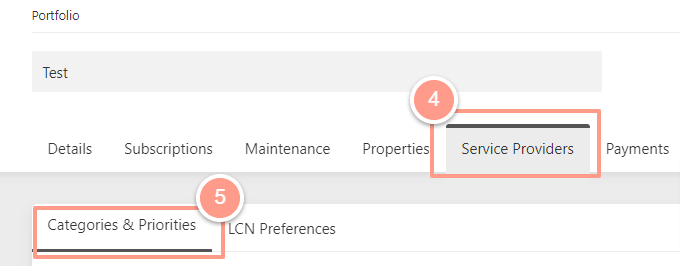
 On the portfolio page, click on the **Service Providers** tab and select **Categories & Priorities**.
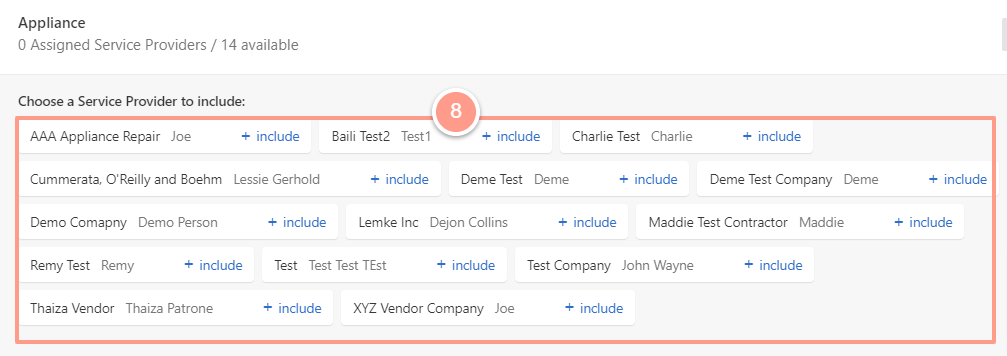
 From the skill/categories, click on the **dropdown icon** and then **+ Include Service Provider.**
 Then list of Service Providers available will appear and you may add them by clicking **+ include** beside their names.
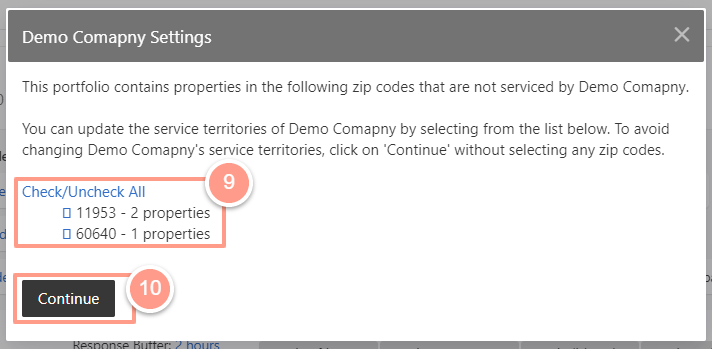
 On the pop-up window, **select** the property(s) you want the service provided to be added.
To finalize the configuration/change, click on **Continue**.
On the pop-up window, **select** the property(s) you want the service provided to be added.
To finalize the configuration/change, click on **Continue**.
 Do you also need to update your service provider's skills? Check this help guide: **[How to Prioritize/Edit Service Providers With Their Skills](/s/topic/0TO5e000000h9wqGAA/How-to-Prioritize-Edit-Service-Providers-with-their-skills)**