> ## Documentation Index
> Fetch the complete documentation index at: https://help.latchel.com/llms.txt
> Use this file to discover all available pages before exploring further.
# How to Add a Service Provider to a Property that is Outside of an Assigned Territory / Zip Code
Managing a service provider based on service territories can be actioned from the company, portfolio, or even property level.
It is encouraged to assign service provider territory/zip code(s) when you do not want a service provider outside the property's territory/zip code to be contacted when a work order comes in. Otherwise, a service provider can be dispatched to all jobs regardless of their location based on service provider prioritization and configuration.
However on this help guide, if you have a property that is not in a service provider's assigned territory/zip code but wishes to be assigned on a work order moving forward, you can follow this help guide to add them to your service provider's territory on a property level only. This action will not affect the company and portfolio level setup.
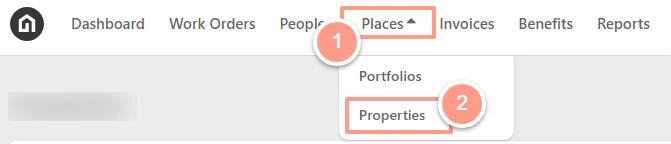
From your dashboard, click on **Places** then **Properties**.
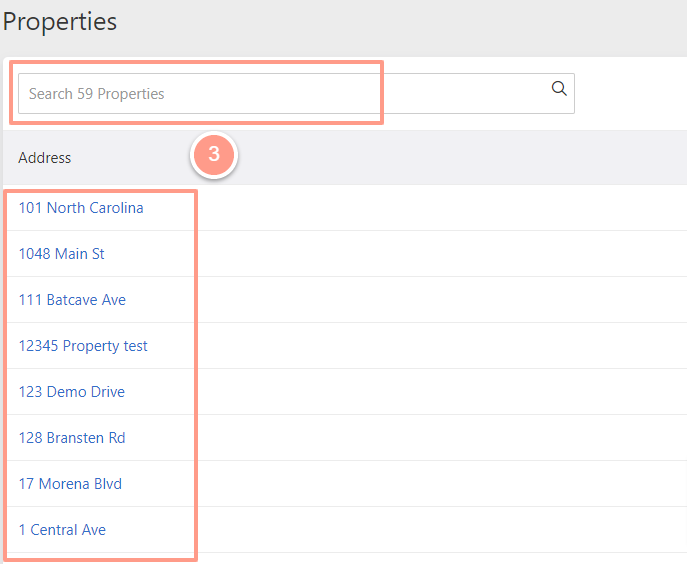
 From the Property Page, you can **Search** the property or **Select** it from the list.
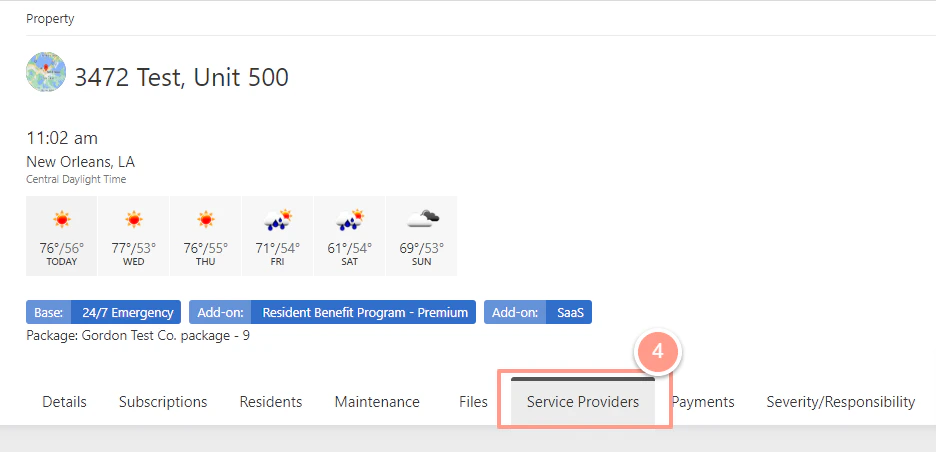
 Once you are on the property page, click on the **Service Providers** tab.
 Now under the Categories & Priorities, click the **Dropdown** of the corresponding skill/categories and select **+ Include Service Provider**.
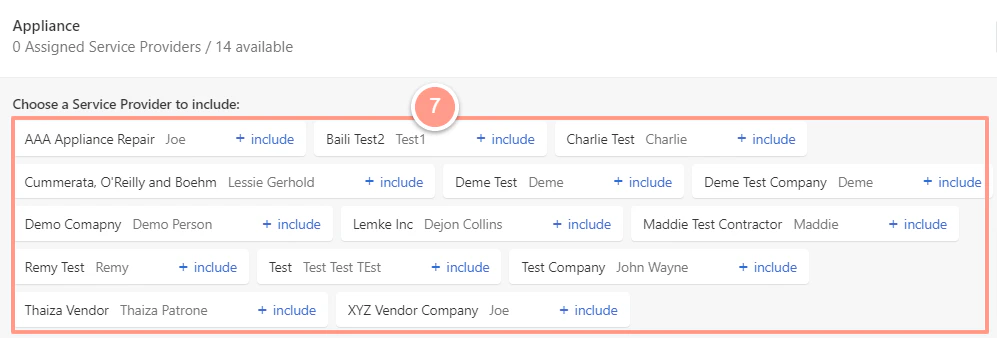
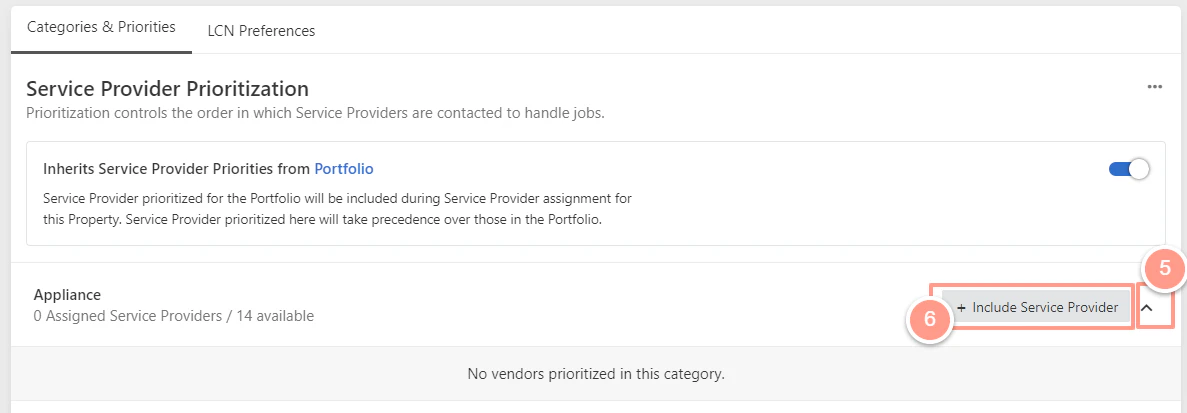 You may now choose the service provider you'd like to add to the property by clicking **+ Include** beside its name.
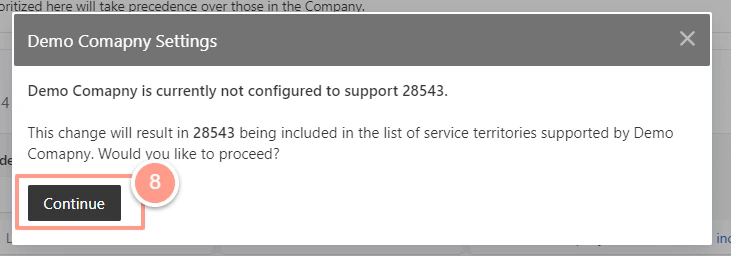
 And since the property is outside the service provider's territory, click \*\*Continue \*\*to allow the changes.
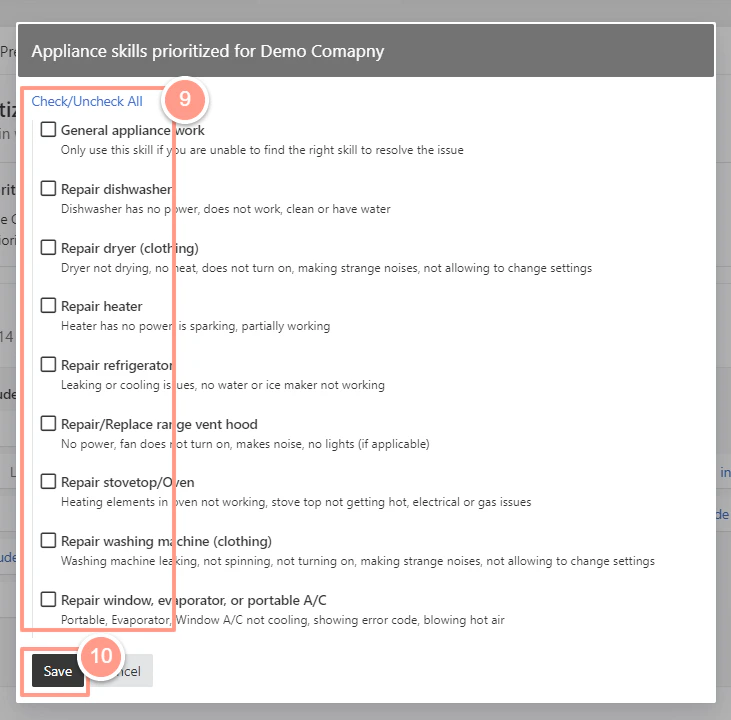
 Then a new pop-up box will appear that will allow you to filter specific skills of the service provider.
To finish the configuration, click on **Save**.
Then a new pop-up box will appear that will allow you to filter specific skills of the service provider.
To finish the configuration, click on **Save**.