> ## Documentation Index
> Fetch the complete documentation index at: https://help.latchel.com/llms.txt
> Use this file to discover all available pages before exploring further.
# How to Cancel a Work Order
**NOTE:** *All canceled requests will move to the canceled column in the Latchel maintenance page from any active or pending statuses. All tasks and work will cease for this job immediately.*
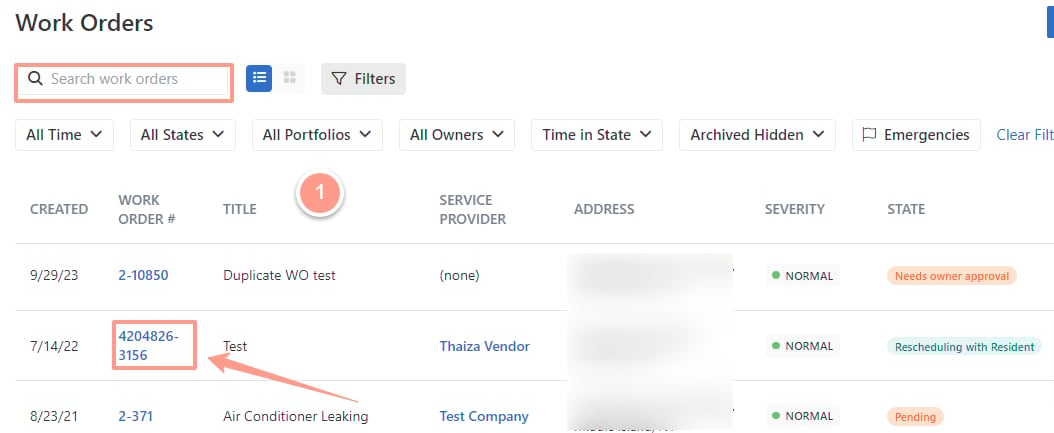
To get to the desired work order, from the dashboard, click on the Maintenance tab, and open the work order by either searching and/or clicking the specific order number. You can also use the **Filter** and **Clear Filters** option for a more refined search. To learn more about how to use the Filter, check out this help guide: [**How to Use the Filter Options in the Work Order Tab Page.**](/s/topic/0TO5e000000h9wqGAA/How-to-Use-the-Filter-Options-in-the-Work-Order-Tab-Page)
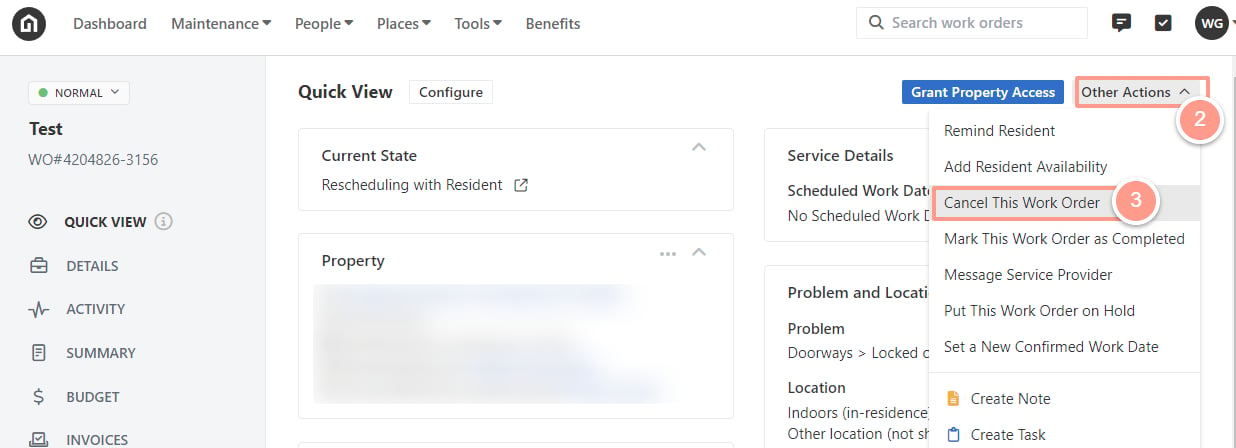
 On the work order page, click **Other Actions** and select **Cancel This Work Order.**
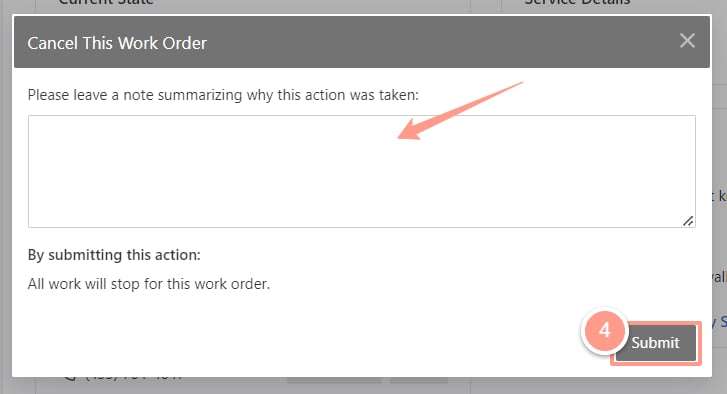
 Leave a note on why the work order must be canceled, and click **Submit.**