> ## Documentation Index
> Fetch the complete documentation index at: https://help.latchel.com/llms.txt
> Use this file to discover all available pages before exploring further.
# How to Change/Reset the Password of a Latchel User's Login
> Need to update or reset a team member’s Latchel login password? This guide walks you through how to manage user credentials securely and easily.
To change your password, click the **arrow down** beside your user icon at the top right corner of your dashboard. Then, select **Account Settings**.
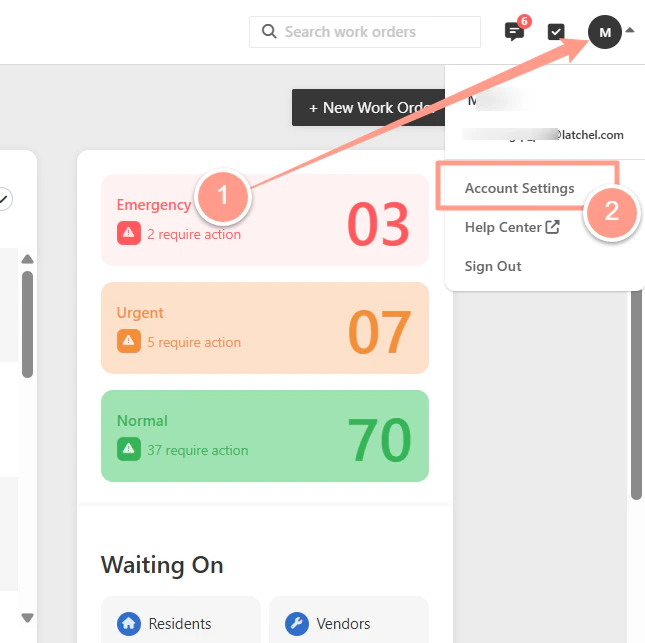 From the **Account Settings** page, click **Users**. The list of company users will appear. From there, select the user with the email you wish to reset the password.
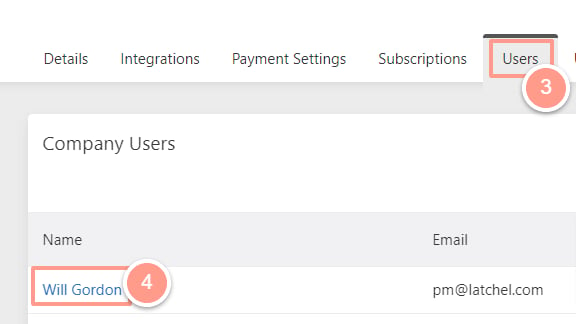 The email address of the user selected is the email address that will be notified for a password reset. \
\
If you need to update the user's email address, follow the steps in [How to Update a Company User's Contact Information](/s/topic/0TO5e000000h9wqGAA/How-to-Update-a-Company-User-s-Contact-Information).
In the **User or Member profile page**, click the **circle with three dots** at the upper right corner.
The email address of the user selected is the email address that will be notified for a password reset. \
\
If you need to update the user's email address, follow the steps in [How to Update a Company User's Contact Information](/s/topic/0TO5e000000h9wqGAA/How-to-Update-a-Company-User-s-Contact-Information).
In the **User or Member profile page**, click the **circle with three dots** at the upper right corner.
 Once clicked, there are **two options** to select, **Send login email** and **Disable user.** Click **Send login email.**
 Once done, the user of the email will receive an email from Latchel to reset the password.
Click the **Create Password** button in the email.
Once done, the user of the email will receive an email from Latchel to reset the password.
Click the **Create Password** button in the email.
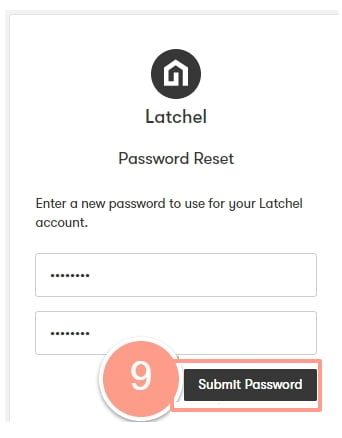
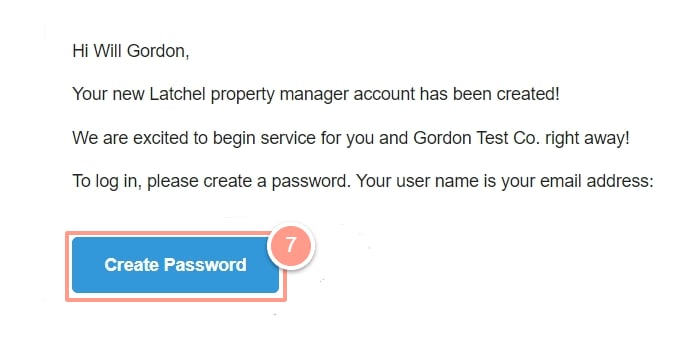 The button will take the user to the **Latchel webpage** where the password can be changed. From there, type the new password.
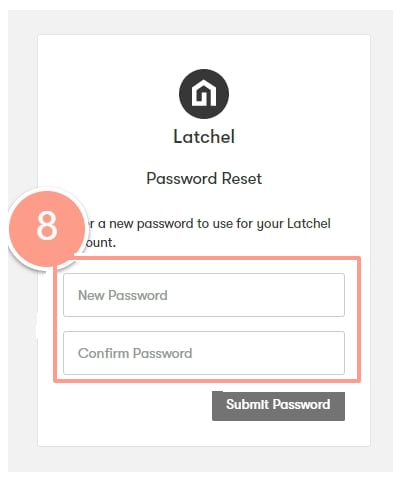 If the New Password and the Confirm Password match, the **Submit Password** buttonwill be available. Click the **Submit Password** to log in.
 And that's it! The user will be redirected to the Latchel dashboard with the new password!