> ## Documentation Index
> Fetch the complete documentation index at: https://help.latchel.com/llms.txt
> Use this file to discover all available pages before exploring further.
# How to Change a Work Order Number
> If you’ve entered the wrong work order number or need to update it for accuracy, you can easily change it in Latchel. This guide walks you through the steps to update a work order number so your request stays properly tracked.
### **On Active Work Order**
From the Dashboard, click on **Maintenance**, and open the work order by either **searching and/or clicking the specific order number**. You can also use the **Filter** option for a more refined search.
**To learn more about how to use the Filter, check out this help guide:**
Use filters to quickly find work orders by property, status, severity, and more.
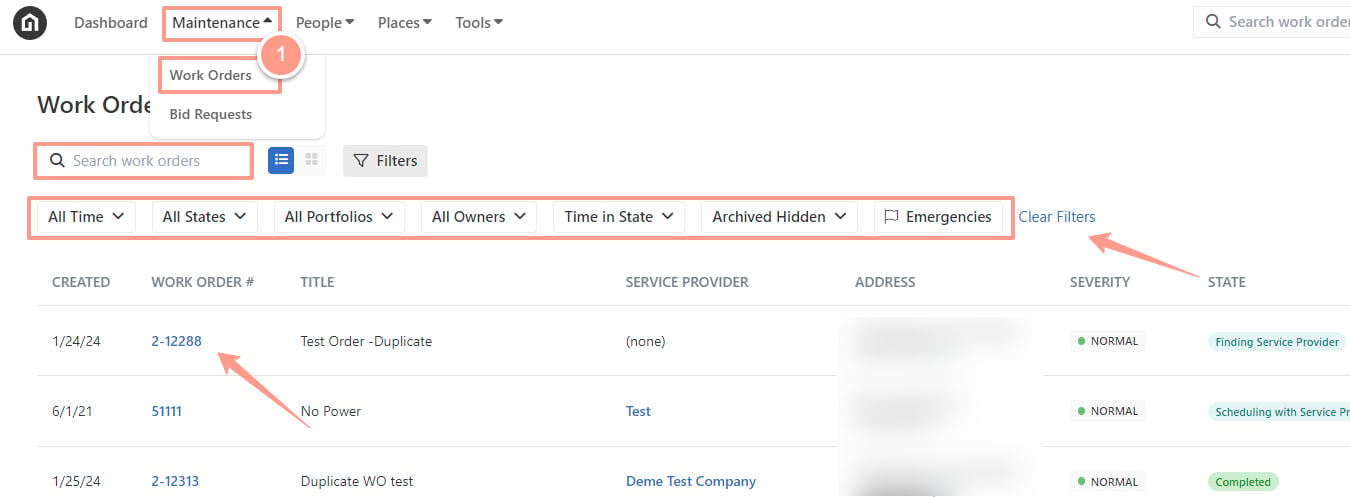 When a Property Manager or Latchel admin chooses the filter option, the previous **filters will automatically save in any place of the work order page** even if the user logs out and logs back in, to clear or reset this, click on **Clear Filters**.
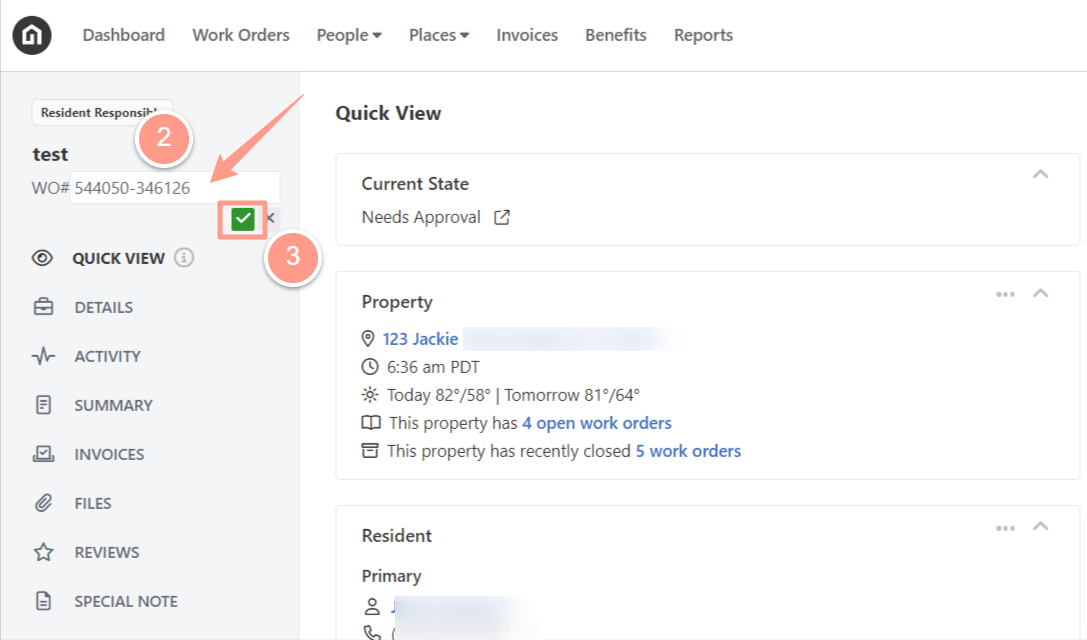
Now that you are on the work order page, click the **work order number**, and change or update the work order number as desired. Then click the **green check** icon to save the changes.
When a Property Manager or Latchel admin chooses the filter option, the previous **filters will automatically save in any place of the work order page** even if the user logs out and logs back in, to clear or reset this, click on **Clear Filters**.
Now that you are on the work order page, click the **work order number**, and change or update the work order number as desired. Then click the **green check** icon to save the changes.
 ### **During Job Creation**
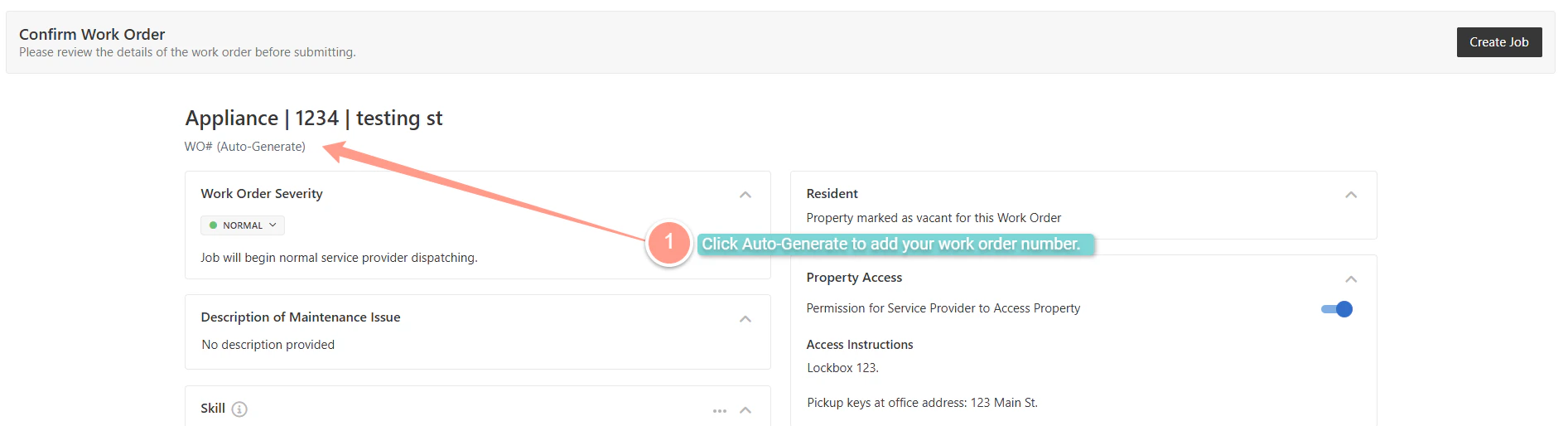
Follow the usual steps to create a new job. On the **Confirm Work Order** page, click next to **"Auto-Generate"** under the work order title to enable the field, then **enter your desired work order number**.
### **During Job Creation**
Follow the usual steps to create a new job. On the **Confirm Work Order** page, click next to **"Auto-Generate"** under the work order title to enable the field, then **enter your desired work order number**.
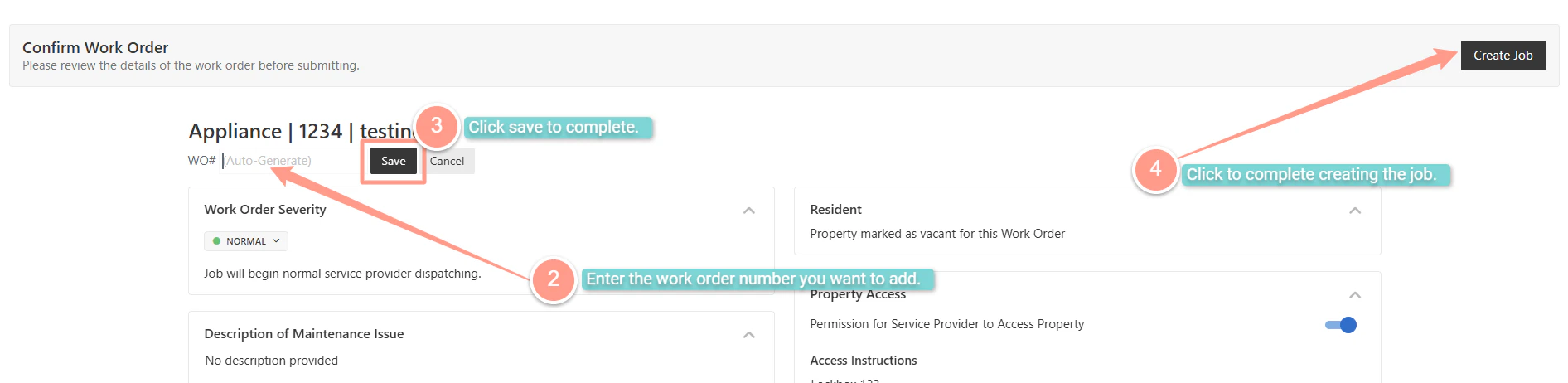
 Once the field is enabled, **enter the new work order number**. Click **Save**, then continue creating the job.
 **Do you need to update your work order title?** Check the guide below!
Quickly change the work order's title to better reflect the task at hand.
**Do you need to update your work order title?** Check the guide below!
Quickly change the work order's title to better reflect the task at hand.