> ## Documentation Index
> Fetch the complete documentation index at: https://help.latchel.com/llms.txt
> Use this file to discover all available pages before exploring further.
# How to Change the Assigned PM User
> There may be times when you need to update who is assigned to manage a specific property, portfolio, or your company’s primary account. This guide walks you through the steps to change the assigned Property Manager (PM) user at the property, portfolio, or company level in Latchel.
Assigning a PM at the property level (even if the property is part of a portfolio) will override the PM assigned at the portfolio level. Similarly, assigning a PM at the portfolio level overrides the PM set at the company level. \
\
For more details, see [Configuration Inheritance (Property, Portfolio, & Company Level)](/s/topic/0TO5e000000h9wqGAA/Configuration-Inheritance-Property-Portfolio-Company-Level).
### **Overriding the Assigned PM User at the Property Level**
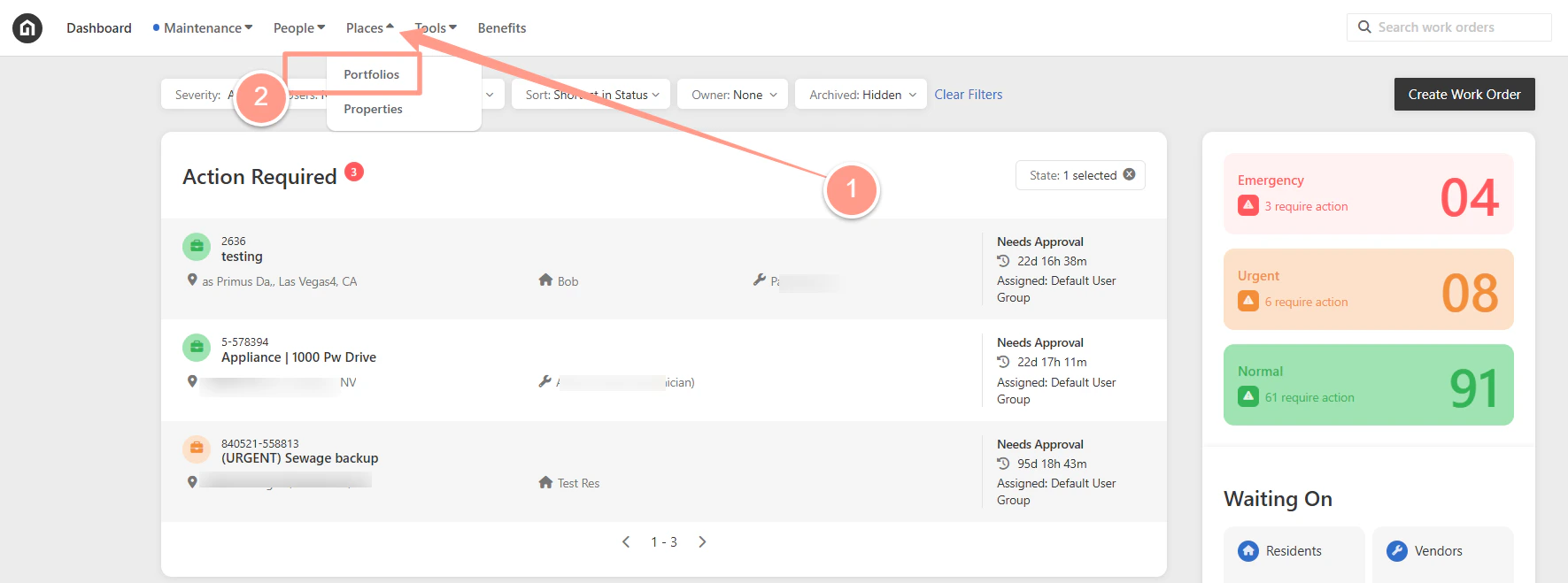
From your dashboard, go to **Places**, then select **Properties**.
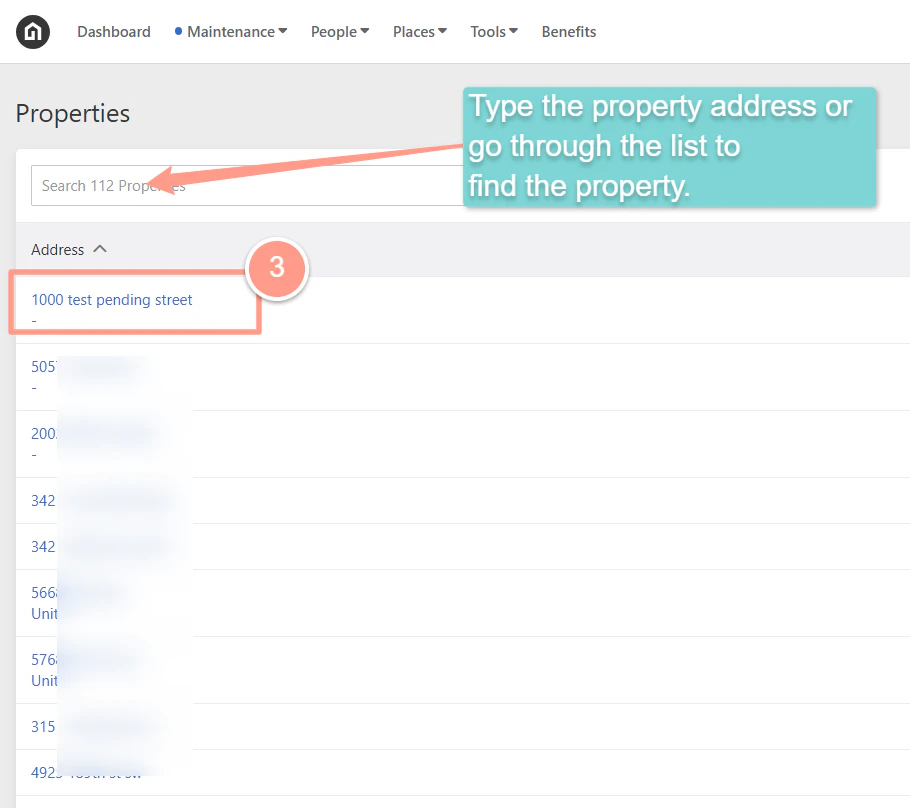
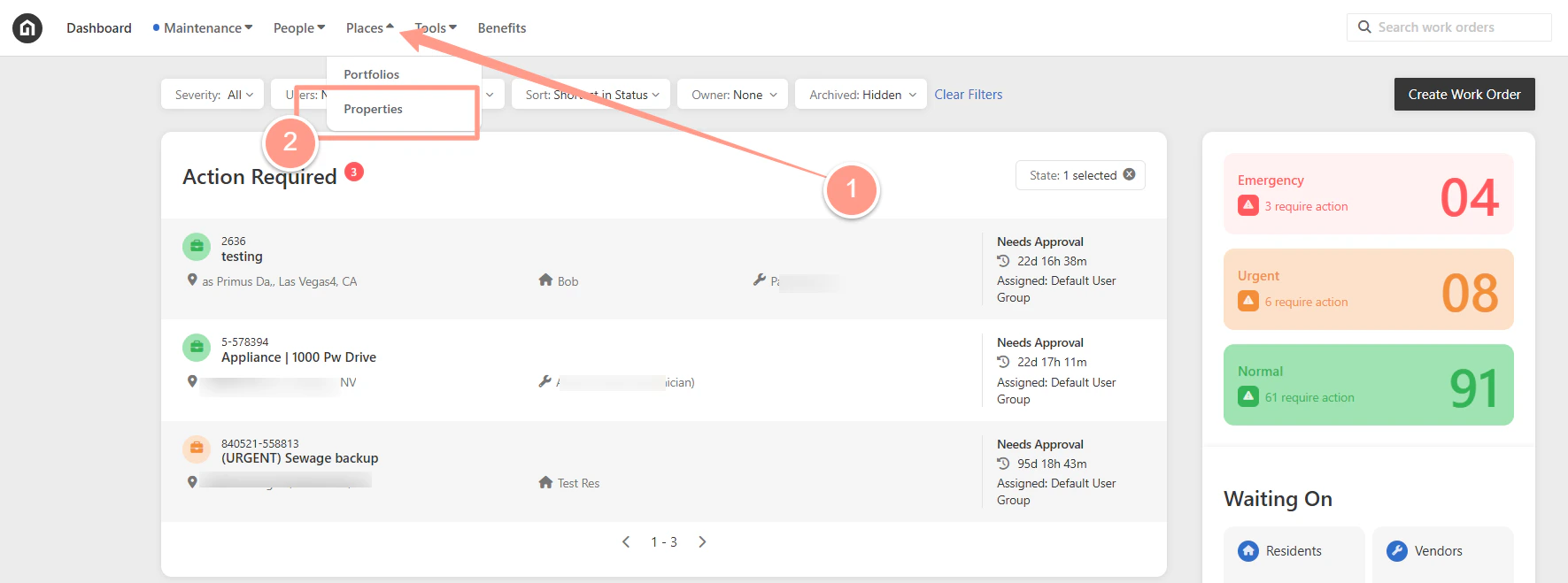 **Search for the property address**, then click the **hyperlinked address**.
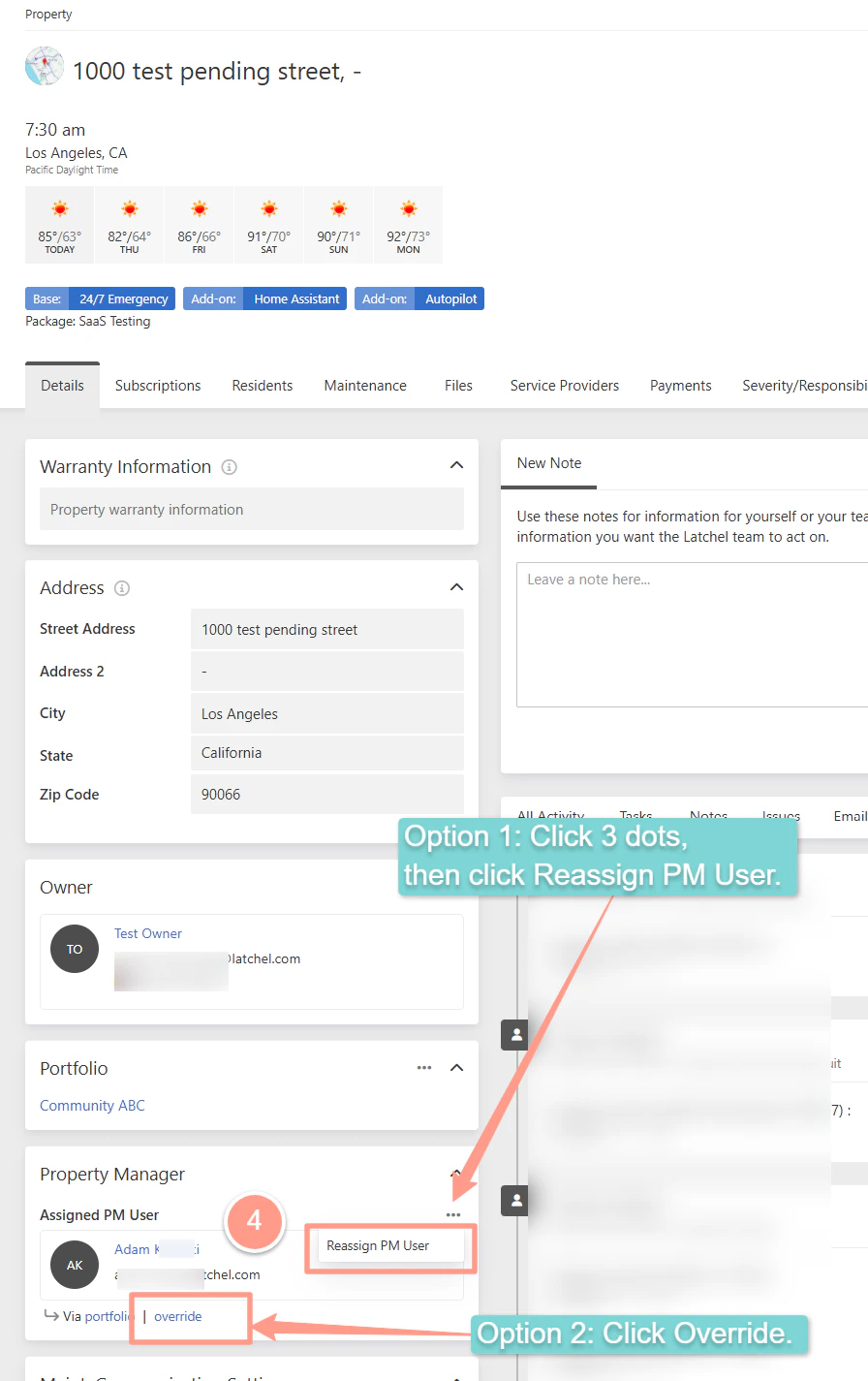
 In the property **Details** tab, scroll down to the **Property Manager section**. You’ll have **two options** to update the assigned PM user:
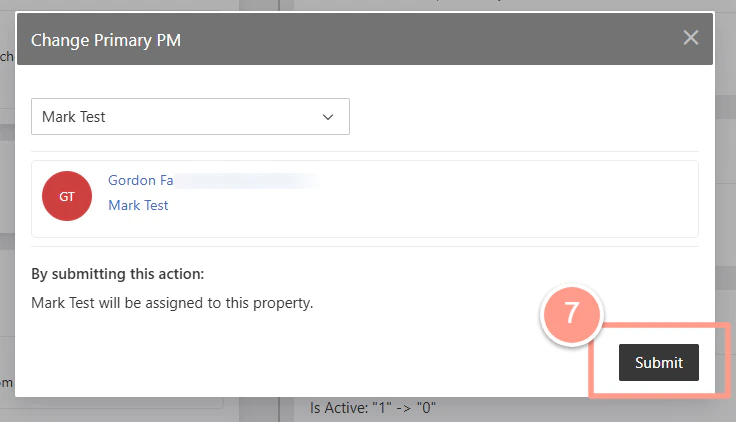
 **Expand** Select an option to view all company users. From the list, **click the name of the user** you want to assign.
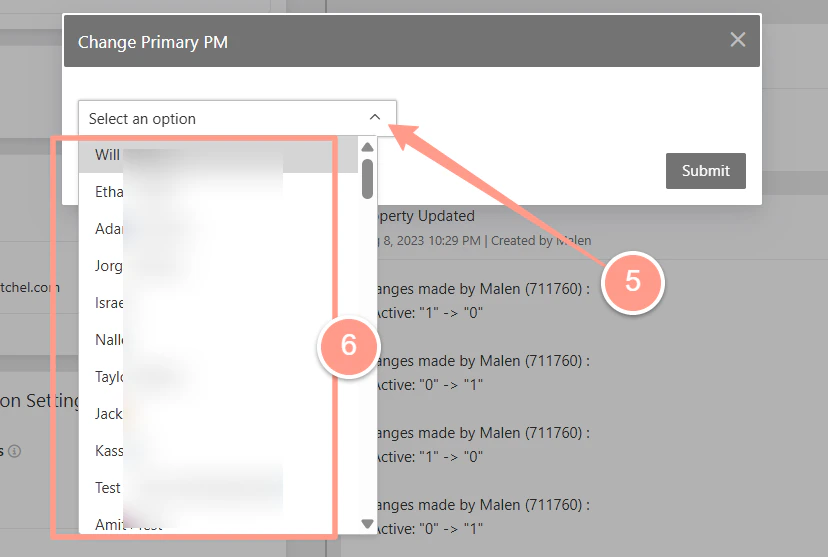 Click **Submit** to save your changes.
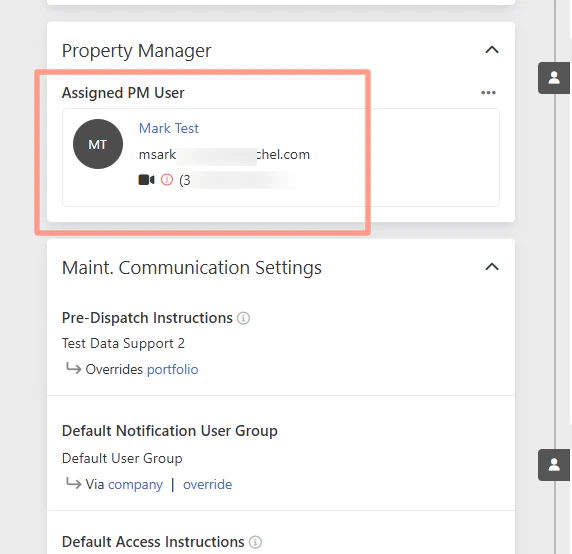
 The newly assigned PM user's name will appear immediately.
 ### **Overriding the Assigned PM User at the Portfolio Level**
From your dashboard, go to **Places**, then select **Portfolios**.
### **Overriding the Assigned PM User at the Portfolio Level**
From your dashboard, go to **Places**, then select **Portfolios**.
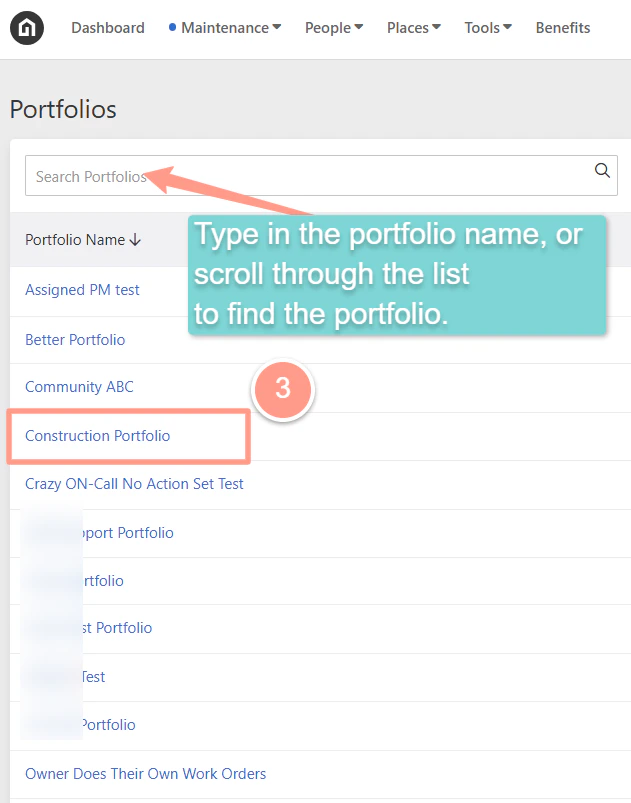
 **Search for the portfolio name**, then click the **hyperlinked portfolio name**.
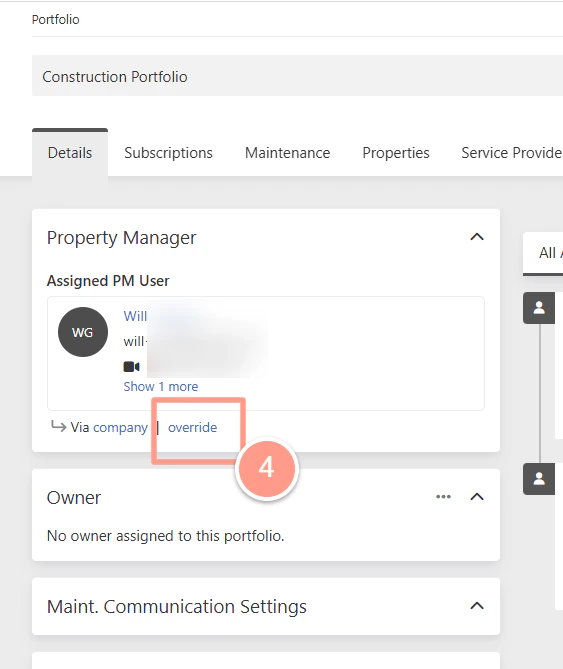
 Click **Override** beneath the name of the currently assigned PM user.
The **Override** option will only appear if the assigned PM user has not been overridden previously. If a PM has already been overridden, click the **three dots (**) next to their name, then select **Reassign PM User**.
Click **Override** beneath the name of the currently assigned PM user.
The **Override** option will only appear if the assigned PM user has not been overridden previously. If a PM has already been overridden, click the **three dots (**) next to their name, then select **Reassign PM User**.
 **Expand** Select an option to view all company users. From the list, **click the name of the user** you want to assign.
Click **Submit** to save your changes.
The newly assigned PM user's name will appear immediately.
### **Changing the Primary User at the Company Level**
If you need to update the main point of contact for your company in Latchel, the easiest way is to change the primary user at the company level.
Changing the primary user at the company level will not override any individual assignments made at the property or portfolio level.
First, click your **profile icon** at the upper right corner of the page, then go to **Account Settings**.
**Expand** Select an option to view all company users. From the list, **click the name of the user** you want to assign.
Click **Submit** to save your changes.
The newly assigned PM user's name will appear immediately.
### **Changing the Primary User at the Company Level**
If you need to update the main point of contact for your company in Latchel, the easiest way is to change the primary user at the company level.
Changing the primary user at the company level will not override any individual assignments made at the property or portfolio level.
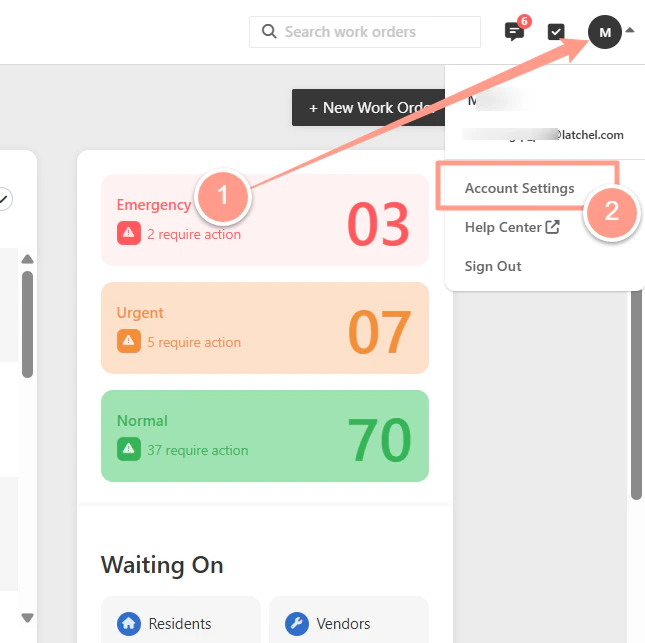
First, click your **profile icon** at the upper right corner of the page, then go to **Account Settings**.
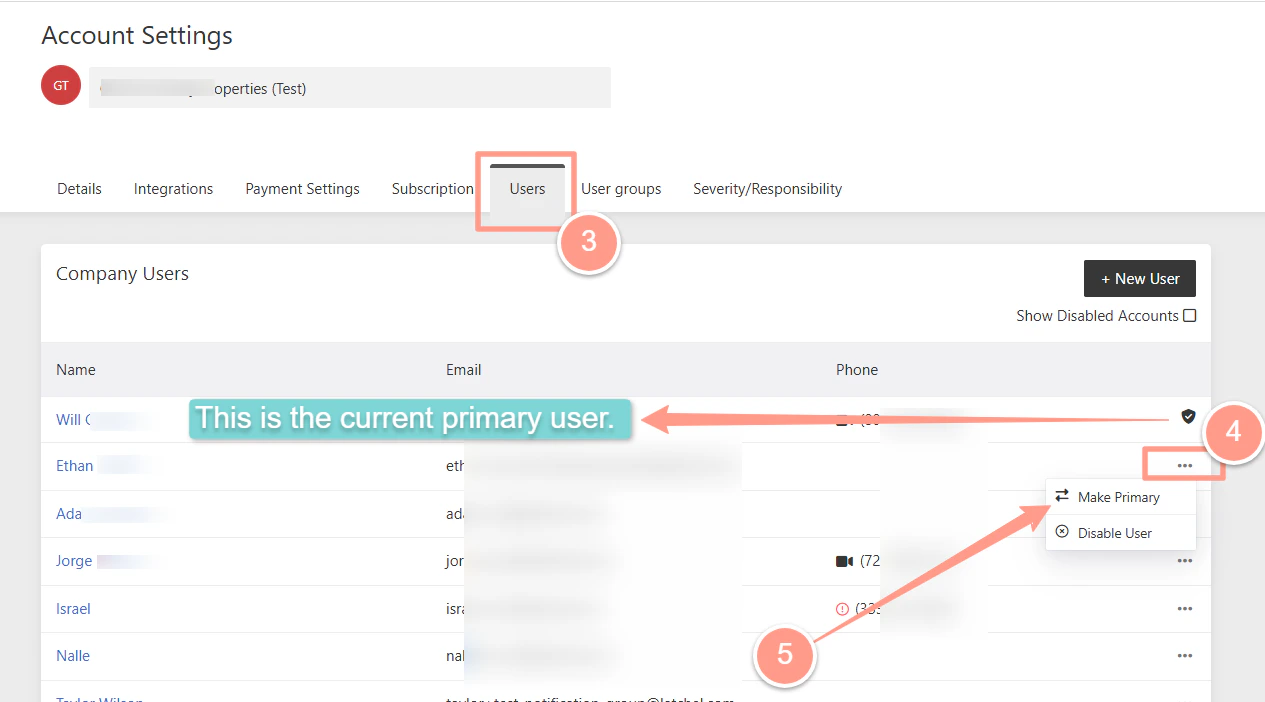
 Go to the **Users** tab, and **find the company user** you will make as primary. Click the **ellipsis** (), then select **Make as primary**.
The user with a shield () icon is the current primary user.
Go to the **Users** tab, and **find the company user** you will make as primary. Click the **ellipsis** (), then select **Make as primary**.
The user with a shield () icon is the current primary user.
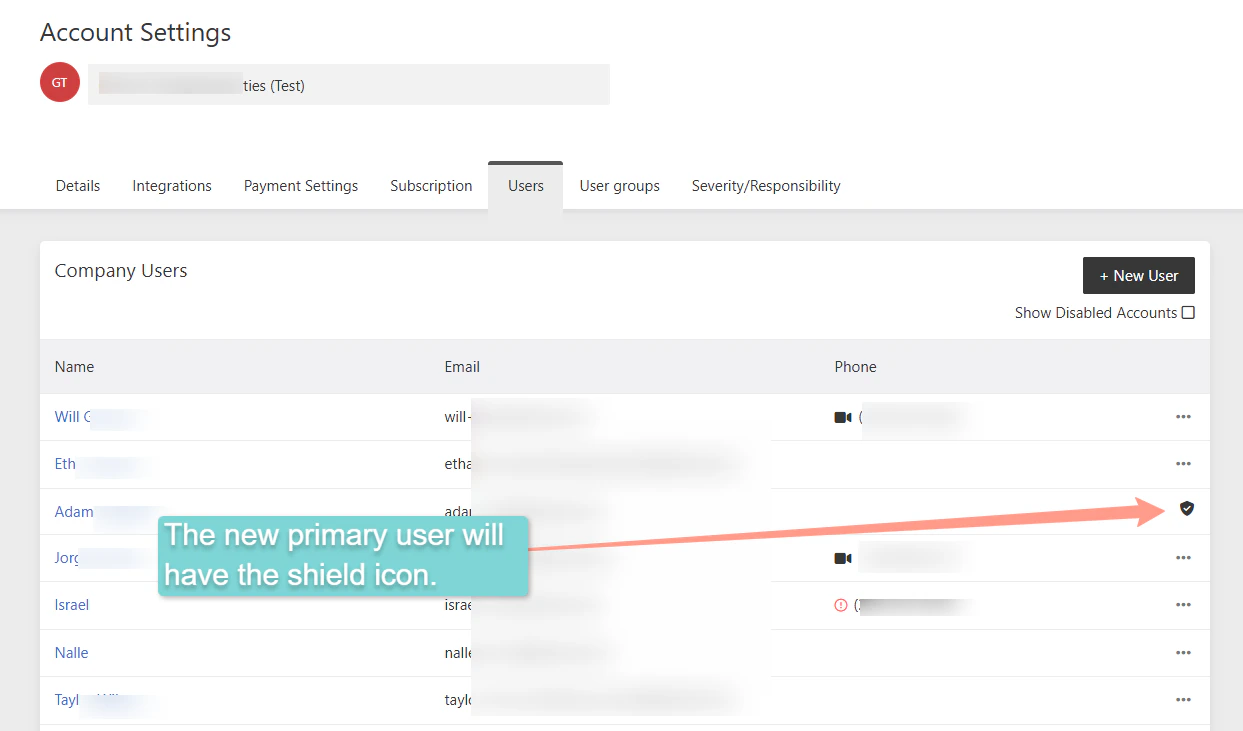
 The new primary PM user's name will have the shield icon immediately.
 ### **Need to add new company user? Follow the help guide below!**
Easily manage team access in Latchel by adding or removing users from your company account.
### **Need to add new company user? Follow the help guide below!**
Easily manage team access in Latchel by adding or removing users from your company account.