> ## Documentation Index
> Fetch the complete documentation index at: https://help.latchel.com/llms.txt
> Use this file to discover all available pages before exploring further.
# How to Change the Property on a Work Order
> The property on a Work Order is used to reflect what address Latchel is coordinating the request on.
**NOTE:** *Latchel can only have 1 address per Work Order, so if multiple units are affected, multiple requests must be opened for coordination unless resolving the issue in 1 unit solves it for the rest.*
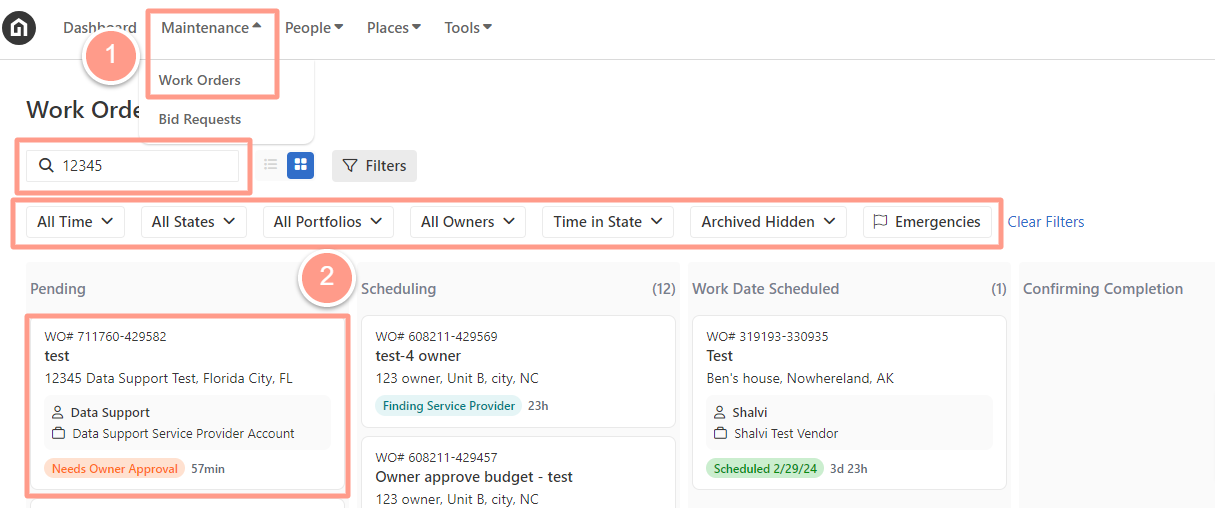
To select the desired work order, from the dashboard, click on **the Maintenance tab**, and open the work order by either **searching and/or clicking the specific order number**. You can also use the **Filter** and **Clear Filters** option for a more refined search. To learn more about how to use the Filter, check out this help guide: [**How to Use the Filter Options in the Work Order Tab Page.**](/s/topic/0TO5e000000h9wqGAA/How-to-Use-the-Filter-Options-in-the-Work-Order-Tab-Page)
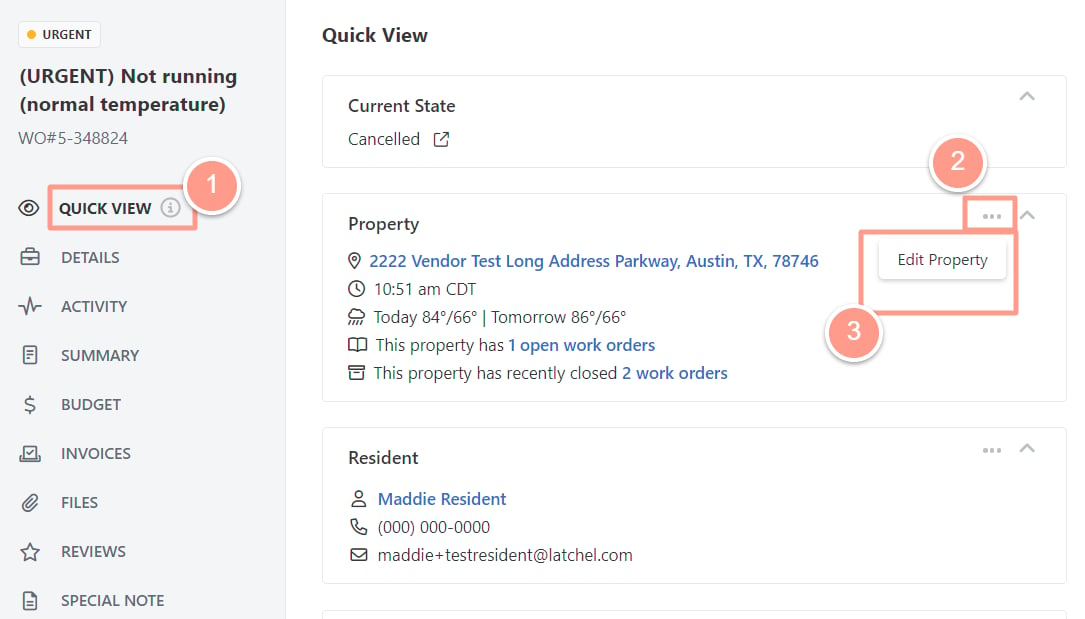
 From the Quick View tab click on the **3 dots** located next to the Property modal, and click **Edit Property.**
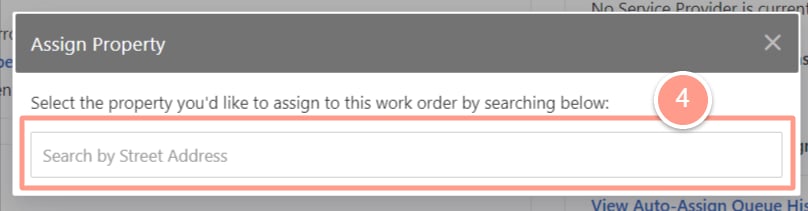
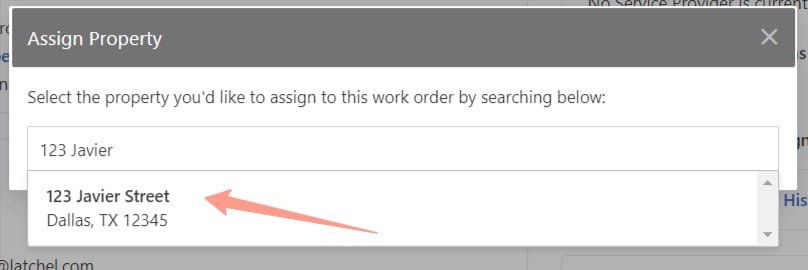
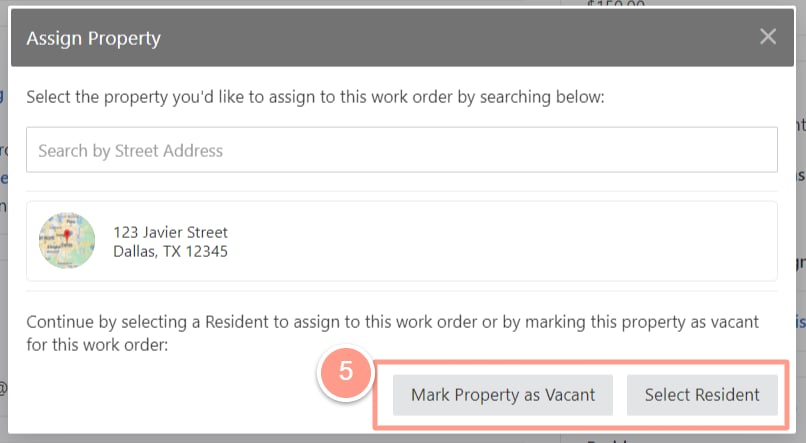
 Search the property you'd like the order to be assigned. The property address will show in the drop-down result.
 Next, select **Mark Property as Vacant** or **Select Resident**. For this scenario, let's choose **Mark Property as Vacant.**
 It is recommended to put in notes and explain the reason for the change of property, then hit **Submit**.
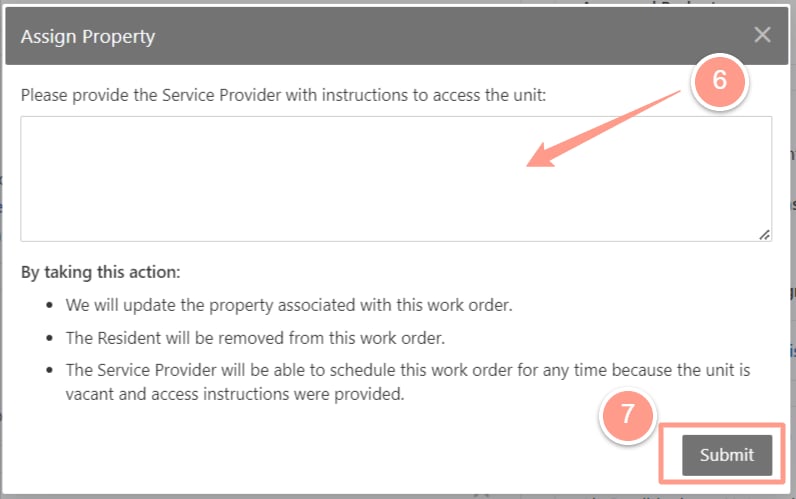 And that's how you can change or edit the property address in a work order!