> ## Documentation Index
> Fetch the complete documentation index at: https://help.latchel.com/llms.txt
> Use this file to discover all available pages before exploring further.
# How to Change the Severity Settings on a Work Order
> Previously, Property managers have to contact Latchel to adjust the severity settings of a work order, but with the latest improvement, Property managers are now empowered to do it at their own convenience.
When updating the severity settings on a work order, you can choose to apply the changes to the current active work order or set them at the company or property level, which will affect future work orders.
### **Changing Severity Settings on a Single Work Order**
From the work order page that requires severity settings change, click on the **drop-down** button. The severity setting is right above the work order title.
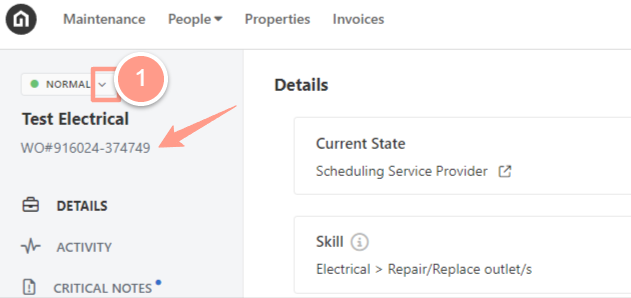 Severity settings can be changed from **NORMAL** to **URGENT,** or **EMERGENCY**.
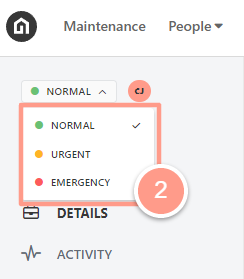 After choosing the updated settings, a pop-up message will appear confirming the change,it should say **Work Order Severity Updated.**
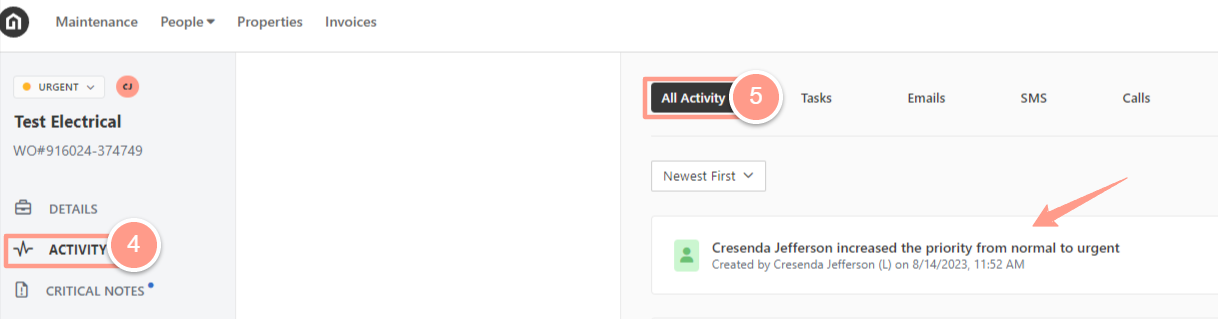
 You can find a confirmation of the change on the **ACTIVITY** page under the **All Activity** tab. This will display the date of the change and the person who made the change.
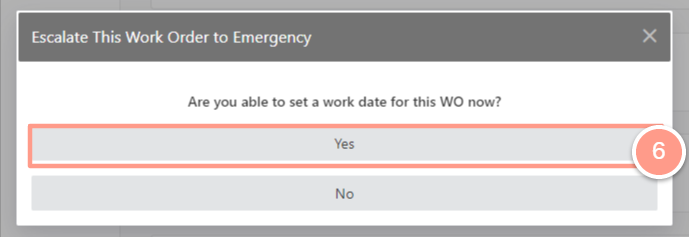
 **When an Emergency is chosen, a few questions must be accomplished.**
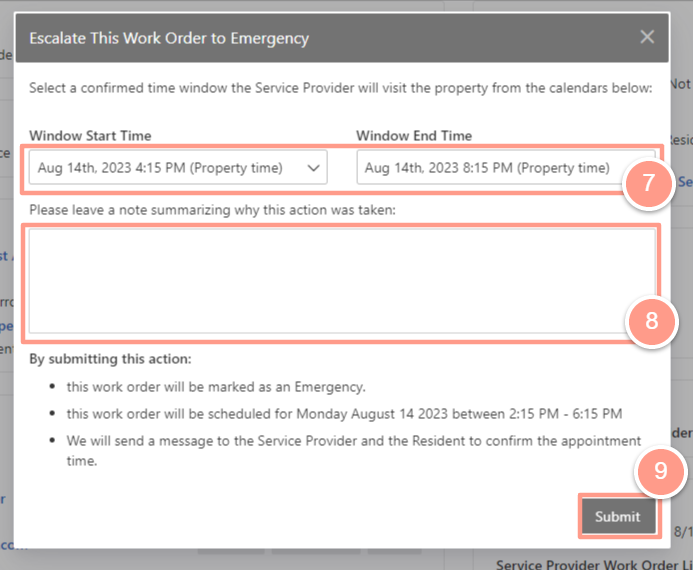
The first question is, **Are you able to set a work date for this WO now?** If **Yes** is chosen, it will prompt to supply the service provider to schedule an appointment.
**When an Emergency is chosen, a few questions must be accomplished.**
The first question is, **Are you able to set a work date for this WO now?** If **Yes** is chosen, it will prompt to supply the service provider to schedule an appointment.
 The next question will ask you to select an appointment window for the service provider visit. It is also advisable to include a summary explaining the reason for this action. Finally, click on the **Submit** button.
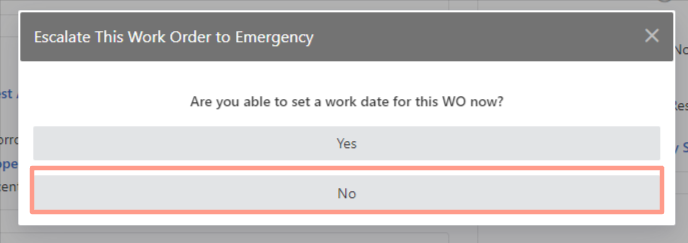
 The only difference when **No** is chosen is that the work order will immediately go to emergency status. This action will not trigger any troubleshooting intervention from our Operations Support Team, so it is advisable to choose this only if it is for tracking purposes.
 ### **Applying Severity Setting to Future Work Orders**
In an active work order, navigate to the Problem and Location section and click the "**here**" hyperlink.
**If the severity setting was previously applied to the work order, the "here" hyperlink may not be available. Instead, click View Severity/Responsibility Settings.**
### **Applying Severity Setting to Future Work Orders**
In an active work order, navigate to the Problem and Location section and click the "**here**" hyperlink.
**If the severity setting was previously applied to the work order, the "here" hyperlink may not be available. Instead, click View Severity/Responsibility Settings.**

 Update the Severity and Responsibility settings by selecting **Approval Required**, **Resident Responsible**, or **Control Severity**.
If you choose **Control Severity**, select **Normal**, **Urgent**, or **Emergency**, then click **Next**.
Update the Severity and Responsibility settings by selecting **Approval Required**, **Resident Responsible**, or **Control Severity**.
If you choose **Control Severity**, select **Normal**, **Urgent**, or **Emergency**, then click **Next**.

 Next, choose where to apply the settings: **Company** or **Property**.
If the property is part of a portfolio, the Portfolio option will also be available.
Next, choose where to apply the settings: **Company** or **Property**.
If the property is part of a portfolio, the Portfolio option will also be available.
 * **Selecting Company applies the settings to all properties within your company.**
* **Selecting Portfolio applies the settings only to properties within the same portfolio as the current active work order.**
Finally, click **Save** once done.
* **Selecting Company applies the settings to all properties within your company.**
* **Selecting Portfolio applies the settings only to properties within the same portfolio as the current active work order.**
Finally, click **Save** once done.
 And that's it! You have successfully updated your work order severity settings!