> ## Documentation Index
> Fetch the complete documentation index at: https://help.latchel.com/llms.txt
> Use this file to discover all available pages before exploring further.
# How to Configure a Property with Default Access Instructions
> Setting default access instructions ensures that service providers know how to enter the property without delay. This guide walks you through how to add or update these instructions for each property to help jobs get completed smoothly and on time.
Before proceeding, it's important to understand how each property—or a portfolio—can inherit settings from its portfolio or company-level configurations. To learn more about configuration inheritance and how a single property can override portfolio and company-level settings, see [Configuration Inheritance (Property, Portfolio, & Company Level)](/s/topic/0TO5e000000h9wqGAA/Configuration-Inheritance-Property-Portfolio-Company-Level).
### **Configuring the Company Access Instructions**
Access Instructions are especially useful when we get permission to enter because it simplifies scheduling and does not require the resident to be on-site for the Service Provider to perform work.
The default access instructions set at the company level will automatically apply to all portfolios and properties on the account—unless a portfolio or property has been individually updated.
Click the **dropdown** menu on the far right-hand side of your portal and click **Account Settings.**
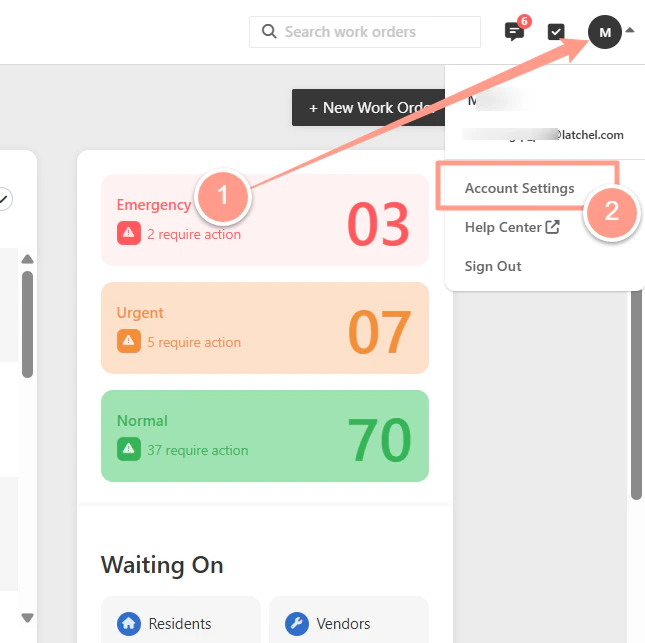 Under the **Details** tab, scroll down to the **Maint. Communication Settings** section. From here, you will see an editable field under **Default Access Instructions**. Type the instructions for the Service Provider and click **Save.**
 ### **Configuring a Portfolio Access Instructions**
The Default Access Instructions set at the portfolio will automatically apply to all the properties within that portfolio.
Click **Places** then choose **Portfolio**.
### **Configuring a Portfolio Access Instructions**
The Default Access Instructions set at the portfolio will automatically apply to all the properties within that portfolio.
Click **Places** then choose **Portfolio**.
 Next, click on the **name of the Portfolio**.
 Under the **Details** tab, scroll down to the **Maint. Communication Settings** section. From here, you will see an editable field under **Default Access Instructions** after clicking the **Override** option.
 Type the instructions for the Service Provider and click **Save.**
 Ensure the **Provide Access instruction** toggle is **ON**. If this toggle is **ON**, it should appear **Blue** and positioned to the right.
 ### **Configuring a Property Access Instructions**
Click the **Places**, then choose **Properties.**
### **Configuring a Property Access Instructions**
Click the **Places**, then choose **Properties.**
 Search for the property and click on the **address.**
 In the same way as setting up the portfolio, you can override the property's current pre-dispatch instructions. After making your changes, click **Save** and ensure that the **Provide Access Instructions toggle is turned on**.
Overriding the settings at the property level supersedes the pre-dispatch instructions set at the portfolio and company levels. Any changes made at the portfolio or company level will no longer apply to the property once it has been individually updated.
And there you have it! That's how easily you can configure the Default Access Instructions!
In the same way as setting up the portfolio, you can override the property's current pre-dispatch instructions. After making your changes, click **Save** and ensure that the **Provide Access Instructions toggle is turned on**.
Overriding the settings at the property level supersedes the pre-dispatch instructions set at the portfolio and company levels. Any changes made at the portfolio or company level will no longer apply to the property once it has been individually updated.
And there you have it! That's how easily you can configure the Default Access Instructions!