> ## Documentation Index
> Fetch the complete documentation index at: https://help.latchel.com/llms.txt
> Use this file to discover all available pages before exploring further.
# Managing Your Portfolios
> Get a clear view of your properties by organizing them into portfolios. This guide shows you how to create, edit, and manage portfolios to streamline oversight and reporting across your account.
### **How to Create a Portfolio**
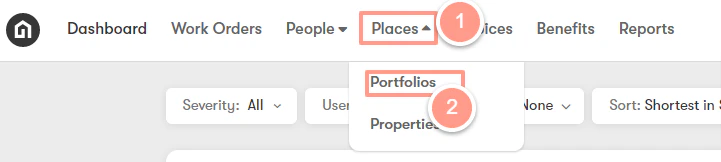
On the upper left-hand side of your dashboard click Places then select Portfolios.
 On the right-hand side of your portal, click **New Portfolio.**
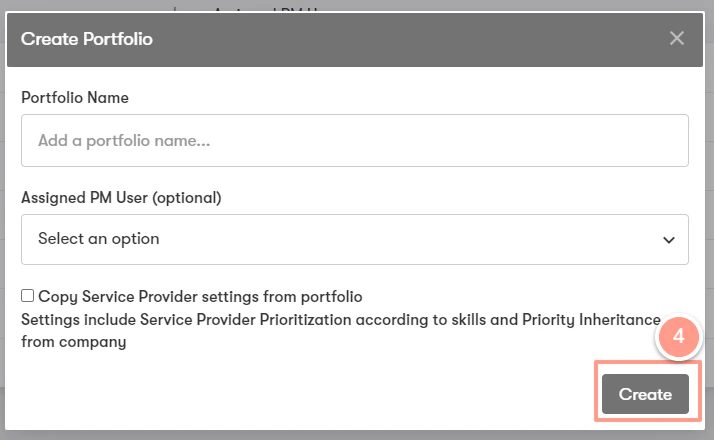
 From here, you can create a name for your portfolio and choose to select the assigned Property Manager from the members added to your account. Click **Create.**
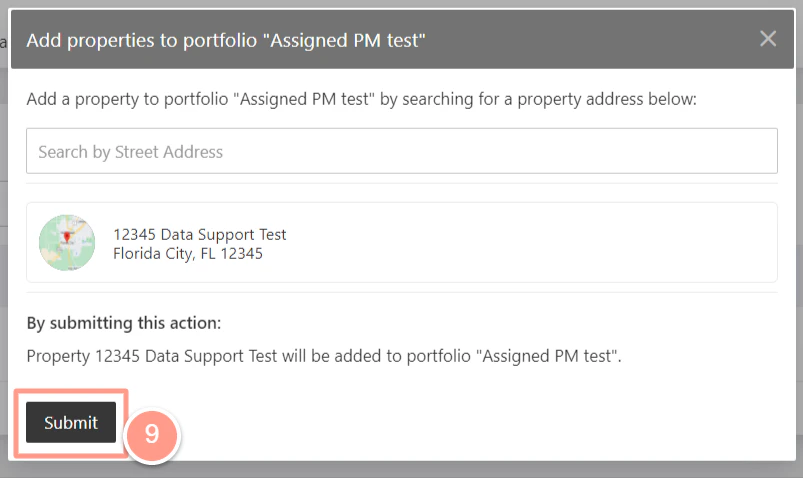
 To add properties to your portfolio, click the **Properties** tab.
 Click **Add Property** on the left-hand side of your portal.
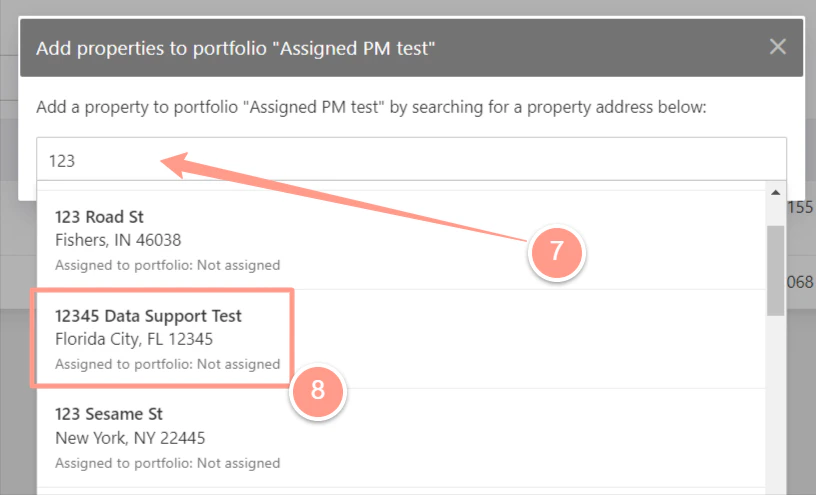
 Search for the property address and click on the address to add the property to your portfolio.
 ### **How to Manage a Portfolio**
Overseeing a portfolio is similar in many ways to managing at the company level, as many of the settings and functionalities are quite alike.
### **How to Manage a Portfolio**
Overseeing a portfolio is similar in many ways to managing at the company level, as many of the settings and functionalities are quite alike.
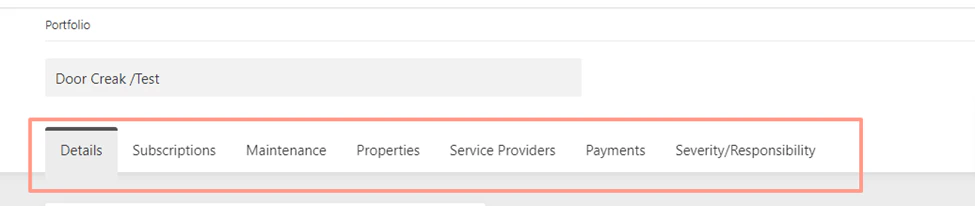 #### **A. The Details Tab**
Company users may modify the following information in this tab such as:
* Assigned property manager.
* Assigned owner.
* Emergency Escalation Contacts
* Portal Settings
* Work Order Budget Limits
* Emergency Temperature Settings
* Non-Emergency Scheduling
#### **Assigning/Updating the Assign PM User**
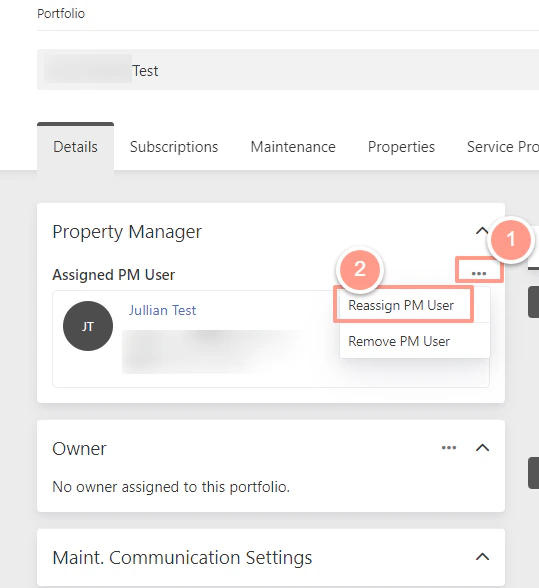
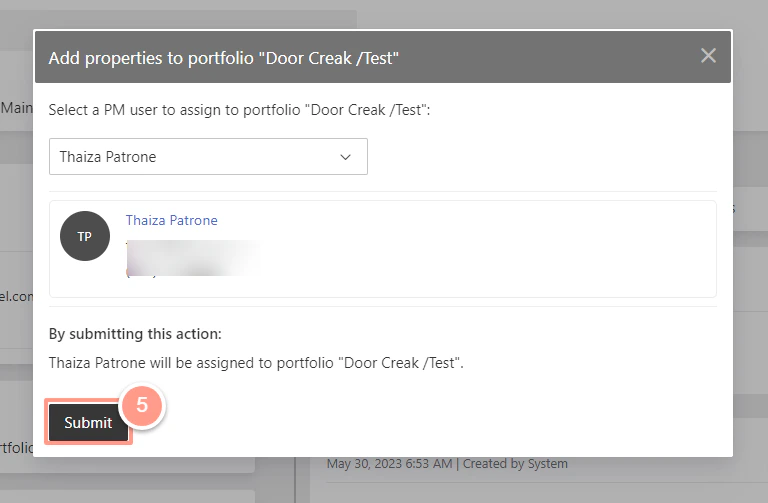
From the **Details** tab, under the **Property Manager section**, click on the **three dots or ellipse** and click on **Reassign PM User**.
#### **A. The Details Tab**
Company users may modify the following information in this tab such as:
* Assigned property manager.
* Assigned owner.
* Emergency Escalation Contacts
* Portal Settings
* Work Order Budget Limits
* Emergency Temperature Settings
* Non-Emergency Scheduling
#### **Assigning/Updating the Assign PM User**
From the **Details** tab, under the **Property Manager section**, click on the **three dots or ellipse** and click on **Reassign PM User**.
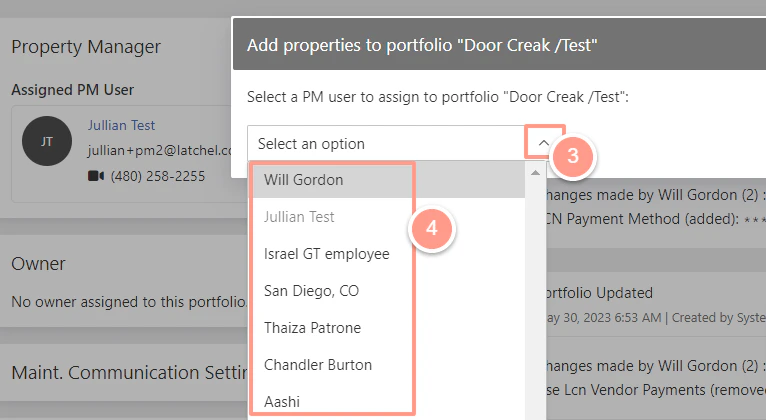
 Click the **arrow** to show the list of Property Managers and select the name of the new Property Manager.
 A confirmation box will appear to review the Property Manager information, and click on **Submit**.
 #### **B. The Subscription Tab**
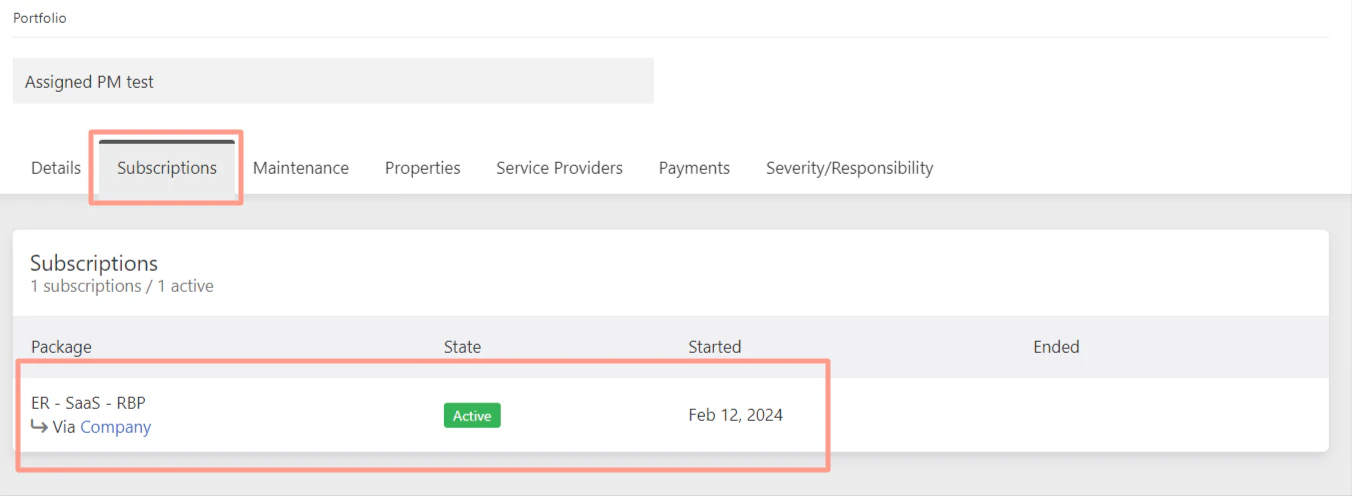
This section provides your subscription information including status, start date, and end date of subscriptions.
#### **B. The Subscription Tab**
This section provides your subscription information including status, start date, and end date of subscriptions.
 #### **C. The Maintenance Tab**
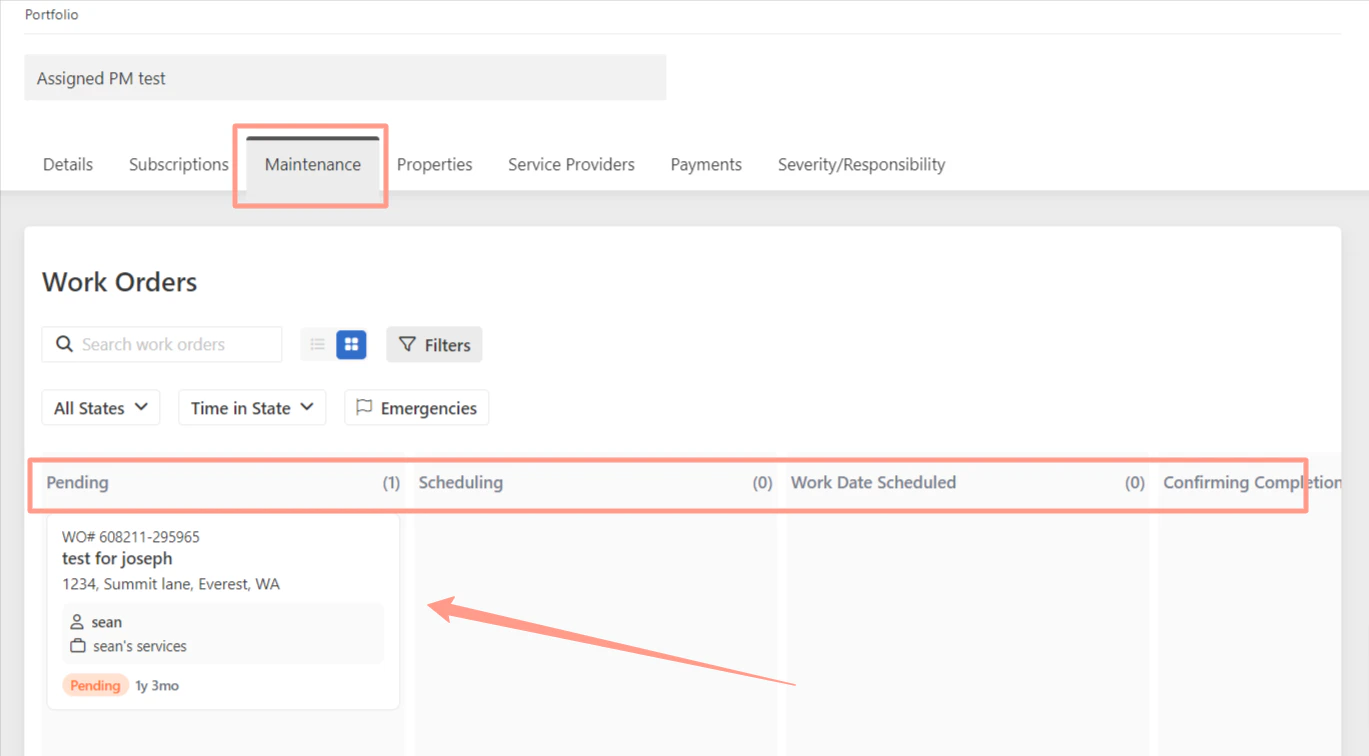
This tab allows you to view and search for work orders that are under the portfolio.
#### **C. The Maintenance Tab**
This tab allows you to view and search for work orders that are under the portfolio.
 #### **D. The Properties Tab**
This tab displays all the active properties linked to the specified portfolio. Users have the convenience of searching for an address by typing it into the **search bar**. Additionally, new properties can be added by simply clicking the **+Add Property** button.
#### **D. The Properties Tab**
This tab displays all the active properties linked to the specified portfolio. Users have the convenience of searching for an address by typing it into the **search bar**. Additionally, new properties can be added by simply clicking the **+Add Property** button.
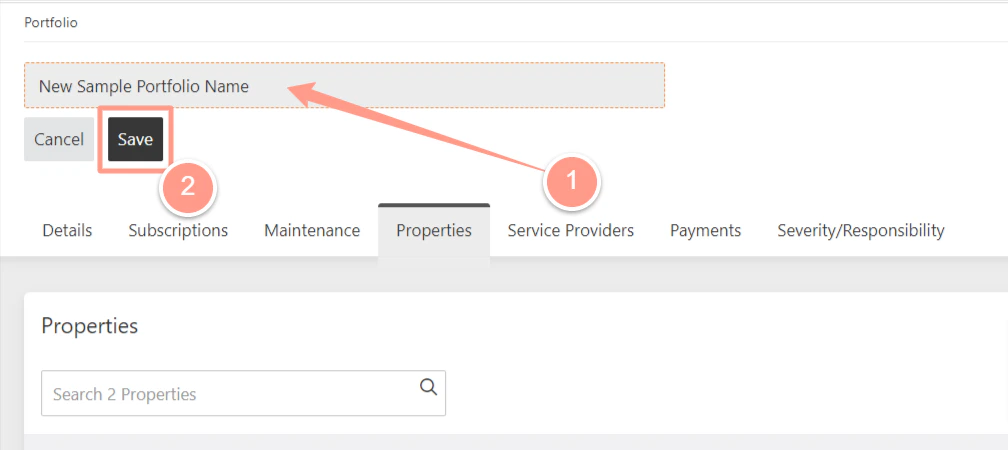
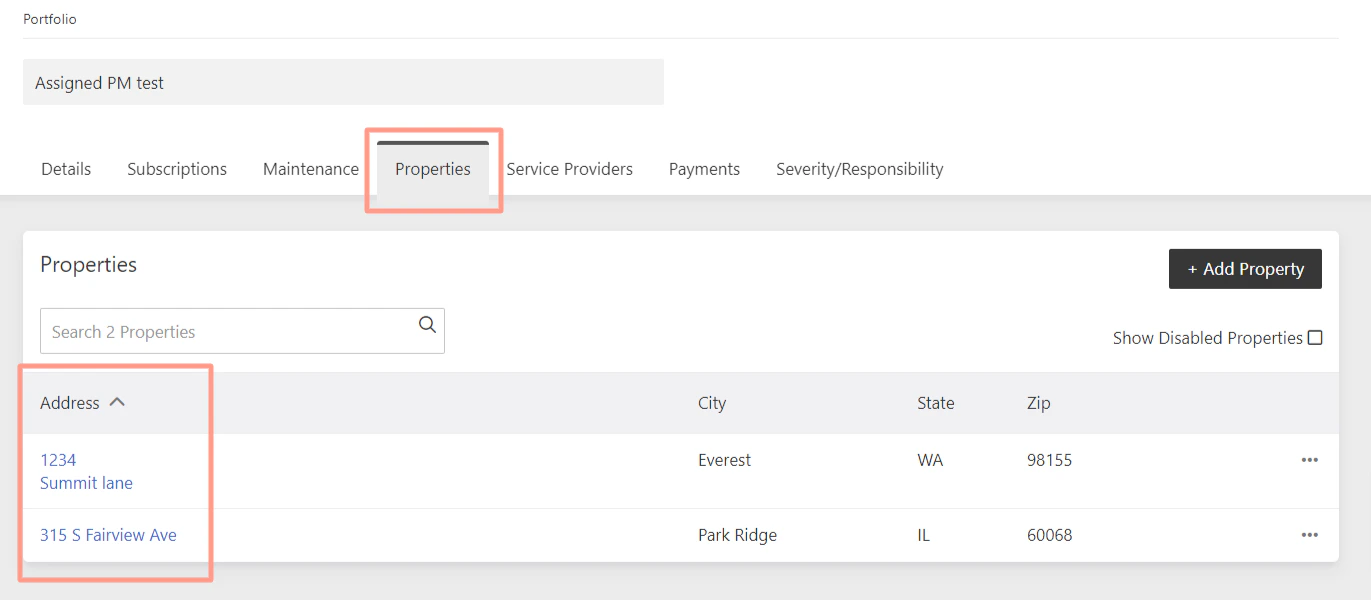 From this tab, you can also **rename your portfolio**. Simply click the **existing name** at the top of the page, **type in the new name**, and then click **Save** to save the changes you made.
 #### **E. The Service Providers Tab**
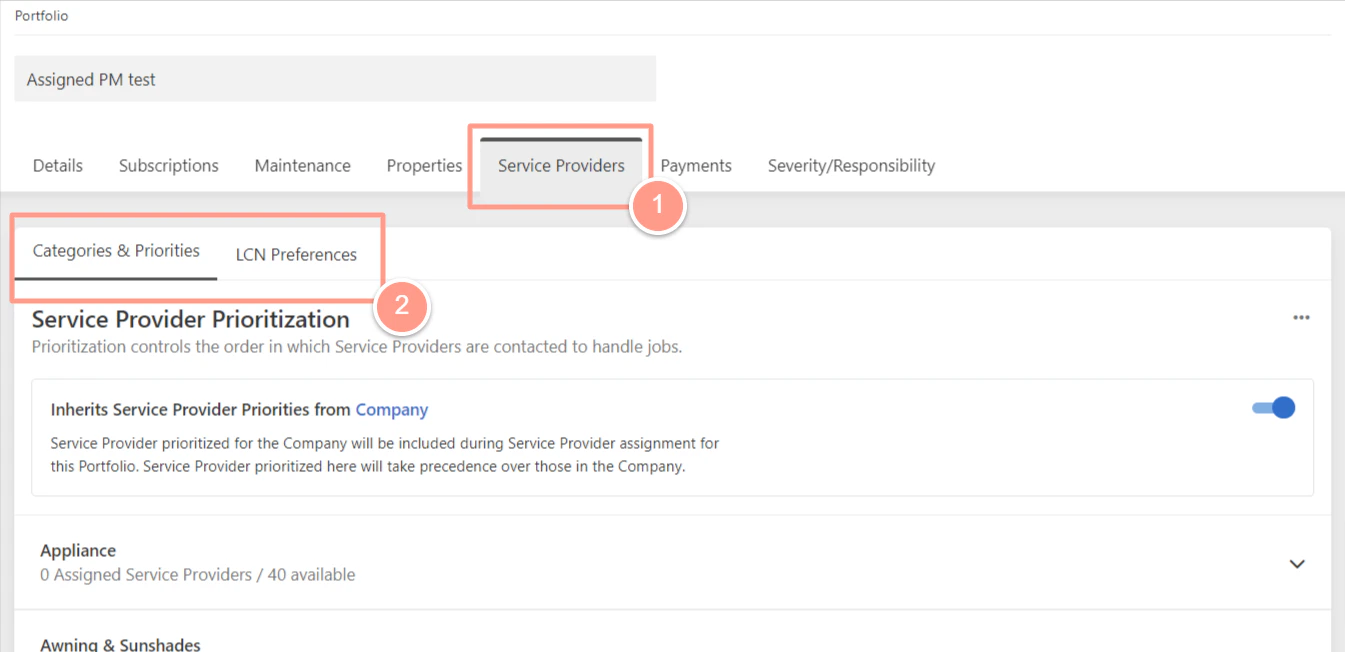
This tab allows any company users to manage the preferred service providers at the portfolio level. Service provider prioritization can be modified here including Latchel Contrated Network Service Provider.
**To know more about adding a service provider to a portfolio, you may follow the steps below:**
Learn how to assign a service provider to a specific portfolio so they only receive work orders from the properties you choose.
#### **E. The Service Providers Tab**
This tab allows any company users to manage the preferred service providers at the portfolio level. Service provider prioritization can be modified here including Latchel Contrated Network Service Provider.
**To know more about adding a service provider to a portfolio, you may follow the steps below:**
Learn how to assign a service provider to a specific portfolio so they only receive work orders from the properties you choose.
 #### **F. The Payments Tab**
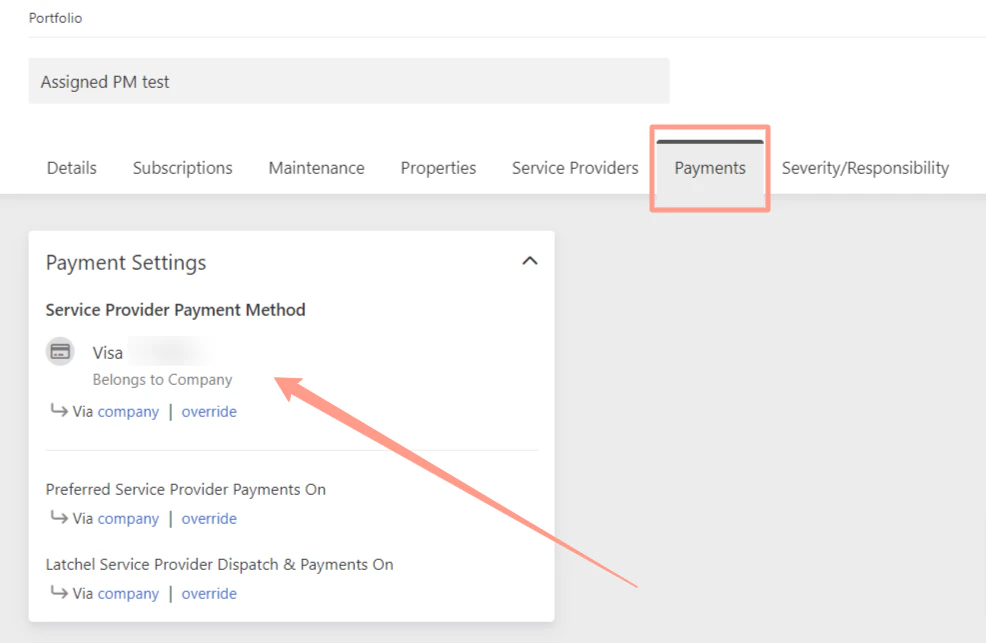
This tab offers detailed insights into the company's current payment settings. This section also allows for updates to the payment method and gives options to override any existing payment setups for the service provider.
#### **F. The Payments Tab**
This tab offers detailed insights into the company's current payment settings. This section also allows for updates to the payment method and gives options to override any existing payment setups for the service provider.
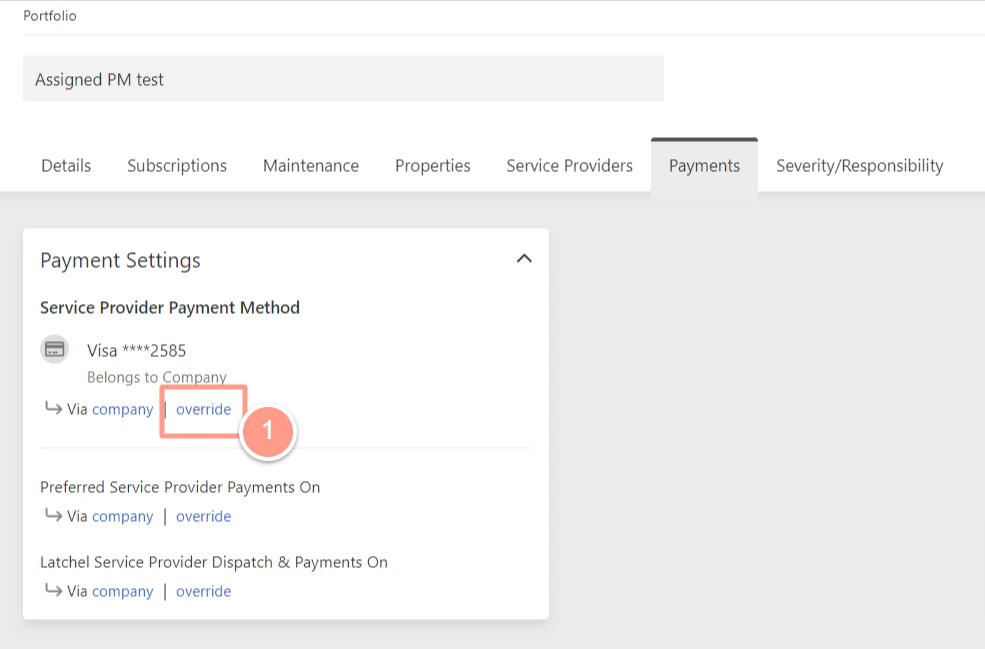
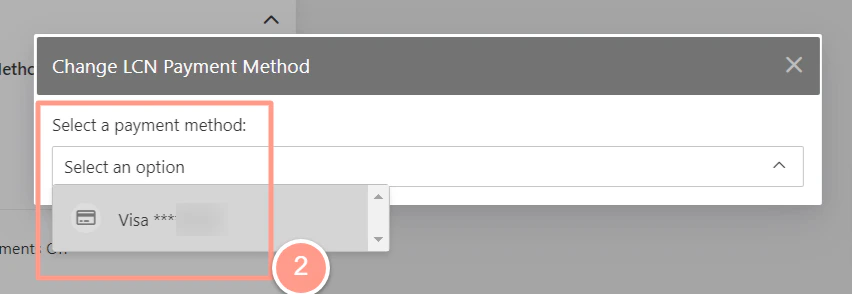
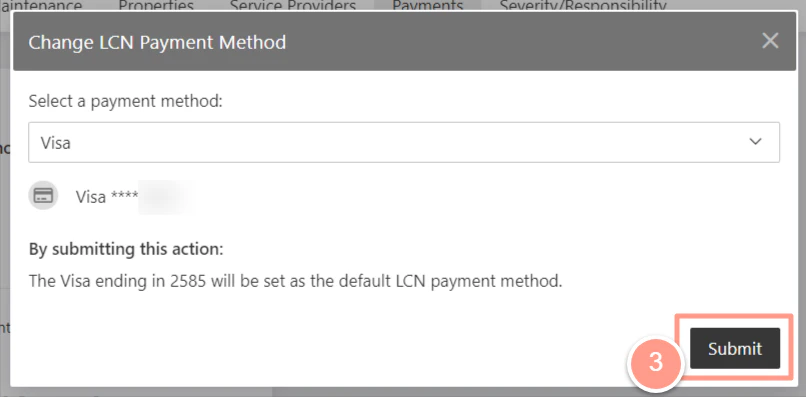
 To update the current company's payment method, simply click **override**, **choose the new payment method** to be used, and then click **Submit** to save the new payment method details.
 **Payment method not part of the list provided when overriding? Follow the steps in:**
Follow these steps to update or change the payment method saved for a service provider in your account.
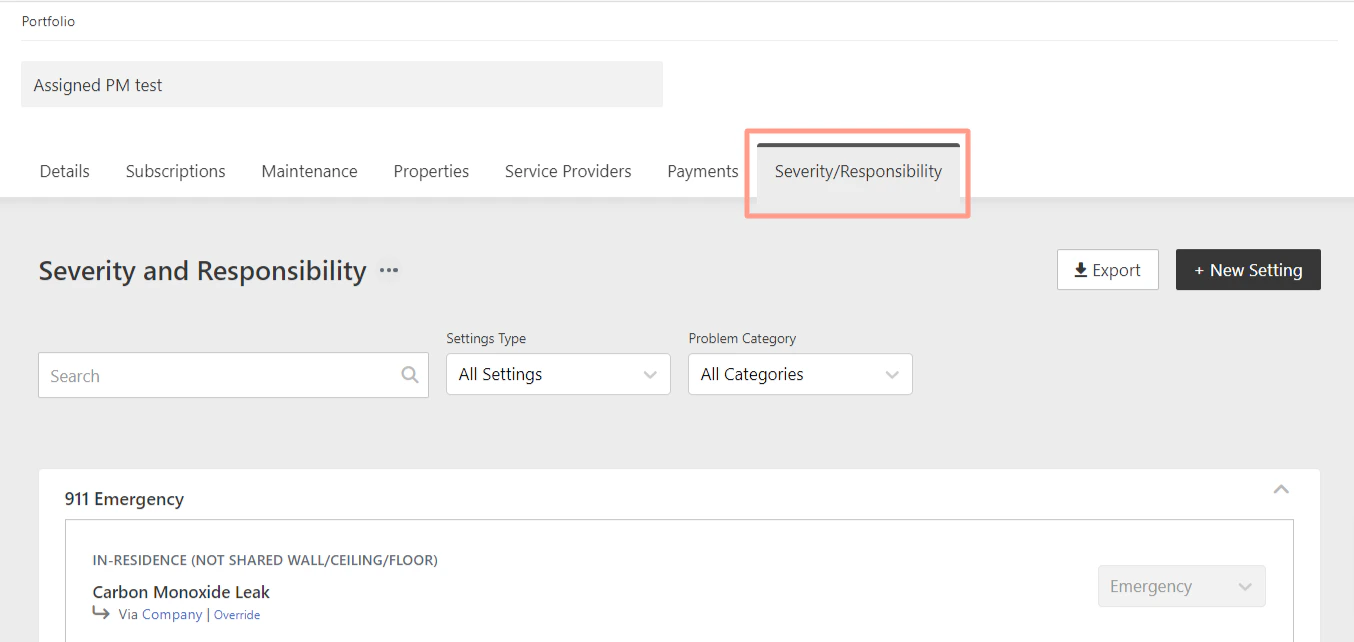
#### **G. The Severity and Responsibility Tab**
This tab is to view and update/modify the Severity and Responsibility Settings on a portfolio level.
**To know how you can adjust this setting, please follow the steps in:**
Edit default rules for how issues are categorized and who’s responsible.
**Payment method not part of the list provided when overriding? Follow the steps in:**
Follow these steps to update or change the payment method saved for a service provider in your account.
#### **G. The Severity and Responsibility Tab**
This tab is to view and update/modify the Severity and Responsibility Settings on a portfolio level.
**To know how you can adjust this setting, please follow the steps in:**
Edit default rules for how issues are categorized and who’s responsible.