> ## Documentation Index
> Fetch the complete documentation index at: https://help.latchel.com/llms.txt
> Use this file to discover all available pages before exploring further.
# How to Create User Groups
> User Groups define a group that will receive emails when a job alert is triggered. You can create one or multiple groups wherein each group may have members belonging to another group. This is to ensure that appropriate notifications are received and the intended recipients can respond immediately. You can either edit the existing Default Notification Group or create new groups.
### **Configuring a User Group (Company Level)**
The User Group at the Company Level will automatically apply to all portfolios and properties on the account unless there are individual assignments made at the property or portfolio level. \
\
To learn more about configuration inheritance and how to override company-level configurations, see [Configuration Inheritance (Property, Portfolio, & Company Level).](/s/topic/0TO5e000000h9wqGAA/Configuration-Inheritance-Property-Portfolio-Company-Level)
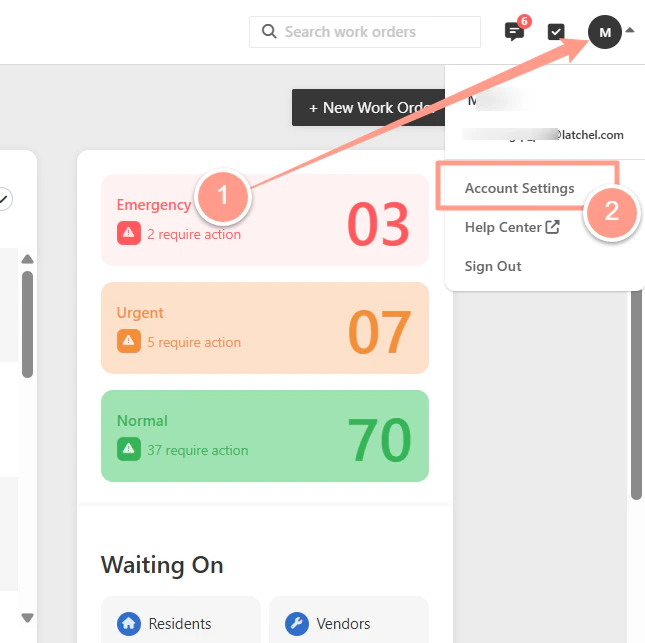
Click on the **drop-down** at the top right-hand side of your screen. Select **Account Settings** from the menu.
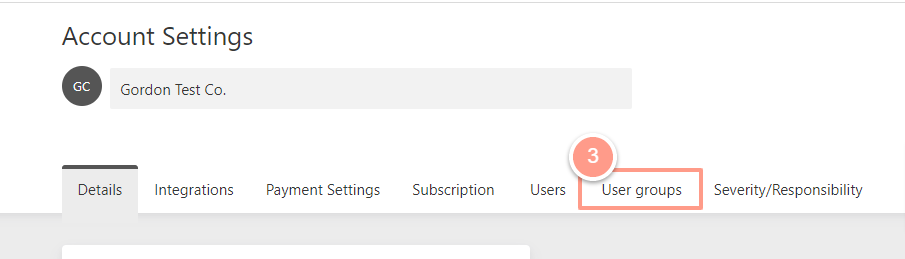
 From the Account Settings page, click the **User Groups** tab.
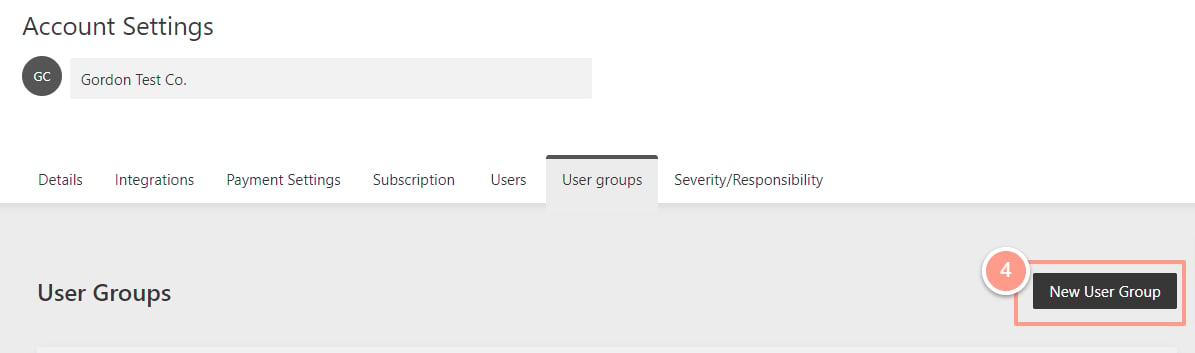
 On the right-hand side of your page, click **New User Group.**
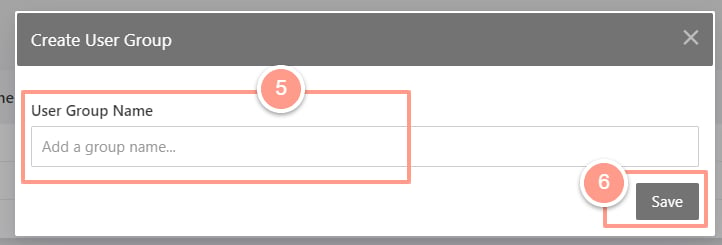
 Type in a name for your User Group and click**Save.**
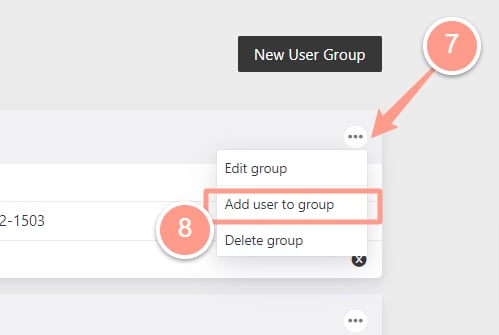
 On the far right-hand side of your screen, click the **ellipsis (****)** and then **Add User to Group.**
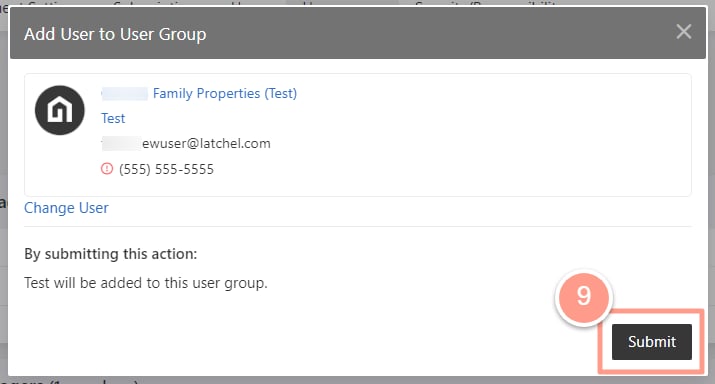
 Search for an existing user on your account or create a new user. Click **Submit** to save.
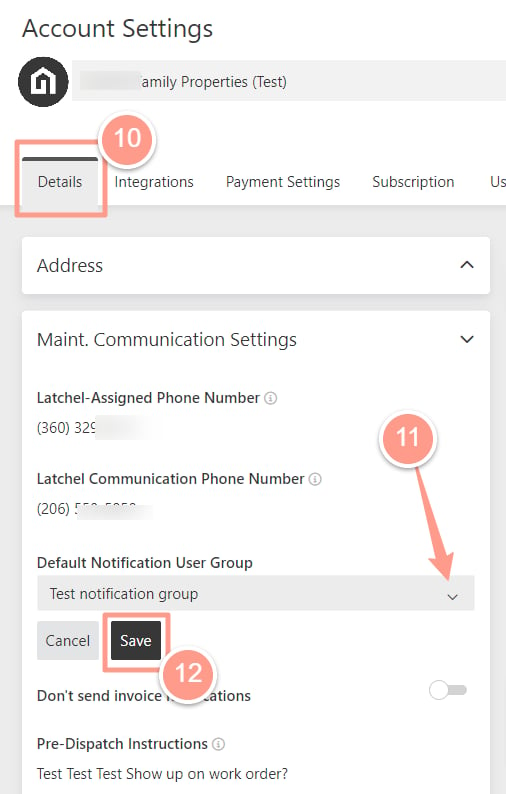
 To set the User Group to receive all of Latchel’s email notifications on the Company Level, click the **Details** tab.
Under the **Maint. Communication Settings**, click the dropdown under the **Default Notification User Group** field and select the User Group. Click **Save.**
If you don’t see the User Groups you need to refresh the page so they get populated.
To set the User Group to receive all of Latchel’s email notifications on the Company Level, click the **Details** tab.
Under the **Maint. Communication Settings**, click the dropdown under the **Default Notification User Group** field and select the User Group. Click **Save.**
If you don’t see the User Groups you need to refresh the page so they get populated.
 ### **Configuring a User Group (Portfolio Level)**
The User Group at the Portfolio Level will automatically be applied to all properties within that portfolio. \
\
To learn more about configuration inheritance and how a single property can override Portfolio and company-level configurations, see [Configuration Inheritance (Property, Portfolio, & Company Level)](/s/topic/0TO5e000000h9wqGAA/Configuration-Inheritance-Property-Portfolio-Company-Level).
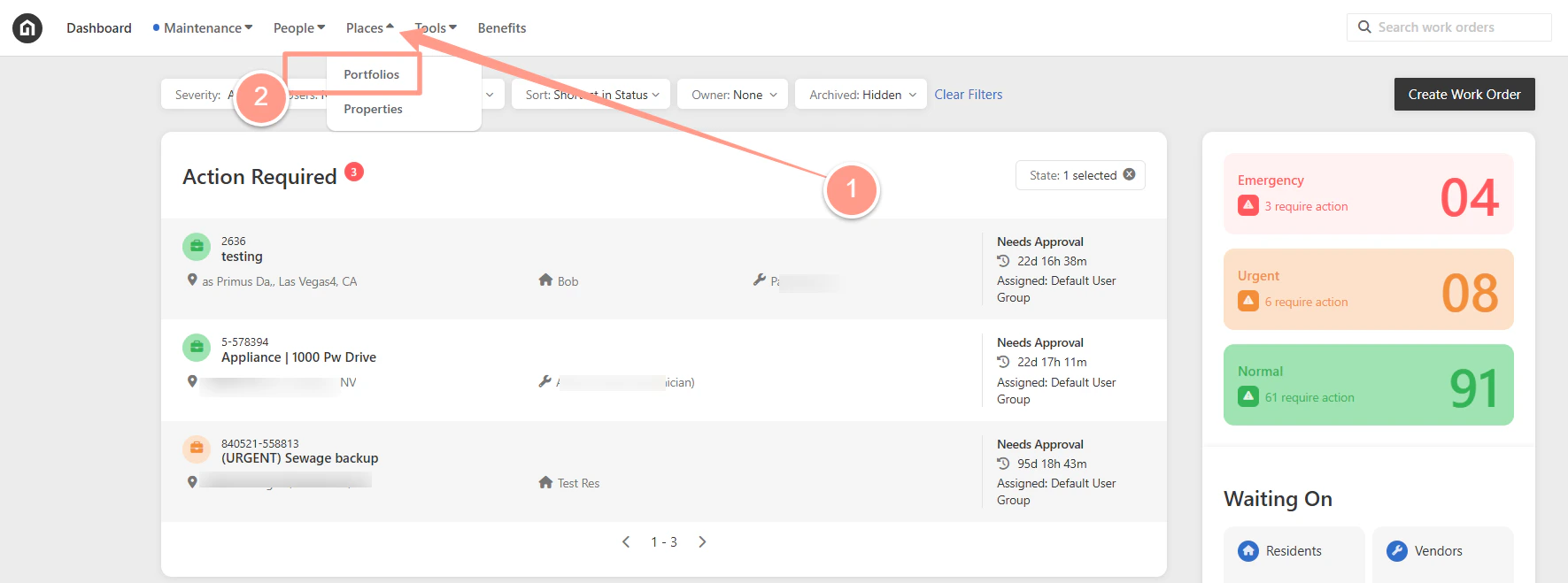
Click the **Places** tab and then, click **Portfolios**. Then, search or select the portfolio that you want to edit.
### **Configuring a User Group (Portfolio Level)**
The User Group at the Portfolio Level will automatically be applied to all properties within that portfolio. \
\
To learn more about configuration inheritance and how a single property can override Portfolio and company-level configurations, see [Configuration Inheritance (Property, Portfolio, & Company Level)](/s/topic/0TO5e000000h9wqGAA/Configuration-Inheritance-Property-Portfolio-Company-Level).
Click the **Places** tab and then, click **Portfolios**. Then, search or select the portfolio that you want to edit.
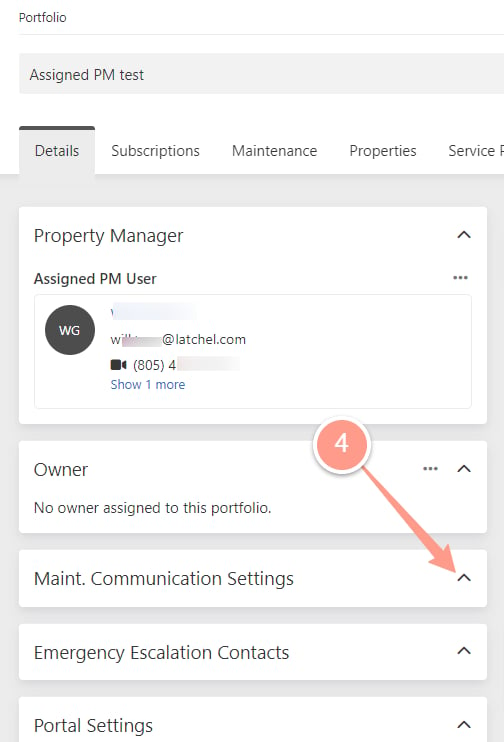
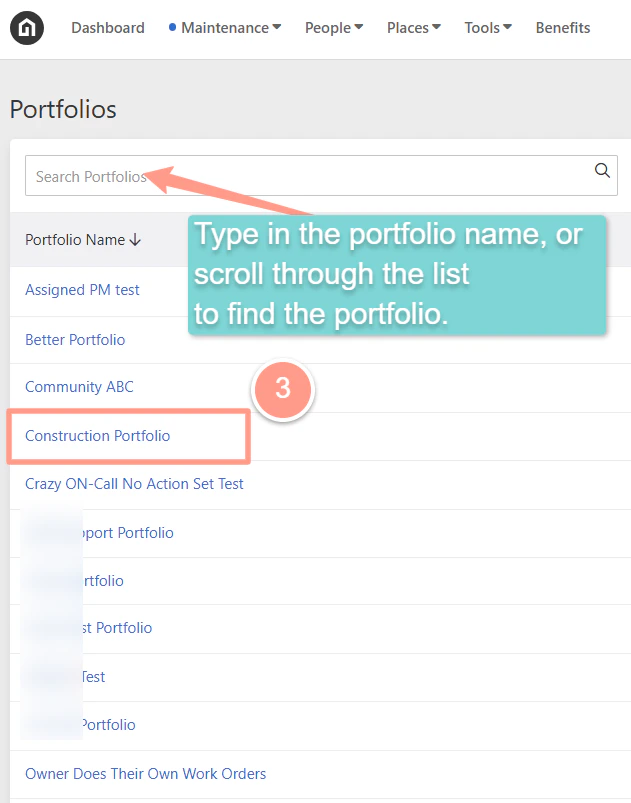 On the **Details** page, scroll down to the **Maint. Communication Settings** section.
 Once you expand the **Maint. Communication Settings**, click **Override** under the **Default Notification User Group**.
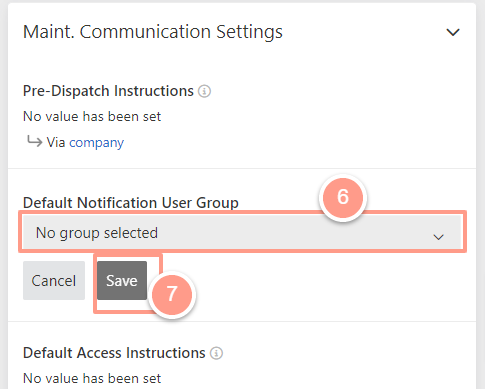
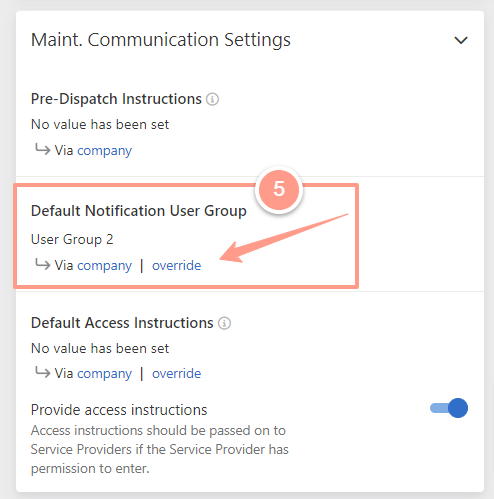 From here, you will see the Company Level Notification User Group was automatically applied to the portfolio. To override the settings, select the User Group from the dropdown under the **Default Notification User Group** field. Click **Save.**
 ### **Configuring a User Group (Property Level)**
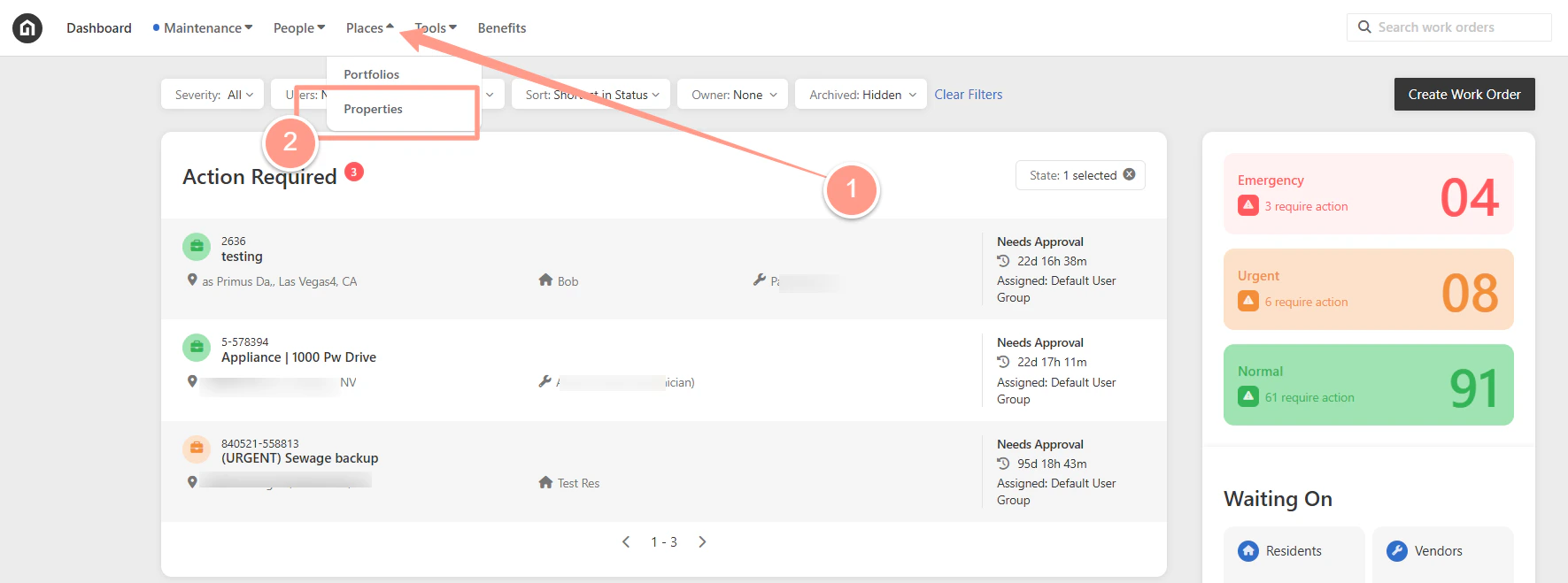
Click the **Places** tab and then, click **Properties**.
### **Configuring a User Group (Property Level)**
Click the **Places** tab and then, click **Properties**.
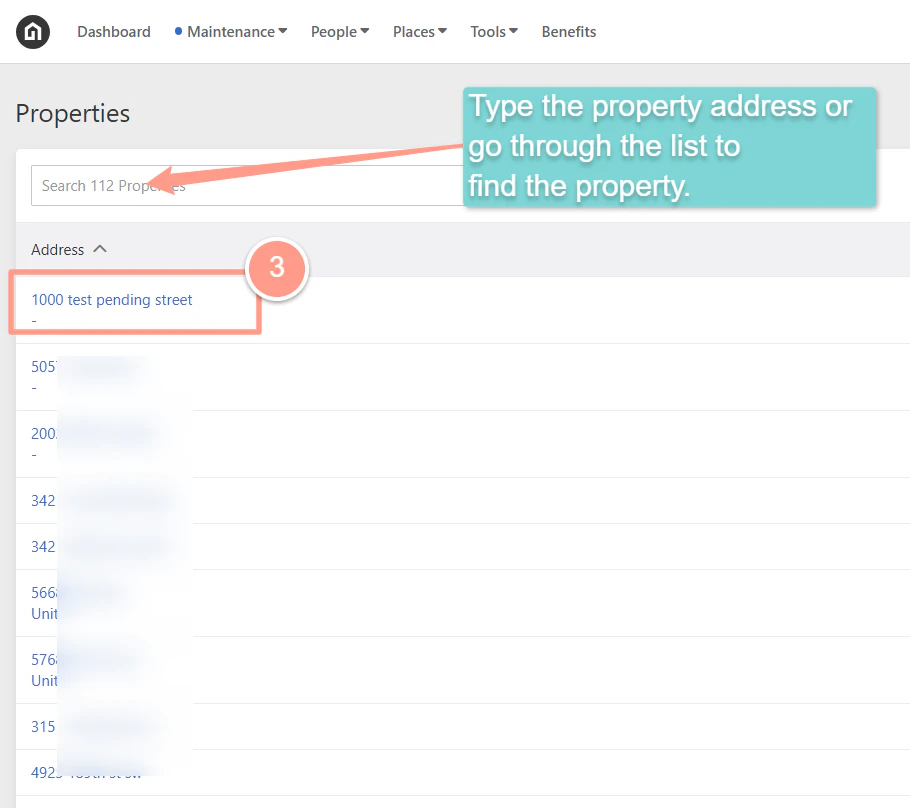
 Search or select the property **address.**
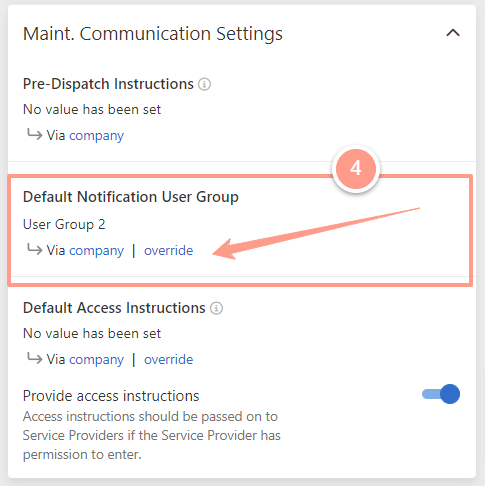
 On the **Details** page, scroll down to the **Maint. Communication Settings**. From here, you will see the property inherited from the Company Level User Group. To override this, click **Override** under **Default Notification User Group**.
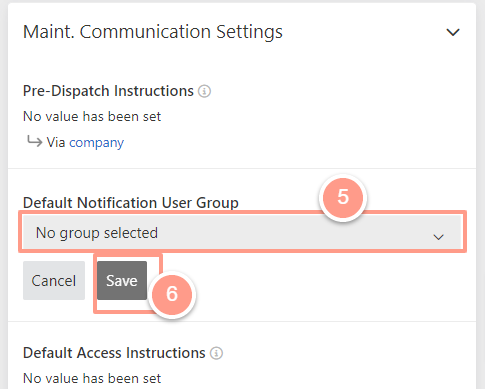
 Then select the User Group dropdown under the **Default Notification User Group** field. Click **Save.**
 ### **Need to add new company user? Follow the help guide below!**
Easily manage team access in Latchel by adding or removing users from your company account.
### **Need to add new company user? Follow the help guide below!**
Easily manage team access in Latchel by adding or removing users from your company account.