> ## Documentation Index
> Fetch the complete documentation index at: https://help.latchel.com/llms.txt
> Use this file to discover all available pages before exploring further.
# How to Create a Task
> Tasks are essentially the **To Do** items for a work order. They should be used to describe future actions that will be taken by your internal team, owners, preferred vendors, or residents to progress the work order. Both existing and newly created tasks will automatically appear on the Task Page.
**NOTE:** *Please do not create tasks for the Latchel team. If you need to request something, please message Latchel Support directly.*
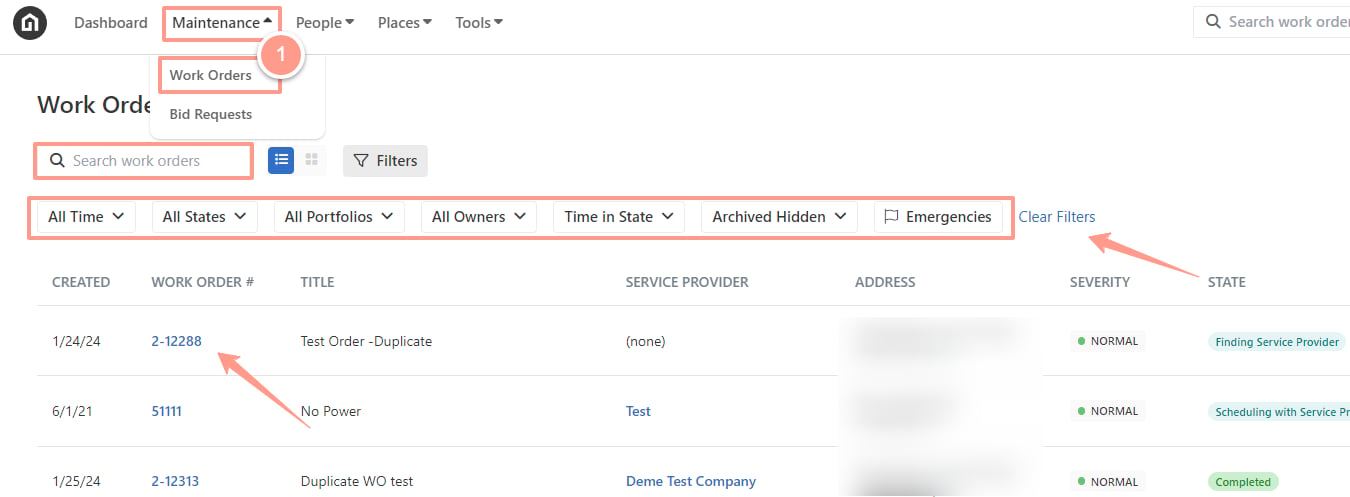
To create a task, from your Latchel dashboard, go to the **Maintenance tab** and click on **Work Orders**. Search and select the work order that you want to add it to. Use the Search Bar then click on the Work Order ID.
You can also use the **Filter** and **Clear Filters** option for a more refined search. To learn more about how to use the **Filter**, check out this help guide: [**How to Use the Filter Options in the Work Order Tab Page.**](/s/topic/0TO5e000000h9wqGAA/How-to-Use-the-Filter-Options-in-the-Work-Order-Tab-Page)
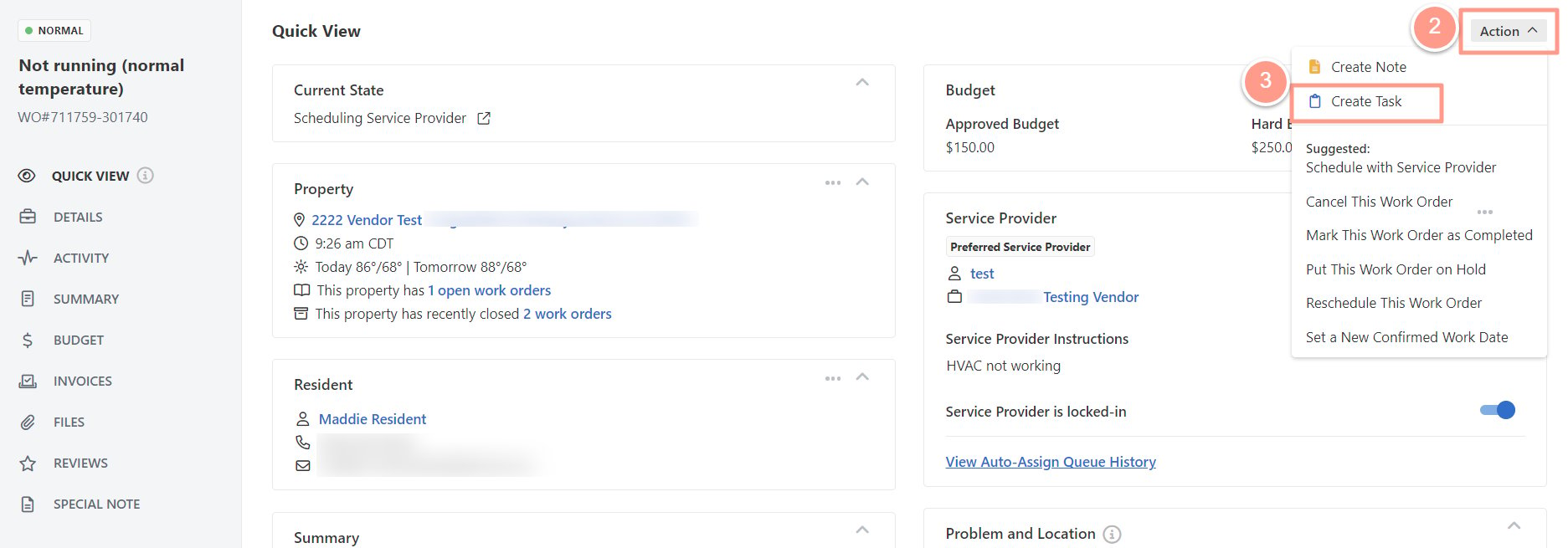
 Now that you can see the work order details, on the **Quick View** tab, click **Action**, then select **Create Task**.
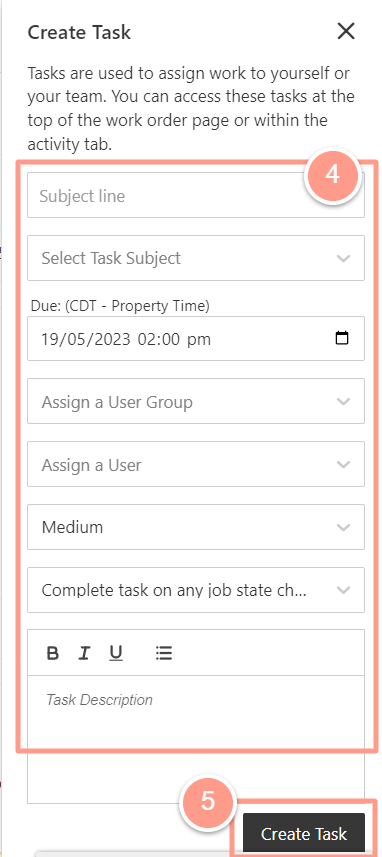
 Fill out the task details and then click **Create Task**.
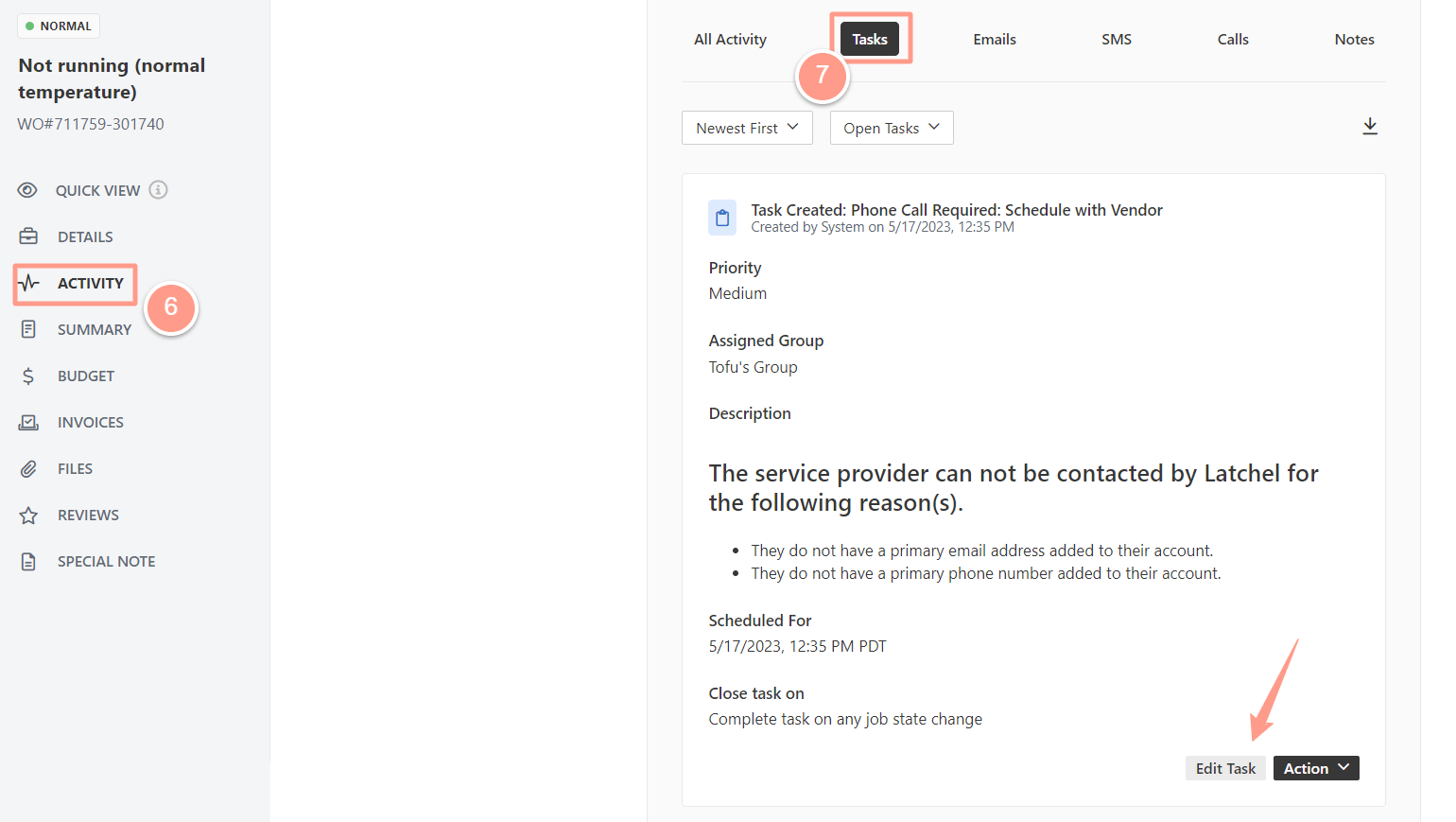
 To confirm if the task is successfully logged, click **Activity** from the work order page, then **Tasks.** The task can be edited when needed too by clicking **Edit Task**.