> ## Documentation Index
> Fetch the complete documentation index at: https://help.latchel.com/llms.txt
> Use this file to discover all available pages before exploring further.
# How to Create an Owner Profile and Assign Property Ownership
> This guide walks you through creating an owner profile in Latchel and assigning property ownership, so each property is correctly tied to its respective owner for communication and billing purposes.
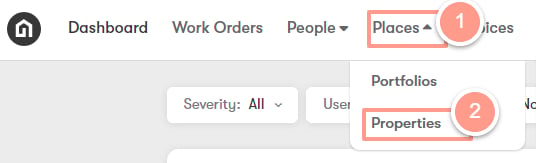
On the dashboard click the **Places** dropdown, then select **Properties**.
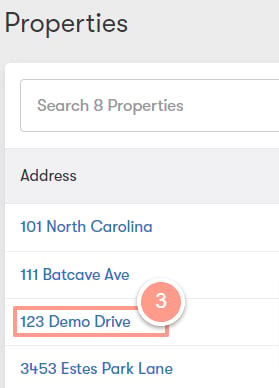
 Select the property.
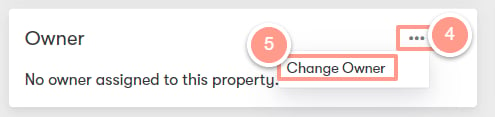
 In the Property Details tab, scroll down to the **Owner** section, and click on the three dots to open the menu with the option to **Change Owner**. Click on it.
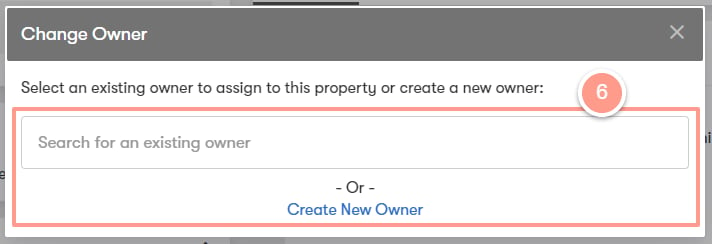
 You will be asked to either **Search for an existing owner** or to **Create New Owner**.
 If the owner is already in the system, type their name, phone number, or email address. and you will see their information showing up on the search bar. Click on it, then click **Submit**.
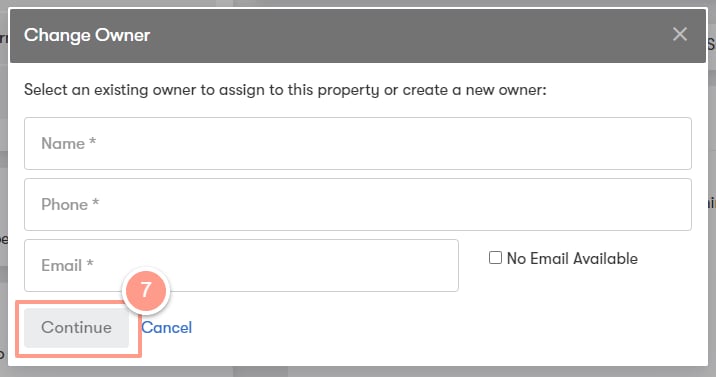
If the owner is not yet in the system, complete the details and contact information of the new owner. And click **Continue.**
If the owner is already in the system, type their name, phone number, or email address. and you will see their information showing up on the search bar. Click on it, then click **Submit**.
If the owner is not yet in the system, complete the details and contact information of the new owner. And click **Continue.**
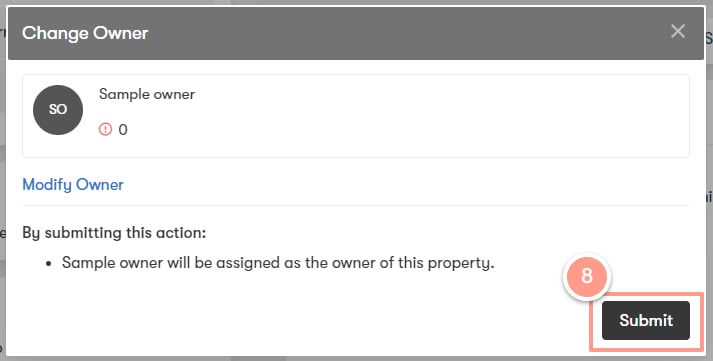
 A confirmation screen will be displayed. Verify the information and click on **Submit**.
 All email addresses associated with the owner's profile will receive any type of owner notification.
**Do you need more information about owner communication settings? Check this guide:**
Enable and customize how owners receive work order updates.
All email addresses associated with the owner's profile will receive any type of owner notification.
**Do you need more information about owner communication settings? Check this guide:**
Enable and customize how owners receive work order updates.