> ## Documentation Index
> Fetch the complete documentation index at: https://help.latchel.com/llms.txt
> Use this file to discover all available pages before exploring further.
# How to Customize Work Order Budget Limits
### **The Budget Limit: Emergency vs. Non-Emergency**
1. **Emergency Service**
* The **Emergency Soft Budget Limit** is shared with Service Providers when a job is sent to them. If a job will exceed the Soft Budget Limit then the Service Provider contacts Latchel first for approval.
* The **Emergency Hard Budget** **Limit** is the maximum budget limit that you allow Latchel to approve up to. For example, assume a soft limit is \$200 and a hard limit is \$500. The Service Provider contacts Latchel when the job will exceed \$200. Latchel will automatically approve the cost if it is below \$500. Anything over \$500 will be escalated using your escalation contacts list for approval.
2. **Non-Emergency Service**
* The **Normal Soft Budget Limit**is the default budget limit shared with Service Providers when a job is sent to them. If a job will go over the Soft Budget Limit then the Service Provider contacts Latchel first for approval.
* The **Normal Hard Budget Limit**is the maximum budget limit that you allow Latchel to approve up to. For example, assume a soft limit is \$150 and a hard limit is \$250. The Service Provider contacts Latchel when the job will exceed \$150. Latchel will automatically approve the cost if it is below \$250. Anything over \$250 will be escalated using your escalation contacts list for approval.
### **Customizing Budget Limits (Company Level)**
The Budget Limits set at the Company Level will automatically apply to all portfolios and properties on the account. To learn more about configuration inheritance and how to override company-level configurations, click [**here**](https://help.latchel.com/s/topic/0TO5e000000h9wqGAA/Configuration-Inheritance-Property-Portfolio-Company-Level).
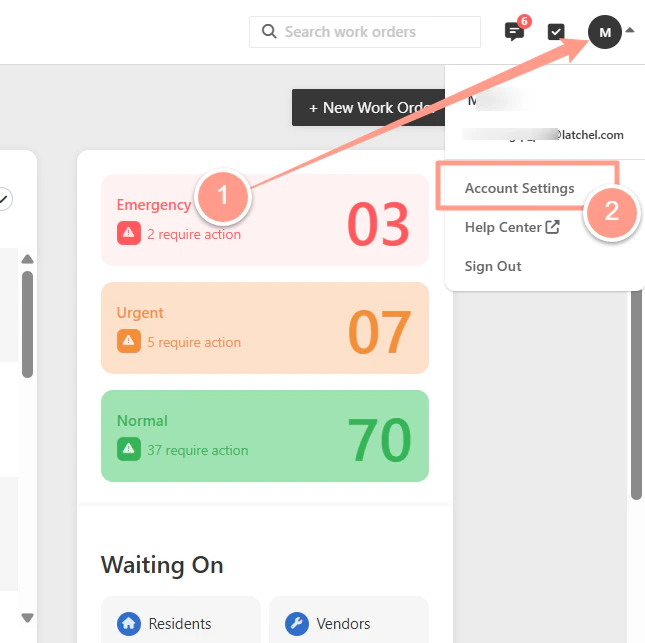
Log into your Latchel [Portal](https://app.latchel.com/) and click the **dropdown** menu on the far right-hand side of your portal. Then, click **Account Settings.**
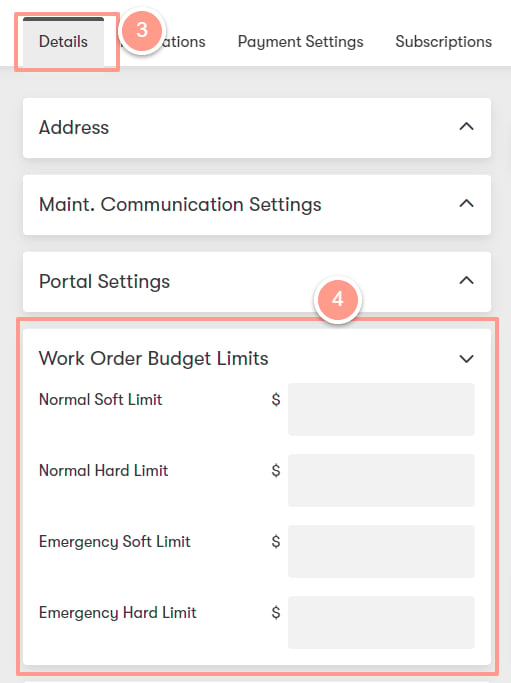
 Under the **Details** tab, scroll down to the **Work Order Budget Limits** section. From here, you can update or add emergency and normal Work Order Budget Limits.
 ### **Customizing Budget Limits (Portfolio Level)**
The Budget Limits set at the Portfolio Level will automatically be applied to all properties within that portfolio. To learn more about configuration inheritance and how a single property can override Portfolio & Company level configurations, click [here](https://help.latchel.com/s/topic/0TO5e000000h9wqGAA/Configuration-Inheritance-Property-Portfolio-Company-Level).
Changes made at the portfolio level override the company settings. Any updates made at the company level will no longer apply to that portfolio.
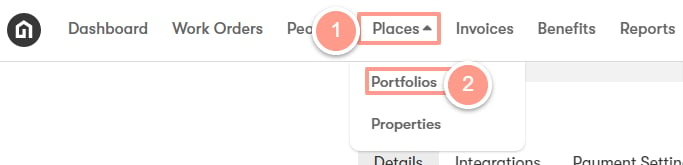
On the upper left-hand side of your dashboard click **Places** then select **Portfolios.**
### **Customizing Budget Limits (Portfolio Level)**
The Budget Limits set at the Portfolio Level will automatically be applied to all properties within that portfolio. To learn more about configuration inheritance and how a single property can override Portfolio & Company level configurations, click [here](https://help.latchel.com/s/topic/0TO5e000000h9wqGAA/Configuration-Inheritance-Property-Portfolio-Company-Level).
Changes made at the portfolio level override the company settings. Any updates made at the company level will no longer apply to that portfolio.
On the upper left-hand side of your dashboard click **Places** then select **Portfolios.**
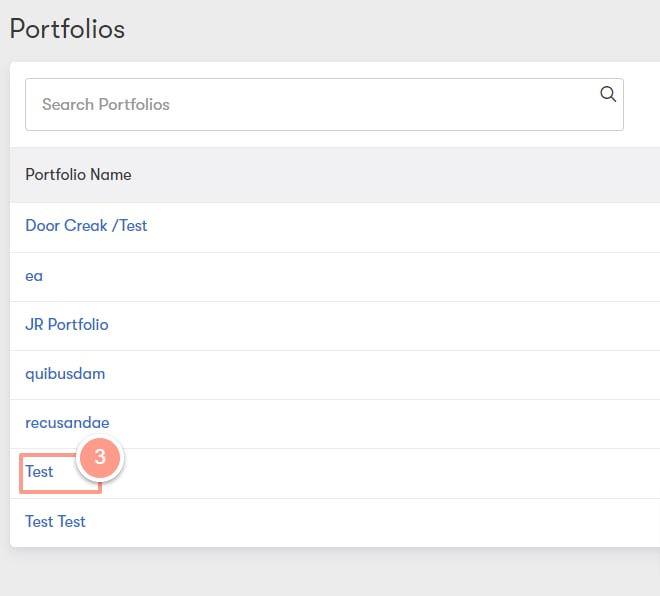
 Next, click on the **name of the Portfolio**.
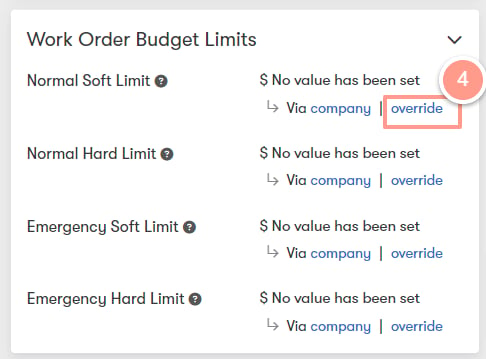
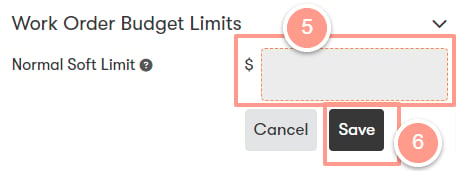
 Under the **Details** tab, scroll down to the **Work Order Budget Limits** section. From here, you will see the Company Level Budget Limits were automatically applied to the portfolio. To override the Company Level, click on the **override** on the lower side of the budget limit you want to edit, and then update or add the emergency and normal Work Order Budget Limits for the portfolio. **Click Save.**
 ### **Customizing Budget Limits (Property Level)**
Overriding the budget limits at the property level supersedes the budget limits set at the company level or within the assigned portfolio. Therefore, any changes made at the company or portfolio level will not be inherited by the property.
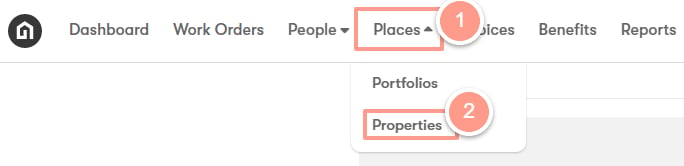
On the upper left-hand side of your dashboard click **Places** then select **Properties.**
### **Customizing Budget Limits (Property Level)**
Overriding the budget limits at the property level supersedes the budget limits set at the company level or within the assigned portfolio. Therefore, any changes made at the company or portfolio level will not be inherited by the property.
On the upper left-hand side of your dashboard click **Places** then select **Properties.**
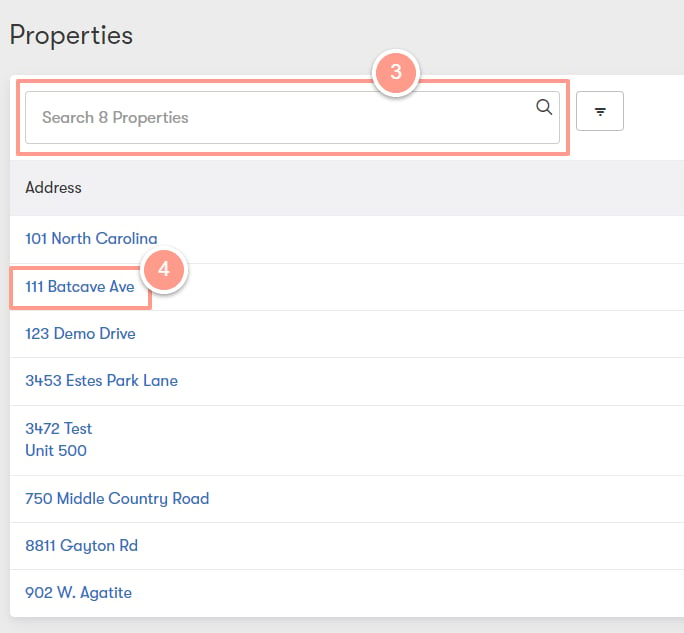
 Search for the property and click on the **address.**
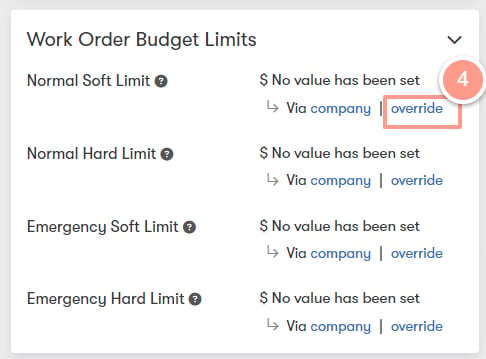
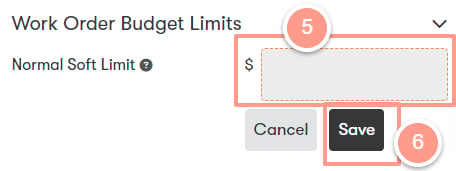
 On the **Details** page, scroll down to the **Work Order Budget Limits** section. From here, you will see the Portfolio Level Work Order Budget Limits were automatically applied to the property within the portfolio. To override the Portfolio Level, click **override** and then update or add your Work Order Budget Limits and then click **Save**.
 And there you have it! That's how you can customize your work order budget limits!