> ## Documentation Index
> Fetch the complete documentation index at: https://help.latchel.com/llms.txt
> Use this file to discover all available pages before exploring further.
# How to Activate the Latchel Data Sync
> To download and activate the **Latchel Data Sync** extention, it's important to follow these steps in sequence:
1. First, go through the help guide below to **download and install** the Latchel Data Sync Extension.
Follow these steps to download and install the Latchel Data Sync Extension.
Once signed into the extension successfully, you will see text on the extension drop-down that states, **"Logged in as PM Company Name"**.
2. To verify the sync is running correctly, create a **test** **work order** in your Property Management Software (PMS) and **assign this test work order to the Team Latchel user**.
**To create a new user** in your property management software which **will be used to activate the Latchel Data Sync** use the following information:
* **Email Address:** This can be any email address that you manage that isn’t tied to an existing user in your system.
If you have Assisted Ledgering, Optional Benefits, or a Pinata and Filter contract with Latchel, our Customer Profitability Team may need access to your database. For this purpose, please use [pmcompanyname@ledgering.com](mailto:pmcompanyname@ledgering.com). Replace **"pmcompanyname"** with your actual company name.
* **Recommended User Role:** On-Site Manager
* **First Name:** Team
* **Last Name:** Latchel
Please be sure to assign Team Latchel as a user, **NOT** a service provider.
3. Sign out of the Latchel Data Sync extension, and then sign back in.
4. Sign out of your property management software and then sign back in.
5. Navigate back to your property management software dashboard where you should see a floating Latchel logo at the top right.
 **To know more about navigating the new extension, visit:**
Explore the layout and key functions of the latest Latchel Data Sync Extension.
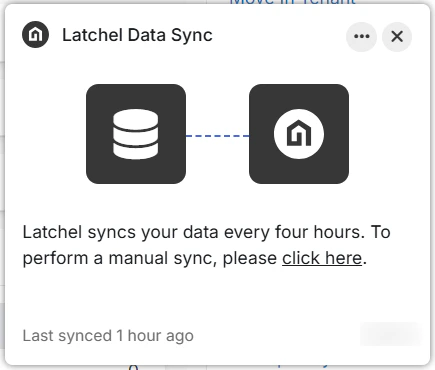
6. **Auto-sync is now always on by default** with the new Latchel Data Sync Extension, **refreshing data every 4 hours.**
7. Once the sync has been initialized, you can **complete** or **close** the test work order in your property management software (PMS).
**To know more about navigating the new extension, visit:**
Explore the layout and key functions of the latest Latchel Data Sync Extension.
6. **Auto-sync is now always on by default** with the new Latchel Data Sync Extension, **refreshing data every 4 hours.**
7. Once the sync has been initialized, you can **complete** or **close** the test work order in your property management software (PMS).