> ## Documentation Index
> Fetch the complete documentation index at: https://help.latchel.com/llms.txt
> Use this file to discover all available pages before exploring further.
# How to Download or Manage Files from Work Orders
> Keep track of pictures, invoices, receipts, and other files from a work order. Here's how you can download or manage files from a work order.
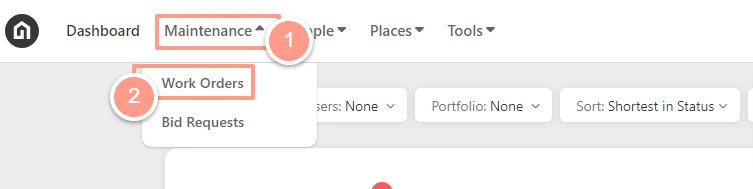
From your Dashboard, click the **Maintenance** dropdown and select **Work Orders**.
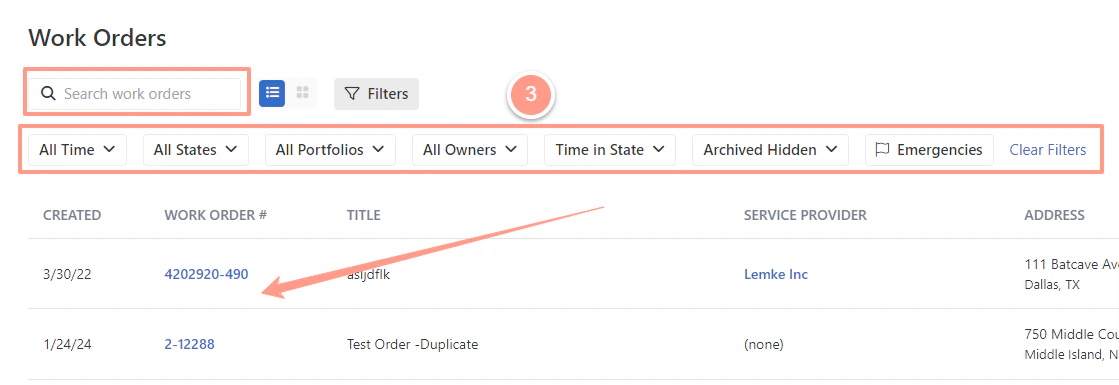
 Now to select the desired work order, use the **Search Bar** then click on the Work Order ID on the Work Order page. You can also use **Filter** for easy search.
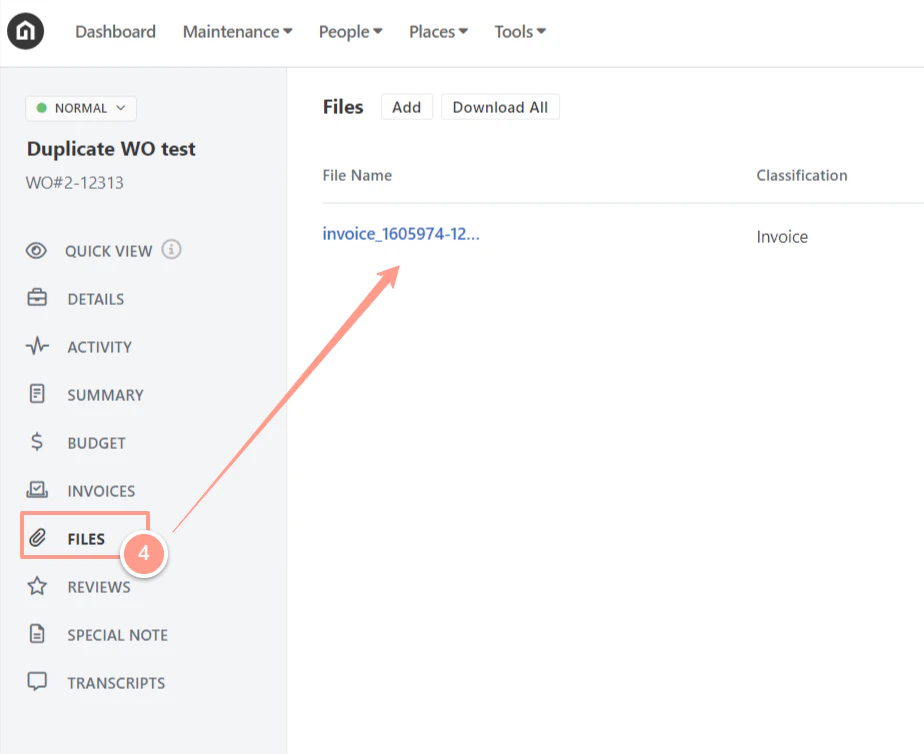
 From the work order page, go to the **Files** tab, the saved file/s can be previewed before downloading or deleting.
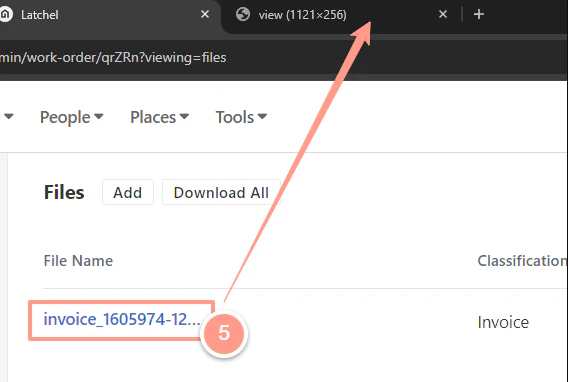
 To preview the file, click on the **File Name** and a new window will appear. You may view if it’s the right file you wish to manage.
 Sample Preview File: Invoice
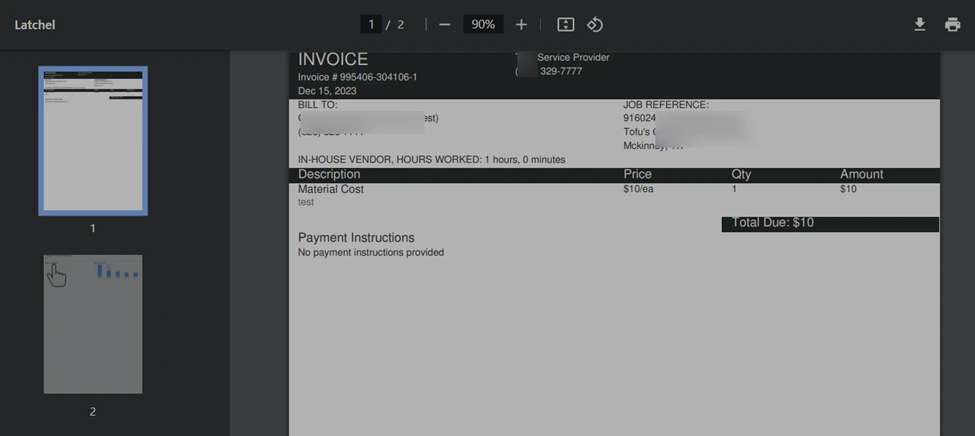 Once you have confirmed it's the file you need to manage, you can either download a file by clicking the **download icon** or delete it, when necessary, by clicking the **trash icon**.
 **NOTE:**
* *All downloaded files are saved in the downloads folder of the Property Manager or Latchel Admin user's computer.*
* **Deleting a file is irreversible.**
* *Different types of files can be saved and previewed such as (.)png, (.)pdf, movie or a gif, and docx.*
**NOTE:**
* *All downloaded files are saved in the downloads folder of the Property Manager or Latchel Admin user's computer.*
* **Deleting a file is irreversible.**
* *Different types of files can be saved and previewed such as (.)png, (.)pdf, movie or a gif, and docx.*