> ## Documentation Index
> Fetch the complete documentation index at: https://help.latchel.com/llms.txt
> Use this file to discover all available pages before exploring further.
# How to Enable Service Provider Locked-In on a Work Order
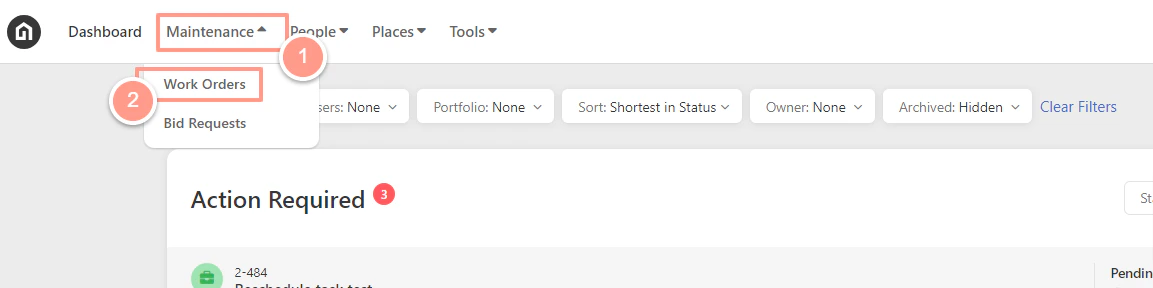
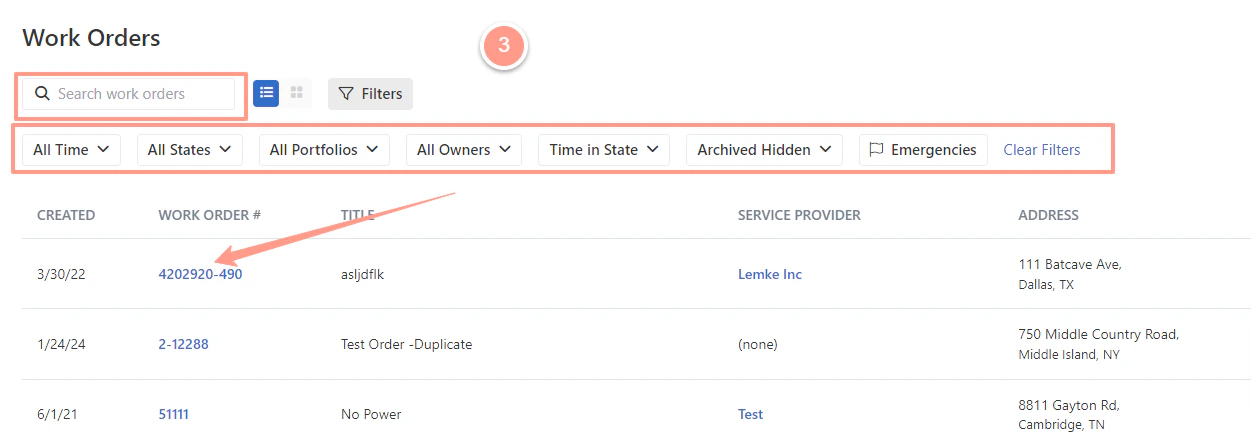
> From your Dashboard, click the **Maintenance** dropdown and select **Work Orders**. Now to select the desired work order, use the Search Bar, then click on the Work Order ID on the Work Order page. You can also use the Filter option for easy searching.
 Now to select the desired work order, use the **Search Bar**, then click on the **Work Order ID** on the **Work Order page**. You can also use the **Filter** option for easy searching.
 Either in the **Quick View** or in the **Details** tab, look for the Service Provider section. From there you can toggle **Service Provider is Lock-in** to **ON**. The toggle **ON** if it's blue and positioned to the right.
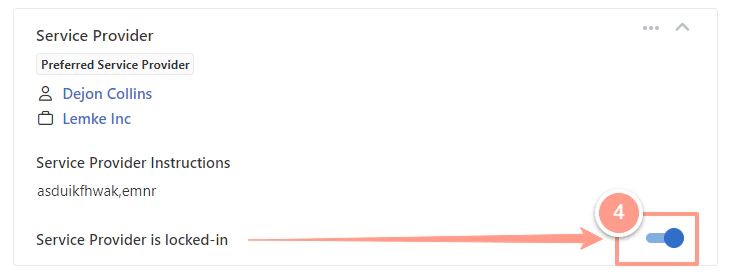 Once you lock in a service provider on a work order, Latchel will require your approval first before assigning any other service provider to the work order.