> ## Documentation Index
> Fetch the complete documentation index at: https://help.latchel.com/llms.txt
> Use this file to discover all available pages before exploring further.
# How to Install the Latchel Data Sync Extension
> Here are the steps to install the **Latchel Data Extension**. Please make sure you are using a **Chrome browser** before executing the steps listed in this guide.
To install the Latchel Data Sync Chrome Extension, go to link below, and click on **Add to Chrome**.
Click this link to download the latest version!
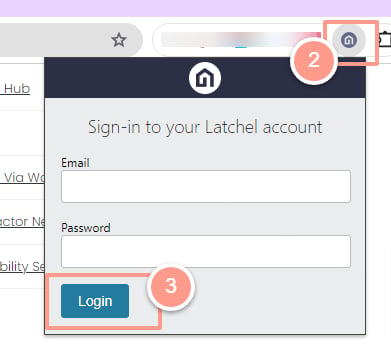
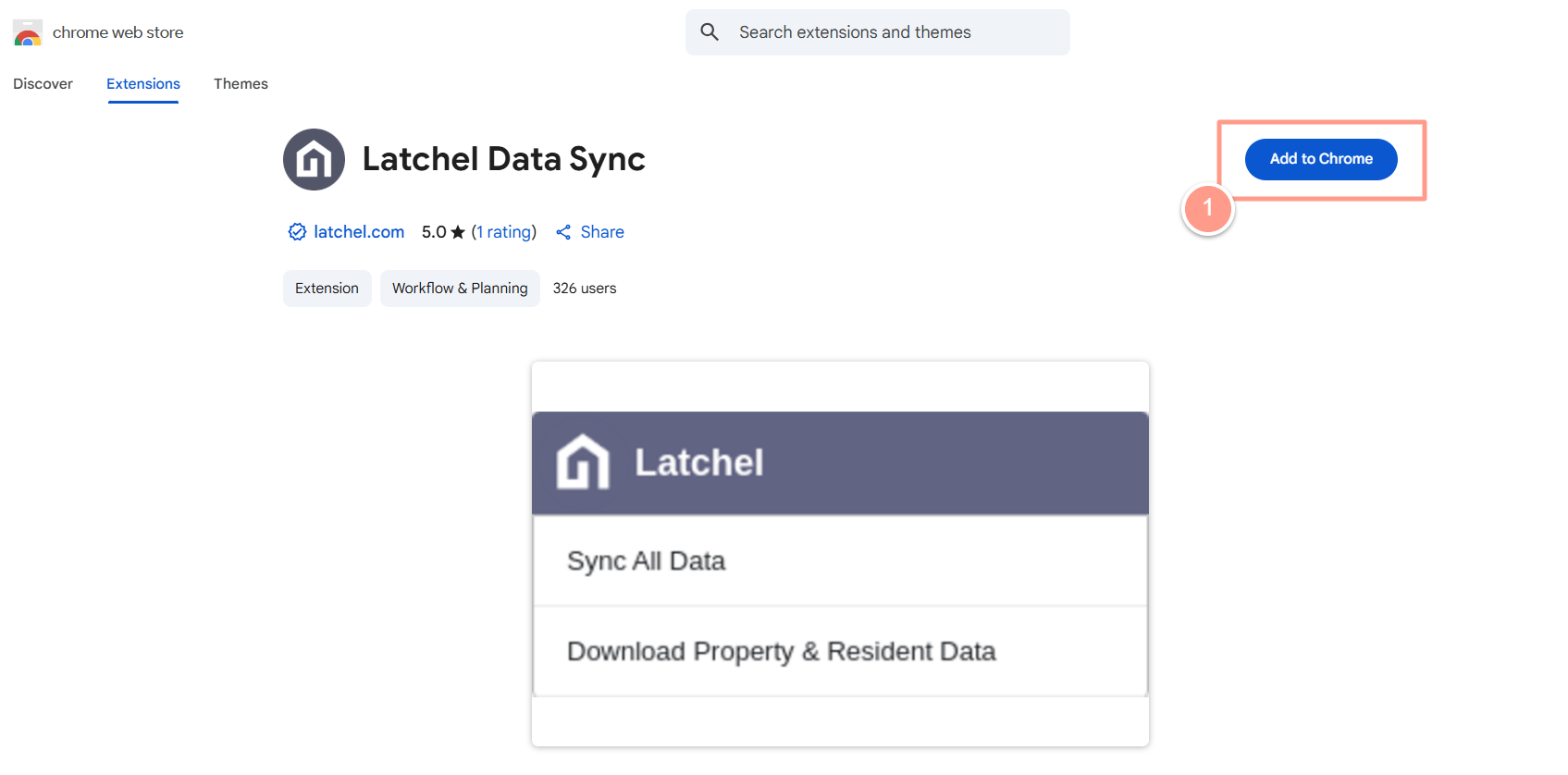 Once successfully installed, the Latchel extension will appear at the top right-hand side of the Chrome browser. Click on the Latchel extension and log in using your **Latchel** login credentials.
 That’s it! The next steps must be completed with Latchel’s Customer Success team. Please let your onboarding representative know you have completed this guide's steps.