> ## Documentation Index
> Fetch the complete documentation index at: https://help.latchel.com/llms.txt
> Use this file to discover all available pages before exploring further.
# How to Manage My Own Invoice Notification Settings
On the upper right corner of the Latchel dashboard, click your **user icon** and on the dropdown select **Account Settings**.
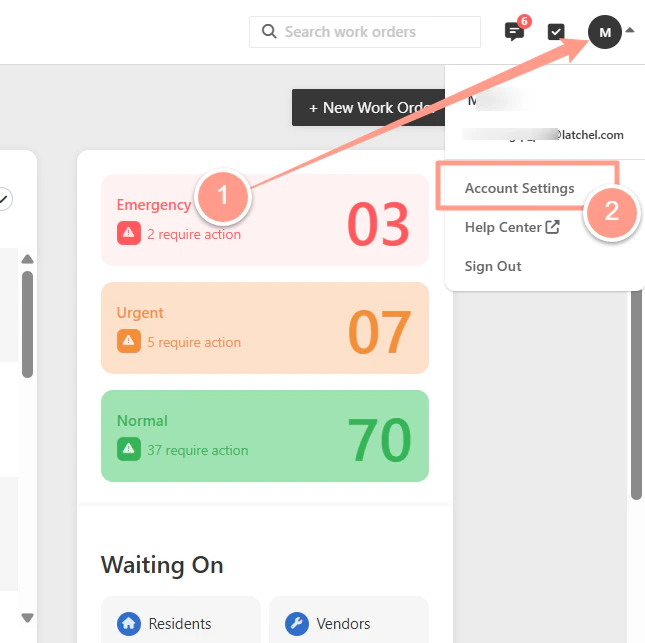 Under the Details tab click the dropdown icon of **Maint. Communication Settings** to expand the options.
 From there, you can manage the toggle option for **Send invoice notifications** and choose who should receive the notification by **checking the corresponding box** of one of the default options and/or **adding a specific email address**. Finally, click **Save**.
