> ## Documentation Index
> Fetch the complete documentation index at: https://help.latchel.com/llms.txt
> Use this file to discover all available pages before exploring further.
# How to Opt-In to the Latchel Contractor Network
> A **Latchel Contracted Network Service (LCN)** Provider can be assigned to a work order if all Preferred Service Providers are unavailable, or if they have to reject the job for some reason, and all of them have been exhausted.
For any type of work, as a property manager you may opt-in to source new service providers if nobody from your preferred network is available to accept the job. For **emergency work orders**, the Latchel Team may source a new provider on the spot, or source someone that have previously worked within your area. For **non-emergency work orders**, the Latchel system source a new service providers, you will instantly gain access to a directory of service providers that Latchel has previously worked within your area.
If none of your preferred service providers are available for a non-emergency job, Latchel team will surface the work order for your team right away. From there, you’ll have direct access to Latchel’s list of service providers to move things along more quickly.
***Remember to** **contact them before you officially hire them***. If you decide to select a service provider from Latchel’s list, make sure to set out a firm description of the scope of work to be done at the home.
Having access to Latchel’s list is a great tool to help you build up your preferred network! Let get into details on how you can opt-in to this service!
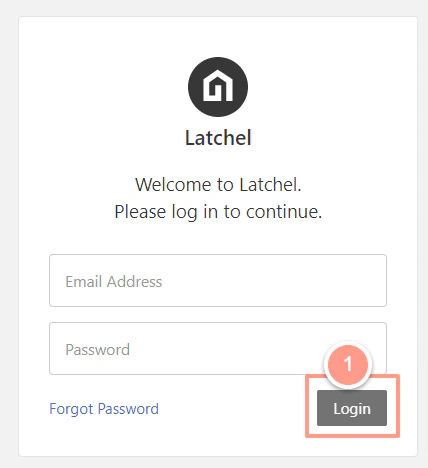
Log into **[Latchel.](https://app.latchel.com/login)**
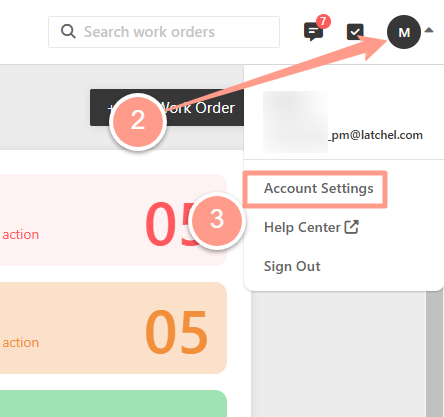
 Click on your initials or avatar in the upper right-hand corner of the dashboard, and click **Account Settings.**
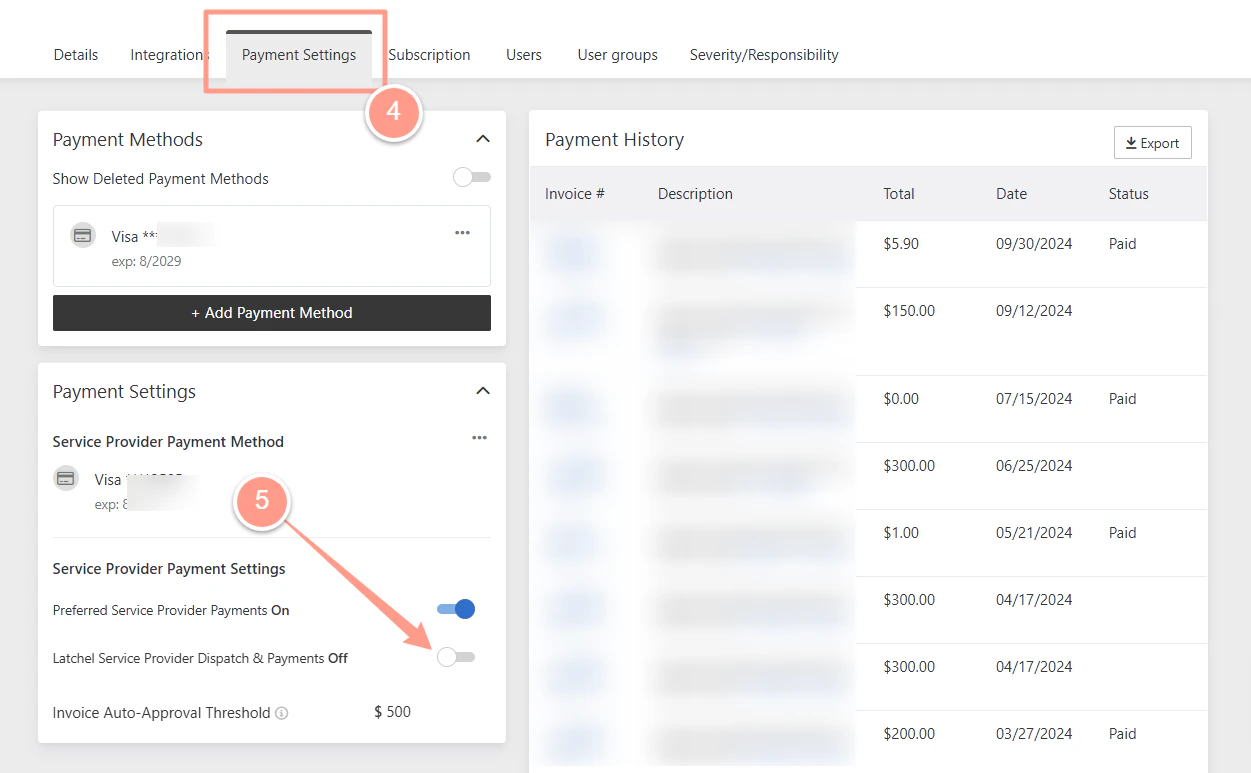
 Click the tab **Payment Settings.** In the **Payment Settings section**, click the toggle for **Latchel Service Provider Dispatch & Payments**. This will turn the toggle to blue.
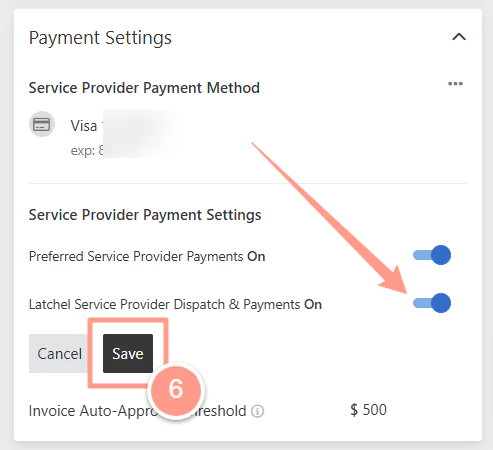
 Lastly, click **Save**.
 Keep in mind that **a service provider payment method is needed to opt-in to Latchel Contracted Network service providers**. If there is no service provider payment method on file, you will be asked to set up a payment method. Follow **[How to Update the Service Provider Payment Method on File](/s/topic/0TO5e000000h9wqGAA/How-to-Update-the-Service-Provider-Payment-Method-on-File)** to add or update your service provider payment method.