> ## Documentation Index
> Fetch the complete documentation index at: https://help.latchel.com/llms.txt
> Use this file to discover all available pages before exploring further.
# How to Override/Change Service Provider Payment Method in Property
> Find out how to override or change the payment method for a specific property to ensure your Service Providers are paid correctly.
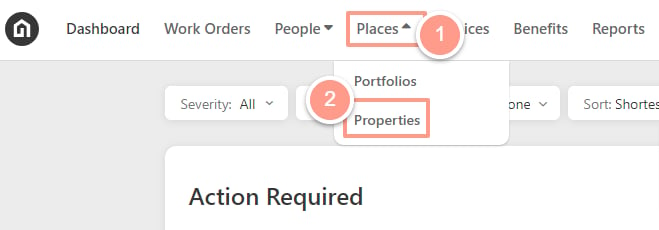
From your Latchel dashboard, click **Places**, then on the dropdown select **Properties**.
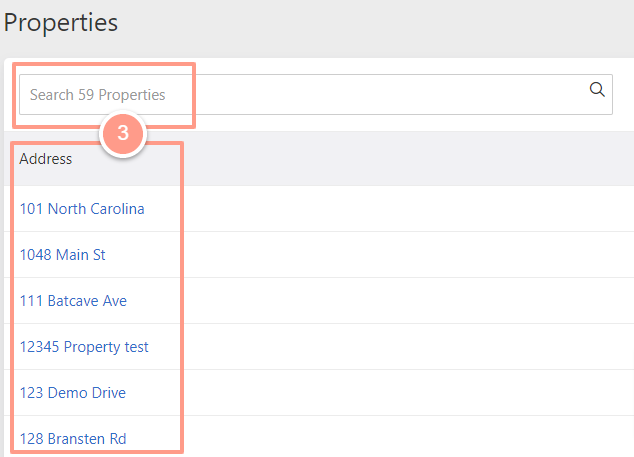
 From the property page either **select** a property on the list below or **search** the property that you need to edit.
 ### **Override Service Provider Payment Method**
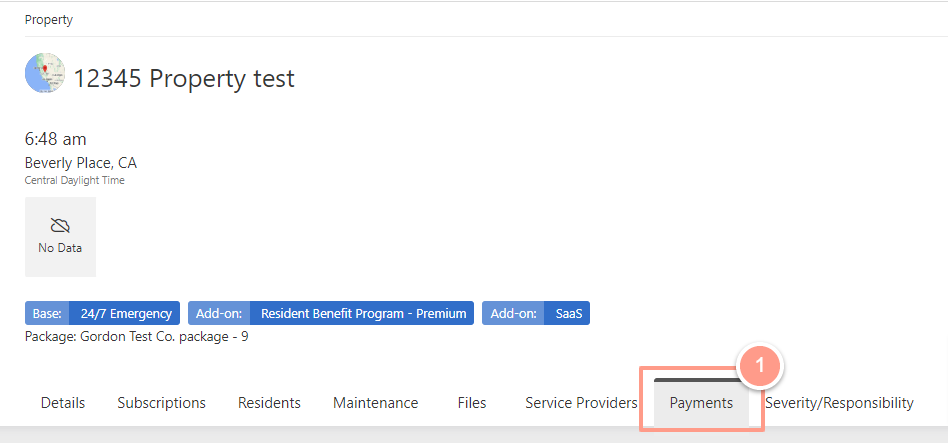
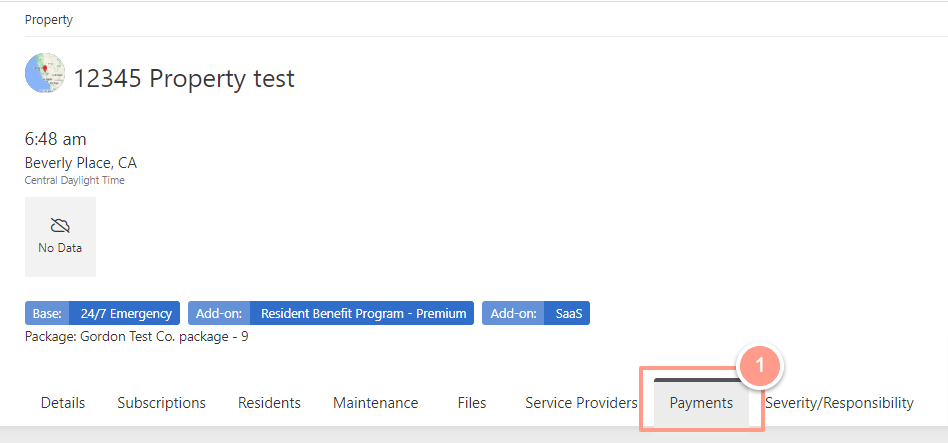
On the property page that you need to edit, go to the **Payments** tab.
### **Override Service Provider Payment Method**
On the property page that you need to edit, go to the **Payments** tab.
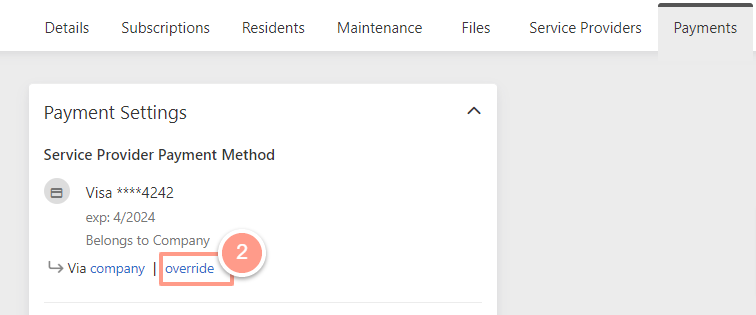
 From the Payment Settings section, click **Override** located under Service Provider Payment Method.
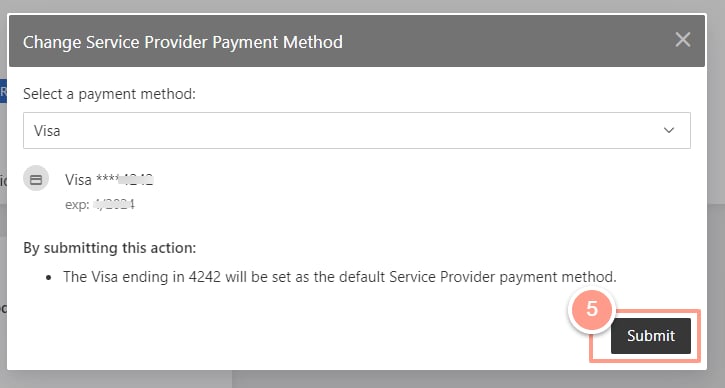
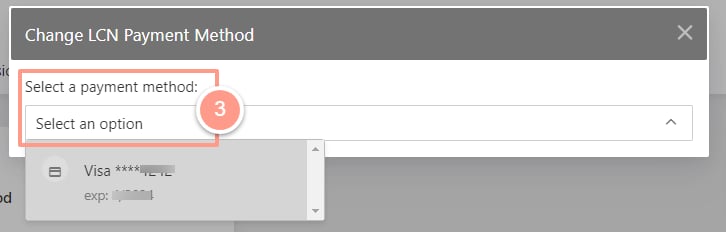
 Then on the pop-up window, **select** the payment option that you want to use.
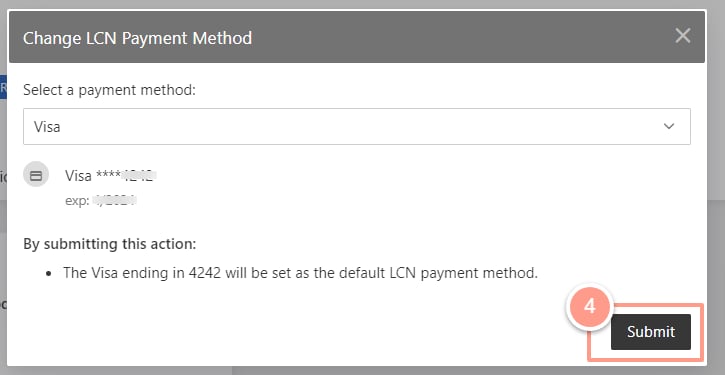
 And click **Submit.**
 ### **Change Service Provider Payment Method**
On the property page that you need to edit, go to the **Payments** tab.
### **Change Service Provider Payment Method**
On the property page that you need to edit, go to the **Payments** tab.
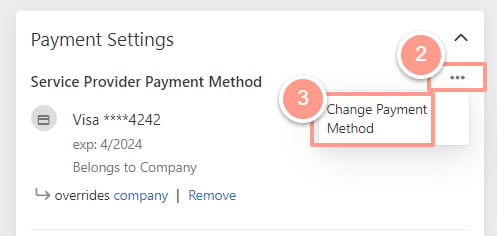
 Under the Payment Settings section, click the **ellipsis icon** of the Service Provider Payment Method and then select **Change Payment Method**.
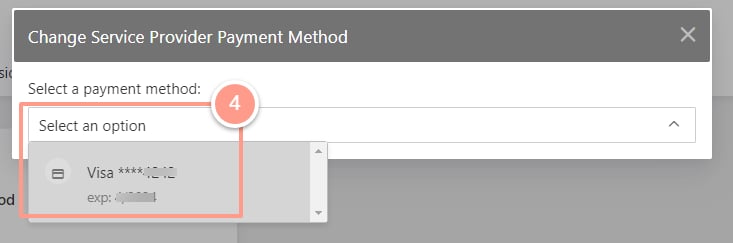
 Then on the pop-up window, **select** the payment option that you want to use.
 And click **Submit**.