> ## Documentation Index
> Fetch the complete documentation index at: https://help.latchel.com/llms.txt
> Use this file to discover all available pages before exploring further.
# How to Resend the Work Order Details to the Service Provider
> Right now, our platform doesn't have a direct feature for property managers to resend emails of work order details to service providers.
But, don't worry, we have some workarounds that can help. Here's how:
**Option 1:** **Modify the appointment time.** From the work order page, click on **Action** then choose **Set a New Confirmed Work date.**
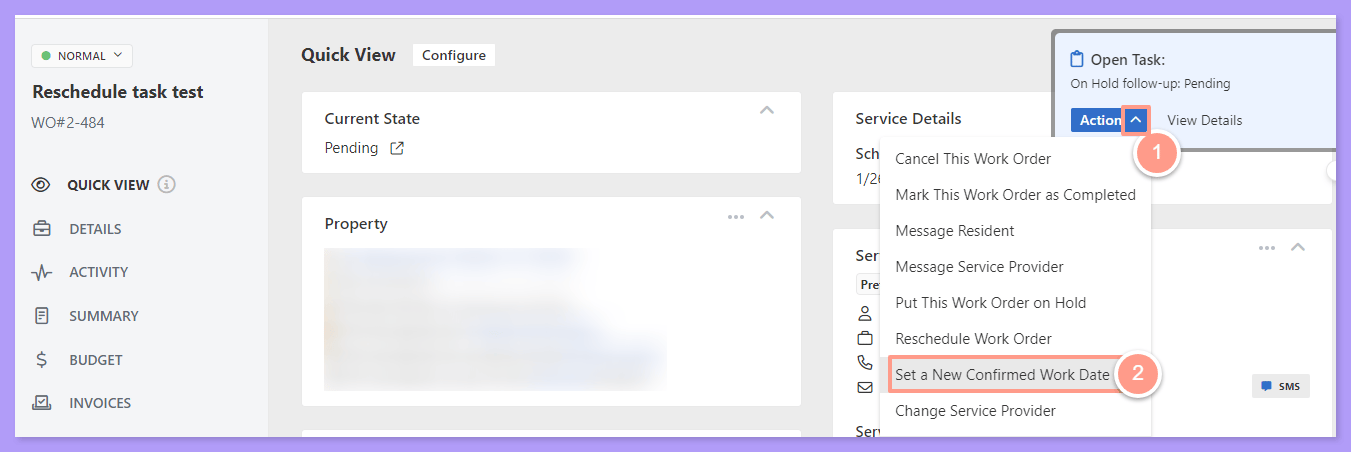 Pick a date and time very close to or within the original time slot to set a new work date then click on **Continue.**
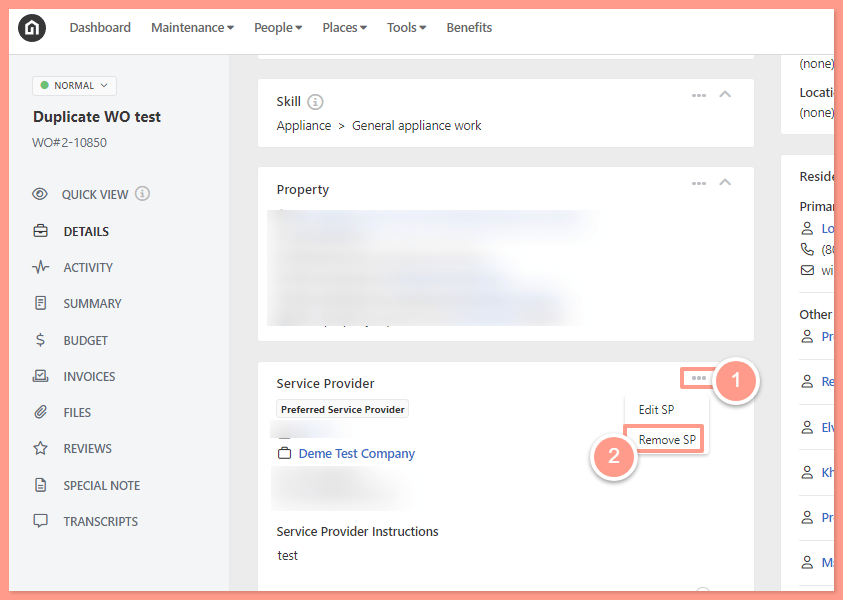
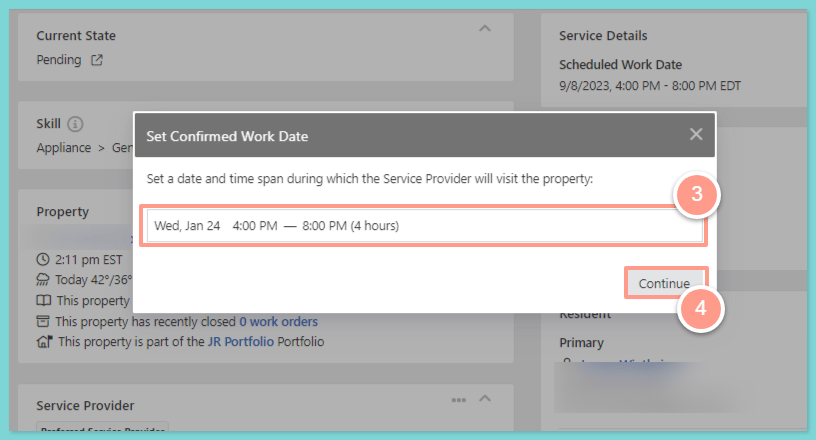 **Option 2:** **Remove and add the Service Provider to the work order.** From the work order page and Service Provider section, click on the **three dots** or **ellipses** then choose either **Edit SP** or **Remove SP.** For this help guide, let's choose **Remove SP**.
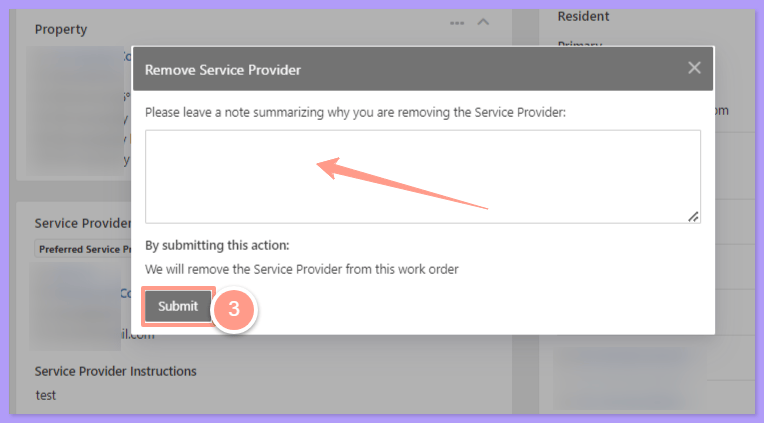
 A pop-up box will appear and place a note advising the reason for the action and hit **Submit**.
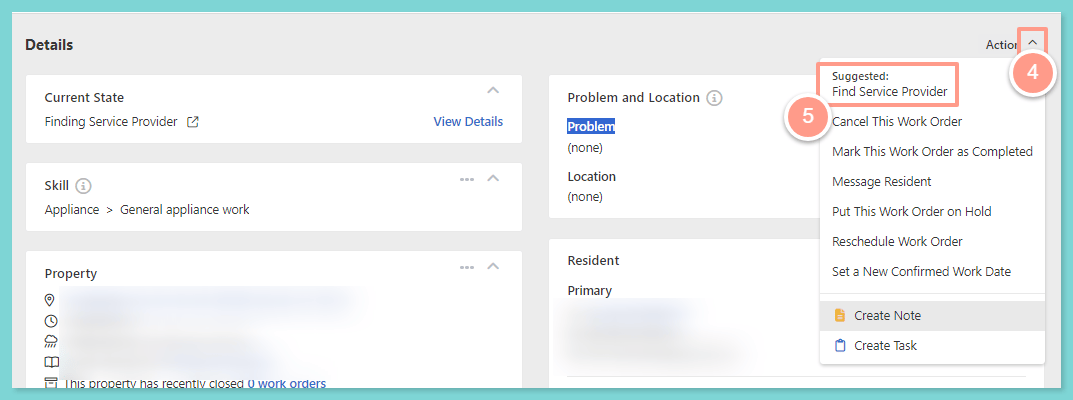
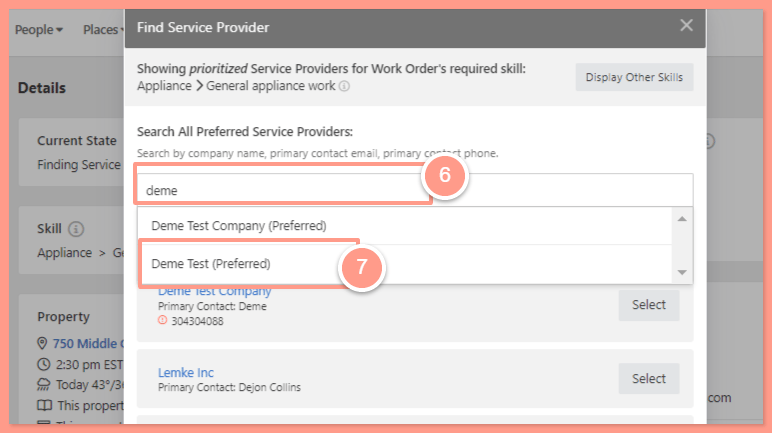
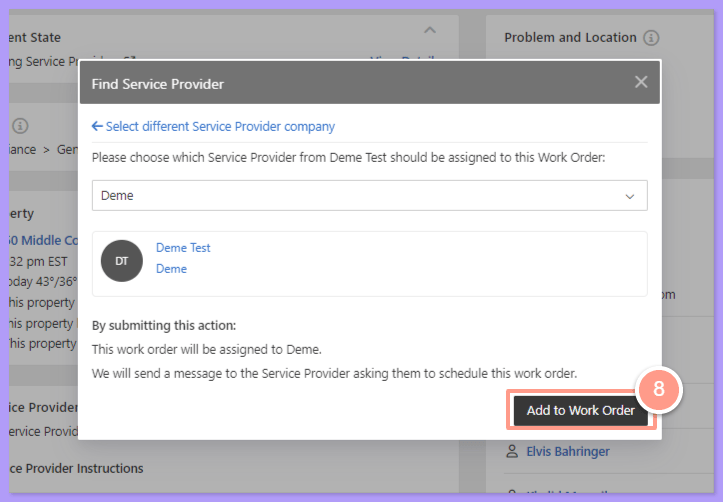
 Click on **Action** and **Find Service Provider**, make sure to reassign the same Service Provider by either searching the name of the service provider or directly choosing from the drop-down. Then click on **Add to Work Order.**
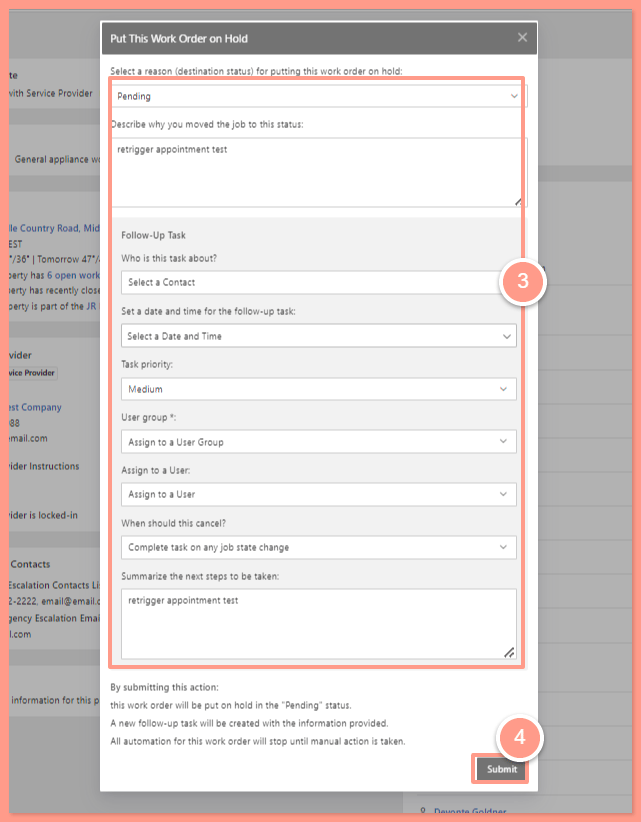
 **Option 3: Move the work order to Pending and reset the appointment.** From the work order page, click on **Action** and choose **Put This Work Order on Hold** from the drop-down list.
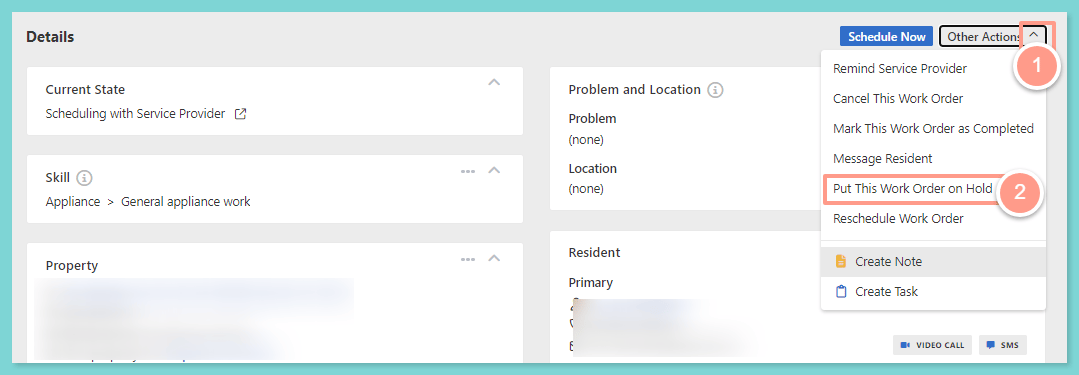 Although this is just a workaround, it is advisable to leave a note and supply the details as to why the work order will be put on hold because placing the job on hold will create an automatic task.
* **Select a reason (destination status) for putting this work order on hold:** Pending
* **Describe why you moved the job to this status:** retrigger appointment
* **Who is this task about:** Service Provider
* **Set a date and time for the follow-up task:** Choose today
* **Task Priority:** Lower
* **User group:** Property Manager's name
* **Assign to a User:** Default User Group
* **When should this cancel:** Complete task on any job state change
* **Summarize the next step to be taken:** retrigger appointment
Then click on **Submit.**
Although this is just a workaround, it is advisable to leave a note and supply the details as to why the work order will be put on hold because placing the job on hold will create an automatic task.
* **Select a reason (destination status) for putting this work order on hold:** Pending
* **Describe why you moved the job to this status:** retrigger appointment
* **Who is this task about:** Service Provider
* **Set a date and time for the follow-up task:** Choose today
* **Task Priority:** Lower
* **User group:** Property Manager's name
* **Assign to a User:** Default User Group
* **When should this cancel:** Complete task on any job state change
* **Summarize the next step to be taken:** retrigger appointment
Then click on **Submit.**
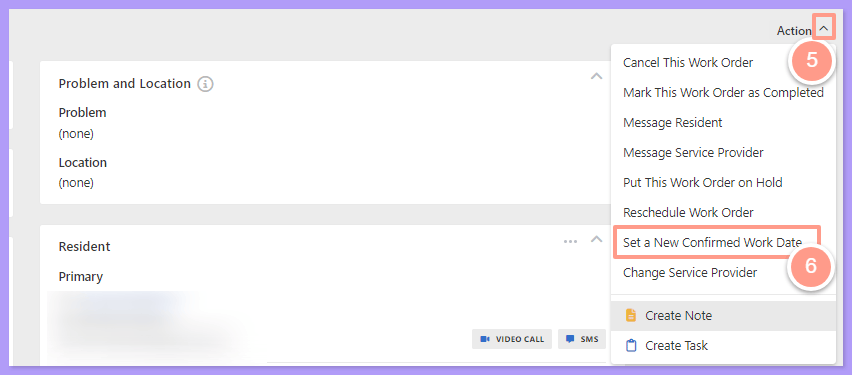
 From the task that is automatically created, click on **Action** and choose **Set a New Confirmed Work Date.**
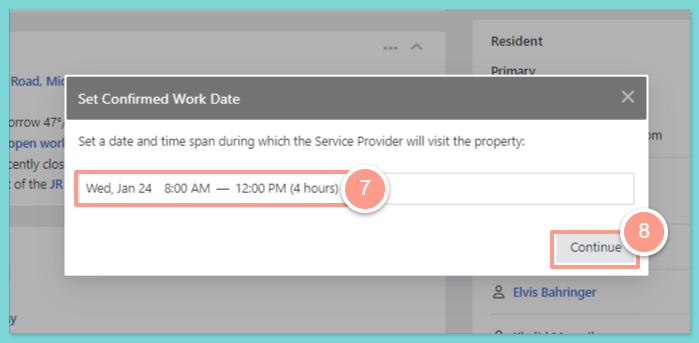
 In the **Set Confirmed Work Date** box,it is recommended to choose the same confirmed appointment as this is what the resident and service provider agreed previously. Click on **Continue.**
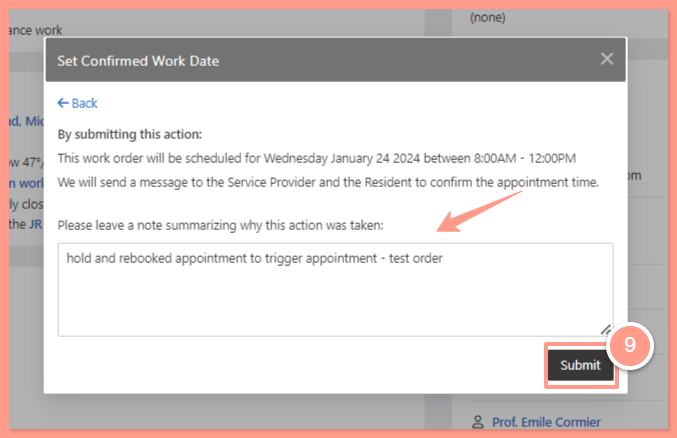
 Summarize the action by placing a note as to why the action was taken, and click on **Submit.**
 **NOTE:** *The idea of all of these is to retrigger the appointment notification.*