> ## Documentation Index
> Fetch the complete documentation index at: https://help.latchel.com/llms.txt
> Use this file to discover all available pages before exploring further.
# How to Set Service Provider as a VIP Preferred Service Provider
> If the Service Provider is set as VIP it can accept a job without scheduling an arrival time.
Go to your Latchel Dashboard and click on **People**. Then select **Service Providers** from the dropdown menu.
On the Service Providers page, click on **My Service Provider Management**.
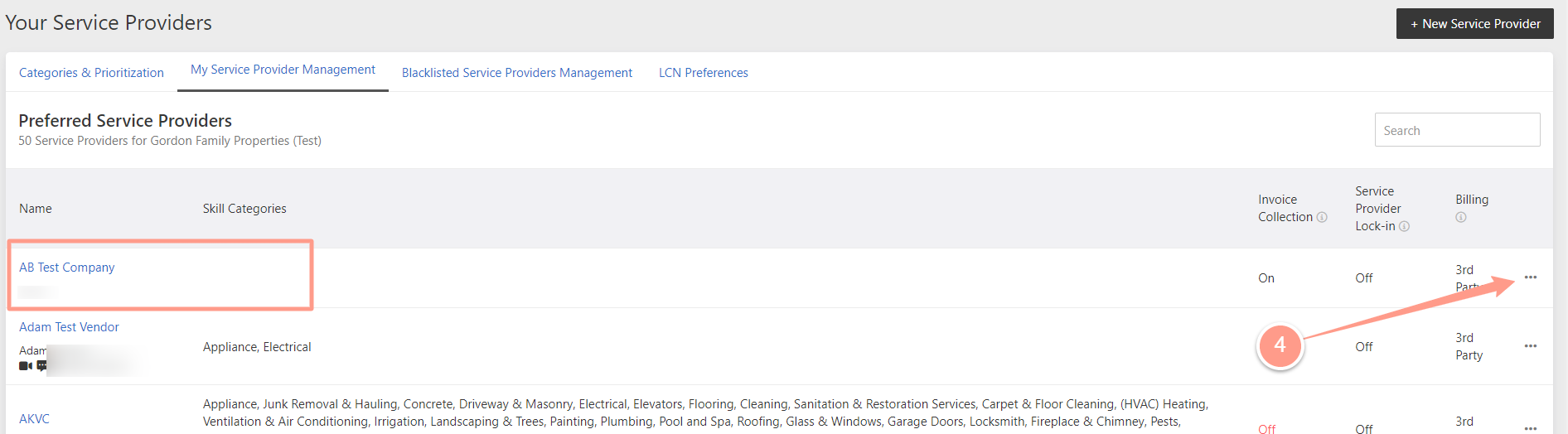
Now choose which Service Provider you want to set as VIP and select the **3 dots** on the right of your selected Service Provider. Then click **Preferred Service Provider Settings.**
In the pop-up window, you will see the **VIP Service Provider** option at the bottom. Simply switch the toggle button to **ON** or **OFF** to set or remove the VIP status for that service provider.
If you're looking for a more in-depth explanation of how to set a service provider as a VIP Preferred Service Provider, we've got you covered! Check out the video below for a step-by-step walkthrough of the process, along with a brief explanation of what this setting can do versus non-VIP service providers. By watching the video, you'll gain a better understanding of how to manage your preferred service providers and get the most out of your Latchel Dashboard.
 On the Service Providers page, click on **My Service Provider Management**.
 Now choose which Service Provider you want to set as VIP and select the **3 dots** on the right of your selected Service Provider. Then click **Preferred Service Provider Settings.**
 In the pop-up window, you will see the **VIP Service Provider** option at the bottom. Simply switch the toggle button to **ON** or **OFF** to set or remove the VIP status for that service provider.

 If you're looking for a more in-depth explanation of how to set a service provider as a VIP Preferred Service Provider, we've got you covered! Check out the video below for a step-by-step walkthrough of the process, along with a brief explanation of what this setting can do versus non-VIP service providers. By watching the video, you'll gain a better understanding of how to manage your preferred service providers and get the most out of your Latchel Dashboard.