> ## Documentation Index
> Fetch the complete documentation index at: https://help.latchel.com/llms.txt
> Use this file to discover all available pages before exploring further.
# How to Update Status of Work Orders on Waiting for PM
> _**If the work order status is Waiting for PM**_, you will have the option of changing the status to **Cancel the Work Order**, **Mark it as Completed**, and or **Confirm a New Work Date**.
**NOTE:** *The floating section at the upper right corner will give you the suggested action depending on the state of the work order, which will address the issue in just 2 clicks. If the action you need is not in the floating section, just click the Hide button.*
#### **Set Status to Cancelled**
We have the option to cancel a work order by placing it in the Cancelled category. This can be necessary in certain situations where the work order cannot be completed as planned, and it ensures that everyone involved in the process is aware of the cancellation.
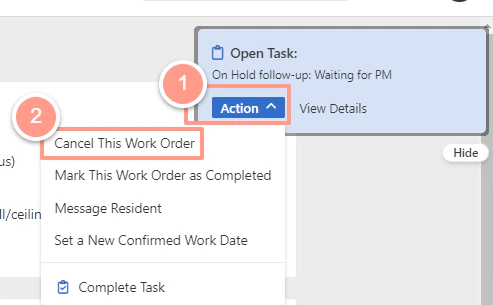
At the right top corner of the work order page click **Action** and choose the **Cancel This Work Order** option.
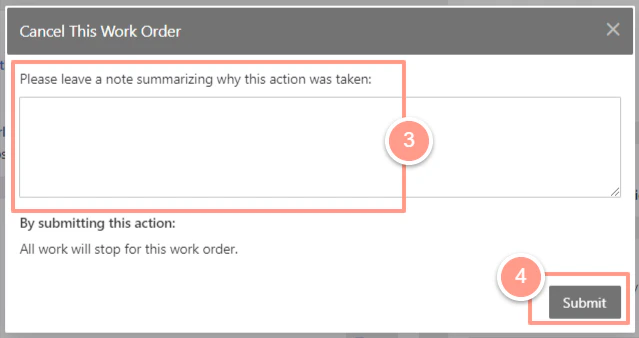
 Then indicate the reason why the work order should be canceled and hit **Submit**.
 #### **Set Status to Completed**
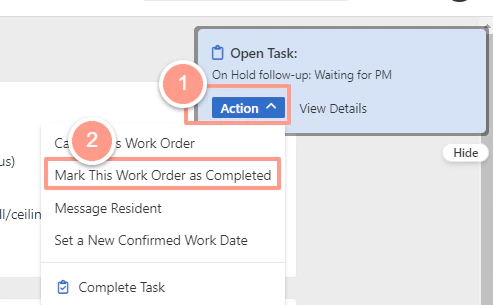
Setting the work order to Completed. If all of the issues in the property were taken care of, then click **Action** and hit **Mark This Work Order as Completed**.
#### **Set Status to Completed**
Setting the work order to Completed. If all of the issues in the property were taken care of, then click **Action** and hit **Mark This Work Order as Completed**.
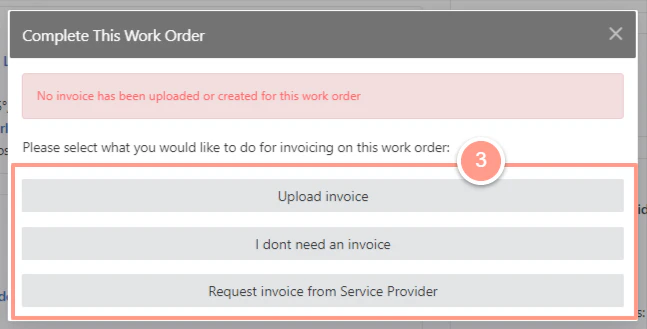
 Then select the appropriate field.
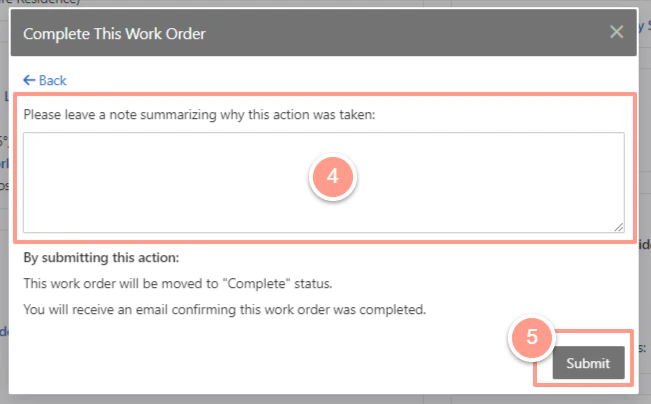
 State why the action was taken and hit **Submit**.
 #### **Set a New Confirmed Work Date**
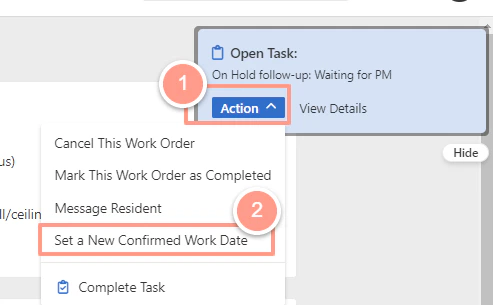
From the **Action** button select the **Set a New Confirmed Work Date**.
#### **Set a New Confirmed Work Date**
From the **Action** button select the **Set a New Confirmed Work Date**.
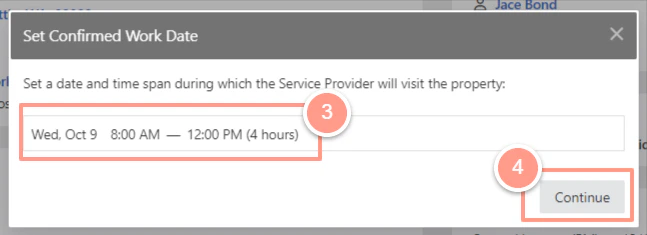
 A pop-up window will appear, from there select the desired date and time and hit **Continue**.
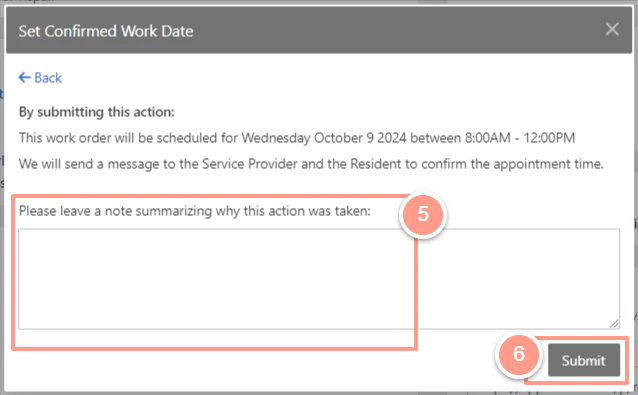
 Now place a statement on why did you set a new work date and select **Submit**.