> ## Documentation Index
> Fetch the complete documentation index at: https://help.latchel.com/llms.txt
> Use this file to discover all available pages before exploring further.
# How to Update a Company User's Contact Information
> Need to update a team member’s email or phone number in Latchel? This guide shows you how to quickly edit a company user’s contact details to keep your account information current.
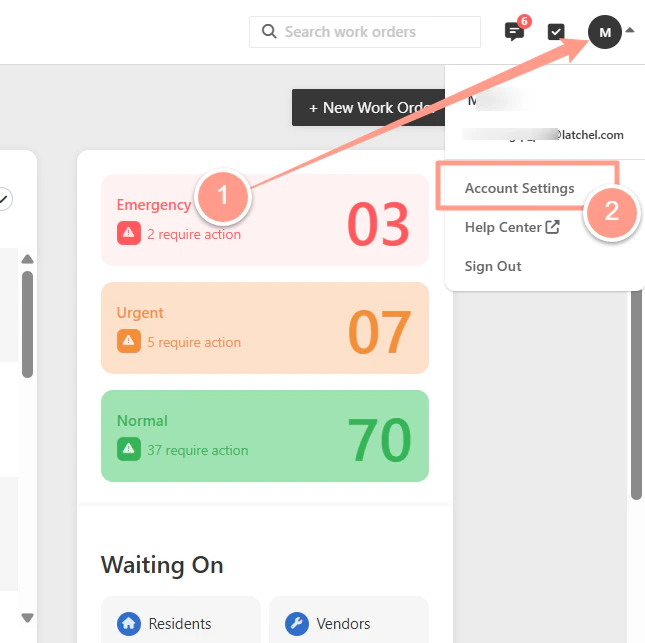
After you logged in to Latchel, click the **arrow down** beside your user icon at the top right corner of your dashboard. Then, click **Account Settings**.
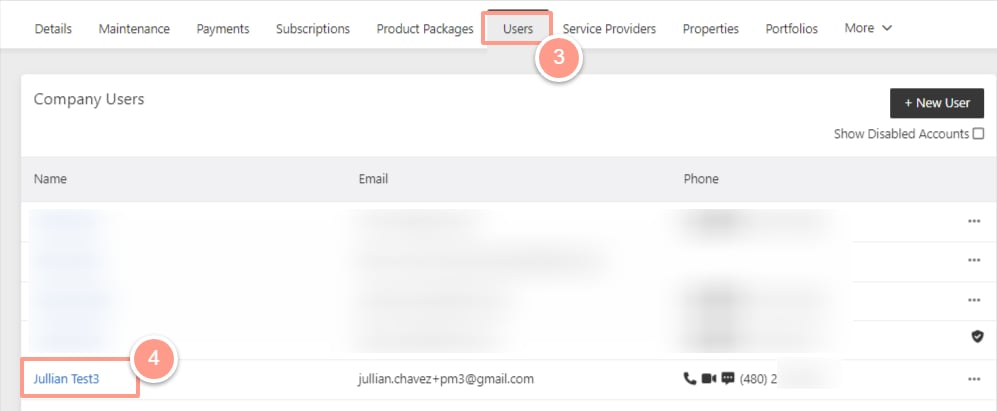
 From the **Account Settings** page, click **Users**. Then, click the **name of the user** you need to update the contact information.
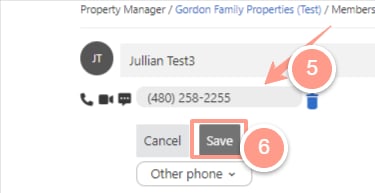
 Once you click the user's name, it will take you to the **Member's Profile page**. From there, you can update the user's phone number and/or email address. Click **Save** to save the changes you made.
You can also add secondary contact information if the user or property manager has multiple phone numbers and email addresses.
Once you click the user's name, it will take you to the **Member's Profile page**. From there, you can update the user's phone number and/or email address. Click **Save** to save the changes you made.
You can also add secondary contact information if the user or property manager has multiple phone numbers and email addresses.
 And there you go! That's how easily you can update any of your user's contact information!