> ## Documentation Index
> Fetch the complete documentation index at: https://help.latchel.com/llms.txt
> Use this file to discover all available pages before exploring further.
# How to Update the Resident's Availability
> As a property manager you can either grant the service provider access to the property if the resident is not available, send a reminder of the work order, or add another schedule for the resident. Here are the steps on how you can do it on a work order.
### **Grant Property Access**
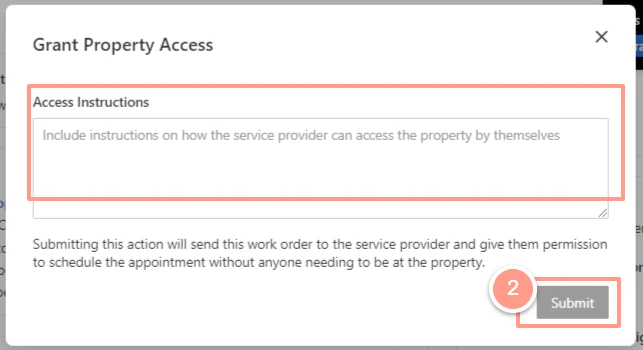
From the work order page hit the **Grant Property Access** in the notification located at the upper right-hand corner of the page.
 Then on the pop-up screen, you can provide additional instructions and click **Submit**.
 ### **Remind a Resident**
If you need to send an email or SMS to a resident to remind them of a pending task that requires their action on a work order, follow the steps below.
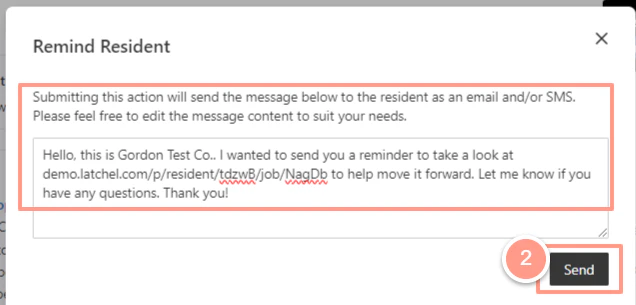
Also located at the upper right corner of the work order page, click the **Remind Resident** button.
### **Remind a Resident**
If you need to send an email or SMS to a resident to remind them of a pending task that requires their action on a work order, follow the steps below.
Also located at the upper right corner of the work order page, click the **Remind Resident** button.
 And from the pop-up screen, you can edit the reminder message or just hit **Send**.
 ### **Add Resident Availability**
Click the **Hide** button of the floating section located in the upper right corner.
### **Add Resident Availability**
Click the **Hide** button of the floating section located in the upper right corner.
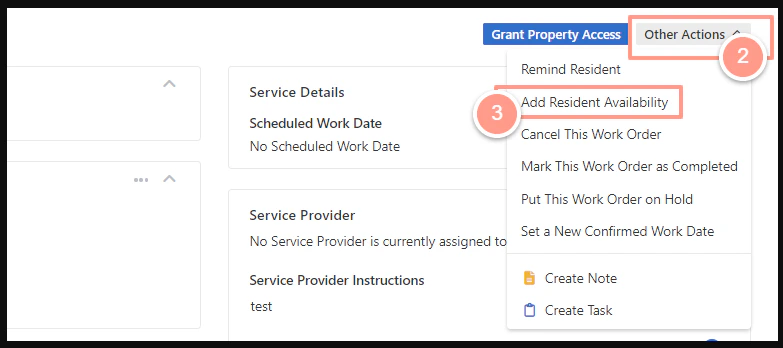
 From there, select **Other Actions**, then click **Add Resident Availability**.
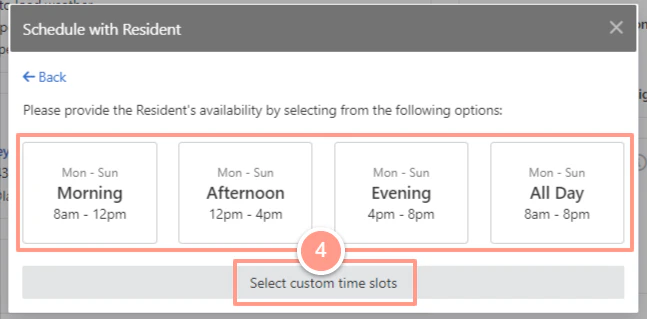
 Now you can choose from the available schedule, or custom a specific time slot.
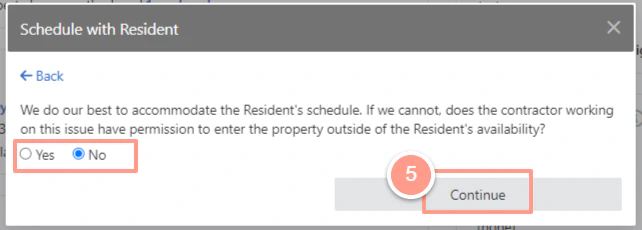
 Next, acknowledge if the service provider has permission to enter the property outside of the Resident's availability, and click **Continue**.
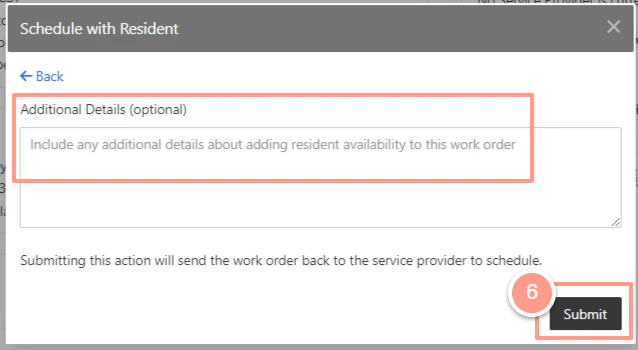
 Lastly, hit **Submit** if there are no other details you want to add.
 And that's it! That's how you can update the resident availability through a work order.