> ## Documentation Index
> Fetch the complete documentation index at: https://help.latchel.com/llms.txt
> Use this file to discover all available pages before exploring further.
# How to Update the Skill Required on a Work Order
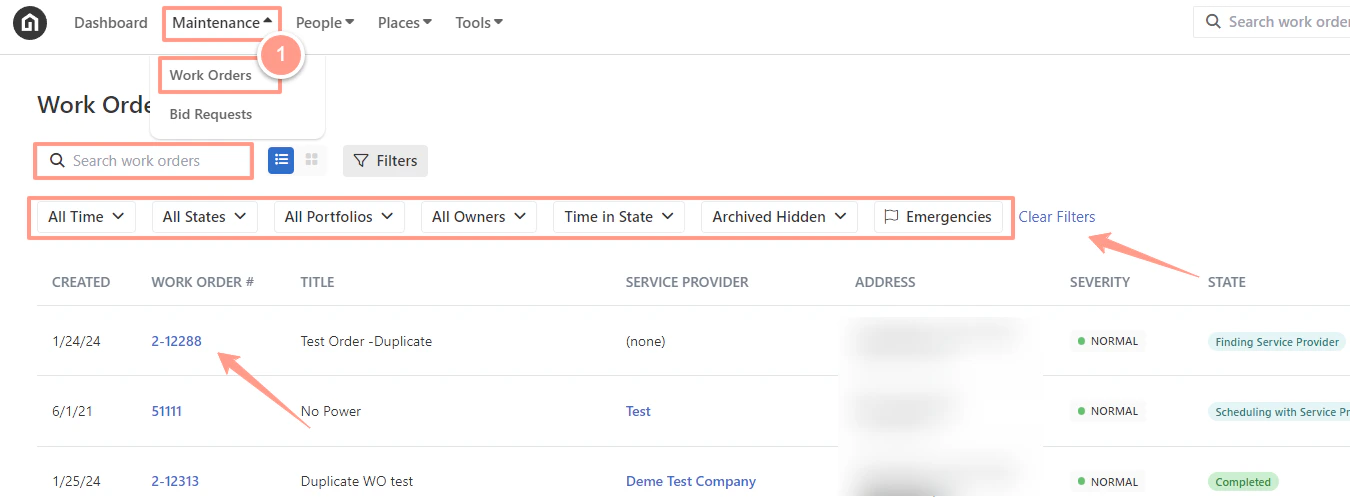
> To select the desired work order, from your Latchel dashboard, go to the **Maintenance tab** and click on **Work Orders.** Search and select the work order that you want to work on. Use the Search Bar then click on the Work Order ID.
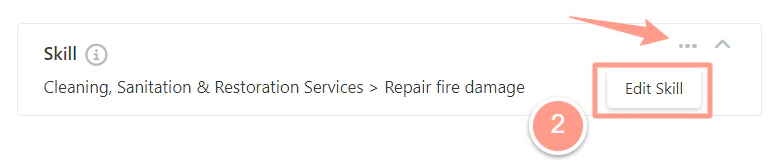
 From the work order view, look for **Skill** and the three dots, an option to **Edit Skill** will appear.
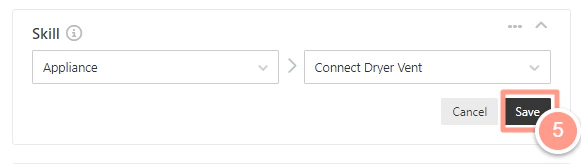
 Please note, that there are main skill categories which is the field on the left-hand side (e.g.Plumbing, HVAC, Appliance) and then there are skills within the category (e.g.connecting dryer vents, clearing drains, etc.) which is the field on the right-hand side. We'll show you how to update both options below:
Choose the Category by clicking one of the listed items in the drop-down menu.
Please note, that there are main skill categories which is the field on the left-hand side (e.g.Plumbing, HVAC, Appliance) and then there are skills within the category (e.g.connecting dryer vents, clearing drains, etc.) which is the field on the right-hand side. We'll show you how to update both options below:
Choose the Category by clicking one of the listed items in the drop-down menu.
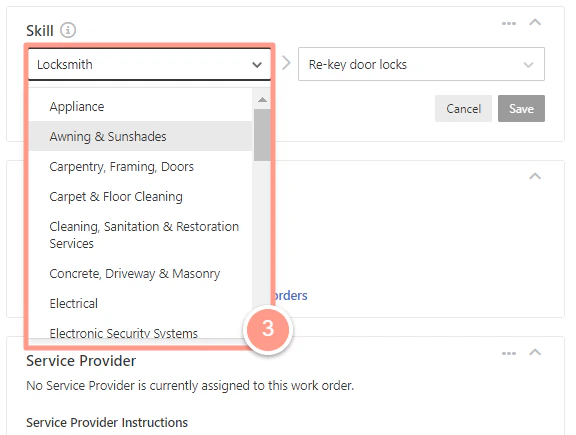 By clicking a category, a list of other skills will pop up. You can select a better-fitting skill for the work order from the dropdown list.
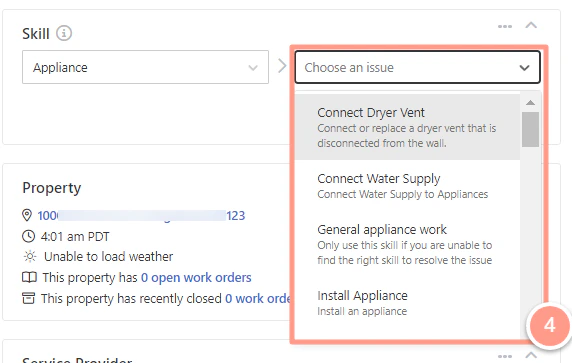 Once one of the skills is clicked, click on the Save option for the change to take effect.
 And that's how you can edit the skill required on a work order!
**Are you having difficulty finding the correct work order you need to work on? Check these help guides:**
* [**How to Use the Filter Options in the Work Order Tab Page**](/s/topic/0TO5e000000h9wqGAA/How-to-Use-the-Filter-Options-in-the-Work-Order-Tab-Page)
* [**Quick Search Box for Work Orders**](/s/topic/0TO5e000000h9wqGAA/Quick-Search-Box-for-Work-Orders)
And that's how you can edit the skill required on a work order!
**Are you having difficulty finding the correct work order you need to work on? Check these help guides:**
* [**How to Use the Filter Options in the Work Order Tab Page**](/s/topic/0TO5e000000h9wqGAA/How-to-Use-the-Filter-Options-in-the-Work-Order-Tab-Page)
* [**Quick Search Box for Work Orders**](/s/topic/0TO5e000000h9wqGAA/Quick-Search-Box-for-Work-Orders)