> ## Documentation Index
> Fetch the complete documentation index at: https://help.latchel.com/llms.txt
> Use this file to discover all available pages before exploring further.
# Methods of Searching Invoices
> Finding invoices in the Latchel Dashboard is a breeze. You can quickly **search and filter** to locate the exact invoice you need, making your financial management simpler and more efficient!
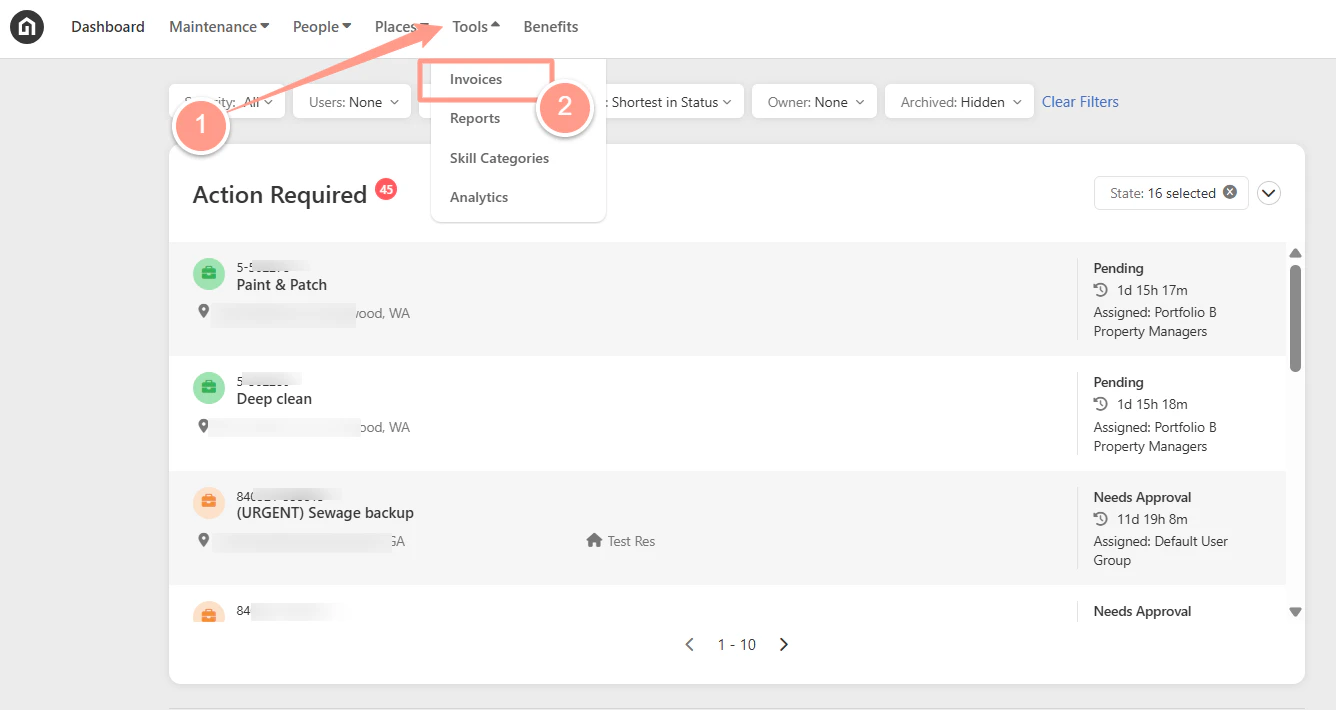
From your dashboard, select **Tools** and click **Invoices**.
 #### **Searching Invoices in Multiple Ways**
1. Using the **Invoice Number**
#### **Searching Invoices in Multiple Ways**
1. Using the **Invoice Number**
 1. Using the **Work Order Number**
 1. Using the **Assigned Service Provider**
 1. Using the **Invoice Amount**
 #### **Accessing an Invoice Via the Work Order**
Search for the work order. To do this you may follow the steps in [**Quick Search Box for Work Orders**](/s/topic/0TO5e000000h9wqGAA/Quick-Search-Box-for-Work-Orders). Then, from the left side of the work order page, click **Invoices**.
#### **Accessing an Invoice Via the Work Order**
Search for the work order. To do this you may follow the steps in [**Quick Search Box for Work Orders**](/s/topic/0TO5e000000h9wqGAA/Quick-Search-Box-for-Work-Orders). Then, from the left side of the work order page, click **Invoices**.
 Then select the **Invoice Number** you want to access.
 #### **Searching Invoices Using the Filter**
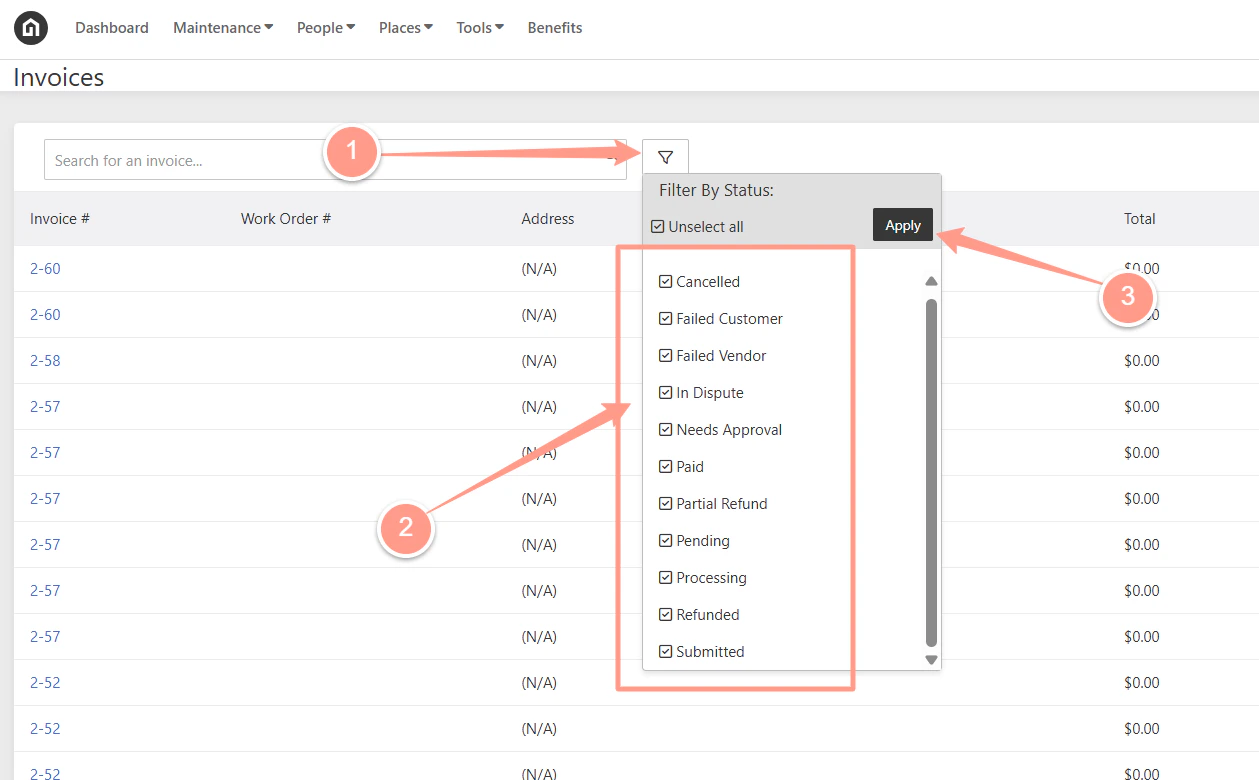
On the invoice page, invoices can now be easily searched using the filter options. **Filter options** available are **by Status**:
* **Unpaid:** The invoice has been issued but has not yet been paid.
* **In Dispute:** There's an active issue or disagreement regarding the invoice that needs resolution.
* **Paid:** The invoice has been fully paid.
* **Cancelled:** The invoice was voided and is no longer valid for payment.
* **Partial Paid:** A portion of the invoice has been paid, but a balance remains.
* **Refunded:** The payment made on the invoice was returned to the payer.
* **Needs Approval:** The invoice is awaiting approval from the necessary party before it can move forward.
* **Pending:** The invoice is in a waiting state—typically awaiting action like review, approval, or payment.
* **Processing:** The invoice is actively being handled, such as being reviewed, approved, or queued for payment.
* **Submitted:** The invoice has been officially submitted into the system and is waiting for the next step in the workflow (e.g., approval or payment).
* **Failed Customer:** This means that there was a problem charging the customer, usually an issue with the payment method.
* **Failed Vendor:** means there was an issue paying out the vendor.
From the invoice page, click on the **Filter icon**, **check or uncheck**the desired filter box, and click on **Apply.**
#### **Searching Invoices Using the Filter**
On the invoice page, invoices can now be easily searched using the filter options. **Filter options** available are **by Status**:
* **Unpaid:** The invoice has been issued but has not yet been paid.
* **In Dispute:** There's an active issue or disagreement regarding the invoice that needs resolution.
* **Paid:** The invoice has been fully paid.
* **Cancelled:** The invoice was voided and is no longer valid for payment.
* **Partial Paid:** A portion of the invoice has been paid, but a balance remains.
* **Refunded:** The payment made on the invoice was returned to the payer.
* **Needs Approval:** The invoice is awaiting approval from the necessary party before it can move forward.
* **Pending:** The invoice is in a waiting state—typically awaiting action like review, approval, or payment.
* **Processing:** The invoice is actively being handled, such as being reviewed, approved, or queued for payment.
* **Submitted:** The invoice has been officially submitted into the system and is waiting for the next step in the workflow (e.g., approval or payment).
* **Failed Customer:** This means that there was a problem charging the customer, usually an issue with the payment method.
* **Failed Vendor:** means there was an issue paying out the vendor.
From the invoice page, click on the **Filter icon**, **check or uncheck**the desired filter box, and click on **Apply.**
 #### **Invoice Preview**
Once you have found the invoice you are looking for, click the **hyperlinked invoice number** to get into the **Invoice Details**.
In the Invoice Details page, click **View Uploaded Invoice File** or **View the file**, then a new window tab will open containing the invoice preview.
#### **Invoice Preview**
Once you have found the invoice you are looking for, click the **hyperlinked invoice number** to get into the **Invoice Details**.
In the Invoice Details page, click **View Uploaded Invoice File** or **View the file**, then a new window tab will open containing the invoice preview.
 And that's how easy you can search and preview your work order invoices!
**Do you also need help in downloading your work order invoices? Check these help guides:**
* Learn how to export detailed invoice information for your records or reporting needs.
Instructions for accessing and downloading invoices tied to specific work orders.
And that's how easy you can search and preview your work order invoices!
**Do you also need help in downloading your work order invoices? Check these help guides:**
* Learn how to export detailed invoice information for your records or reporting needs.
Instructions for accessing and downloading invoices tied to specific work orders.