> ## Documentation Index
> Fetch the complete documentation index at: https://help.latchel.com/llms.txt
> Use this file to discover all available pages before exploring further.
# How To View the Service Provider's Calendar
> Property managers now have the ability to view all Latchel work orders for a Service Provider company or an individual service provider user in a convenient calendar view. They are also able to print it to give to their team members to reference.
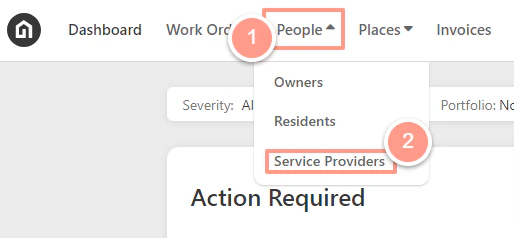
From the Latchel dashboard select **People,** and on the dropdown click **Service Providers**.
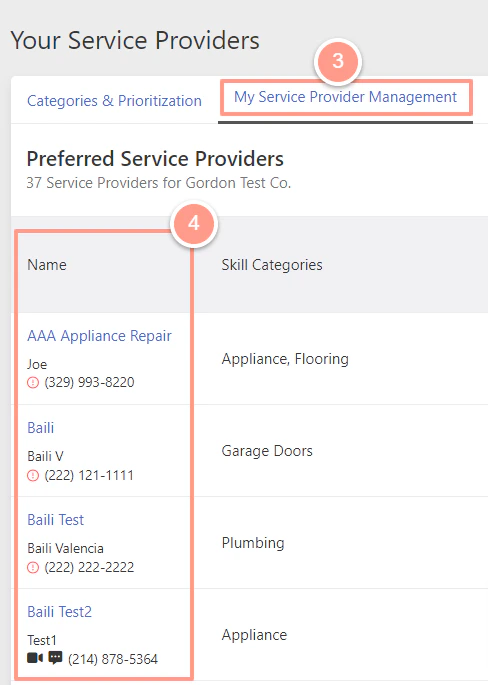
 On the Service Providers page, go to the **My Service Provider Management** tab. And from the list, select which **Service Provider company** you would like to view the calendar schedule.
 In the Service Provider company profile, click the **Calendar** tab. From here, you will see what work order the Service Provider company has with Latchel.
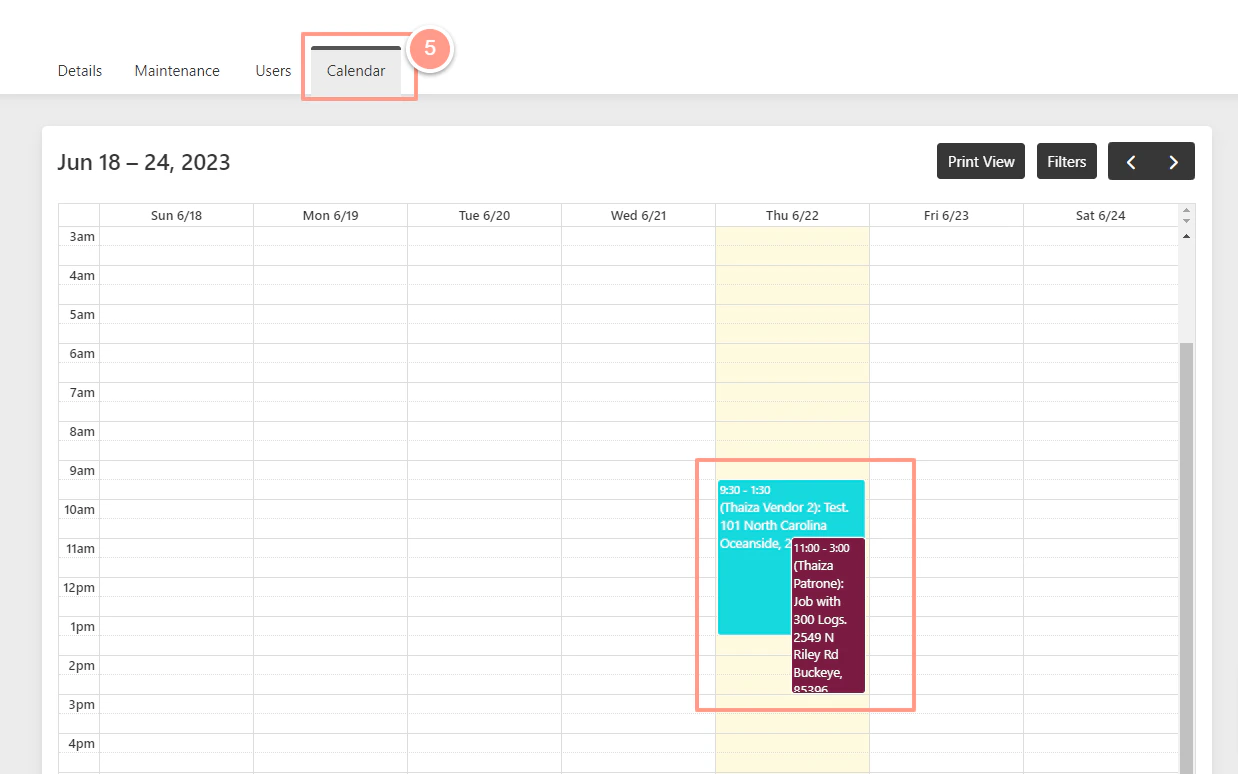 **Note:** *If the calendar shows different colors of scheduled work orders, these colors denote each of the users assigned to the work order* *Each work order in the calendar can be clicked and expanded to show the details of the work order and could also direct you to the work order page view.*
## **How to Filter the Calendar View?**
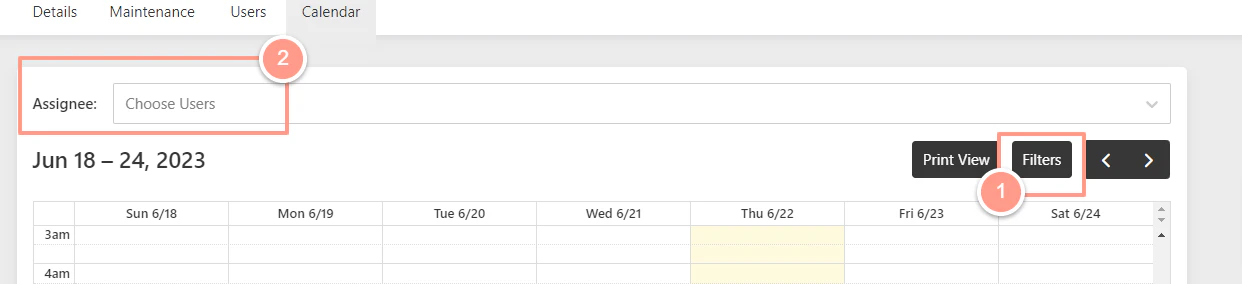
From the calendar click **Filters**, and a **dropdown option** will appear where you can choose which service provider user you want to view.
**Note:** *If the calendar shows different colors of scheduled work orders, these colors denote each of the users assigned to the work order* *Each work order in the calendar can be clicked and expanded to show the details of the work order and could also direct you to the work order page view.*
## **How to Filter the Calendar View?**
From the calendar click **Filters**, and a **dropdown option** will appear where you can choose which service provider user you want to view.
 ## **How to Print the Calendar View?**
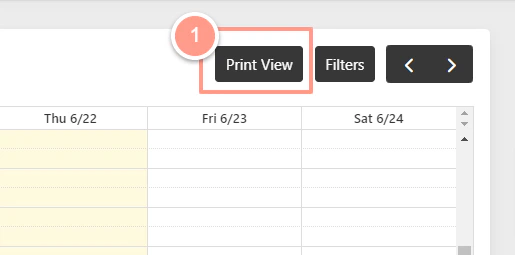
On the calendar page, click **Print View** which will give you a larger view of the calendar.
## **How to Print the Calendar View?**
On the calendar page, click **Print View** which will give you a larger view of the calendar.
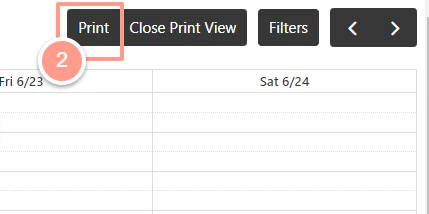
 Located on the top right corner, click the **Print** icon which enables you to print all of the scheduled work orders for the week or print the calendar for each of the individual users.
 ## **How to know if the Service Provider has another work order for another Property Manager company?**
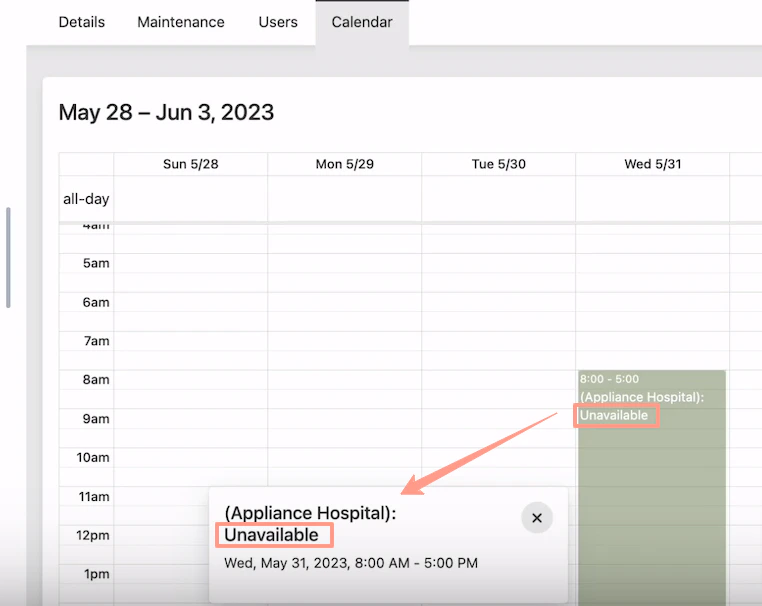
You can view the work order details if it's for your company, but if the Service Provider has another work order for a different company, the calendar will show a gray-out field with an **Unavailable** label on it.
## **How to know if the Service Provider has another work order for another Property Manager company?**
You can view the work order details if it's for your company, but if the Service Provider has another work order for a different company, the calendar will show a gray-out field with an **Unavailable** label on it.
 **Note:** *The calendar will always be in the time zone of the person that is viewing the calendar.*