> ## Documentation Index
> Fetch the complete documentation index at: https://help.latchel.com/llms.txt
> Use this file to discover all available pages before exploring further.
# How to Change the User Notification Group via Work Order
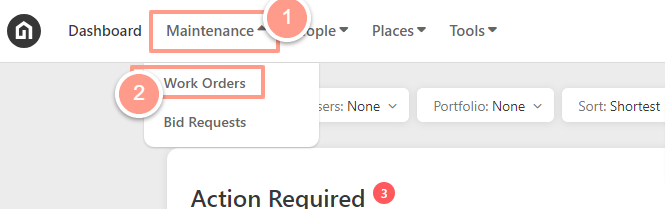
> From your **Dashboard**, click the **Maintenance** dropdown and select **Work Orders**.
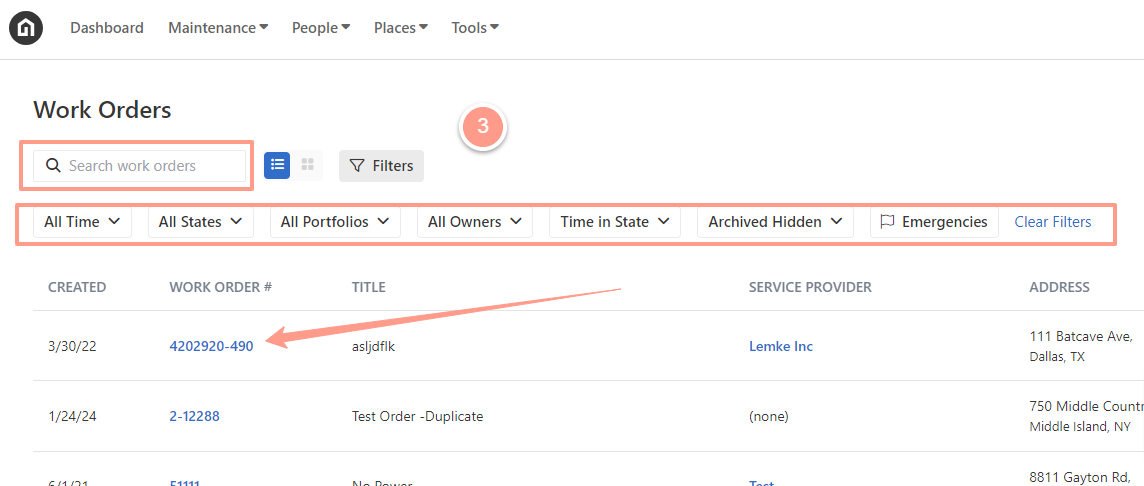
 Search for the work order ID in the **Search box** on the **Work Order** page then click the **Work Order ID**. You may also use the **Filter** option for easy searching.
 To update the user notification group from a billing/invoicing perspective, you need to know what kind of inheritance the work order has, whether it's via Company, Property, or Portfolio level.
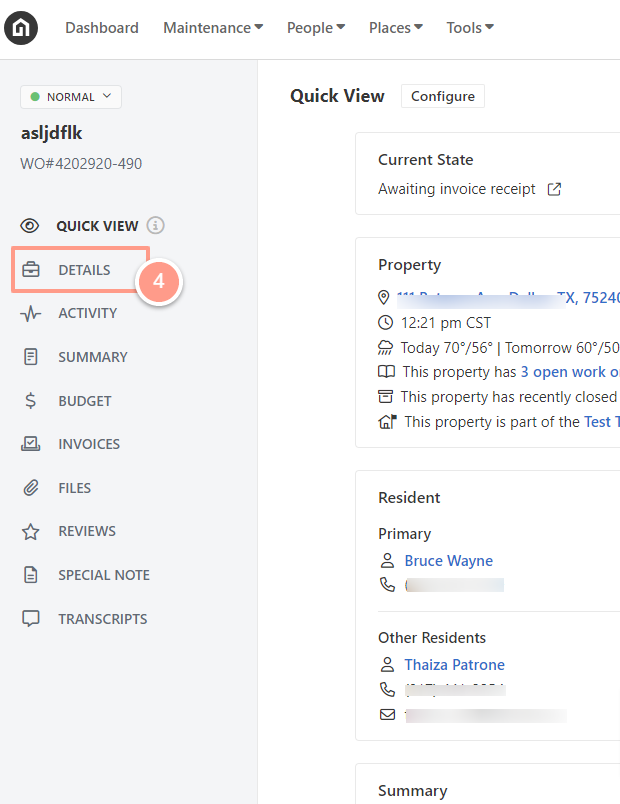
To check the notification group of the property in the work order, simply go to the **Details** tab of the work orderlocated on the right panel of the page. Then scroll the page downwards until you find the **Notification Settings** at the lower right corner of the page.
To update the user notification group from a billing/invoicing perspective, you need to know what kind of inheritance the work order has, whether it's via Company, Property, or Portfolio level.
To check the notification group of the property in the work order, simply go to the **Details** tab of the work orderlocated on the right panel of the page. Then scroll the page downwards until you find the **Notification Settings** at the lower right corner of the page.
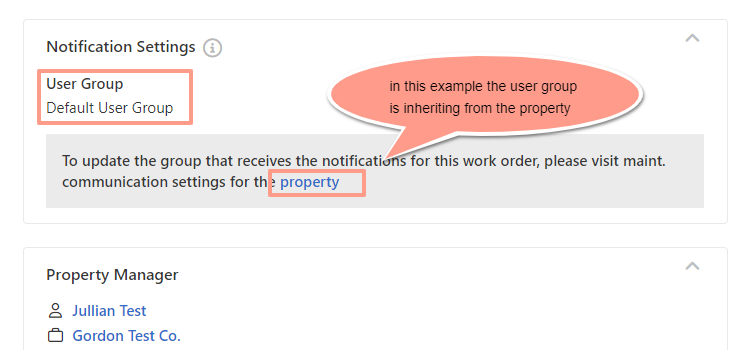 In the example above, the notification group is inherited via the property, so you will need to change the user notification group at the **Property Level.**
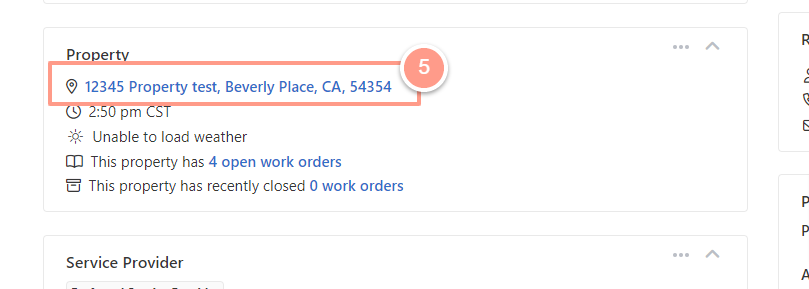
To update the Notification Group, go back to the top of the page. From there, you will find the property address. By clicking the hyperlinked property address, it will take you to the property details.
In the example above, the notification group is inherited via the property, so you will need to change the user notification group at the **Property Level.**
To update the Notification Group, go back to the top of the page. From there, you will find the property address. By clicking the hyperlinked property address, it will take you to the property details.
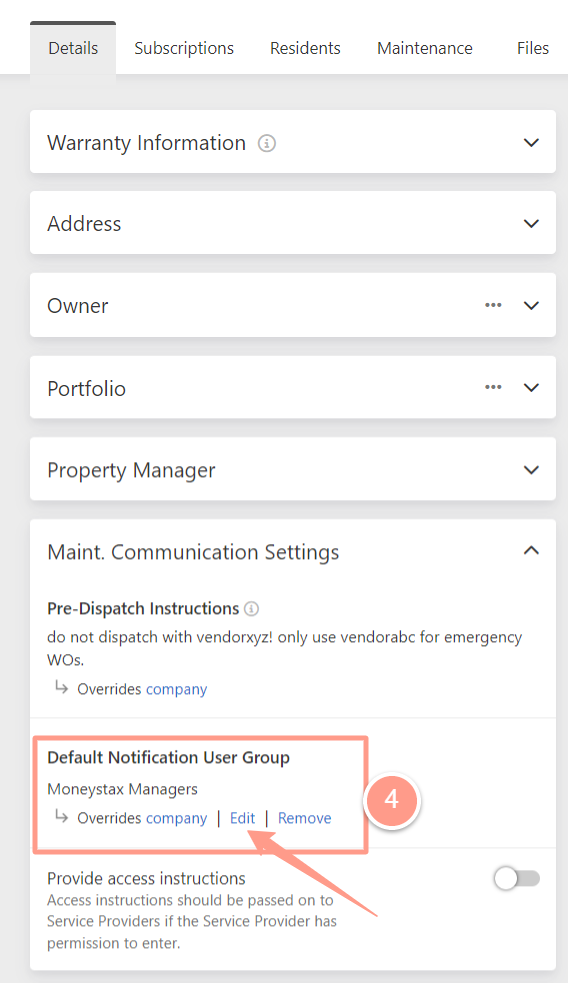
 From the property page under the **Details** tab, you will find the **Maint. Communication Settings**. If the Notification Group has not been overridden, the Overridden option will be available. Otherwise, click **Edit** as shown below.
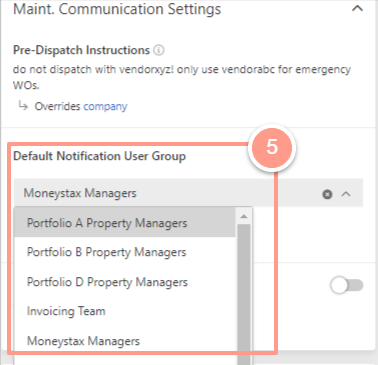
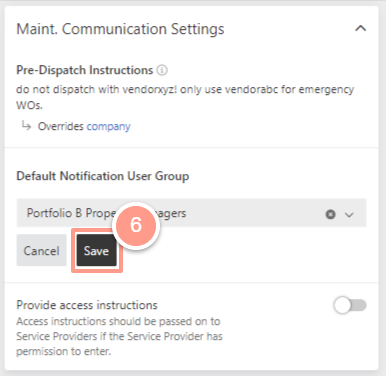
 Next, choose from the list of your notification groups. Then click **Save**.
 #### **If the inheritance is at the Portfolio level**
From your work order page, click the Hyperlinked property to go to the property level.
#### **If the inheritance is at the Portfolio level**
From your work order page, click the Hyperlinked property to go to the property level.
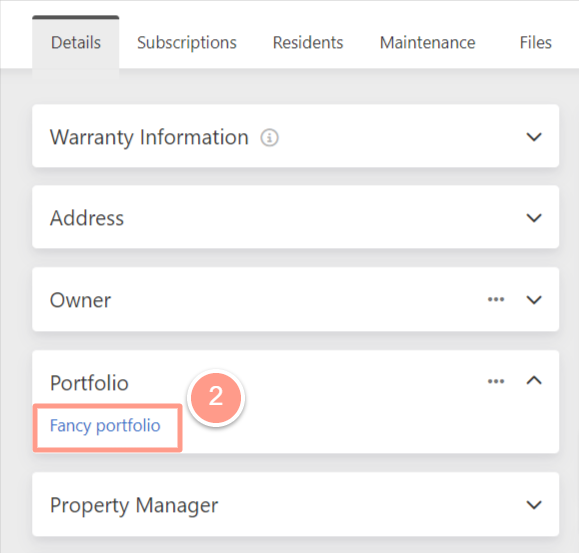
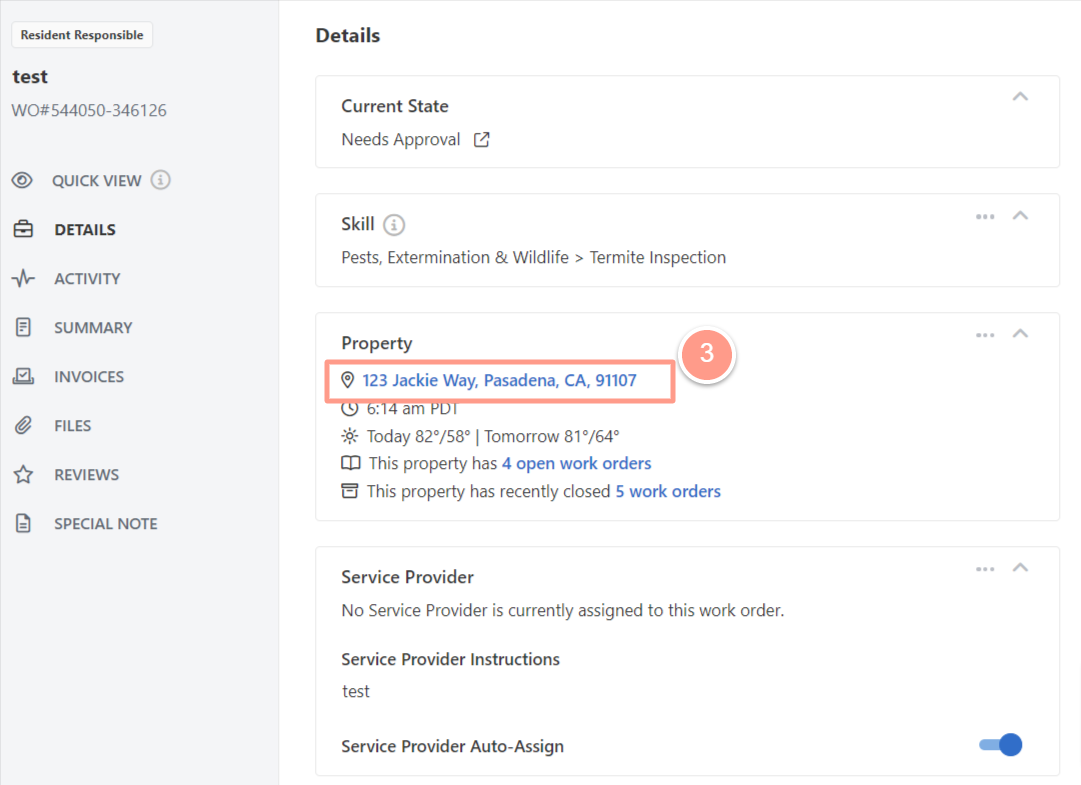 At the property level, click the hyperlinked name of the **portfolio** to go to the property's portfolio page.
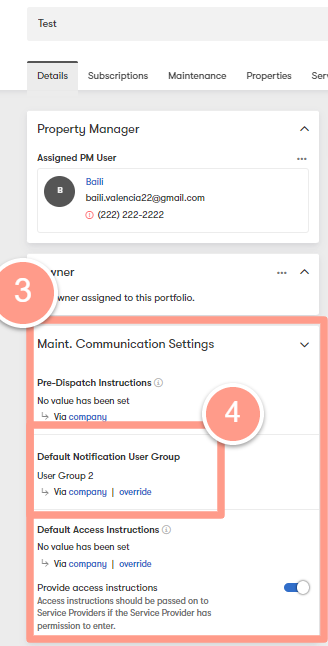
 On the **Portfolio** page, simply click the\*\* Maint. Communication Settings \*\*drop-down and you can change it from there.
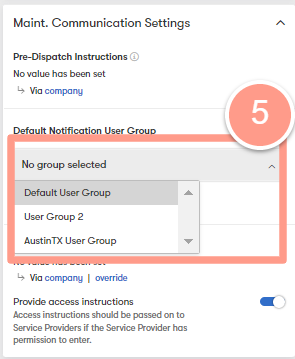
 Then, click **Override** and it will show the dropdown list of user groups available.
 #### **If the inheritance is at the Company level**
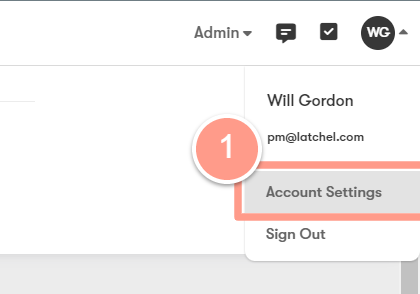
Simply go to your account settings found in the top-right of your screen and select **Account settings**.
#### **If the inheritance is at the Company level**
Simply go to your account settings found in the top-right of your screen and select **Account settings**.
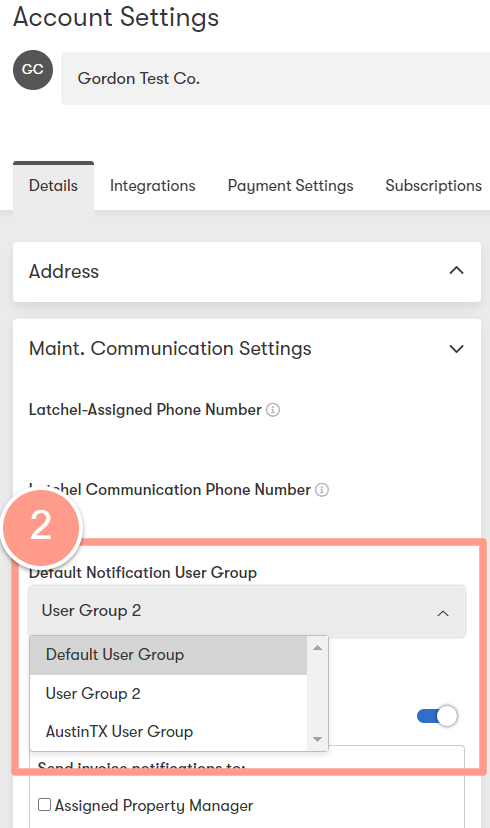
 In your account settings page under maintenance communication settings, click the drop-down under \*\*Default Notification User Group \*\*and you will see the drop-down list of the user groups available.
 Lastly, click the **Save** button to save your changes.