> ## Documentation Index
> Fetch the complete documentation index at: https://help.latchel.com/llms.txt
> Use this file to discover all available pages before exploring further.
# Latchel Data Sync Extension Reference Guide
> Unlike our integrations for other platforms, the **Chrome Plugin** doesn’t have the concept of an initial sync. Therefore every sync can be considered a subsequent sync, which will look for any data that was created or updated within the last 72 hours.
### **Two Directions of Data Desynchronization After the Initial Sync**
We refer to sync events after the initial sync as “subsequent” syncs. Subsequent syncs will look for any data that was created or updated within the last 72 hours. Subsequent property updates can be organized into two categories **(1) Newly created Data,** and **(2) Existing or Previously Created Data.**
### **Platform → Latchel**
**I. Newly Created Data**
1. **Properties -** Properties are created/updated in Latchel when one of the following conditions are met:
* The property does not exist in Latchel
* The property is active in Latchel
If a property does not have the **State** field filled out in AppFolio, it will not sync from AppFolio into Latchel. Make sure every property record includes a State value before syncing.
2. **Residents -** residents are updated in Latchel if the following is true:
* The resident doesn't exist in Latchel yet, OR
* The sync date is before the move-out date, and the resident is active in Latchel
3. **Work Order (WO) -** work orders that will sync to and from the platform to Latchel is governed by a special setting in Latchel called, the **Integration Sync Method**.
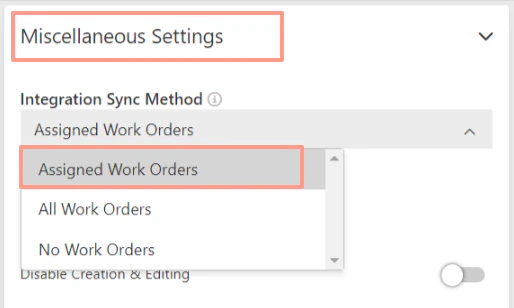 Here is how each setting option impacts which work orders sync from your platform to Latchel:
* **Assigned Work Orders:** Only WOs assigned to a user with the name that includes **“Latchel”** will sync from your platform to Latchel. All Latchel work orders will be created in your property maintenance system (PMS) but only WOs that are assigned to the Latchel user in your PMS will be updated from your platform. This is used by some customers who want the work order created but subsequently want to make changes without them being overwritten but a future update.
* **All Work Orders:** All WOs in your PMS account will sync to Latchel, and vice versa.
* **No Work Orders:** No WOs in your PMS account will sync to Latchel, and vice versa.
Users can stop WOs from updating by using the Assigned Work Orders setting and unassigning the Latchel user in your PMS.
4. **Leases -** currently, lease integration is not supported by Latchel Chrome Plugin.
**II. Existing or Previously Created Data**
1. **Properties -** status of previously created properties synchronizes ***only from active to inactive.*** This means that if you activates a previously inactive property from your PMS, **this change will not propagate to Latchel.**
Chrome plugin users can influence the **"is\_active"** field of a property by hiding or unhiding the object in your PMS.
2. **Residents -** the integration **do not currently update contact information nor the name of the resident**. Once residents are existing or created the only things that would potentially change are:
* move in date
* move out date
* is\_active in Latchel (based on the residents move in and move out date)
* the property unit they are associated with
3. **Work Order (WO) -** the integration do not update any fields on previously created work orders.
### **Latchel → Platform**
**I. Properties and Residents -** Manually created properties and residents in Latchel will not sync to your platform. Hence, the option to create new properties and residents in the Latchel console is unavailable.
**II. Work orders -** Work orders are created/updated in Platform or Latchel when the following are true:
* The work order created date is after the Platform sync date.
* The work order can be matched to a property in Platform.
* The property associated with the work order has an integration sync method of all or assigned and the property is assigned to the Latchel user in the Platform
* When new created work orders sync to the platform, they are automatically assigned to the Latchel Team user. Which sets their status as **Assigned**.
* For previously created work orders in the platform, subsequent updated in Latchel will update the status field. The status field will be updated to **Complete** or **Cancelled** based on the corresponding Latchel status. The integration do not update the status in the Platform when the work order moves to **Forwarded to PM**.
* On the first successful sync following the creation of a WO, the integration updates the Latchel WO number to match the WO number in the Platform.
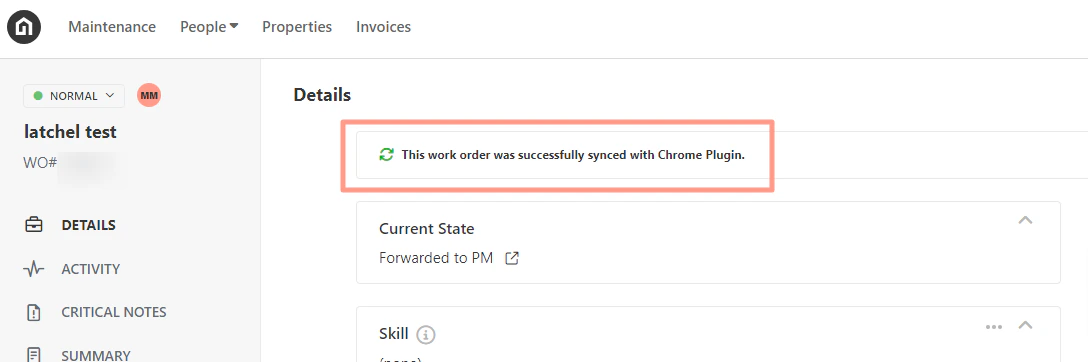
1. **WO Sync Status**
When a customer is on an ***active*** integration, an indication will show at the top of each work order whether or not the WO was successfully sync’d with the customer’s PMS. Example below.
Here is how each setting option impacts which work orders sync from your platform to Latchel:
* **Assigned Work Orders:** Only WOs assigned to a user with the name that includes **“Latchel”** will sync from your platform to Latchel. All Latchel work orders will be created in your property maintenance system (PMS) but only WOs that are assigned to the Latchel user in your PMS will be updated from your platform. This is used by some customers who want the work order created but subsequently want to make changes without them being overwritten but a future update.
* **All Work Orders:** All WOs in your PMS account will sync to Latchel, and vice versa.
* **No Work Orders:** No WOs in your PMS account will sync to Latchel, and vice versa.
Users can stop WOs from updating by using the Assigned Work Orders setting and unassigning the Latchel user in your PMS.
4. **Leases -** currently, lease integration is not supported by Latchel Chrome Plugin.
**II. Existing or Previously Created Data**
1. **Properties -** status of previously created properties synchronizes ***only from active to inactive.*** This means that if you activates a previously inactive property from your PMS, **this change will not propagate to Latchel.**
Chrome plugin users can influence the **"is\_active"** field of a property by hiding or unhiding the object in your PMS.
2. **Residents -** the integration **do not currently update contact information nor the name of the resident**. Once residents are existing or created the only things that would potentially change are:
* move in date
* move out date
* is\_active in Latchel (based on the residents move in and move out date)
* the property unit they are associated with
3. **Work Order (WO) -** the integration do not update any fields on previously created work orders.
### **Latchel → Platform**
**I. Properties and Residents -** Manually created properties and residents in Latchel will not sync to your platform. Hence, the option to create new properties and residents in the Latchel console is unavailable.
**II. Work orders -** Work orders are created/updated in Platform or Latchel when the following are true:
* The work order created date is after the Platform sync date.
* The work order can be matched to a property in Platform.
* The property associated with the work order has an integration sync method of all or assigned and the property is assigned to the Latchel user in the Platform
* When new created work orders sync to the platform, they are automatically assigned to the Latchel Team user. Which sets their status as **Assigned**.
* For previously created work orders in the platform, subsequent updated in Latchel will update the status field. The status field will be updated to **Complete** or **Cancelled** based on the corresponding Latchel status. The integration do not update the status in the Platform when the work order moves to **Forwarded to PM**.
* On the first successful sync following the creation of a WO, the integration updates the Latchel WO number to match the WO number in the Platform.
1. **WO Sync Status**
When a customer is on an ***active*** integration, an indication will show at the top of each work order whether or not the WO was successfully sync’d with the customer’s PMS. Example below.
 2. **Manually Sync WO**
To manually sync WO using the Chrome plugin data sync, you can initiate a re-sync of all data by opening up the Chrome plugin UI and clicking **Sync All Data**.
**Watch how this works below!**
**III. File Sync** - This feature is not currently supported for the Platform.
**To learn more about Latchel Integration, please visit:**
Get a high level view of how Latchel connects with your property management system to streamline operations.
You may also contact Latchel's Product Support via [team@latchel.com](mailto:team@latchel.com) to know which option works best for your company.
## Excluding Properties from Import
PMs can now choose to exclude specific properties from being imported into Latchel during a sync. This is useful for units that should not be managed through Latchel, such as:
* Commercial units
* Non-revenue units
* Parking spots
* Storage units
To exclude a property, use the **Exclude from Property Sync** button found within your PMS (e.g., in AppFolio, this button appears directly on the property page). Excluded properties will be skipped in all future syncs.
To re-include a property, simply remove the exclusion in your PMS. It will be picked up in the next sync.
## Merging Properties
Planning to merge properties in your PMS? Please reach out to Product Support or your Customer Success Manager first so we can ensure the integration continues to sync correctly during and after the merge.
2. **Manually Sync WO**
To manually sync WO using the Chrome plugin data sync, you can initiate a re-sync of all data by opening up the Chrome plugin UI and clicking **Sync All Data**.
**Watch how this works below!**
**III. File Sync** - This feature is not currently supported for the Platform.
**To learn more about Latchel Integration, please visit:**
Get a high level view of how Latchel connects with your property management system to streamline operations.
You may also contact Latchel's Product Support via [team@latchel.com](mailto:team@latchel.com) to know which option works best for your company.
## Excluding Properties from Import
PMs can now choose to exclude specific properties from being imported into Latchel during a sync. This is useful for units that should not be managed through Latchel, such as:
* Commercial units
* Non-revenue units
* Parking spots
* Storage units
To exclude a property, use the **Exclude from Property Sync** button found within your PMS (e.g., in AppFolio, this button appears directly on the property page). Excluded properties will be skipped in all future syncs.
To re-include a property, simply remove the exclusion in your PMS. It will be picked up in the next sync.
## Merging Properties
Planning to merge properties in your PMS? Please reach out to Product Support or your Customer Success Manager first so we can ensure the integration continues to sync correctly during and after the merge.