> ## Documentation Index
> Fetch the complete documentation index at: https://help.latchel.com/llms.txt
> Use this file to discover all available pages before exploring further.
# Managing Intake Settings
> This guide explains how to use Intake Settings to customize your work order workflows. By setting rules that match your team’s needs, you can control how requests are received, routed, and managed from start to finish.
### **Get Early Access to Intake Settings!**
Before you proceed, please make sure that the Intake Settings is activated on your account.
**Intake Settings is currently available by request as part of our initial launch.** If you’d like to gain access and experience it firsthand, please complete the form below!
### **Quick Video Tutorial: Start Here!**
### **Creating a New Rule Set**
Access the **Intake Settings** via your **Account Settings** page. From there, click **Manage Rule Sets**.
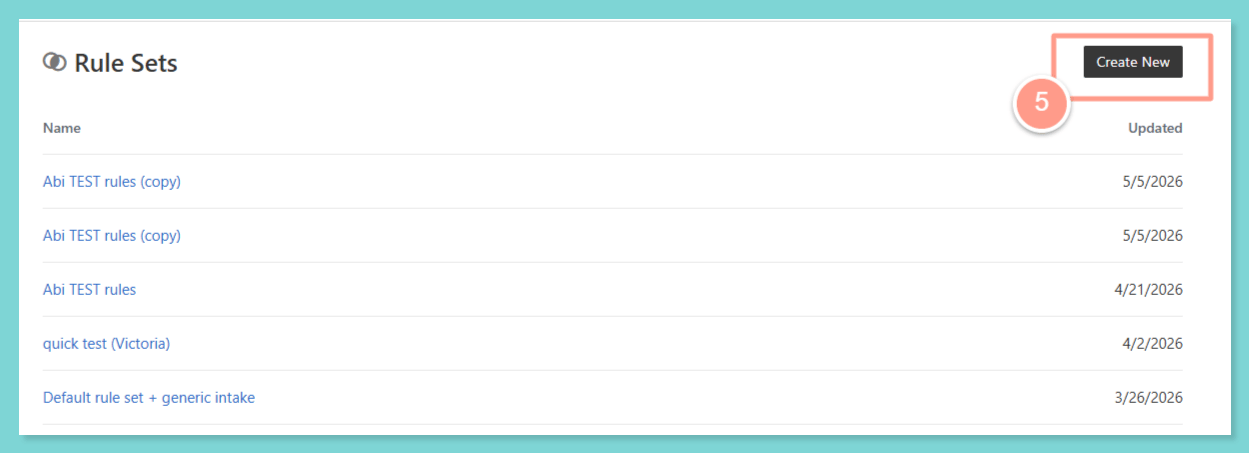
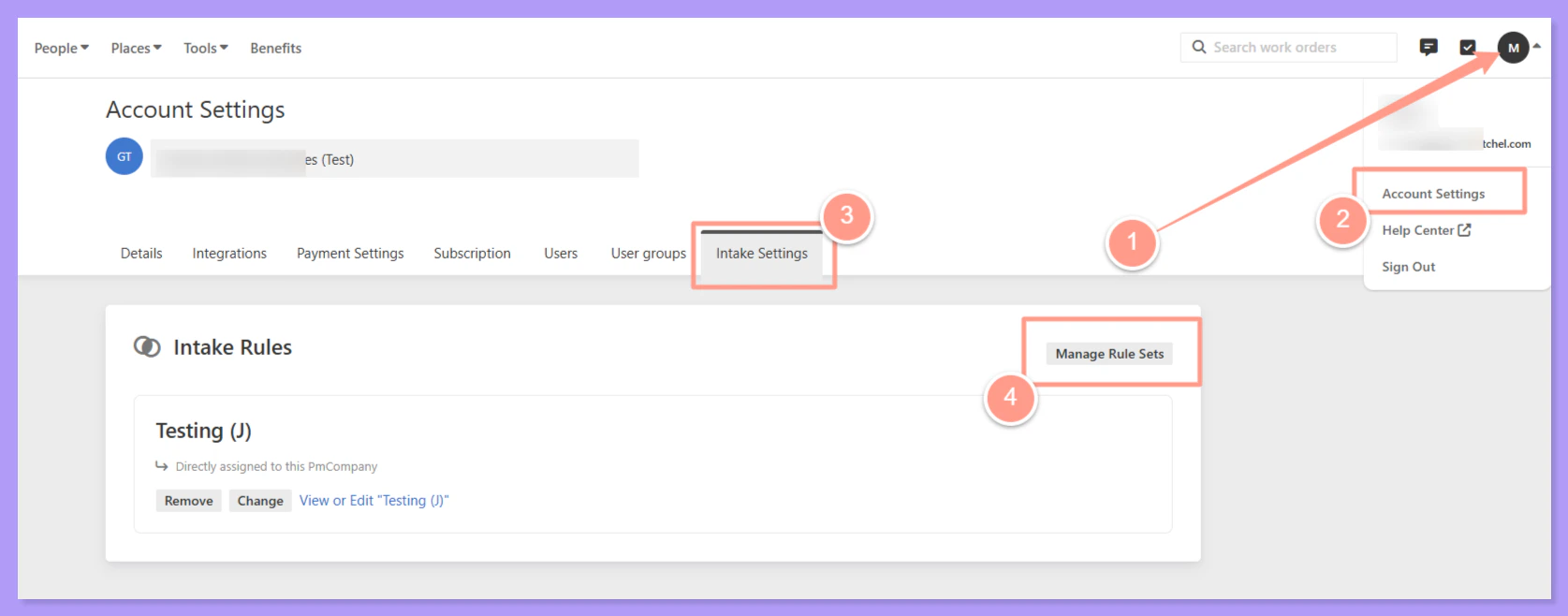 Next, click **Create New**.
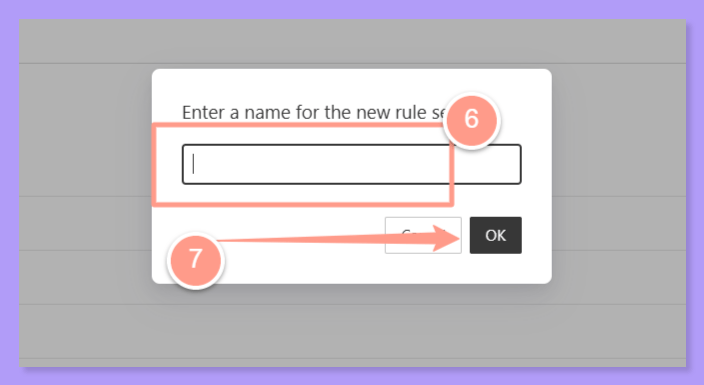
 **Enter the name** of your new rule set. Then, click **OK**.
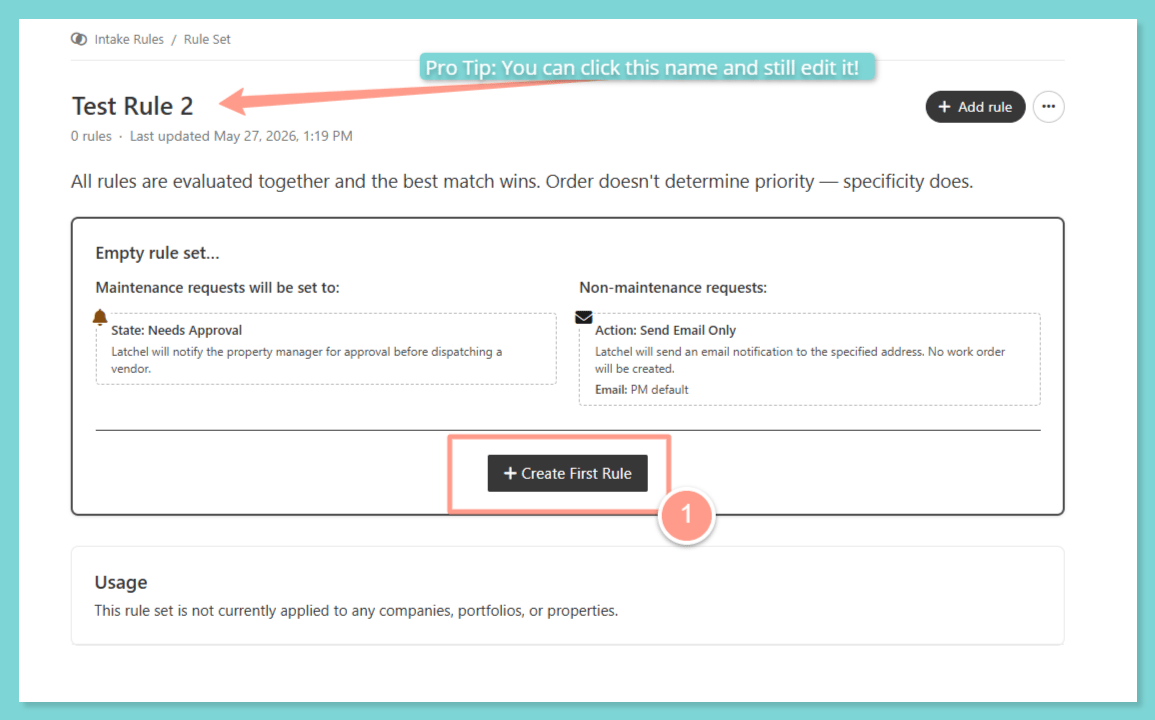
 After this step, the system will take you to the new rule set page where you can create your first rule!
### **Creating New Rules**
Click **Create First Rule**.
After this step, the system will take you to the new rule set page where you can create your first rule!
### **Creating New Rules**
Click **Create First Rule**.
 Then, edit the rule by writing a plain-language rules that describe how the issue must be classified.
**For example:**
*AC issues are only emergencies if outside temperature is above 90°F"* or *"If the AC brand is LG, classify as emergency regardless of temperature."*
Then, edit the rule by writing a plain-language rules that describe how the issue must be classified.
**For example:**
*AC issues are only emergencies if outside temperature is above 90°F"* or *"If the AC brand is LG, classify as emergency regardless of temperature."*
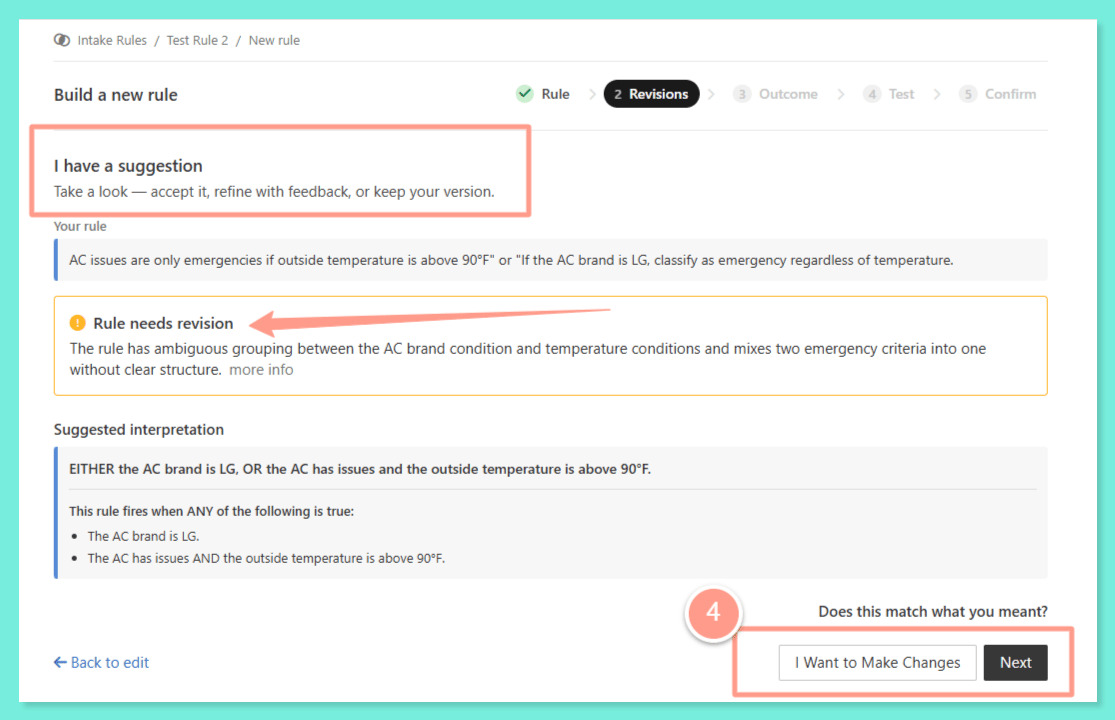
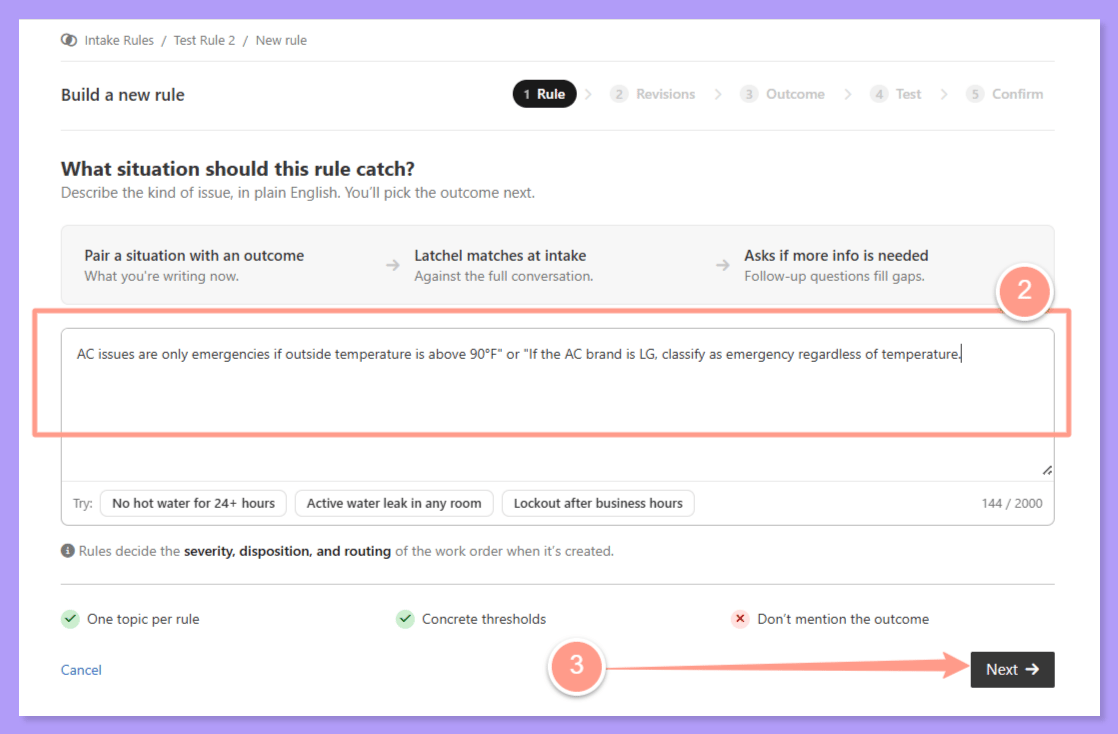 As you create or update rules in your Intake Settings, the system will automatically review your wording, flag anything that could be misinterpreted, and suggest improvements—so your rules work the way you intend them to.
You can take the suggestions provided by choosing **I Want to Make Changes**, or choose **Next** to proceed.
As you create or update rules in your Intake Settings, the system will automatically review your wording, flag anything that could be misinterpreted, and suggest improvements—so your rules work the way you intend them to.
You can take the suggestions provided by choosing **I Want to Make Changes**, or choose **Next** to proceed.
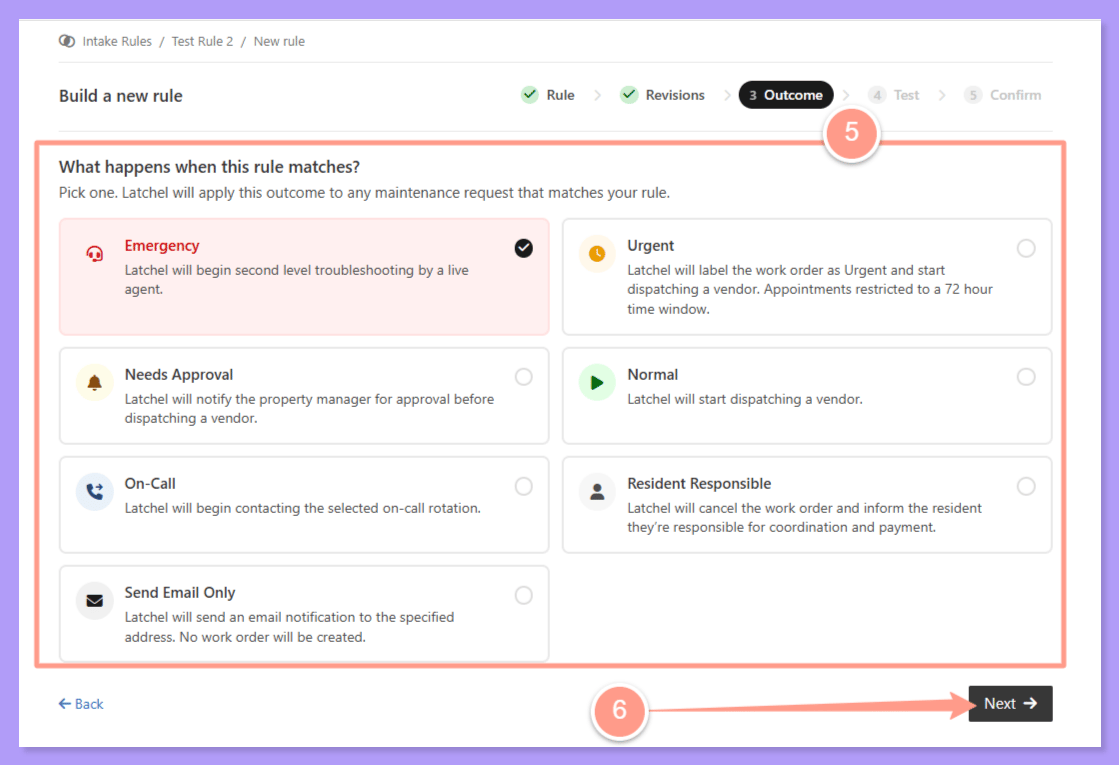
 Next, select the **Outcome**. This sets the severity of the rule you determined.
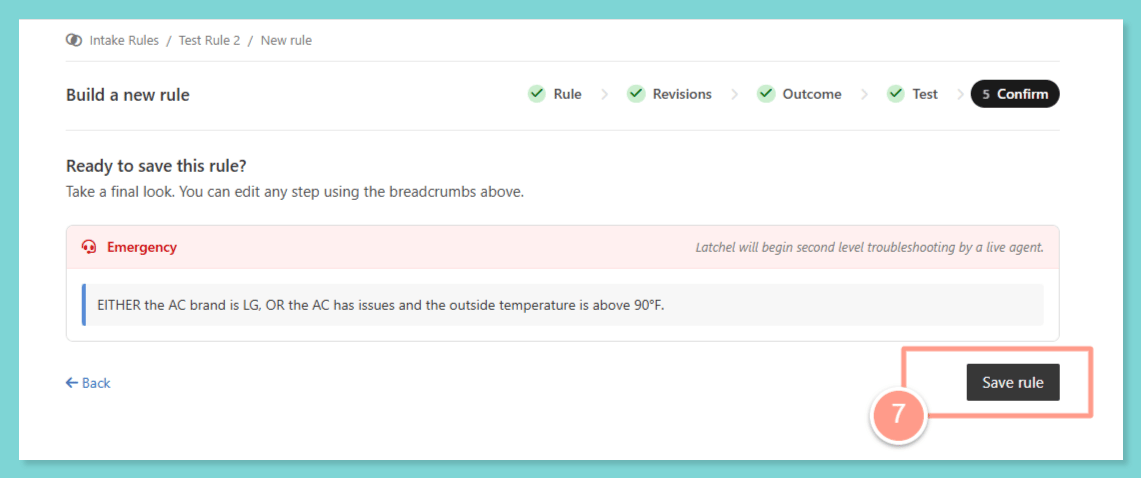
 Finally, click **Save rule** to complete.
 ### **Fallback Outcome**
Instead of evaluating rules in a fixed order, our system now considers all available rules at once and automatically matches your request to the most relevant and specific one — ensuring faster, more accurate routing every time.
**If no rule applies**, Latchel can create a task for your approval, though this can be customized. To set a fallback outcome when no rules match, scroll down to the **“If no rules match”** section and select the **desired outcome by choosing from these two options:**
1. **Set the work order to a specific severity.**
### **Fallback Outcome**
Instead of evaluating rules in a fixed order, our system now considers all available rules at once and automatically matches your request to the most relevant and specific one — ensuring faster, more accurate routing every time.
**If no rule applies**, Latchel can create a task for your approval, though this can be customized. To set a fallback outcome when no rules match, scroll down to the **“If no rules match”** section and select the **desired outcome by choosing from these two options:**
1. **Set the work order to a specific severity.**
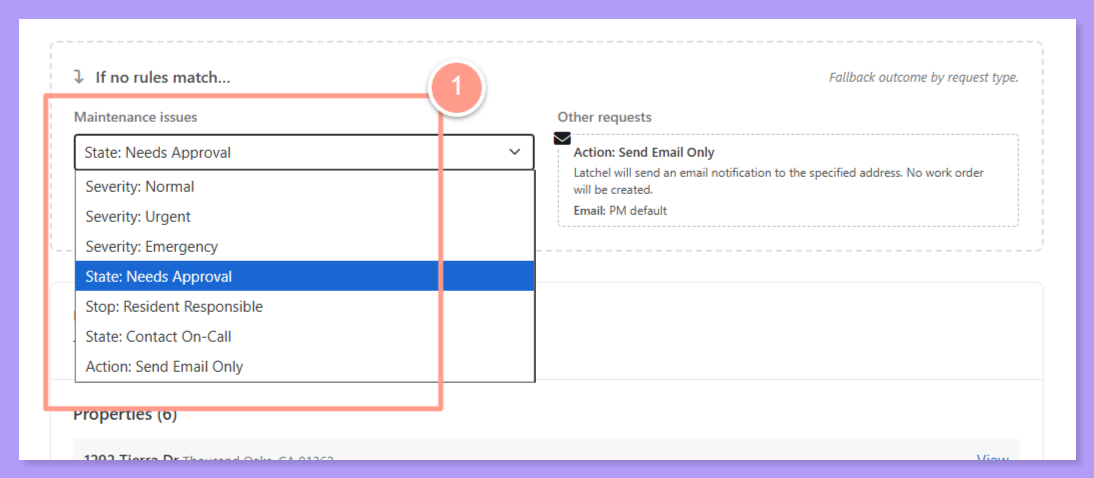 2. **Notify the PM via email or call.**
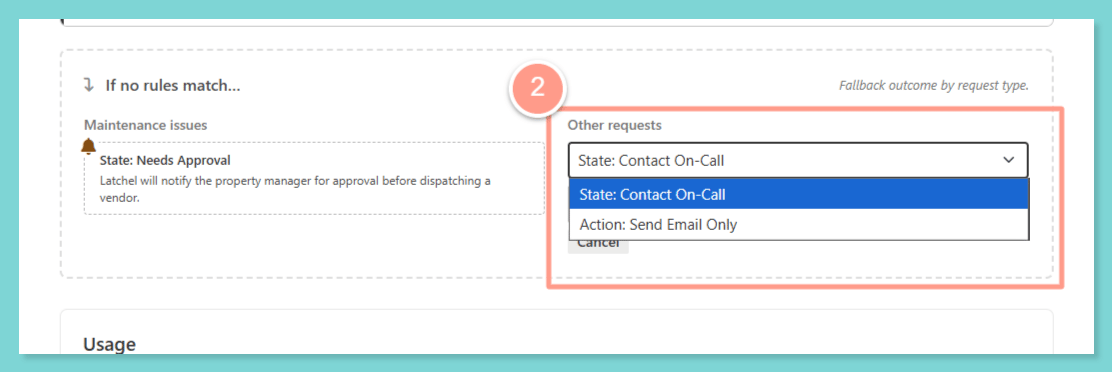 Your rules can be **updated anytime**, giving you full flexibility.
### **How to Edit your Current Rules**
**Locate the rule** **set** you want to edit. Then, click on **the pencil icon (** **)** across the rule you want to edit to open the rule details.
Your rules can be **updated anytime**, giving you full flexibility.
### **How to Edit your Current Rules**
**Locate the rule** **set** you want to edit. Then, click on **the pencil icon (** **)** across the rule you want to edit to open the rule details.
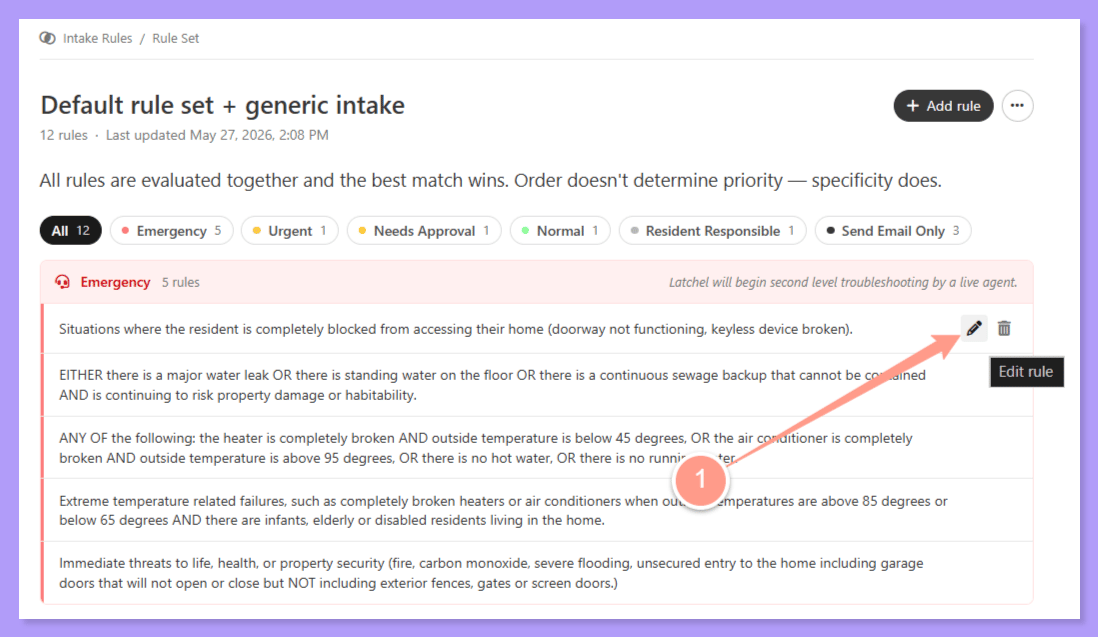 In the Edit Rule box, you can **update or change the Rule Text**. Click **Next** to proceed the revisions stage, then **change the Outcome** if needed. If all is set, click **Save rule** to complete.
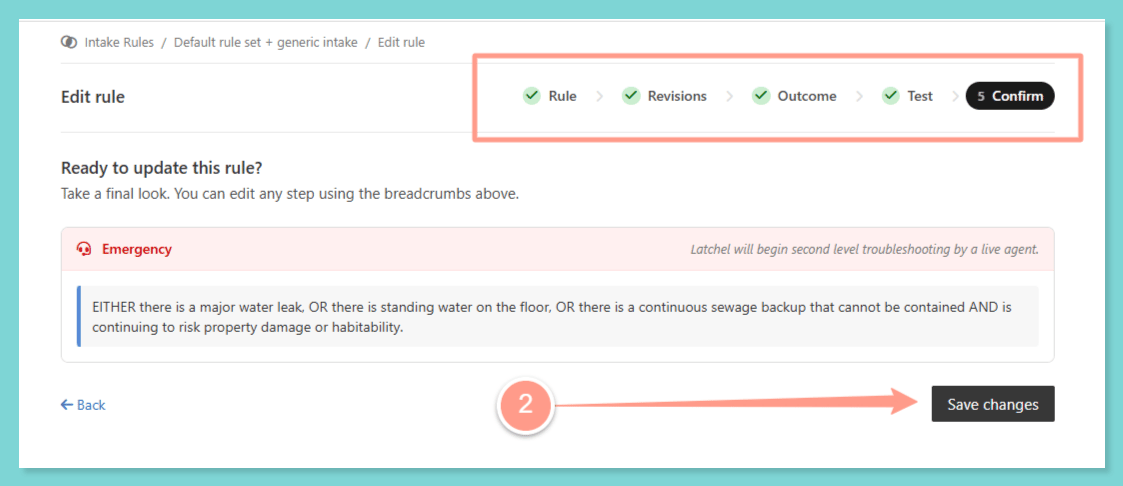 You can go through the same steps to **Delete** a rule if deemed unuseful by clicking on the trash icon ( ).
### **Testing Your Rules**
To test if a rule works, use the **rule analyzer.**
**To know more about this new intake settings feature, visit:**
Learn how the Rule Analyzer helps you write clearer, more accurate intake rules—and how to simulate a resident conversation to test them.
You can go through the same steps to **Delete** a rule if deemed unuseful by clicking on the trash icon ( ).
### **Testing Your Rules**
To test if a rule works, use the **rule analyzer.**
**To know more about this new intake settings feature, visit:**
Learn how the Rule Analyzer helps you write clearer, more accurate intake rules—and how to simulate a resident conversation to test them.