> ## Documentation Index
> Fetch the complete documentation index at: https://help.latchel.com/llms.txt
> Use this file to discover all available pages before exploring further.
# Navigating the Latchel Data Sync Extension
> The new Latchel Data Sync Extension comes with a refreshed design and simplified features to make syncing with AppFolio easier than ever. This guide will help you get familiar with the updated interface, understand where key features are located, and show you how to navigate the extension with confidence.
If you're still using an older version of the Latchel Data Sync Extension, please refer to the help guide:
Learn how to check for an apply the latest version of the Latchel Data Sync Extension.
### **How to Download Properties and Residents' Report**
Sign in to your property management software. Make sure you are also signed in to the Latchel Data Sync Extension.
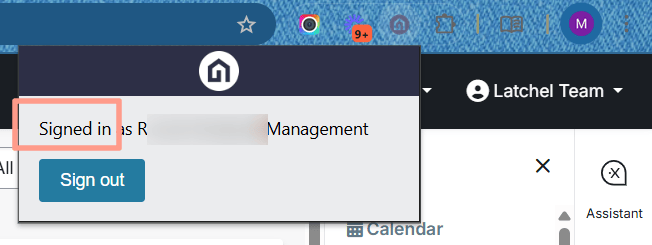 Once logged in, click the **Latchel Data Sync icon** located on the right side of the page.
.png?fit=max&auto=format&n=GSDw3EED3pagF1PV&q=85&s=84f623ac5054a585744b373eba66f427) Click the **three dots** in the top-right corner of the extension and select:
* **Download tenants** to export a tenant report, or
* **Download properties** to export a property report.
Click the **three dots** in the top-right corner of the extension and select:
* **Download tenants** to export a tenant report, or
* **Download properties** to export a property report.
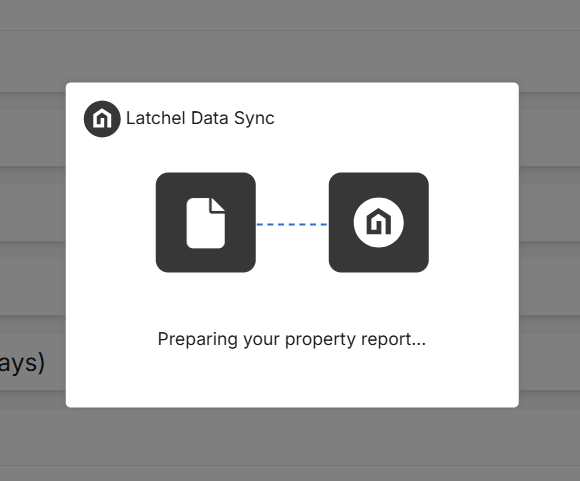
.png?fit=max&auto=format&n=GSDw3EED3pagF1PV&q=85&s=653d0ff493733efd875ba4c576bcf59f) You’ll see a message saying **“Preparing your property (or tenant) report.”**
You’ll see a message saying **“Preparing your property (or tenant) report.”**
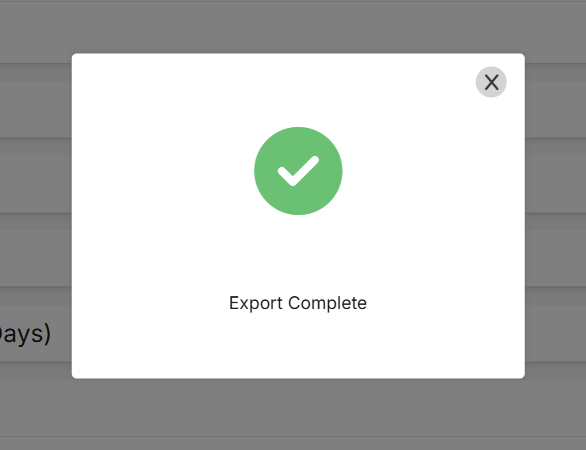
 Once the message **“Export Complete”** appears, you will be prompted to save the file to your computer.
 ### **How to Report a Problem**
If you’re experiencing issues with your Latchel integration or the extension, you can report the problem by selecting **Report a problem**.
### **How to Report a Problem**
If you’re experiencing issues with your Latchel integration or the extension, you can report the problem by selecting **Report a problem**.
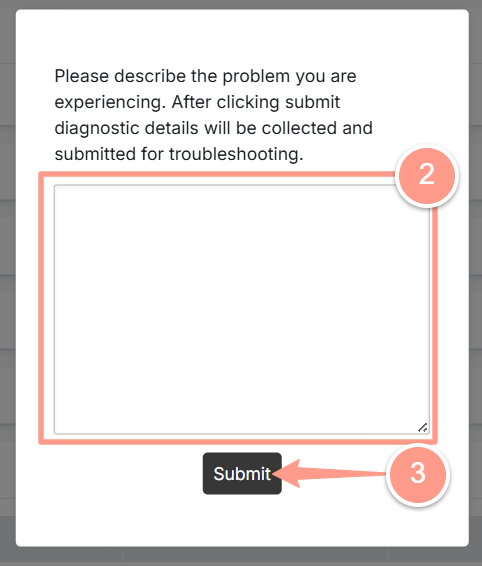
.png?fit=max&auto=format&n=GSDw3EED3pagF1PV&q=85&s=bf4330519eb09e62561bd5f543f972ce) Enter a brief description of the issue in the box that appears, then click **Submit**.
Enter a brief description of the issue in the box that appears, then click **Submit**.
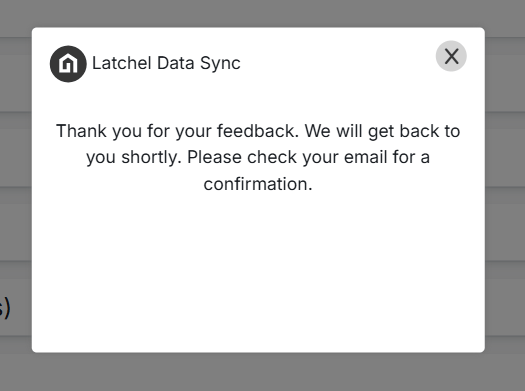
 A confirmation message will appear on your screen, letting you know that Latchel has received your feedback.
 ### **How to Give a Feedback**
Latchel values your feedback and uses it to improve your experience. You can quickly share suggestions or report issues directly through the Latchel Data Sync Extension. Here's how.
Click the three dots in the top-right corner of the extension and select Give feedback.
### **How to Give a Feedback**
Latchel values your feedback and uses it to improve your experience. You can quickly share suggestions or report issues directly through the Latchel Data Sync Extension. Here's how.
Click the three dots in the top-right corner of the extension and select Give feedback.
.png?fit=max&auto=format&n=GSDw3EED3pagF1PV&q=85&s=9110d4426b69ad6d6d2bcb134a01dcfd) A new browser tab will open with a Typeform.
A new browser tab will open with a Typeform.
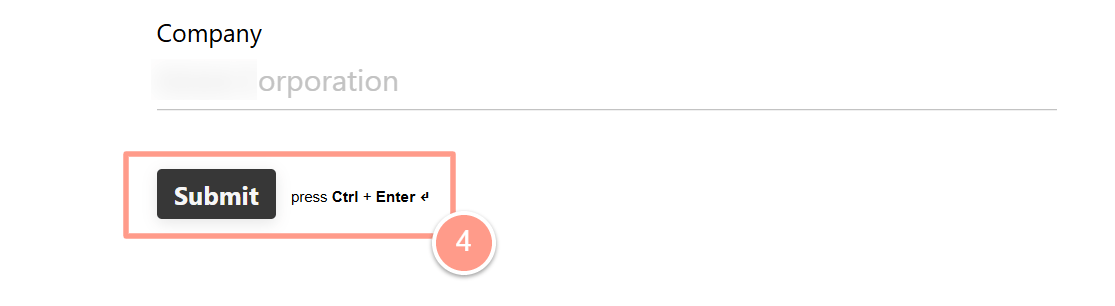
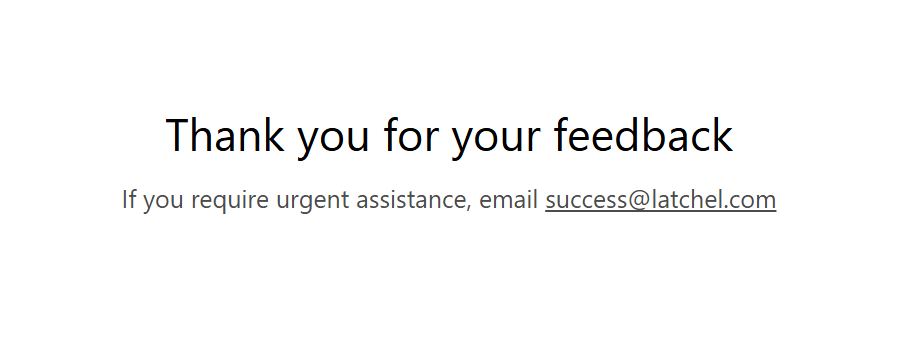
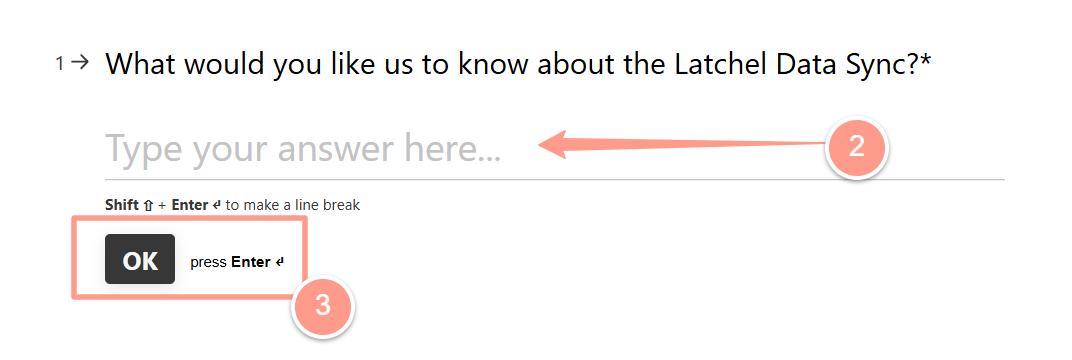 Fill out the form with as much detail as possible. You can also attach a screenshot or recording to better describe your feedback. When you're finished, click **Submit**.
 ### **How to Manually Sync Data**
**Auto-sync is now always on by default** with the new Latchel Data Sync Extension, **refreshing data every 4 hours**. However, if you need to manually sync your data, here’s how you can do it.
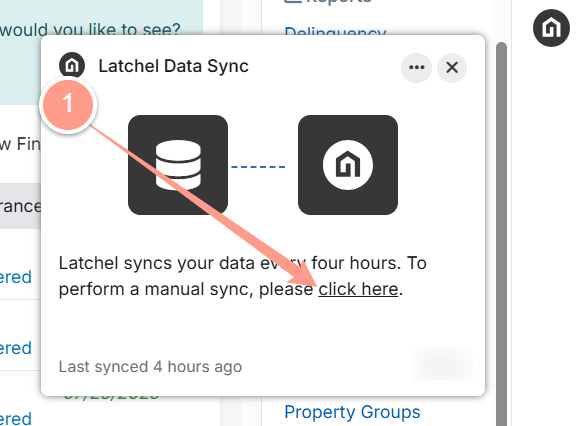
In the Latchel Data Sync Extension, click the link in the message: **“Latchel syncs your data every four hours. To perform a manual sync, please click here.”**
### **How to Manually Sync Data**
**Auto-sync is now always on by default** with the new Latchel Data Sync Extension, **refreshing data every 4 hours**. However, if you need to manually sync your data, here’s how you can do it.
In the Latchel Data Sync Extension, click the link in the message: **“Latchel syncs your data every four hours. To perform a manual sync, please click here.”**
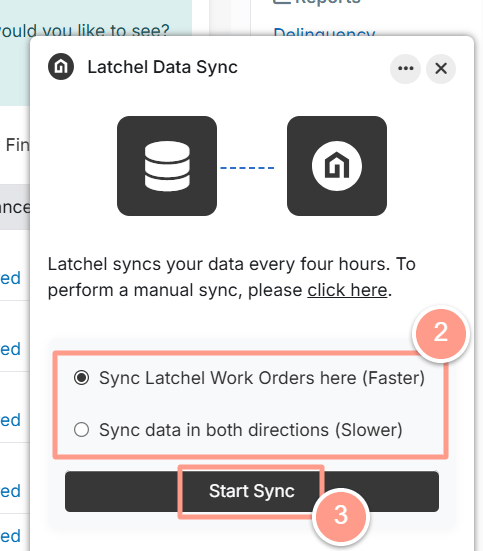
 You will be given **two options** to choose from:
* **Sync Latchel Work Orders here (Faster)**
* **Sync data in both direction (Slower)**
Then, click **Start Sync**.
You will be given **two options** to choose from:
* **Sync Latchel Work Orders here (Faster)**
* **Sync data in both direction (Slower)**
Then, click **Start Sync**.
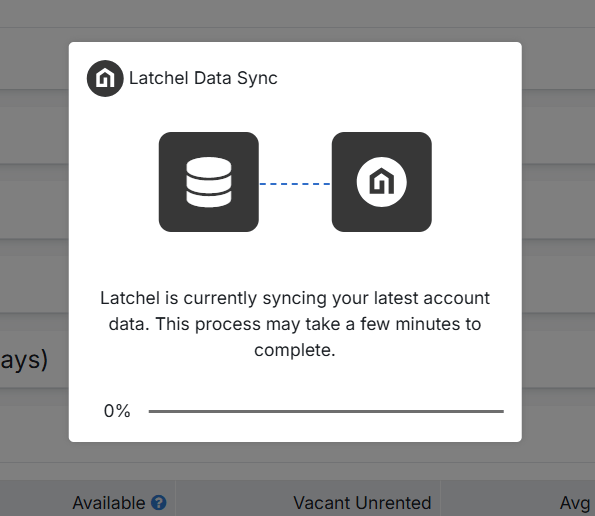
 Your screen may be busy while the sync is in progress.
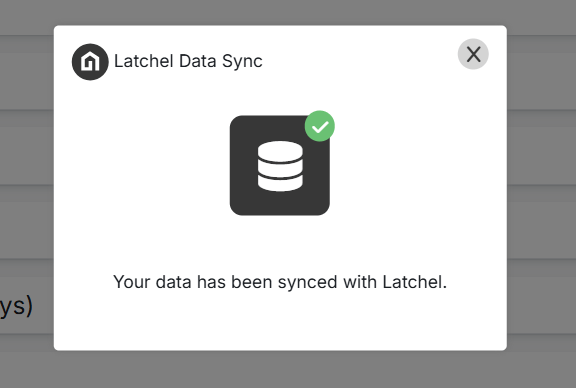
 Once complete, you’ll see a message that says: **“Your data has been synced with Latchel.”**
 You’ll notice that the last sync time is now updated in the extension.
.png?fit=max&auto=format&n=GSDw3EED3pagF1PV&q=85&s=fccbfba4964db562866d3a17f9411391) That’s it! That’s how simple—and awesome—the new version of the Latchel Data Sync Extension is. We hope you enjoy the improved experience!
### How to Exclude a Property from Import
Not all units in your property management system need to be imported into Latchel. For example, you may want to exclude commercial units, non-revenue units, parking spots, or storage units.
Latchel now gives you direct control over which properties are brought in during a sync. Here's how to exclude a property:
1. In AppFolio, navigate to the property or unit you want to exclude.
2. Click the **Exclude from Property Sync** button. This button is visible directly within your PMS.
3. Once excluded, that property will be skipped during future data syncs and will not be imported into Latchel.
To reverse this, simply return to the property in AppFolio and remove the exclusion. The property will be included in the next sync.
That’s it! That’s how simple—and awesome—the new version of the Latchel Data Sync Extension is. We hope you enjoy the improved experience!
### How to Exclude a Property from Import
Not all units in your property management system need to be imported into Latchel. For example, you may want to exclude commercial units, non-revenue units, parking spots, or storage units.
Latchel now gives you direct control over which properties are brought in during a sync. Here's how to exclude a property:
1. In AppFolio, navigate to the property or unit you want to exclude.
2. Click the **Exclude from Property Sync** button. This button is visible directly within your PMS.
3. Once excluded, that property will be skipped during future data syncs and will not be imported into Latchel.
To reverse this, simply return to the property in AppFolio and remove the exclusion. The property will be included in the next sync.