> ## Documentation Index
> Fetch the complete documentation index at: https://help.latchel.com/llms.txt
> Use this file to discover all available pages before exploring further.
# Prevent Chrome from Interrupting Your Auto Sync
> We’ve also discovered that Chrome’s memory-saving settings might be stopping your auto sync from running — especially if you leave your third-party platform tab open and unattended.
By default, **Chrome puts inactive tabs to sleep**, which can pause the auto sync process in the background. If you’ve ever seen a **“sync not running”** message, this might be the culprit.
### **How to Prevent It**
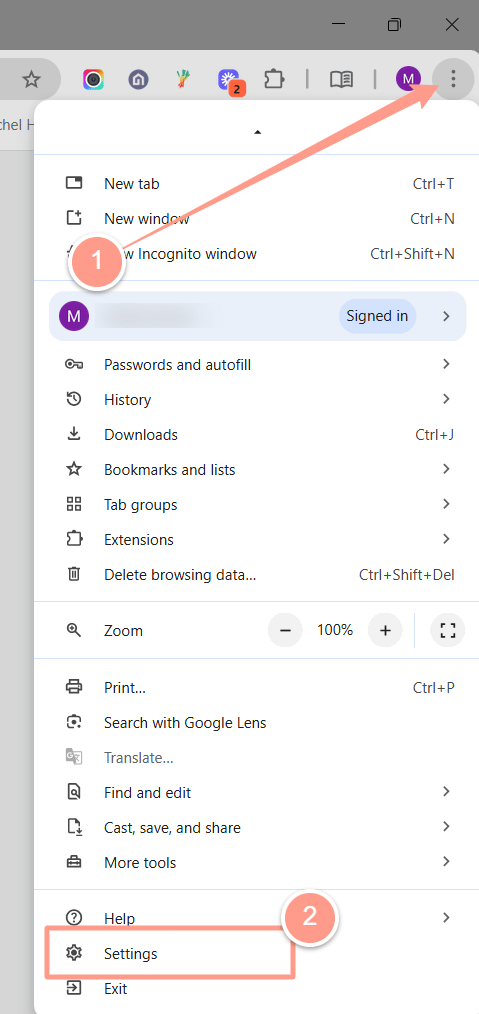
Open **Chrome Settings**. Click the **three dots** in the top-right corner of Chrome, then go to Settings.
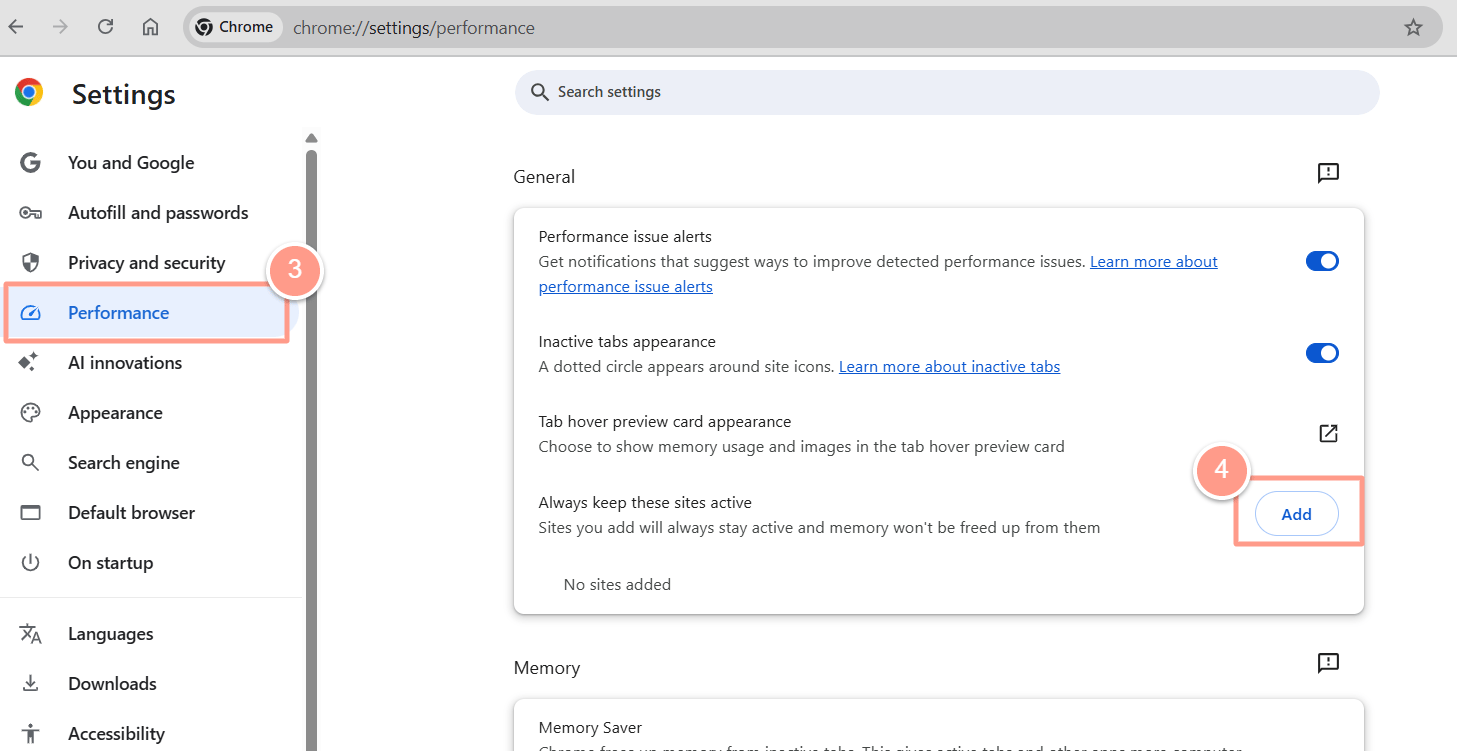
 Go to **Performance Settings**. Scroll to **Always keep these sites active**. Click **Add**.
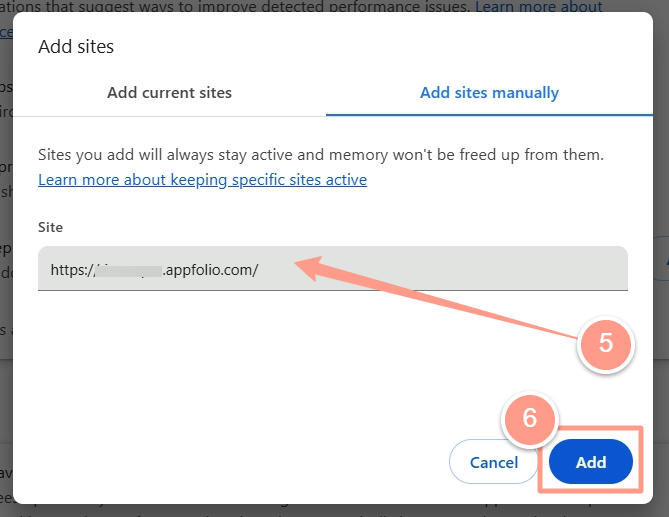
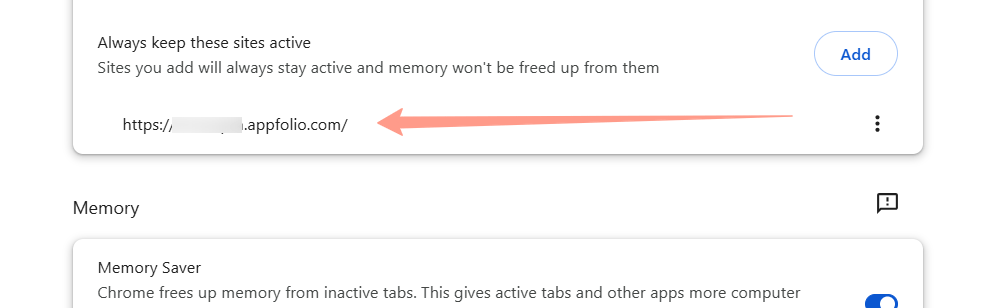
 Whitelist your third-party platform dashboard. Enter your platform URL. This ensures Chrome doesn't suspend the tab. Click **Add** to confirm the change. Make sure **your URL** now **appears** in the **"Always Active"** list.
 And that's how you can prevent Chrome from interrupting your automatic data sync!