
What Is the Rule Analyzer?
The Rule Analyzer is a real-time feedback layer built directly into your Intake Settings rule editor. When you add or edit a rule, it:- Highlights potential issues with how the rule might be interpreted
- Suggests wording improvements to make the rule more accurate and specific
- Opens a conversation so you can chat through how you want to refine the rule before saving it This means fewer surprises when a work order comes in and your rules don’t fire the way you expected.
Analyzing a Rule as You Write It
When you add a new rule (or edit an existing one), the Rule Analyzer runs automatically. Navigate to Account Settings → Intake Settings and open the rule set you want to edit.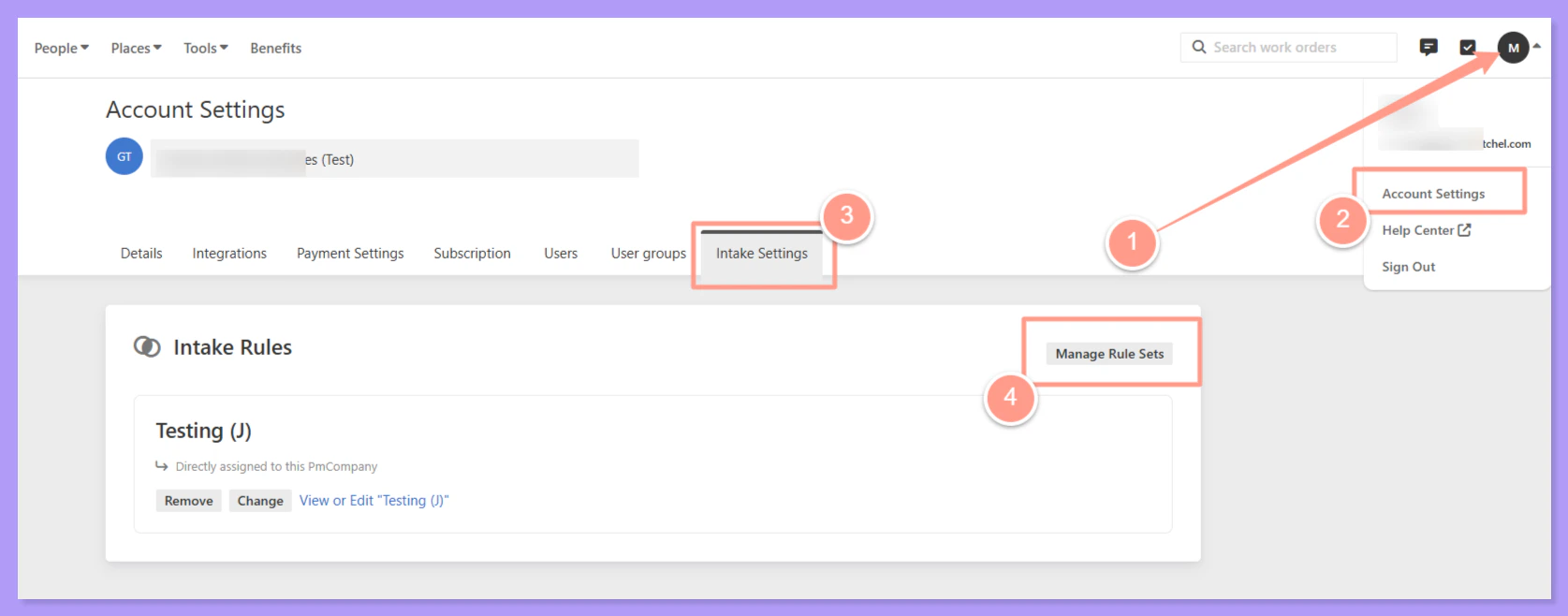
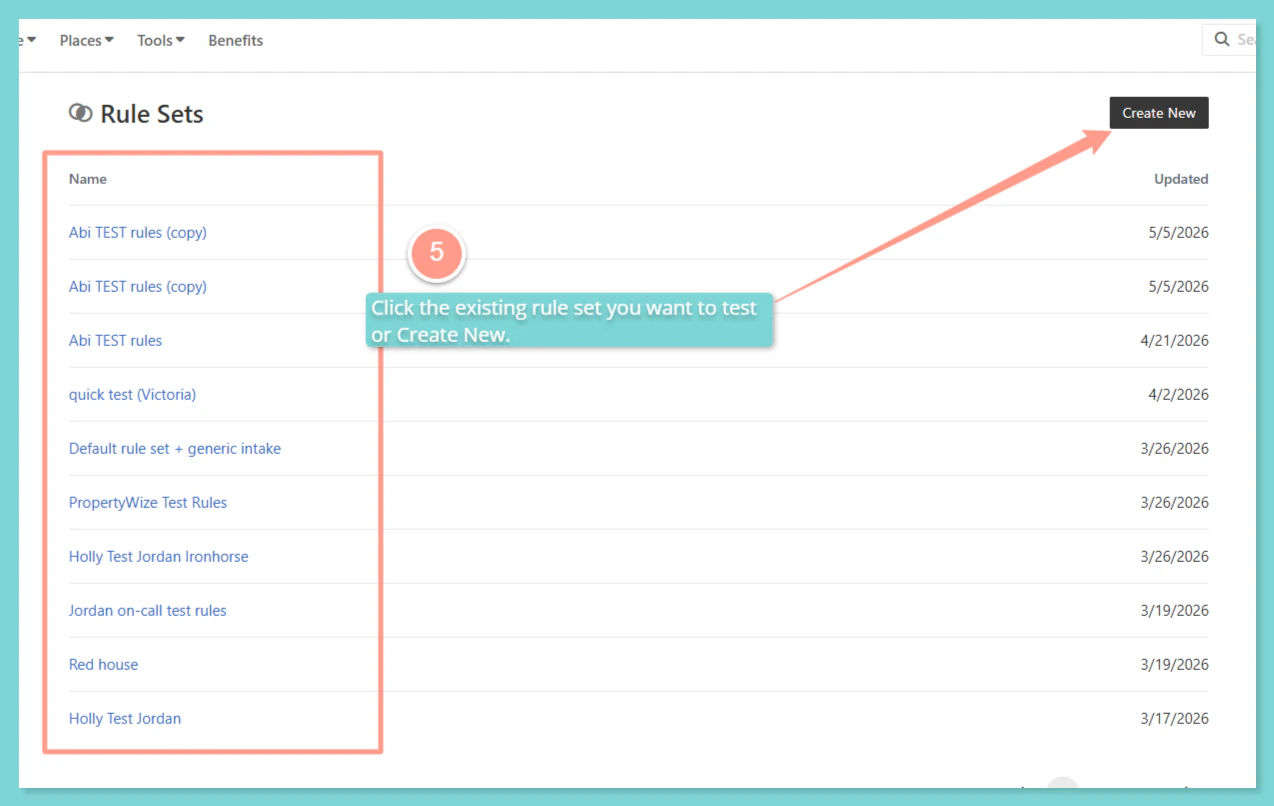
Manage Intake Settings
Manage rules for your work orders to match your team’s preferences.
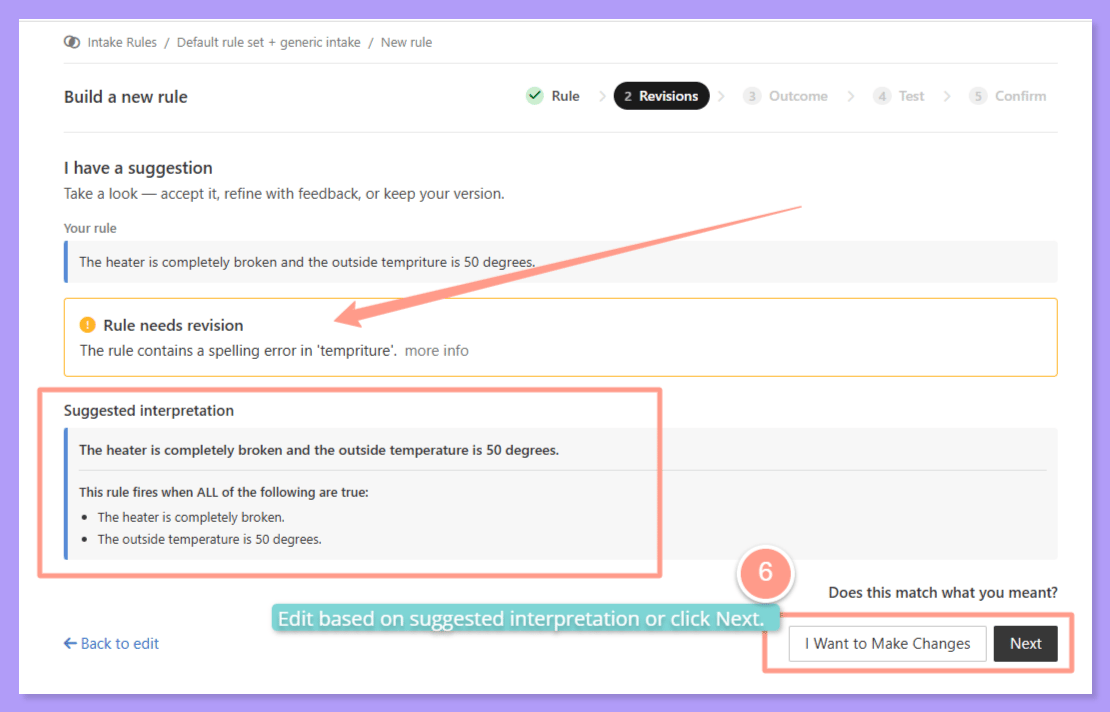
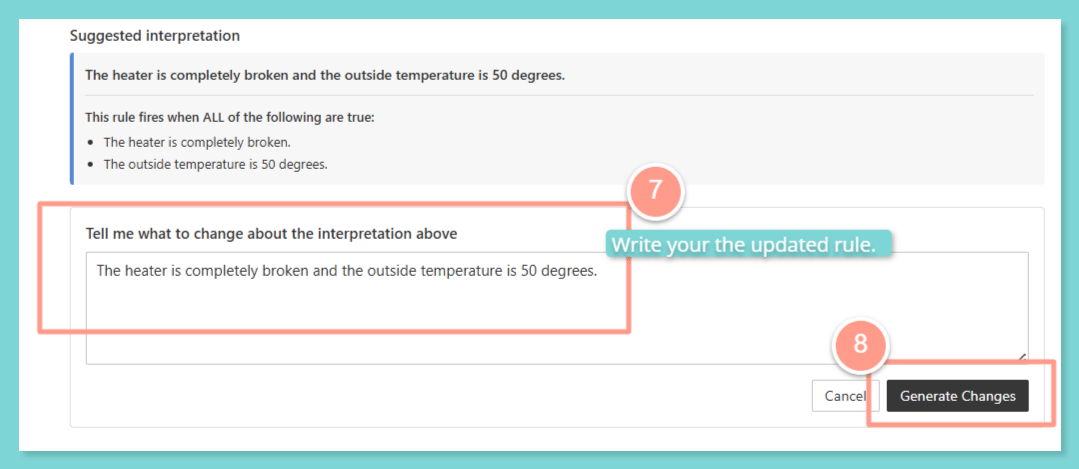
The Rule Analyzer is a guide, not a gatekeeper. You can still save a rule even if the analyzer flags it—but reviewing the feedback first is strongly recommended to avoid unexpected outcomes at intake.
Testing Your Rules with a Resident Simulation
In addition to analyzing rules as you write them, you can now simulate a resident intake conversation to test how your rules perform in a real scenario. This lets you walk through the intake flow as if you were a resident submitting a request—so you can see exactly how your rules respond before a real work order comes in. How to Run a Simulation- From your rule set page, click the ellipsis menu (⋯) at the top of the screen.
- Select Test Issue from the dropdown.
- Enter a sample maintenance issue description to kick off the simulation.
- Walk through the conversation as if you were a resident. The system will ask troubleshooting questions and apply your rules in real time.
- At the end of the simulation, you’ll see which rule was matched and what the outcome would be (e.g., Emergency, Urgent, Normal, or Resident Responsible).
The Test Issue option is located in the ellipsis menu (⋯) at the top of the rule set screen. If you previously used Test Issue from a different location, note that it has moved to this menu.
Coming soon!The ability to trigger suggested rule edits directly from your Harmonia feedback widget—so feedback you provide on real work orders can flow back into improving your rules automatically.
Frequently Asked Questions
- Does the Rule Analyzer change my rules automatically?
- What if I disagree with the analyzer’s suggestion?
- Where did the Test Issue button go?
- Can I test rules for a specific portfolio or property?