
What Changed
Previously, the Job Splitter would create separate work orders any time it detected more than one issue in a single intake session—even when those issues were closely related (like a plumbing leak and water remediation). This could result in unnecessary splits and extra coordination. With this update, Latchel has narrowed when automatic splits happen and given property managers and Latchel Ops users a quick way to manually split a work order when needed.How the Improved Job Splitter Works
The Job Splitter now only creates multiple work orders automatically when the issues reported are in completely separate categories—for example, a clogged toilet and a broken clothes dryer. These are unrelated problems that require different vendors and skill sets. Related issues, such as a plumbing leak and remediation work caused by that leak, will stay together in the same work order. This reduces unnecessary splitting and keeps connected repairs organized.How to Split a Work Order Manually
If you’re on a work order and realize it needs to be split into two separate jobs, you can now do this directly from the work order page. Latchel uses AI to suggest how the work order might be split and lets you confirm or edit the suggestion before creating the new work order. Open the work order you need to split from your dashboard. In the Action dropdown (or from the work order detail page), select Split Work Order.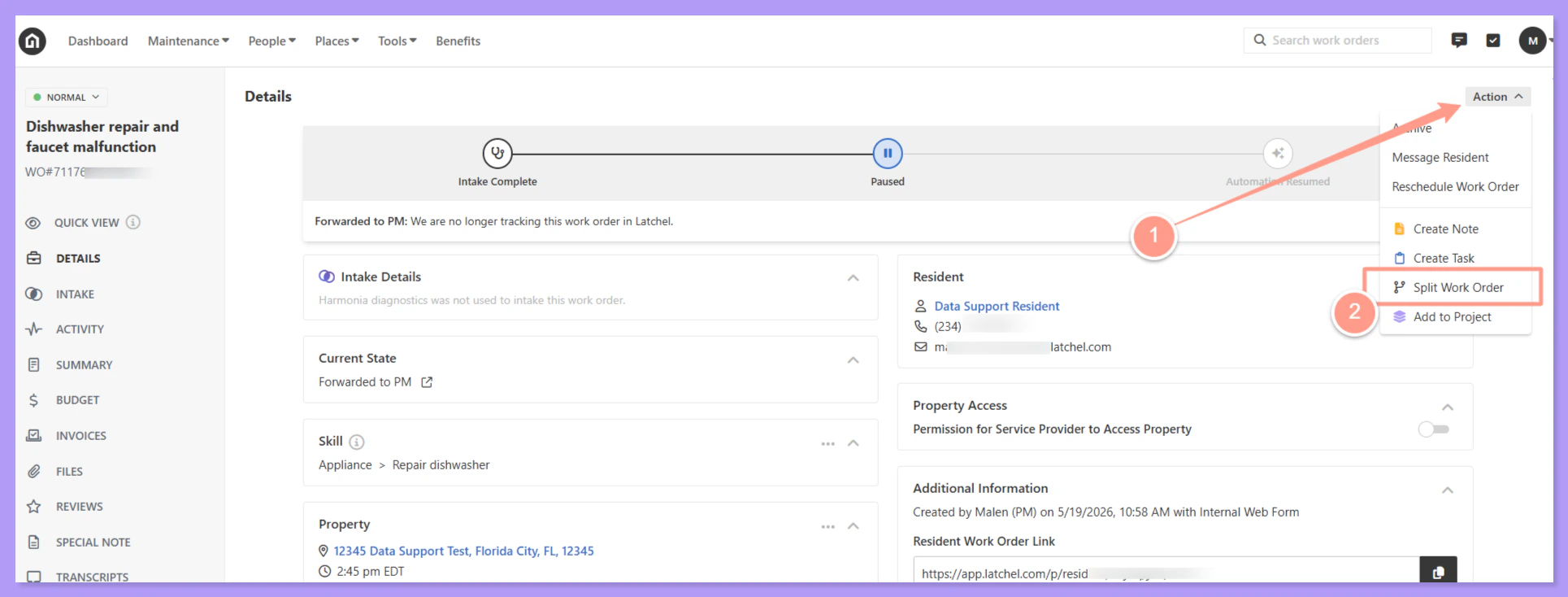
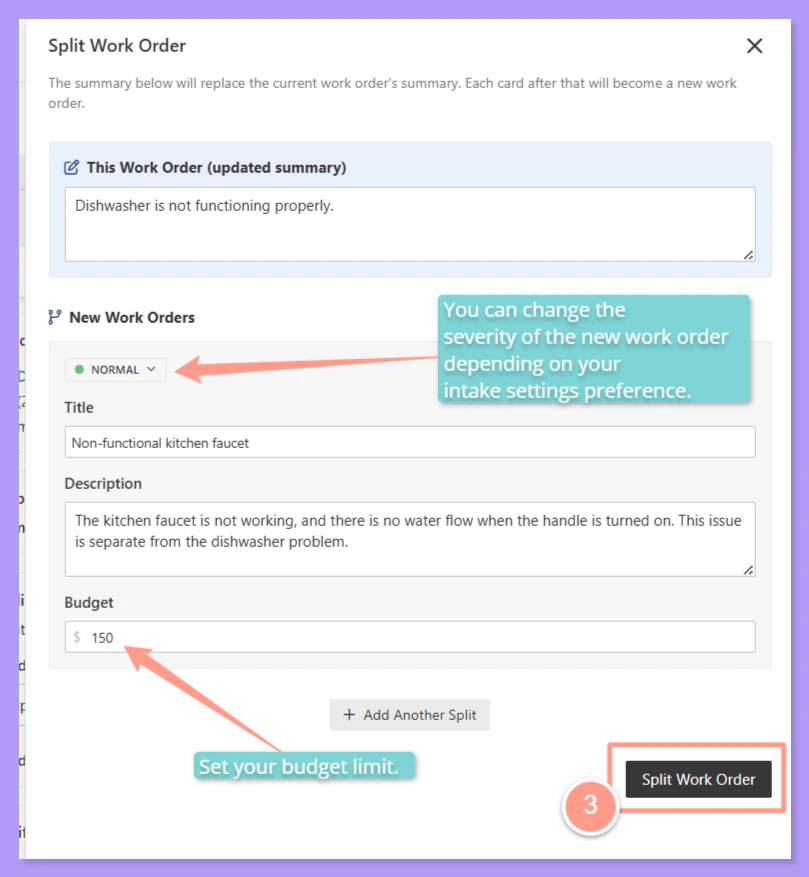
When using Split Work Order, you will need to manually select the correct severity for the new work order. The suggested budget on the split work order is pulled from the original (parent) work order, but it can be edited before confirming.
Frequently Asked Questions
Will this affect existing work orders? No. This change affects how new intake sessions are processed going forward. Existing work orders are not impacted. What if I split a work order and the budget is wrong on the new one? The suggested budget for the split work order is taken from the original work order. You can edit it before finalizing the split. Be sure to reference the property’s Intake Settings to confirm the correct severity and budget. Can I still merge work orders that were split unnecessarily? Yes! The Merge Work Orders feature is still available. If two work orders at the same property can be handled by the same service provider, you can merge them to avoid extra trip fees. Learn more about merging work orders:Merge Work Orders
Follow this help guide to combine multiple non-emergency work orders at the same property.