> ## Documentation Index
> Fetch the complete documentation index at: https://help.latchel.com/llms.txt
> Use this file to discover all available pages before exploring further.
# Adding Images and Files on a Work Order (Resident)
> As a resident, you have access to your **Resident Dashboard** from where you can access your existing and past maintenance requests. If you need to **add images and files** on any of your work orders, follow the steps below.
First, navigate to your **resident dashboard** by following the steps in the help guide:
Learn how to access and navigate your Resident Dashboard for the first time with ease.
From your dashboard, **select the work order** where you need to add a file.
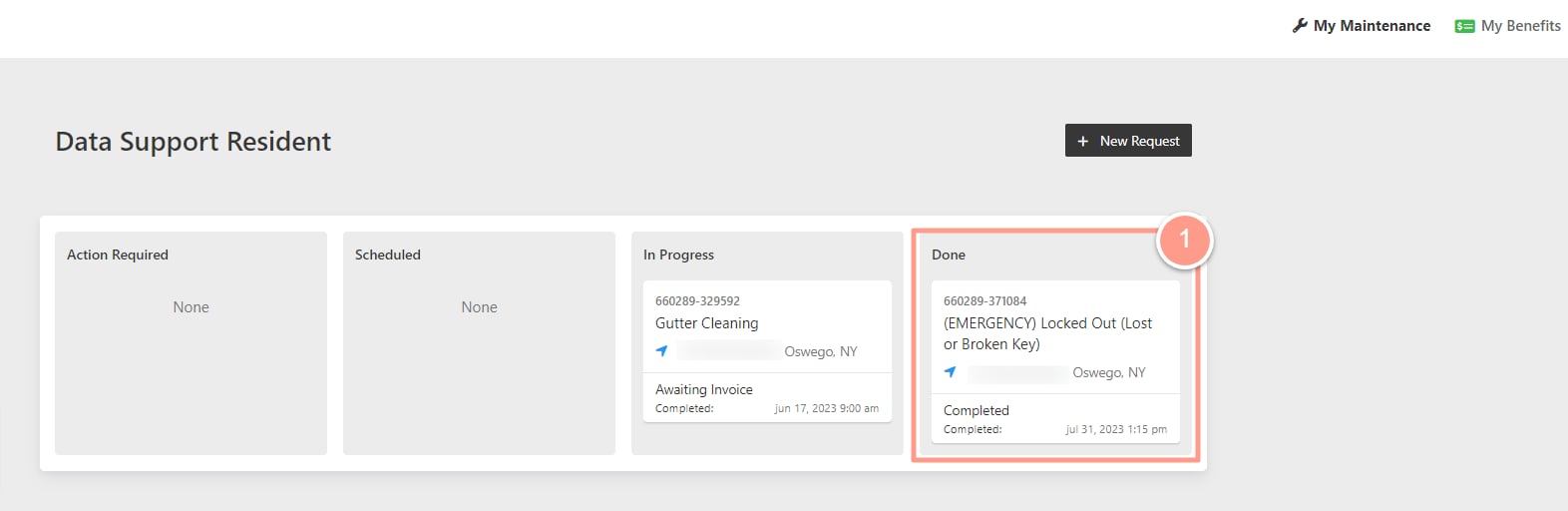 On the **Work Order Details** page, click **Provide Work Order Update**.
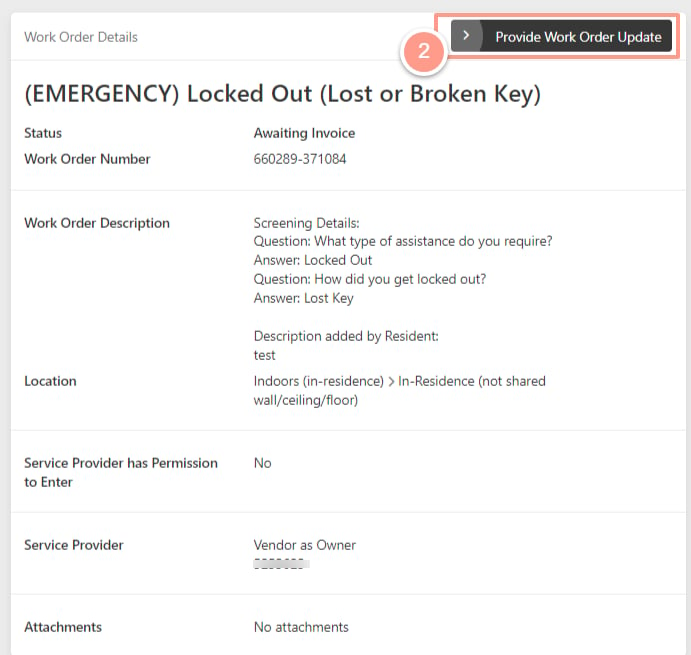 Then select **Add Images and Files**.
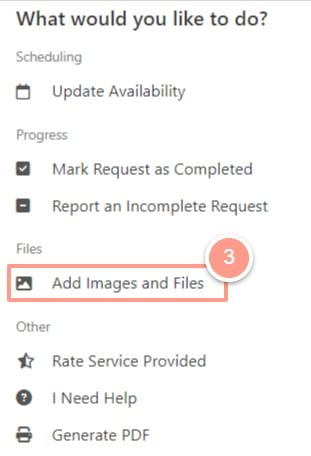 Next, click **Choose Images/Files.** Depending on your computer's settings, your drive folders will pop up on your screen.
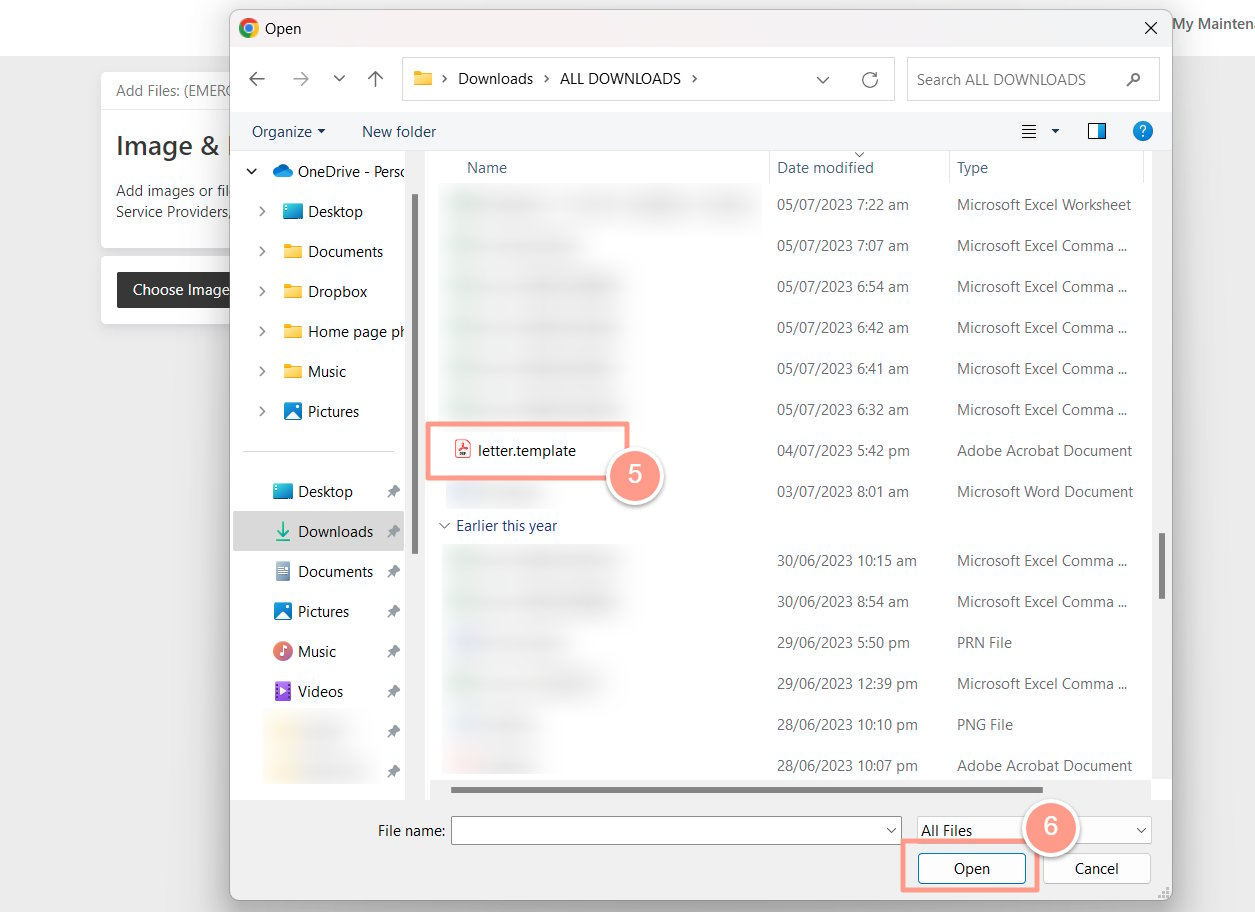
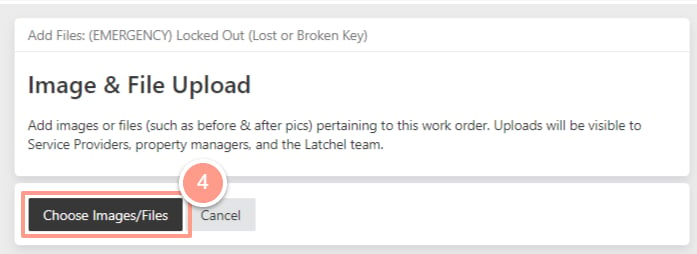 Afterward, select the **file or image** that you want to upload from your computer to the work order. Click **Open** to upload the file.
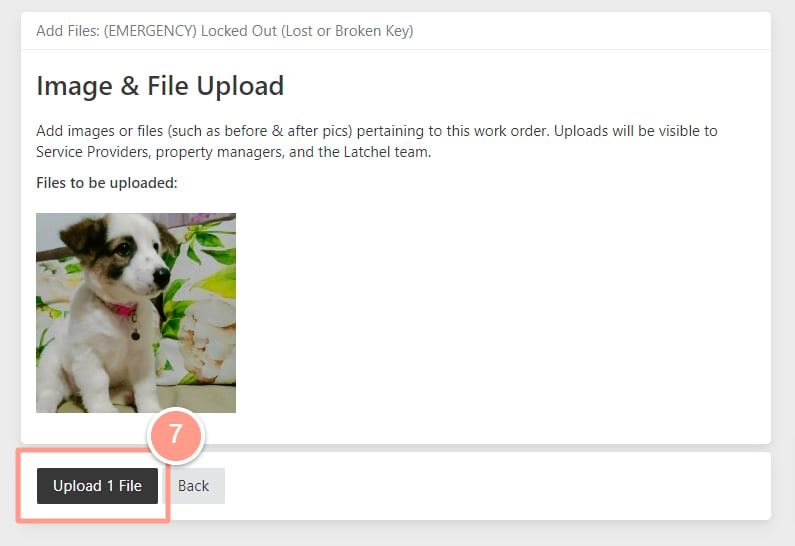
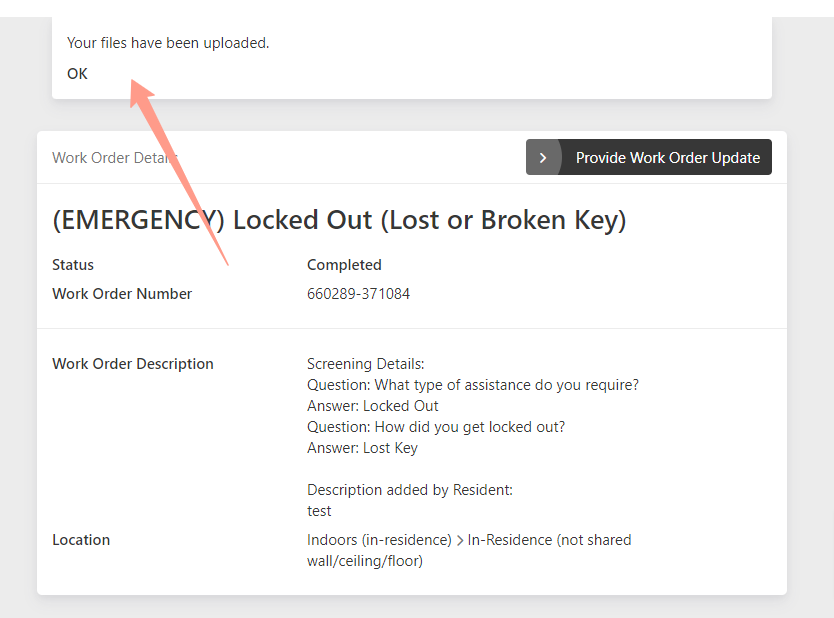
 Finally, click **Upload File** to upload the images or files you've selected. A confirmation message at the top of the next page will show that the image/file is uploaded.
You can also add **videos** to a work order at any time except when the work order is completed/cancelled.
Finally, click **Upload File** to upload the images or files you've selected. A confirmation message at the top of the next page will show that the image/file is uploaded.
You can also add **videos** to a work order at any time except when the work order is completed/cancelled.
 And that's it! Congratulations on uploading your images or files for your work order!